The Help Menu Settings allow you to control where the Help button directs staff when they click it inside the Table Tap Go (TTG) Server interface. This feature is useful for providing quick access to support documentation, training resources, or internal troubleshooting guides.
Accessing Help Menu Settings
-
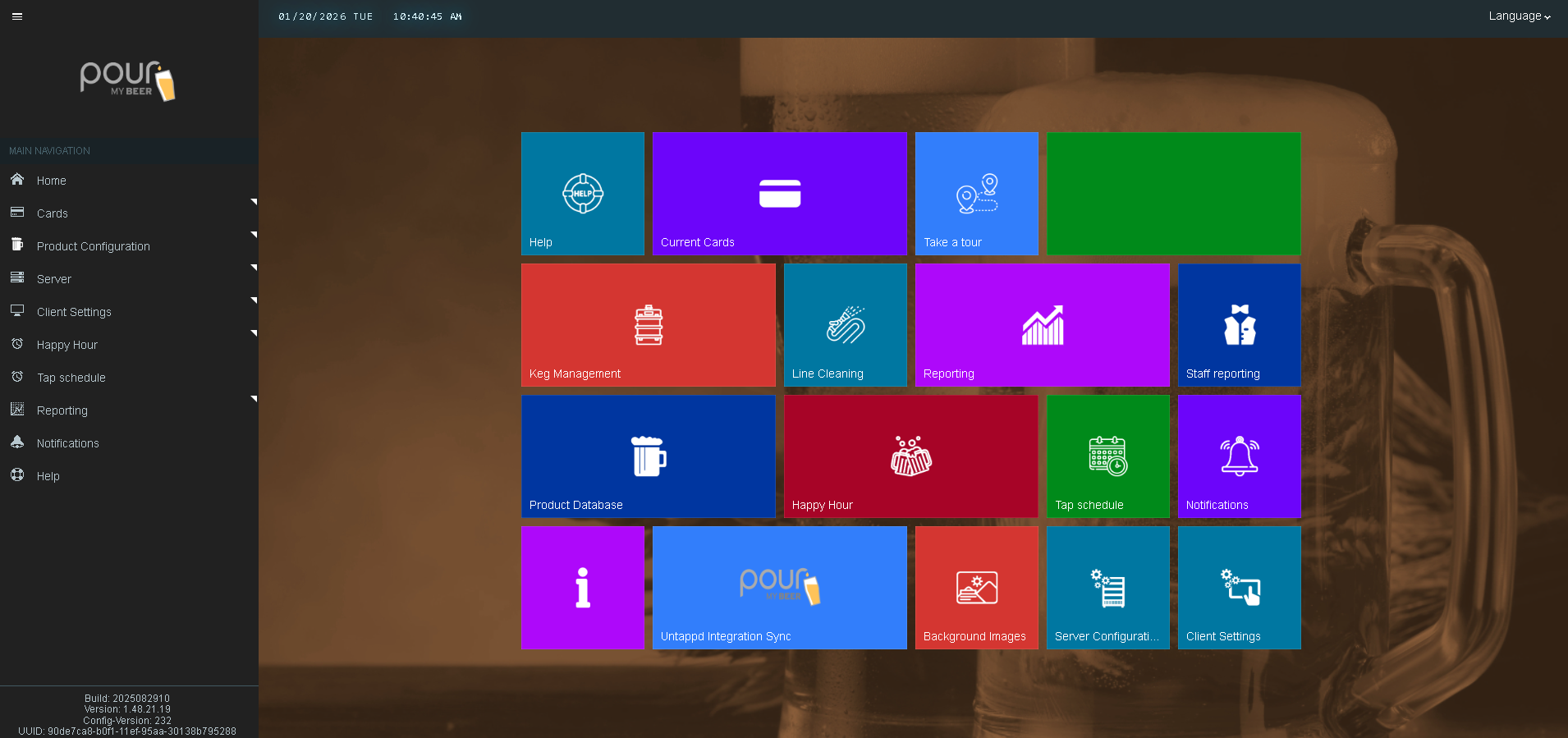
Open the Table Tap Go Server Management Page
-
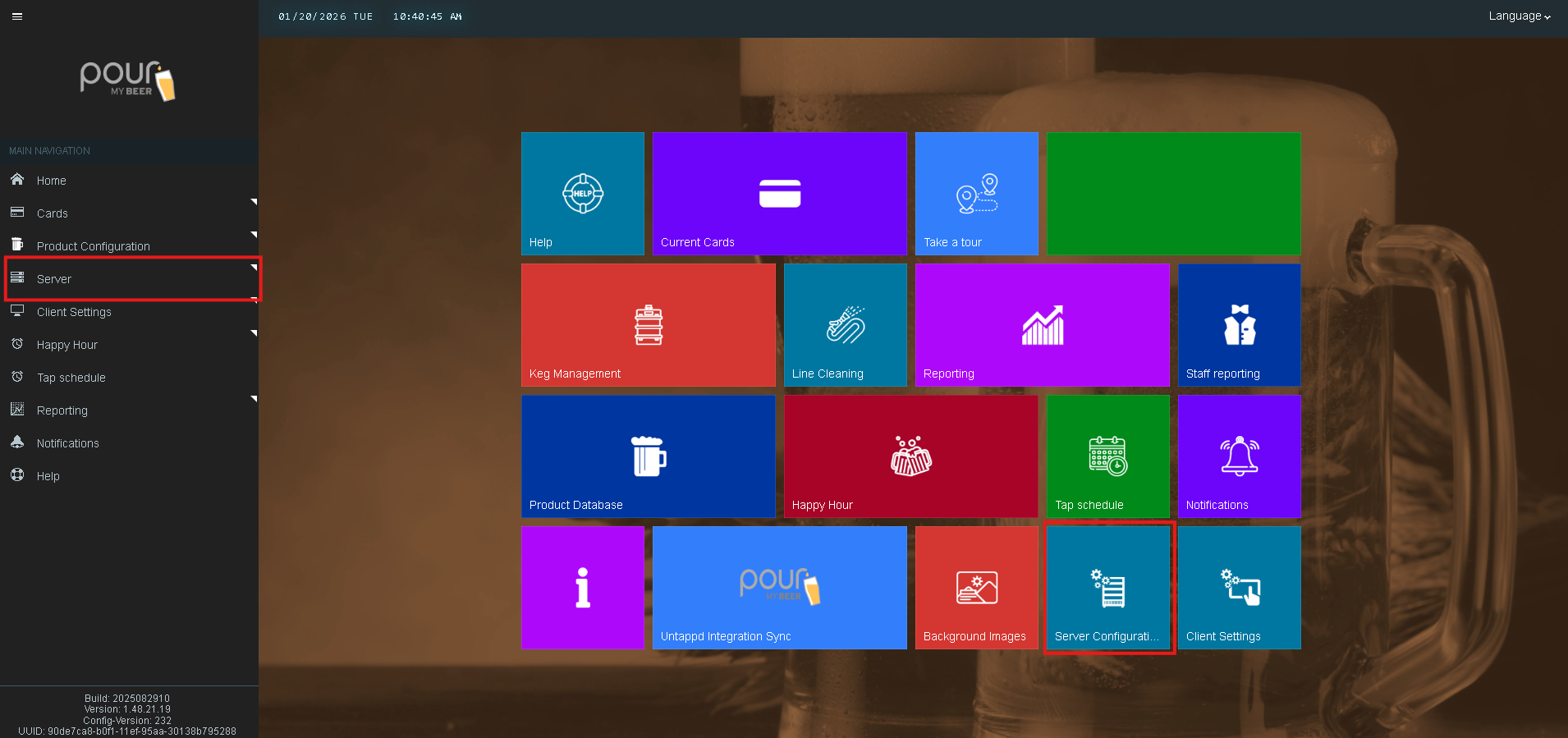
Navigate to Server Configuration.
-
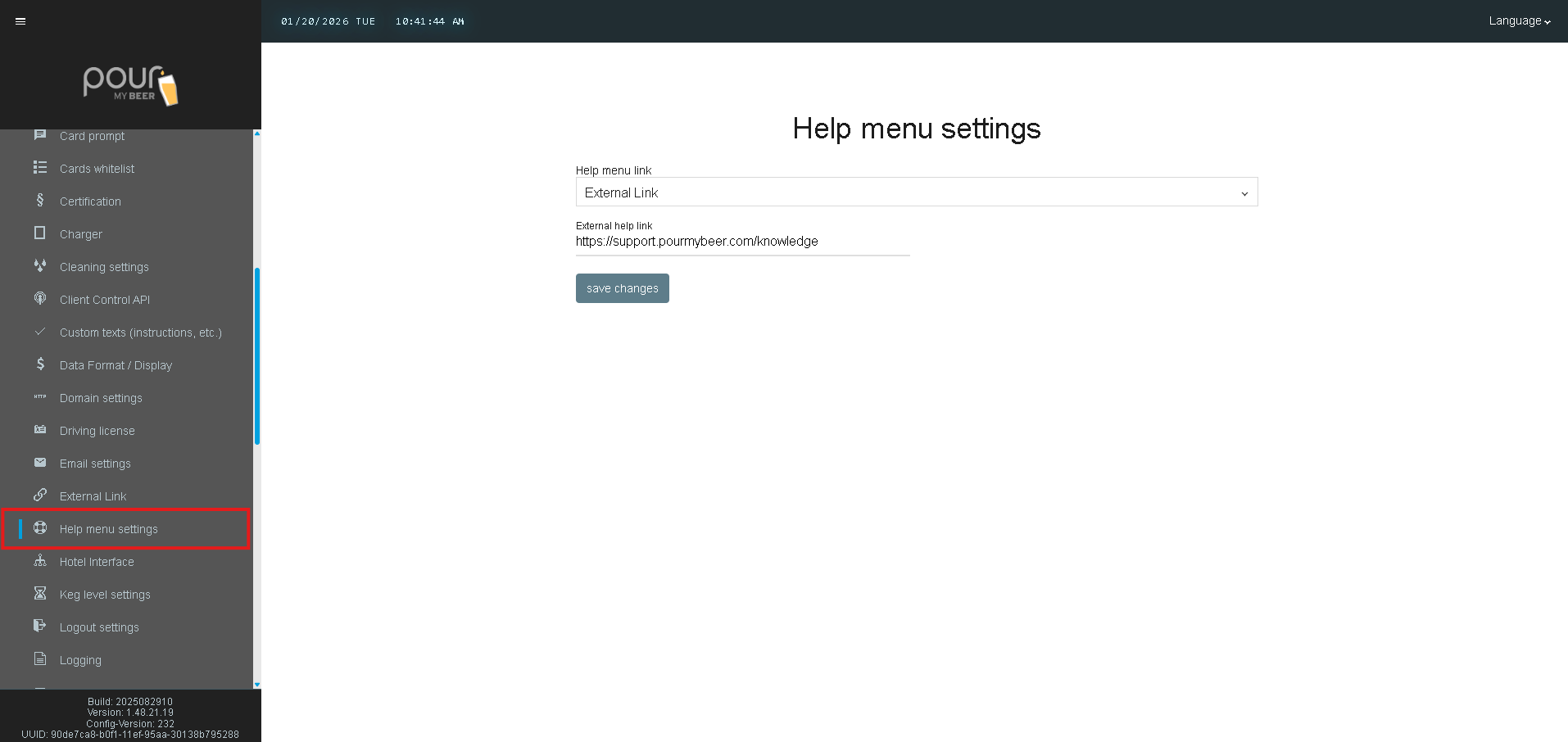
Select Help Menu Settings.
Help Menu Settings Explained
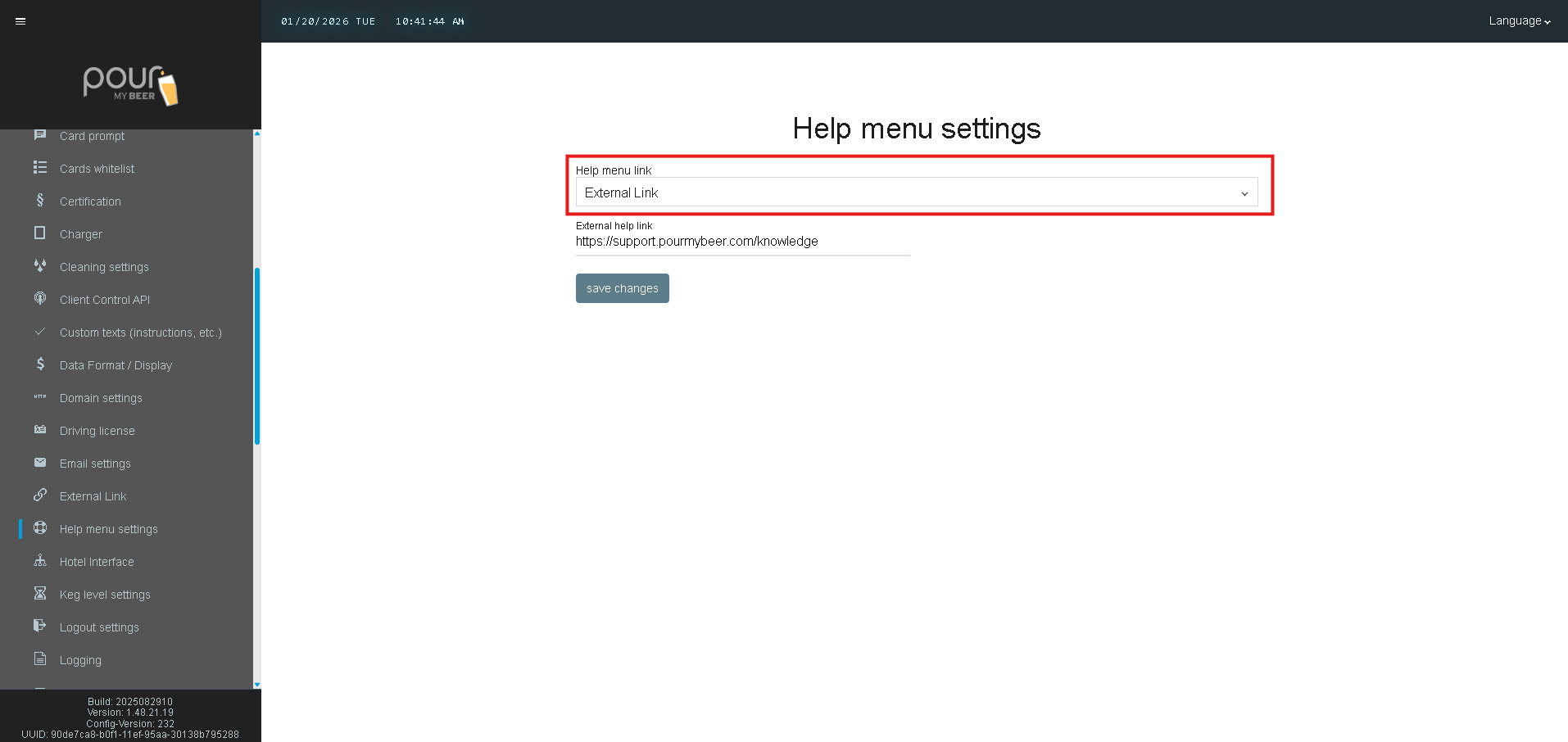
Help Menu Link
This dropdown controls what the Help menu opens when selected.
Example option shown:
-
External Link
Depending on your installation, available options may include:
-
External Link
-
Default System Help
-
Other internal help destinations
External Help Link
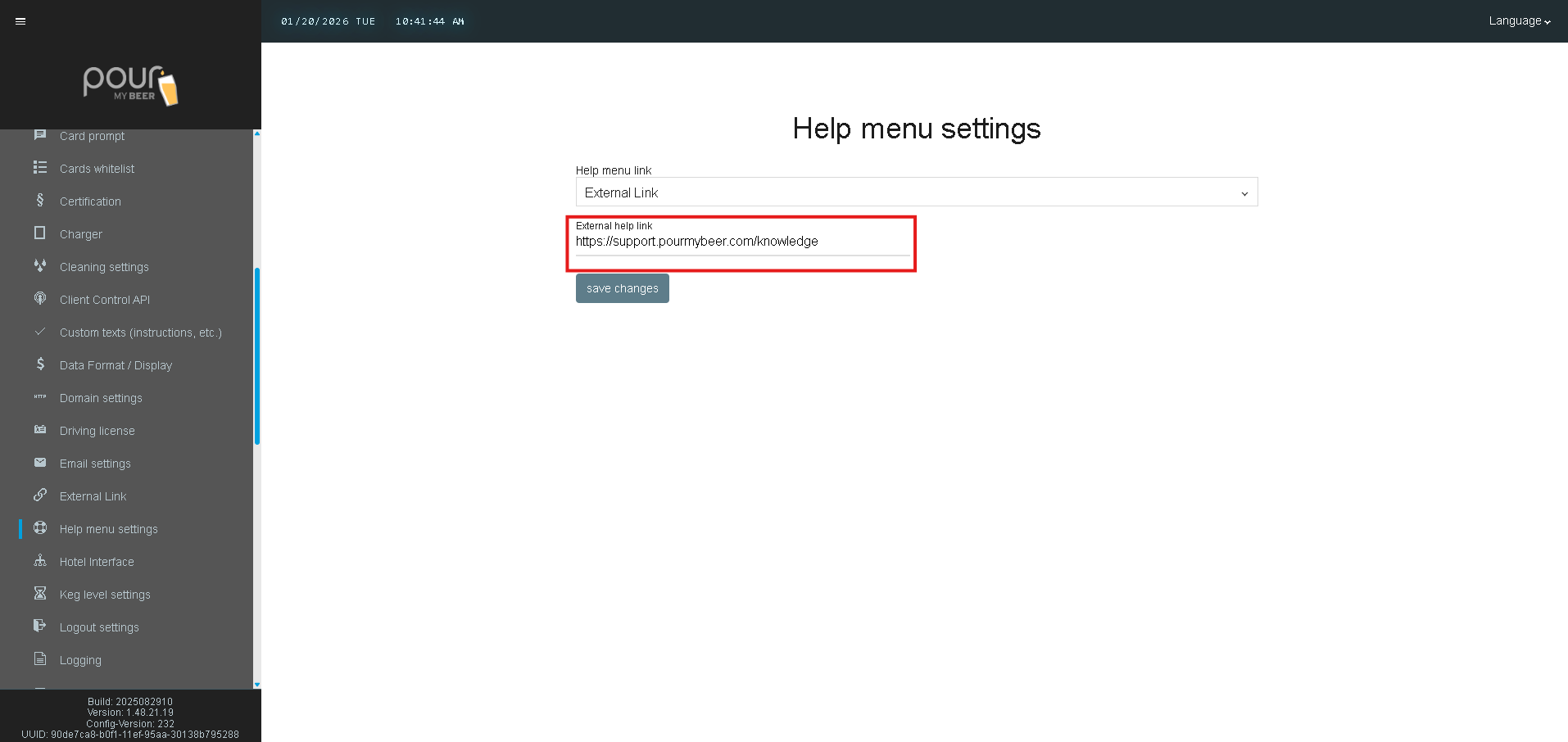
If External Link is selected, this field defines the URL that will open when the Help menu is clicked.
Example shown:
https://support.pourmybeer.com/knowledge
This is commonly set to:
-
Your venue’s support portal
-
PourMyBeer Knowledge Base
-
A shared internal troubleshooting page
Make sure the URL is accessible from the TTG server and/or staff network.
Saving Changes
After updating the Help Menu Settings:
-
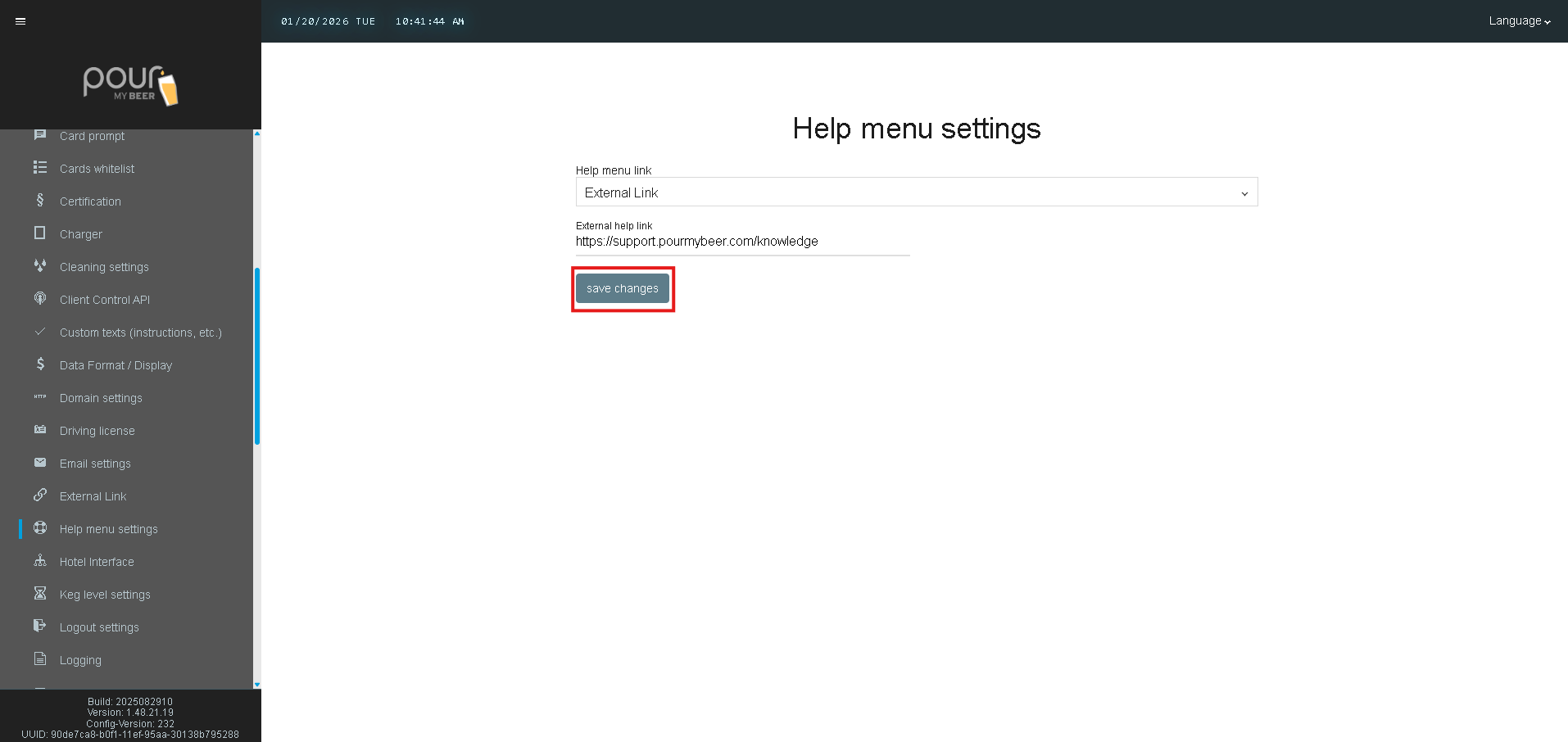
Click Save Changes
-
Refresh the server interface if needed
Your Help button will now direct to the link you configured.
Best Practices
-
Set the Help link to a page staff can access quickly during service
-
Use a clean URL that works on the TTG server network
-
Link to your most-used support resources (KB, ticket portal, troubleshooting guides)