What you need: An admin card or manager card, and the new beverage already added to your product database.
Step 1: Open Configure Valves
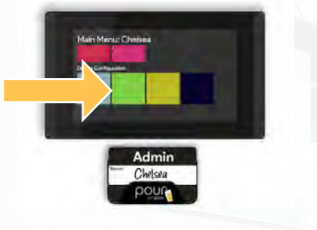
- Place your admin or manager card on the card reader of the tap screen you want to update.
- Tap Configure Valves. This is the green button.
Step 2: Pick the Tap Line
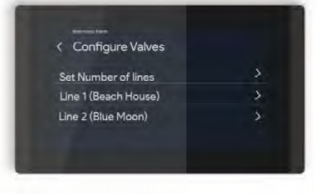
- Find the line you want to change. Each line matches one tap on your wall.
- Tap the line
Step 3: Choose the New Beverage
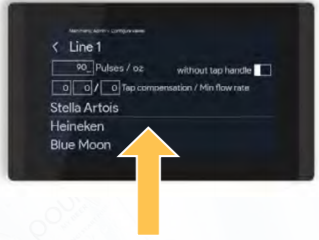
- Scroll the product list.
- Tap the beverage now hooked up to this tap.
Pulses/oz and Tap Compensation are fine to be left as the default for most products. These calculate how many ounces are coming out. If you notice any inaccuracies follow this guide.
Check Your Work
A green checkmark appears next to the beverage you picked. Back out to the main screen and confirm the tap shows the new name and price.
Beverage Not in the List
- Add the beverage to your product database. See Adding a New Product to the Database.
- Set the product to Active.
- On the Server Management page, click Send Config Update Notification. This sends the update to every tap screen.