
Creating the card
With a Pre-Pay or Online Pre-Pay card, the customer pays a specific amount upfront, you collect payment from them using whichever methods you collect payment with prior to handing the card over or loading it.
There are two types of RFID cards:
-
1K Online Only RFID Cards
- You very likely have these card types and will use the "Create Online Pre Pay" tile following this guide.
- 1K Online only RFID cards do not require the use of "Change card password" tile to activate them. They come ready to use out of the box.
-
2K Read/Write RFID Cards
- These are older. Not many locations have these anymore. These cards can have their password set using the "Change card password" tile. If you use "Change card password" and get an "invalid card type" error, this means it is not a 2K card, and instead is a 1K card and you should use the "Online..." tiles instead.
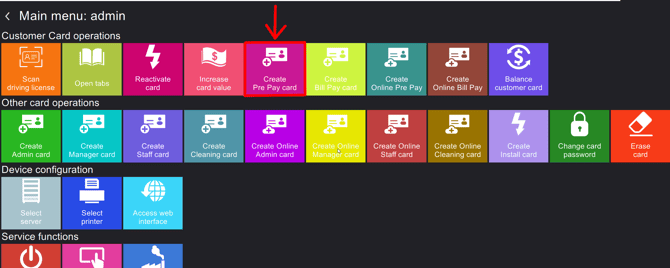
- Place your Admin, Manager, or Staff card on the RFID reader to log in.
- Under the “Customer Card operations” section, tap the "Create Pre Pay Card" or "Create Online Pre Pay" button depending on your card type mentioned above.
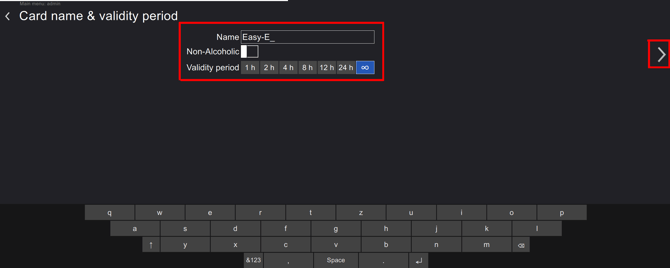
- Enter the name of your customer.
- Select the validity period (the amount of time you want the card to remain usable).
- Press the right arrow button to continue.
After the validity period is up, a staff member will have the option to reactivate the patron’s card for continued usage.
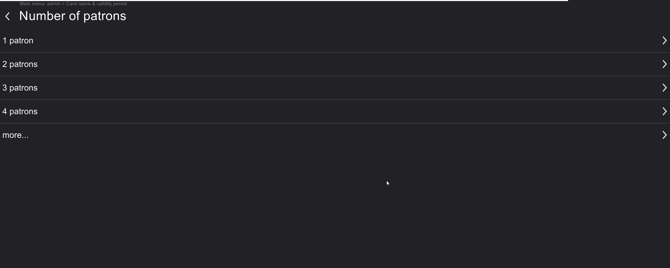
- Tap on the number of patrons that will be sharing this card.
This multiplies the responsibility limit you set under Beverage Settings by the number of patrons you choose here so choose according to your local jurisdiction and regulations.
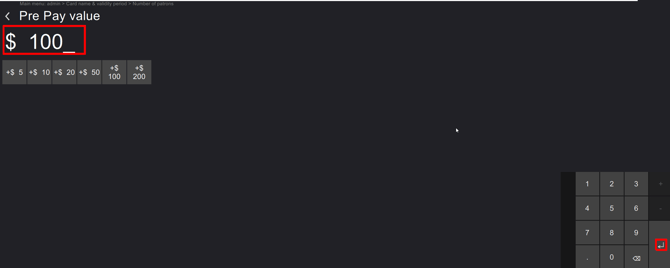
- Enter the value the customer has prepaid.
- Press the Enter/Return button when done to save the amount in the field.
- Press the next arrow.
Note: Payment will need to be processed through your current POS system or your method of accepting payments.
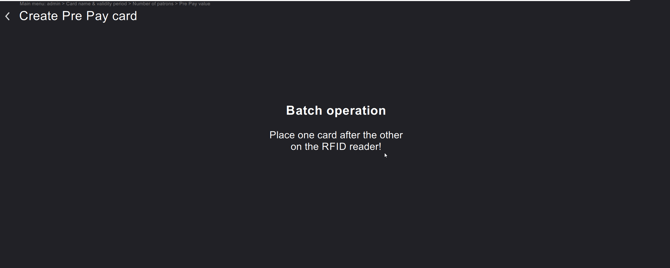
- Place the patron’s card on the RFID reader to create the new card.
You can load one card or as many as you need with this same value if you have a large event and want to pre make these pre-pay cards.
Simply place them one after the other and wait for the green circle with a check mark in it to confirm the card is made.
Balancing the card
When you balance a card, you are erasing the name and value associated with the card in order to reuse it.
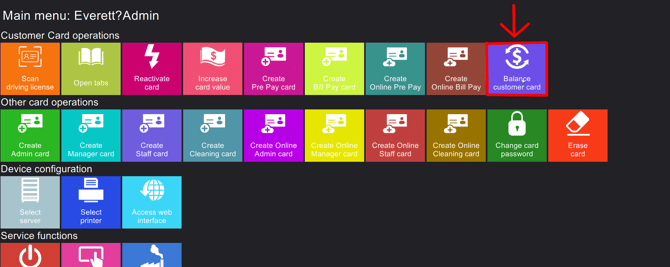
- Place your Admin, Manager, or Staff rfid card on the charger rfid reader.
- Tap the purple "Balance customer card" button.
- Place patron’s card on the RFID reader.
Note: Do not select the “Erase card” button for customer cards.
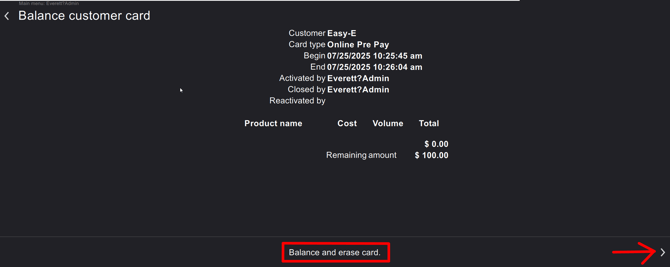
- This screen will show you a detailed view of the card’s usage.
- Note the amount left on the card under "Remaining amount". This is the amount the customer paid in advance and will require a refund/credit per your policy.
- Tap “Balance and erase card” to continue.
- Your customers card has now been cleared and a receipt will print to your designated printer(if you have a printer plugged into the charger).
- The card is now blank and able to be used for other functions.