
The External Link feature allows you to add a custom shortcut inside the Table Tap Go (TTG) Server Management interface. This is commonly used to give staff quick access to external tools such as menu integrations, reporting systems, third-party dashboards, or internal web pages.
A popular example is linking to an Untappd Integration Sync page.
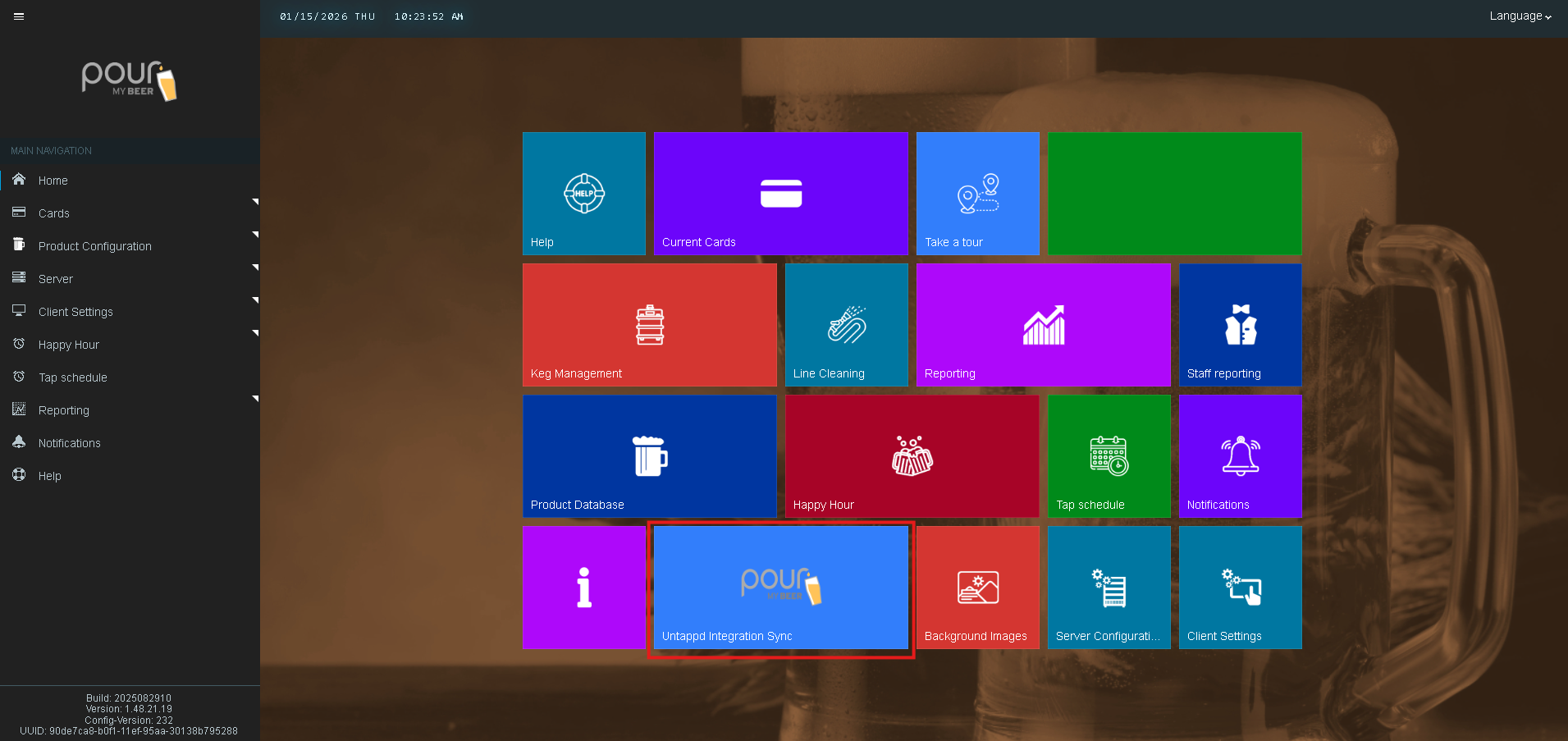
Accessing External Link Settings
-
Open the Table Tap Go Server Management Page
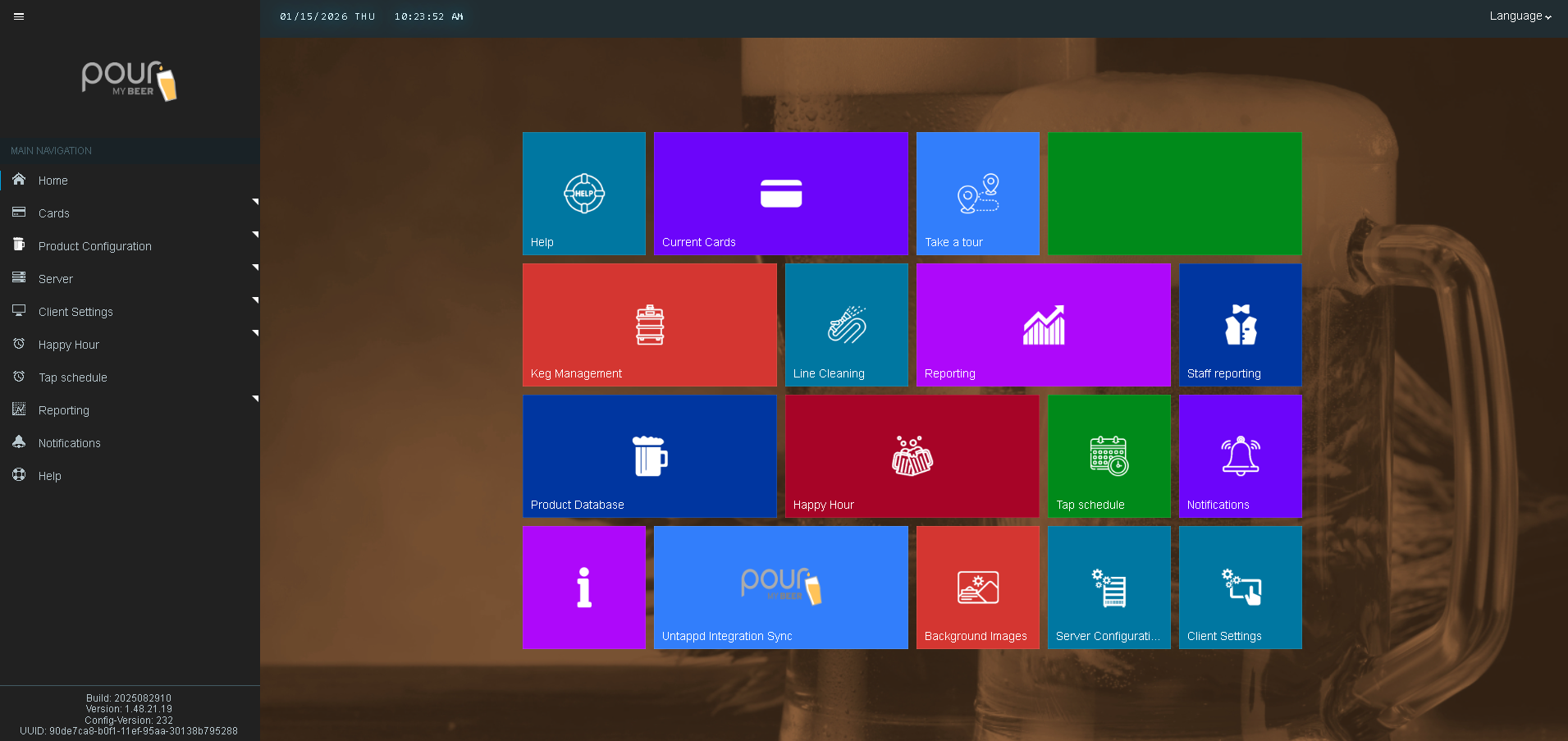
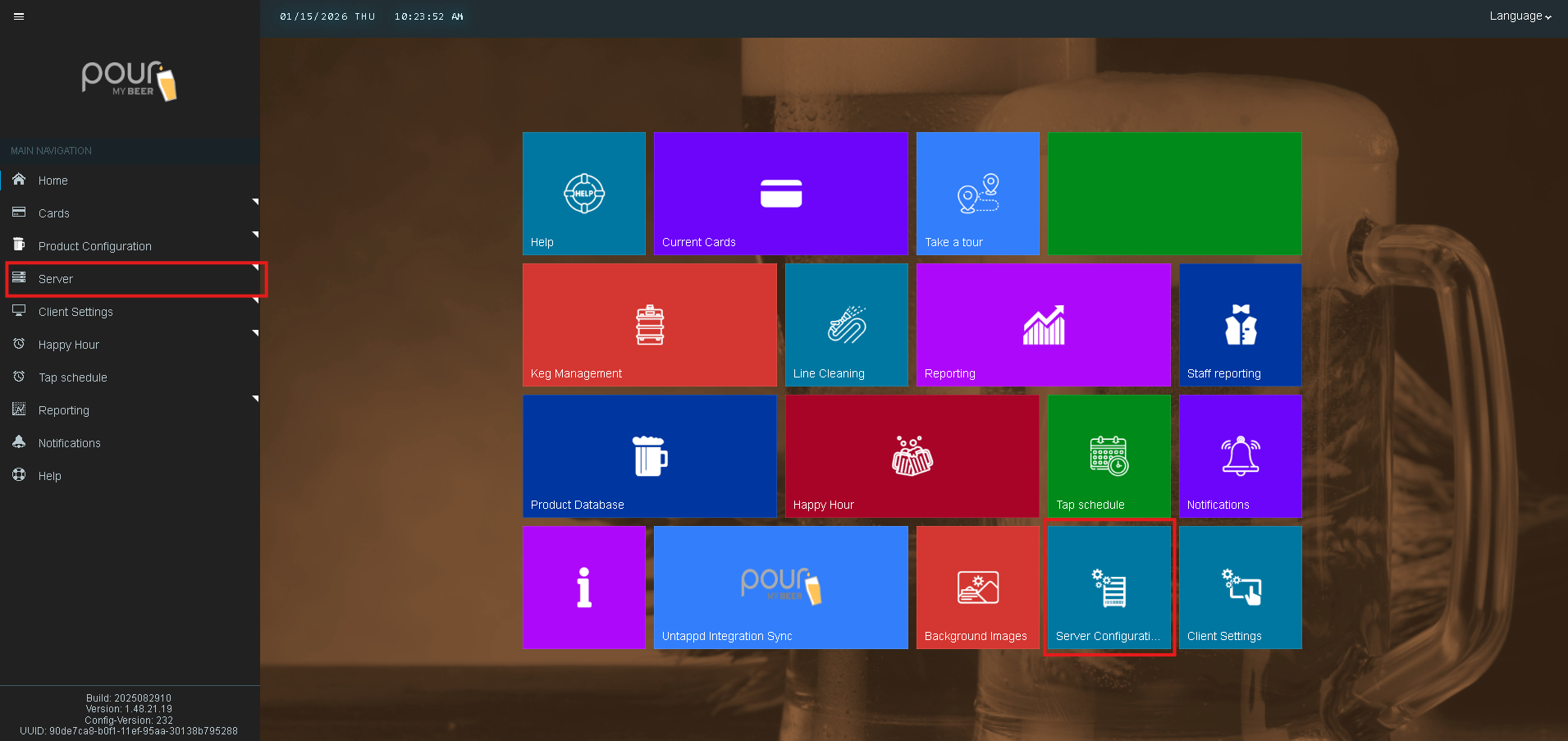
- Navigate to Server Configuration.
-
Select External Link from the settings menu.
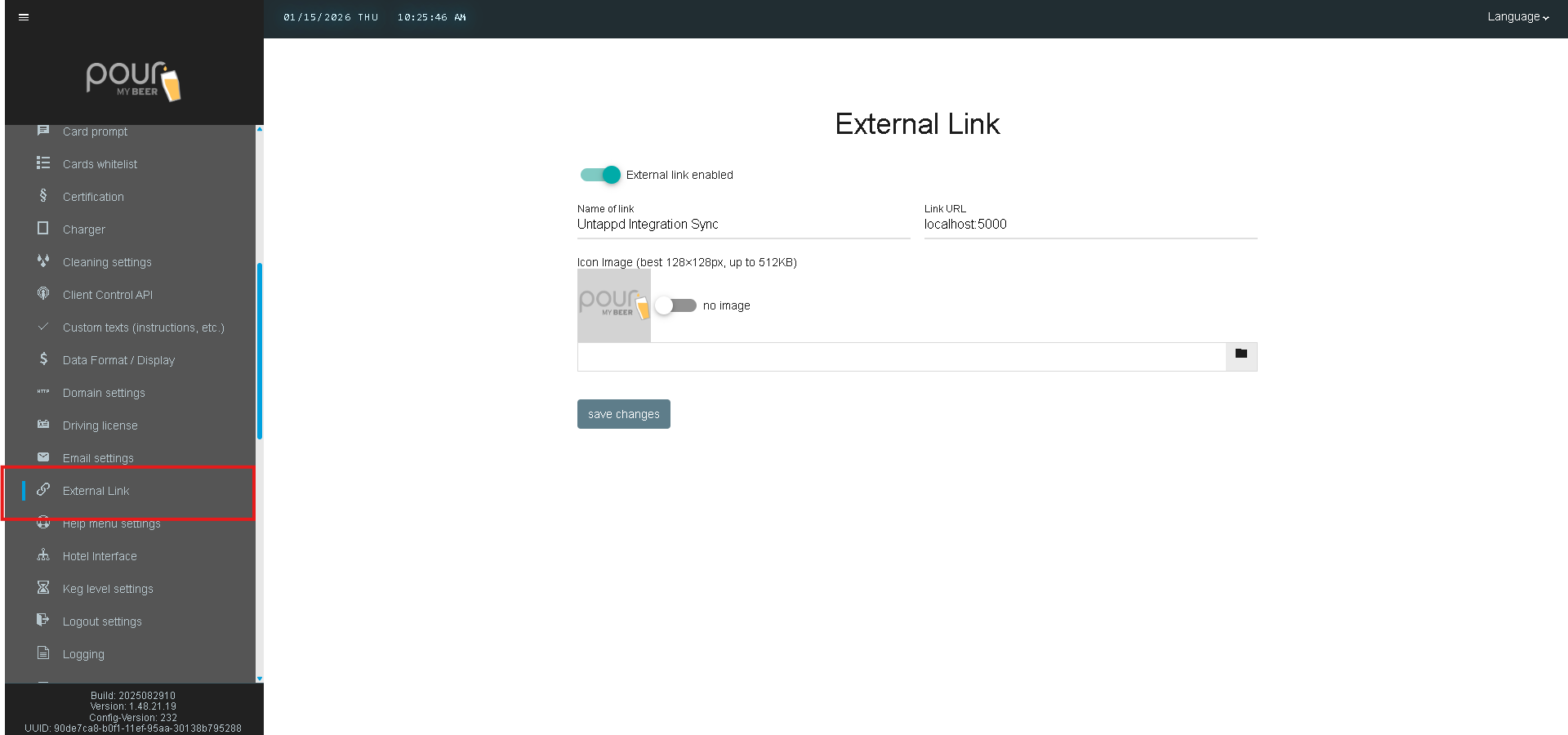
External Link Settings Explained
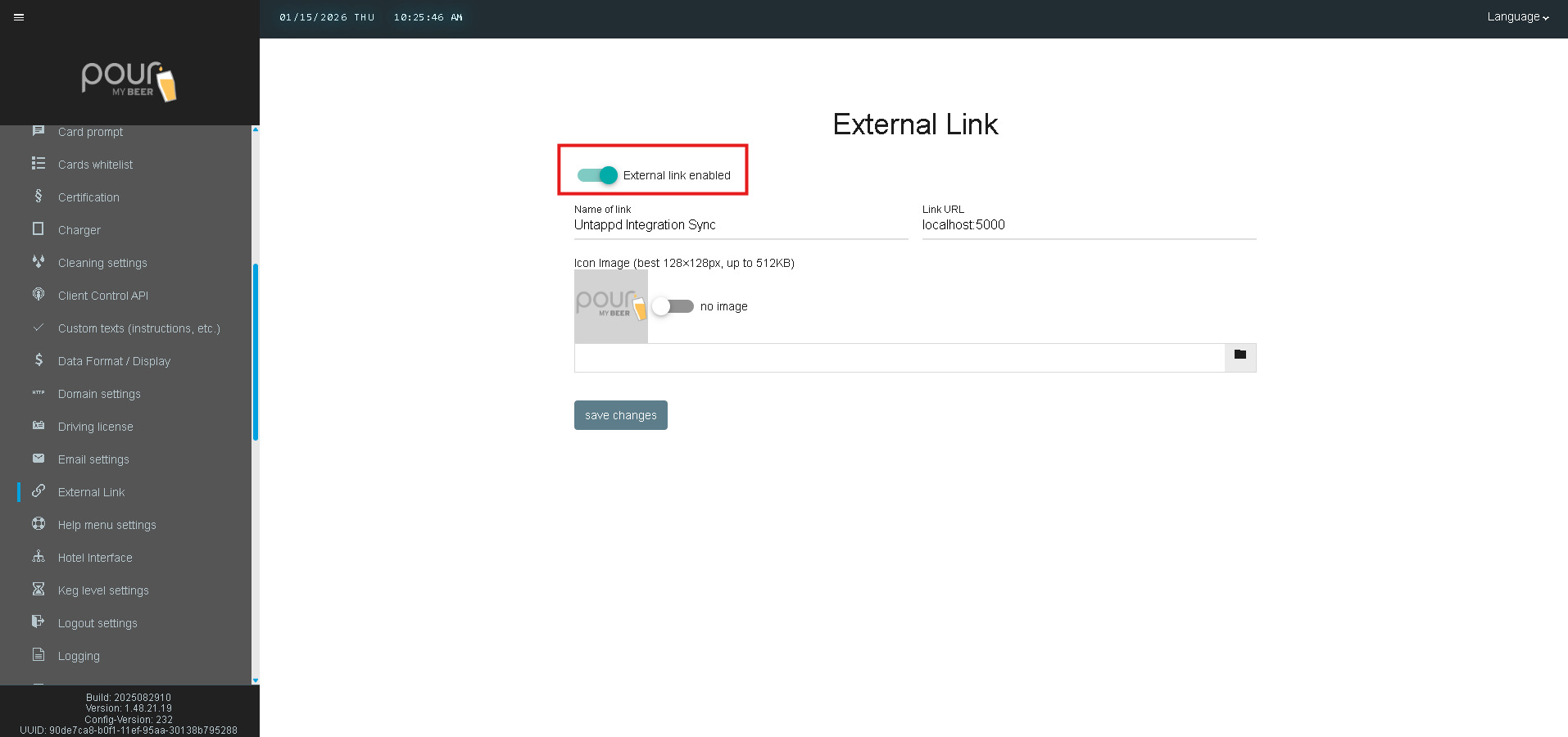
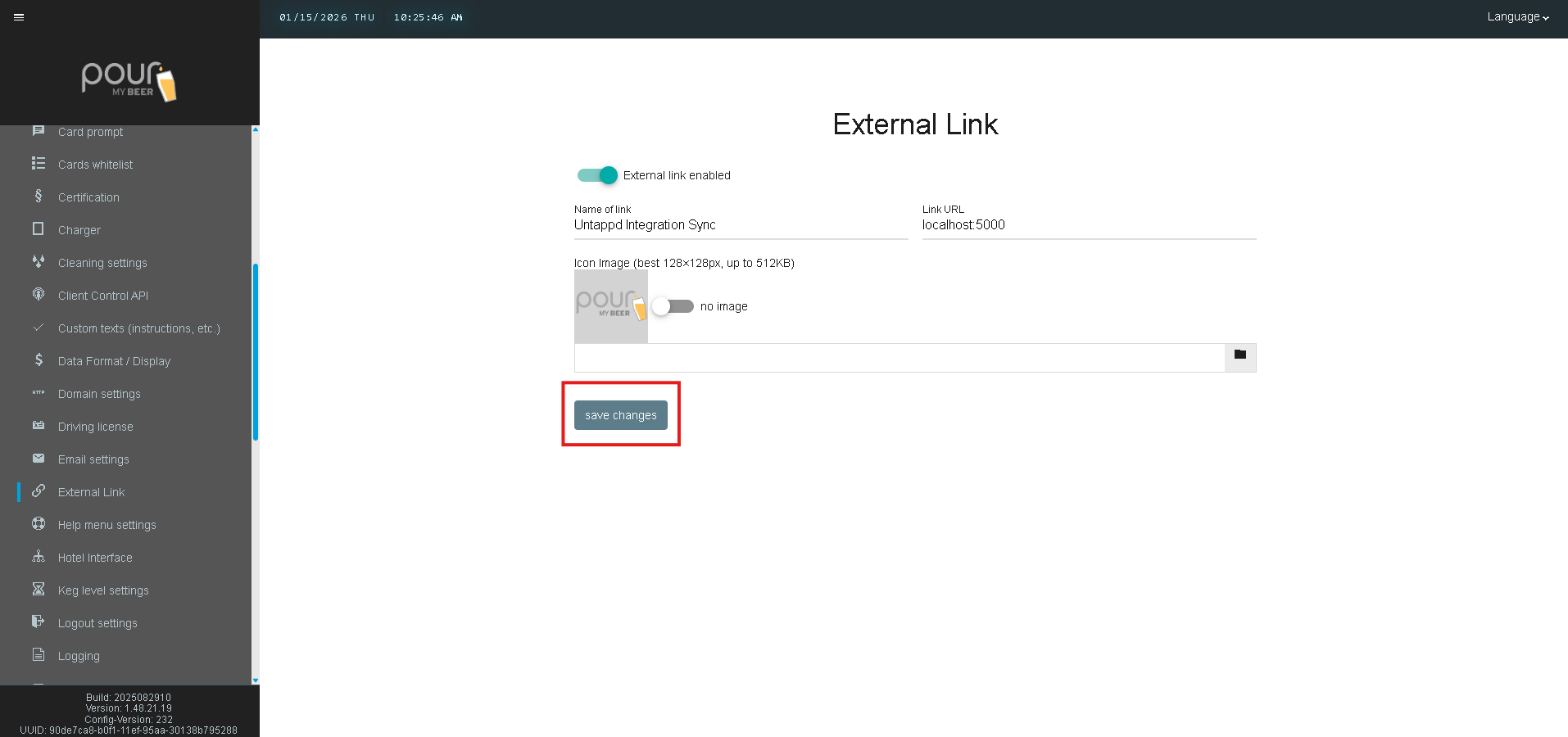
External Link Enabled
Turn this setting ON to activate the external link within TTG.
-
Enabled: the link becomes available for staff use
-
Disabled: the link will not appear
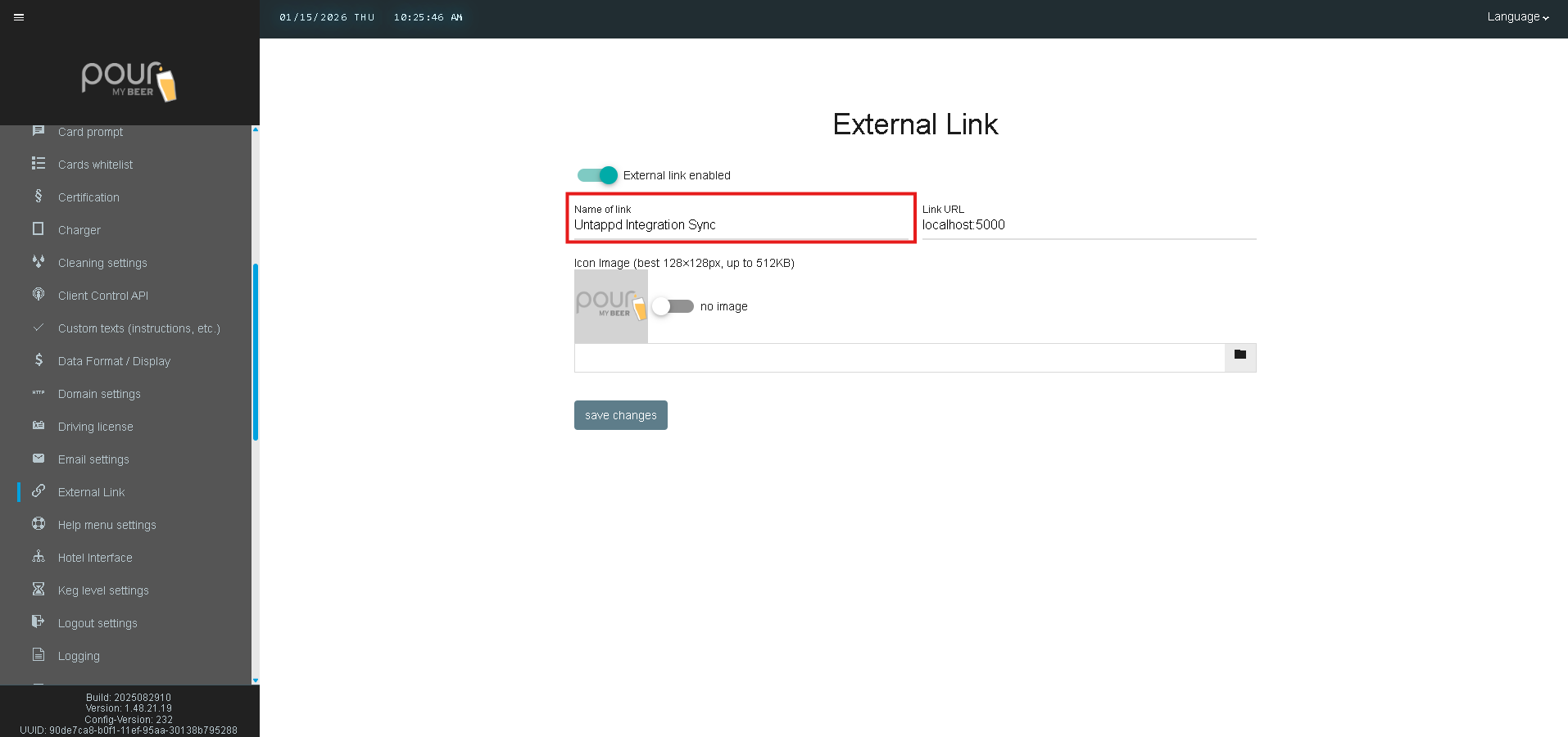
Name of Link
This is the label staff will see inside the TTG interface.
Example:
Untappd Integration Sync
Use a simple name so staff clearly understand what the link is for.
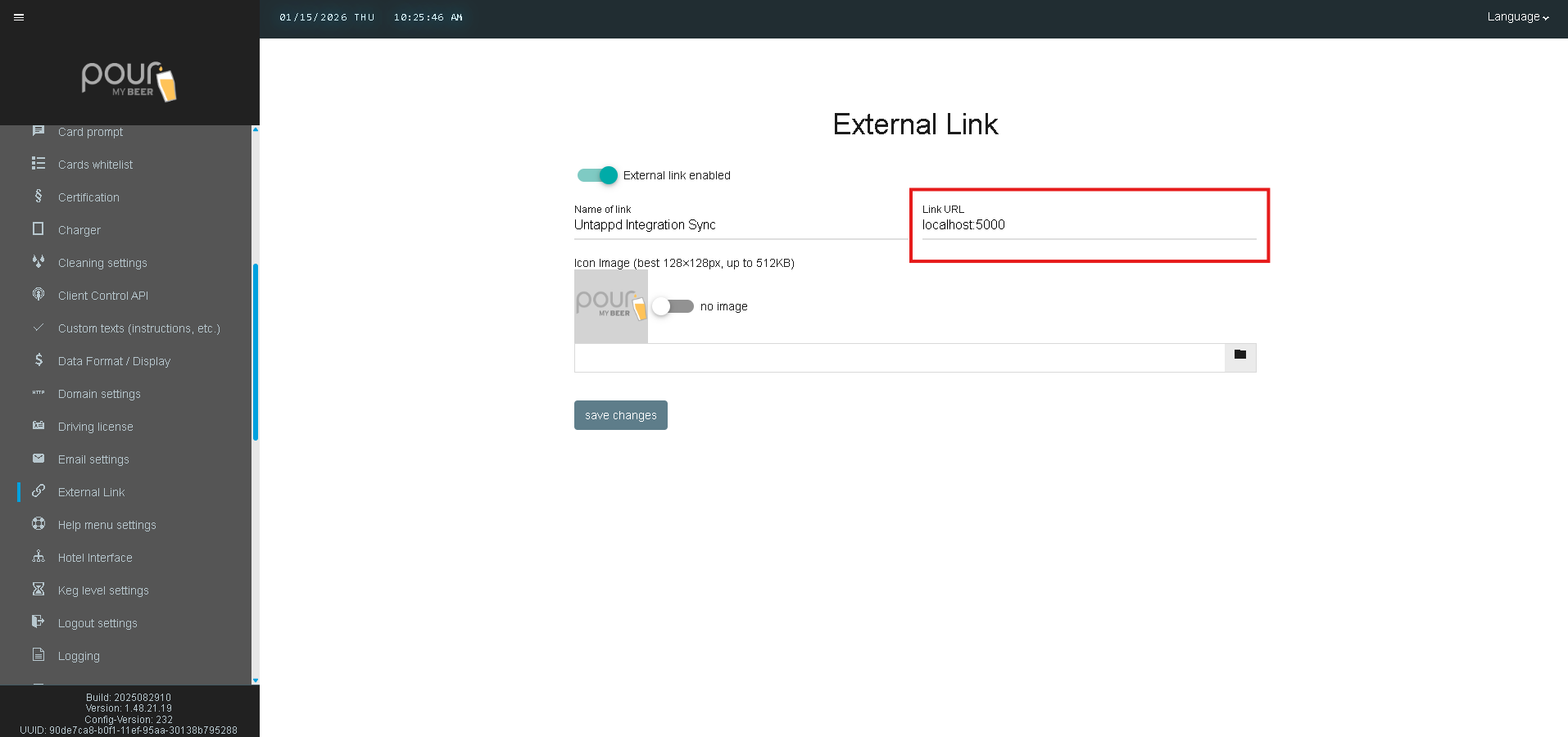
Link URL
This is the destination URL that opens when the link is selected.
Example:
localhost:5000
You may enter:
-
A local address (localhost)
-
An internal network address (192.168.x.x)
-
A full web URL (https://...)
Make sure the linked webpage is accessible from the TTG Server and/or staff devices on the network.
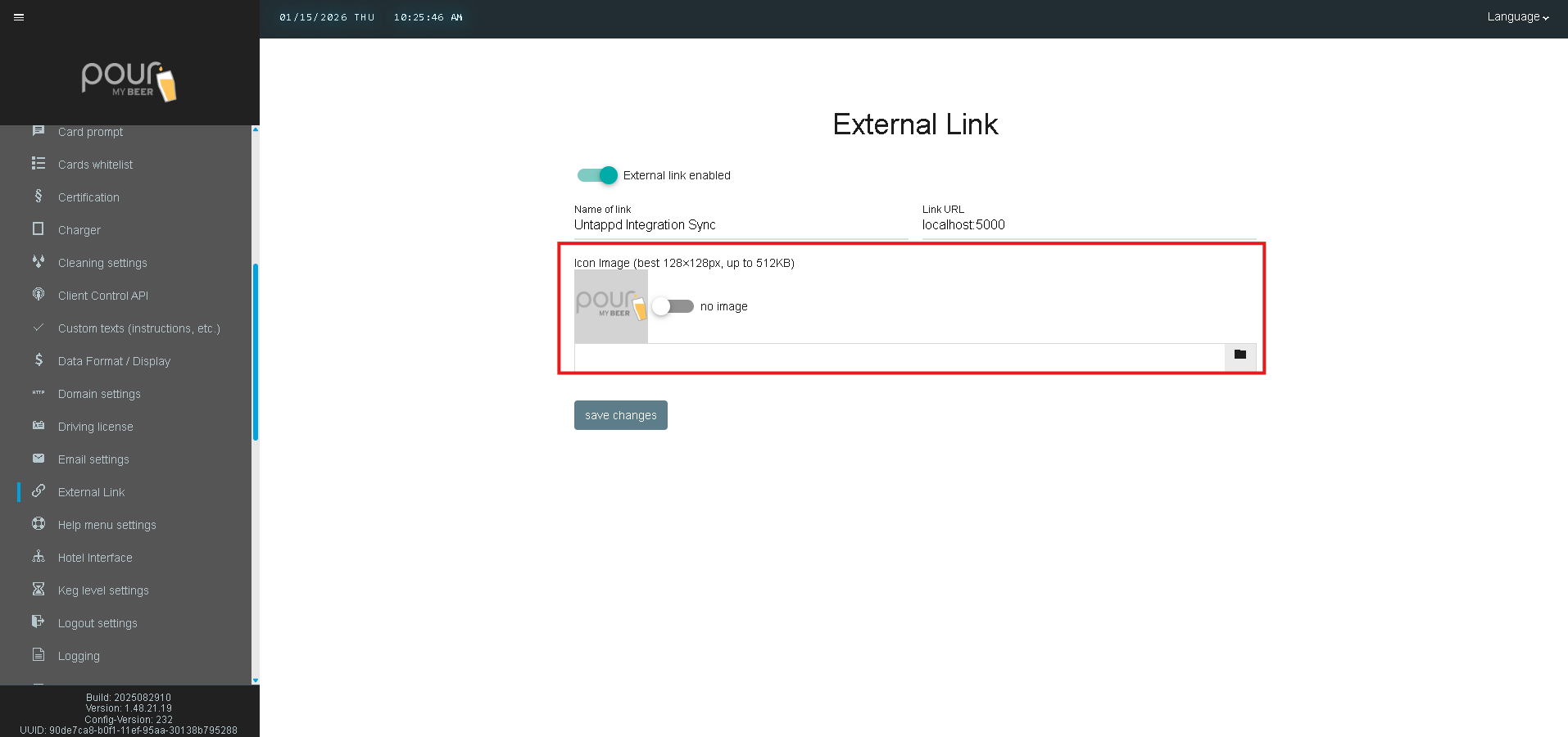
Icon Image (Best 128×128px, up to 512KB)
You can upload a custom icon to display alongside the link.
Recommended image specs:
-
128 × 128 pixels
-
File size under 512KB
If you do not want an icon, you may select No image.
Saving Changes
After entering your External Link details:
-
Click Save Changes
-
Refresh the server interface if needed
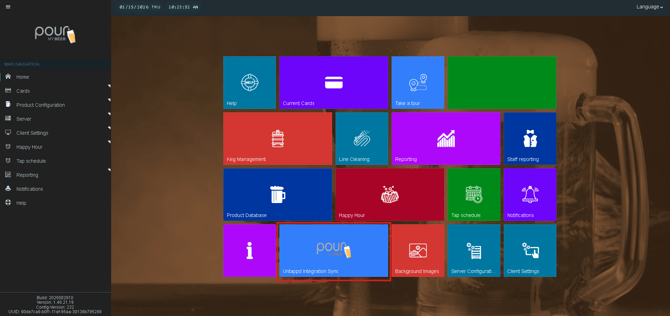
Your new external link will now be available within the TTG system.
Best Practices
-
Use links that staff will access frequently (menus, syncing tools, dashboards)
-
Keep link names short and clear
-
Use an icon that matches your tool or brand
-
Test the URL on the TTG server to confirm it opens correctly