
The Email Settings page allows you to configure the email account and SMTP server details used by Table Tap Go (TTG) to send system notifications. This is required for features such as keg alerts, system event notifications, and automated staff email messages.
This article explains each setting and how to configure it properly.
To setup email all you need to enter is the recipient email unless you want to use your own email server.
Accessing Email Settings
-
Open the Table Tap Go Server Management Page
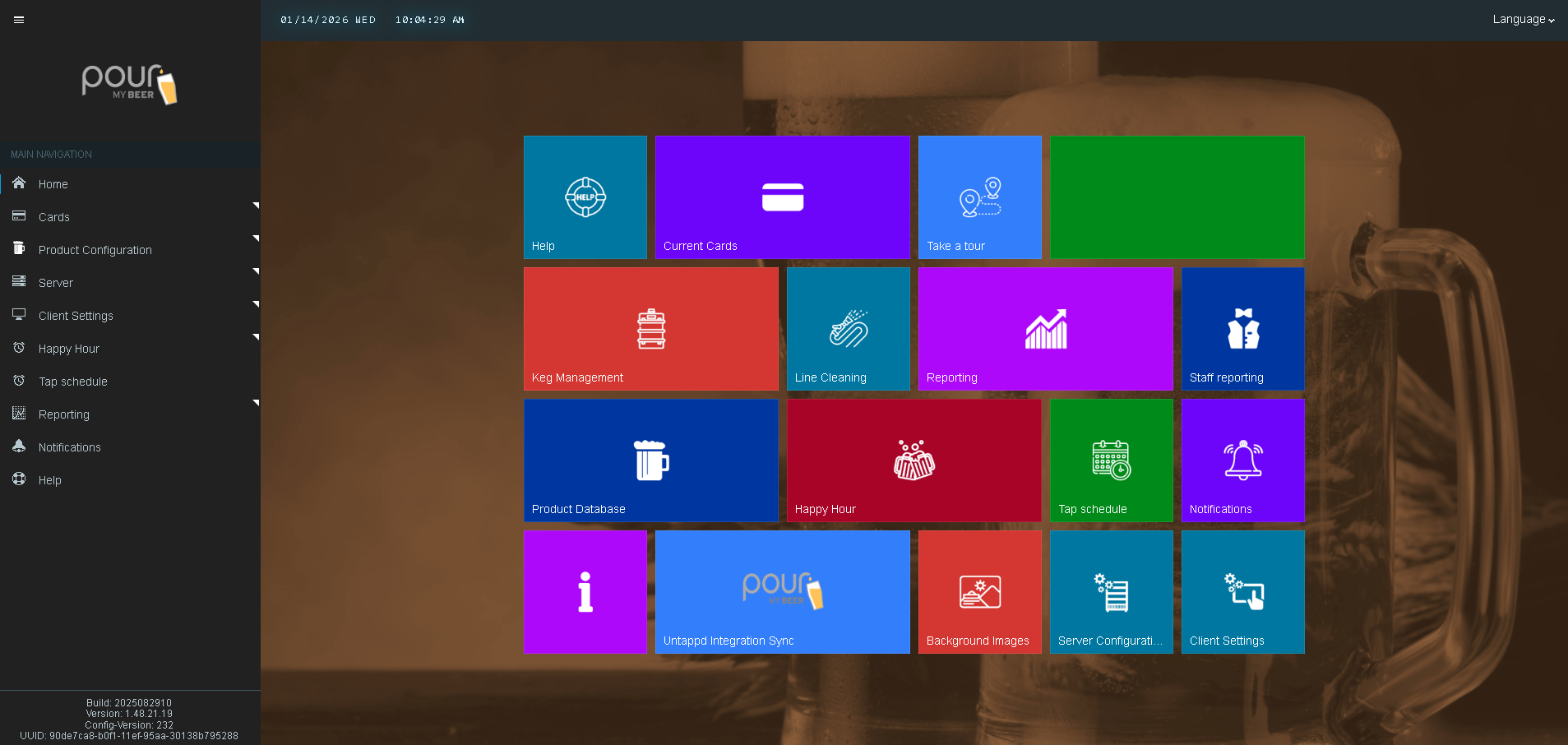
- Navigate to Server Configuration.
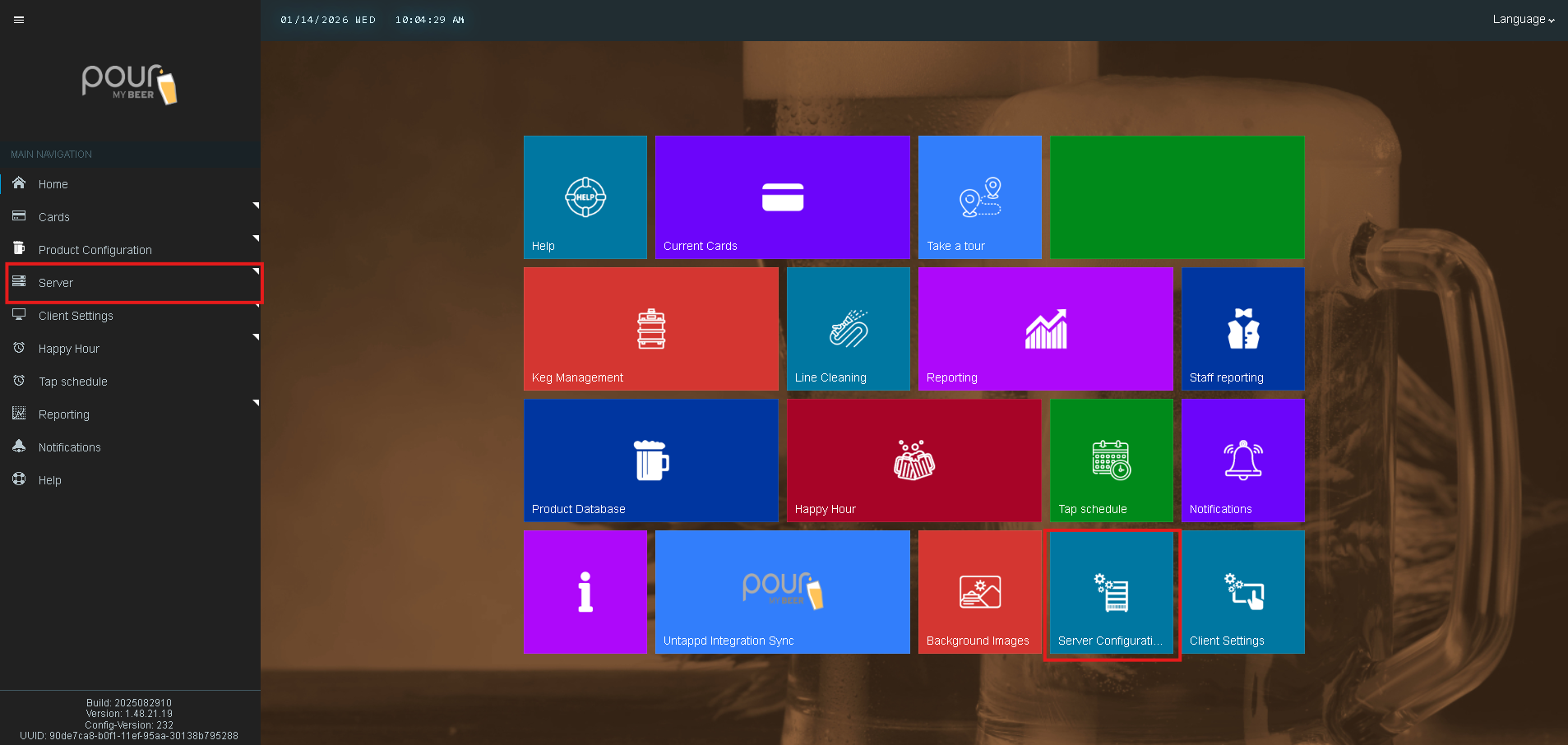
-
Select Email Settings.
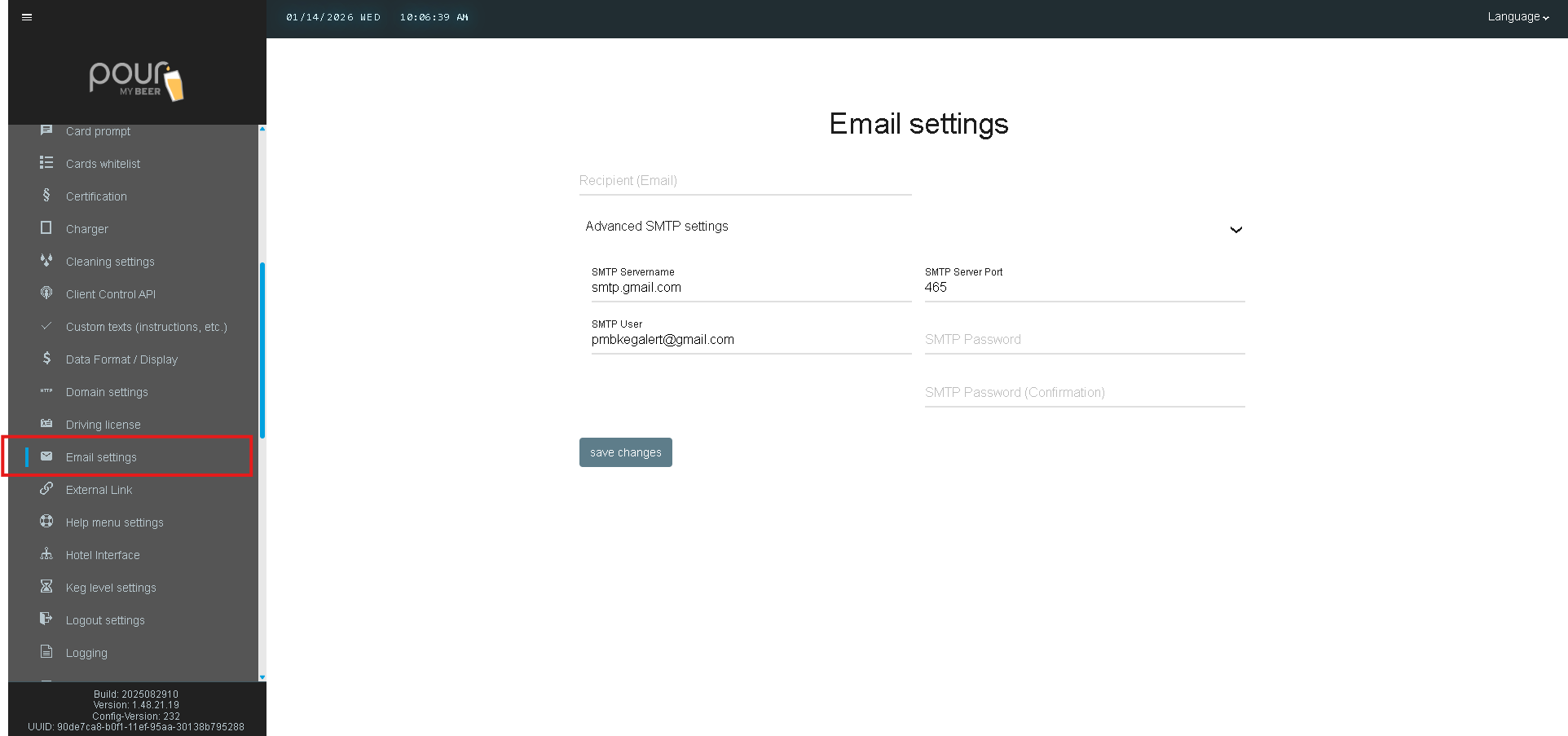
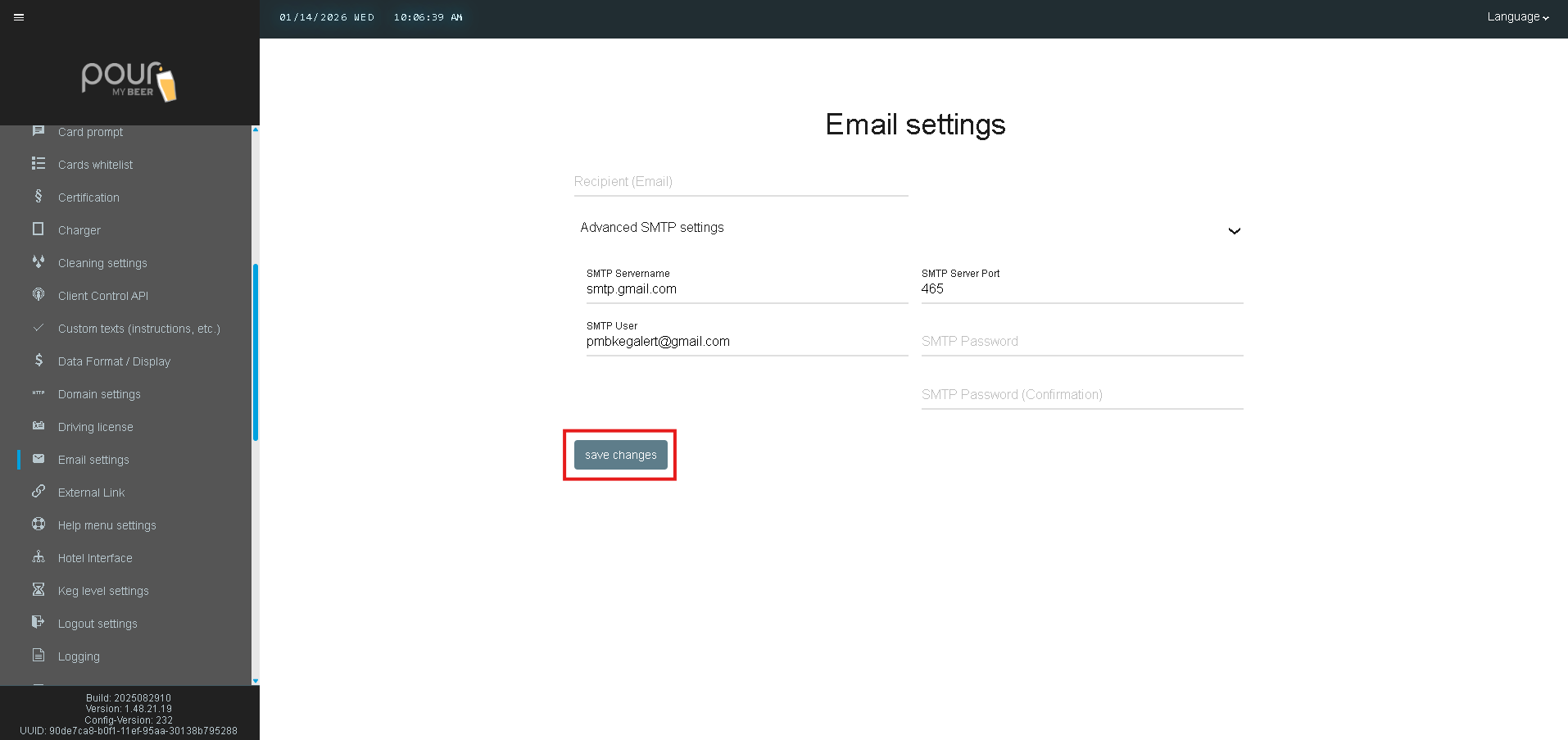
You will see a screen similar to the example shown.
Email Settings Explained
Recipient (Email)
Enter the email address where notifications should be sent.
✅ You may add multiple recipients by separating addresses with a semicolon.
Example:
manager@venue.com; bar@venue.com; owner@venue.com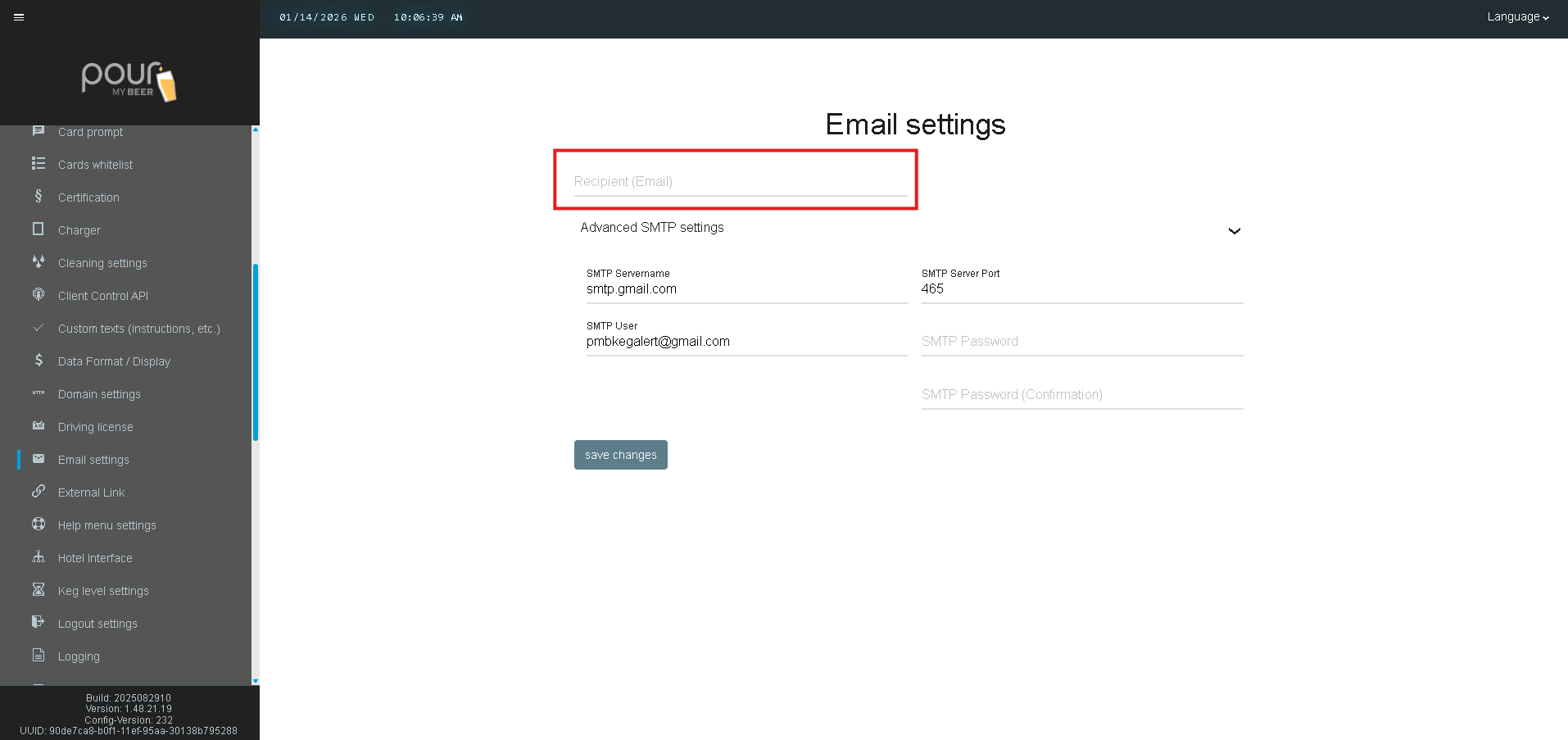
Advanced SMTP Settings
These settings control how TTG sends email messages through an SMTP server.
SMTP Servername
Defines the outgoing mail server TTG uses.
Example shown:
smtp.gmail.com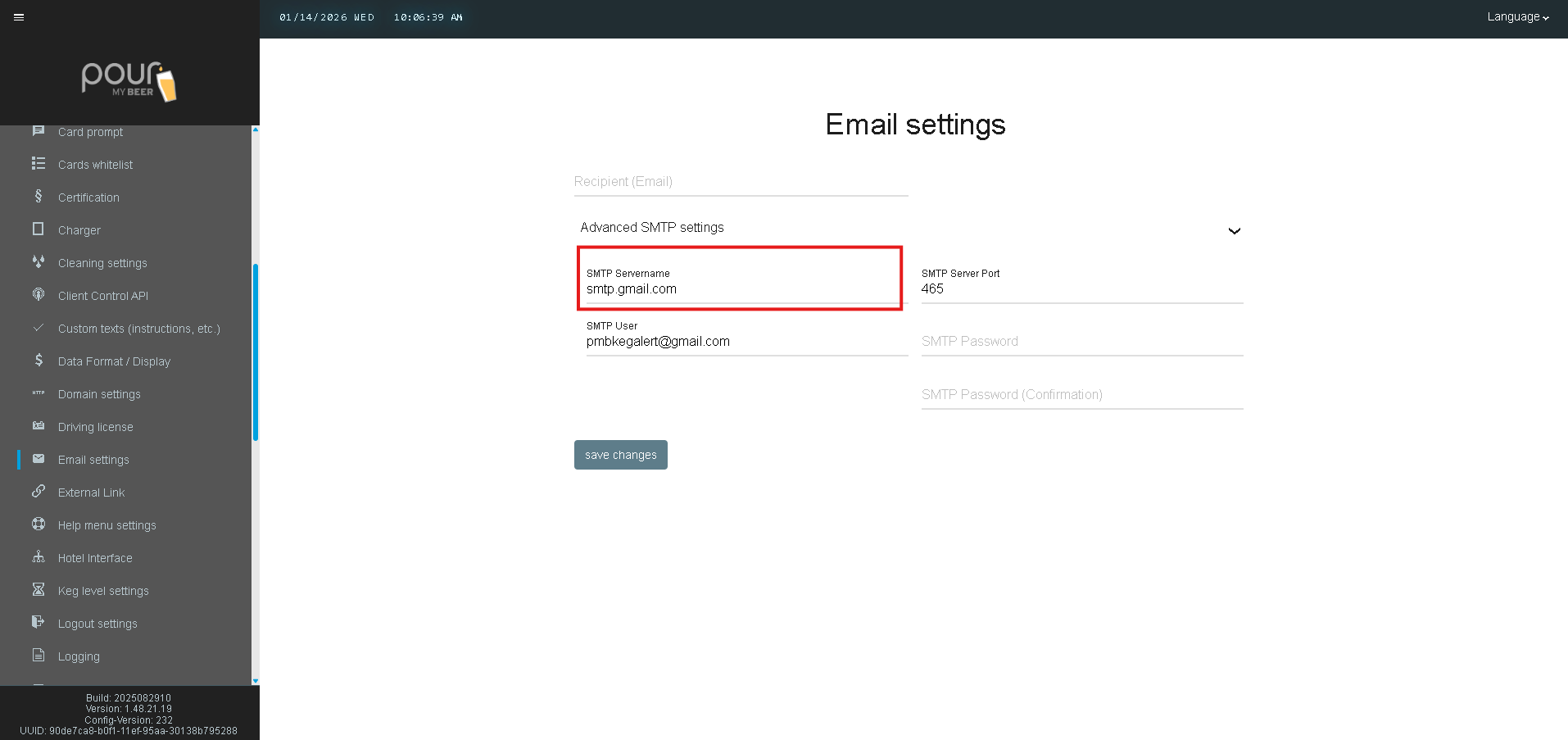
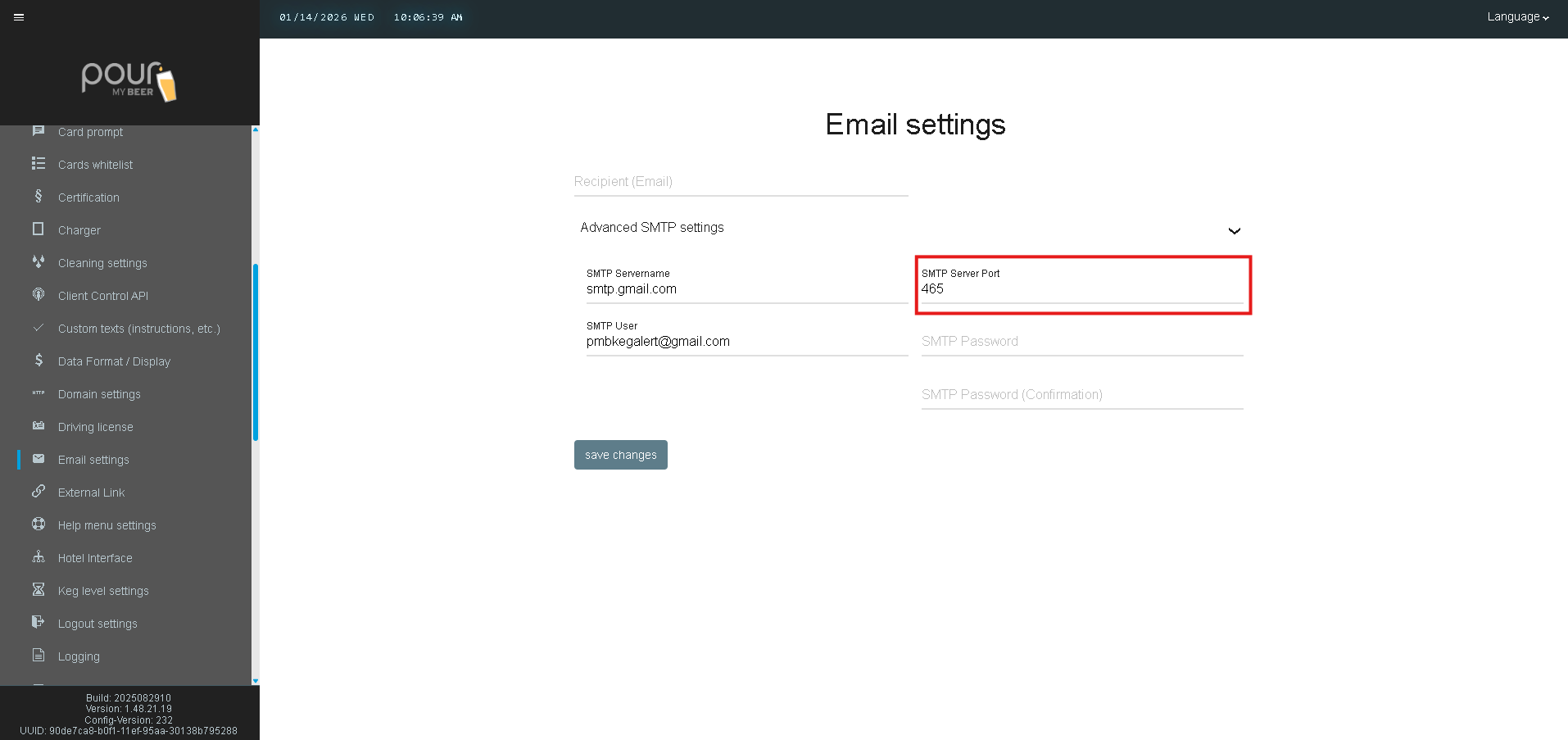
Defines the SMTP port.
Example shown:
465
Port 465 is commonly used for secure SMTP (SSL).
SMTP User
Defines the sending email account used for authentication.
Example shown:
pmbkegalert@gmail.com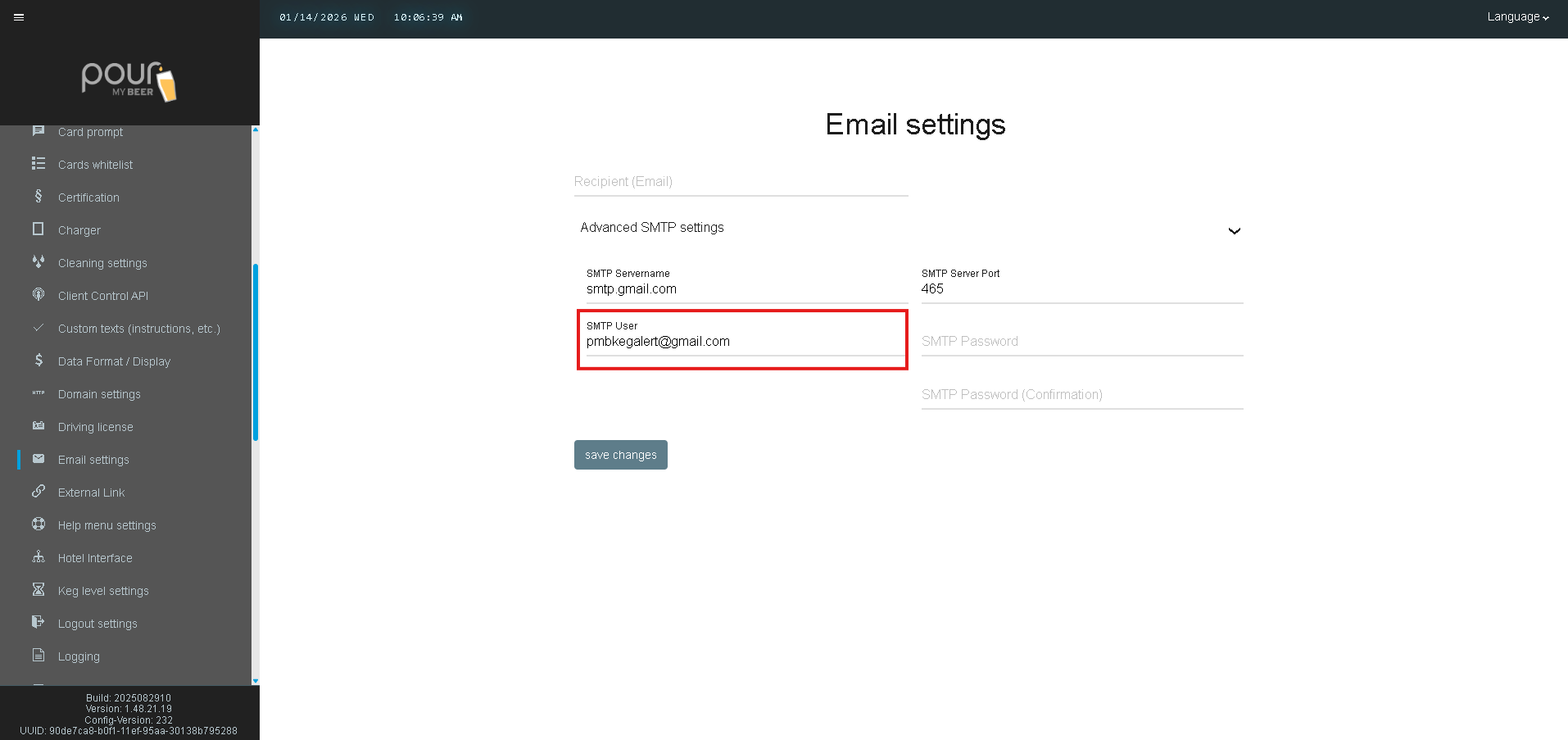
SMTP Password
If required by your email provider, enter the password for the SMTP account.
Some systems may use a default sending method and may not require a password unless customized.
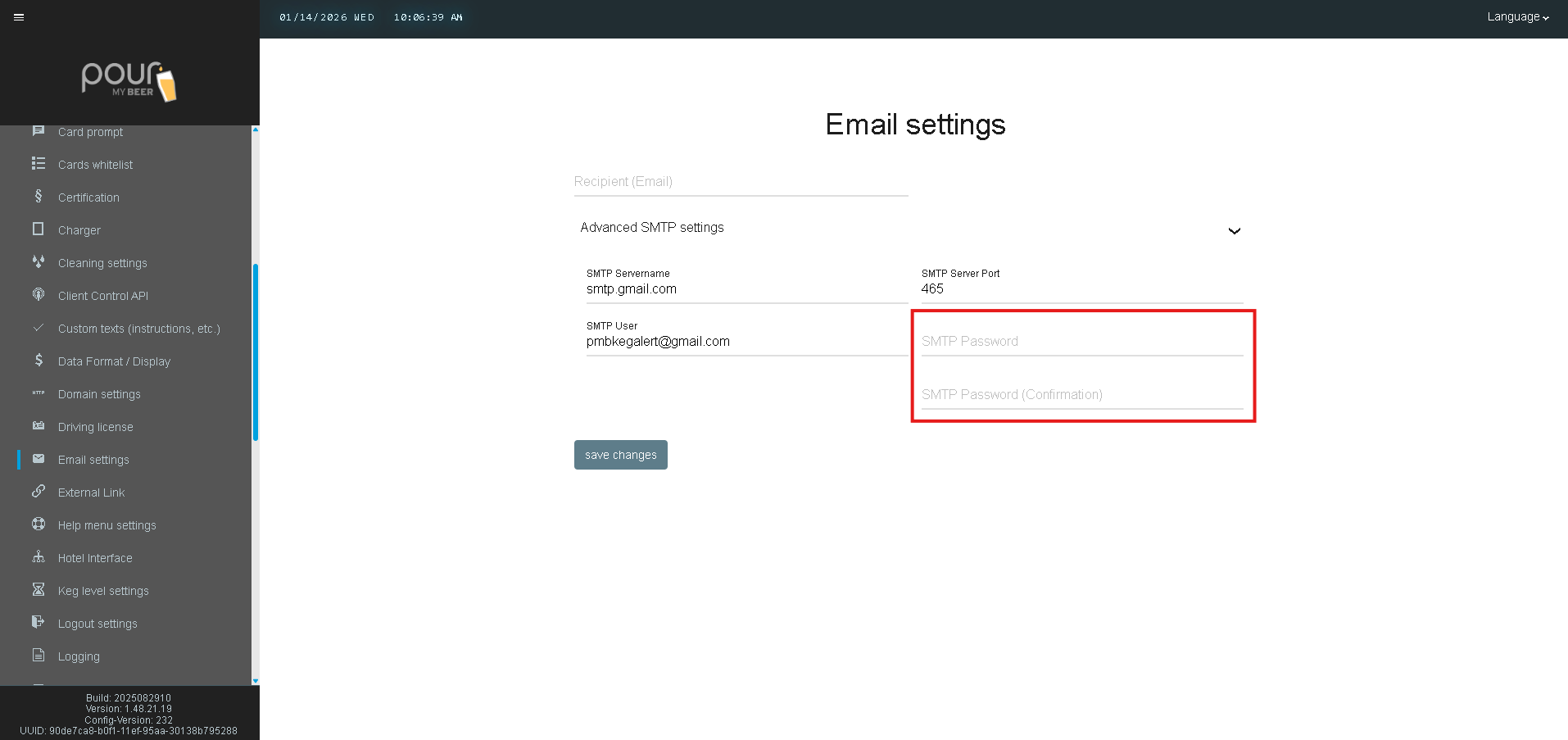
SMTP Password (Confirmation)
Re-enter the SMTP password to confirm.
Saving Changes
After entering or updating email settings:
-
Click Save Changes
-
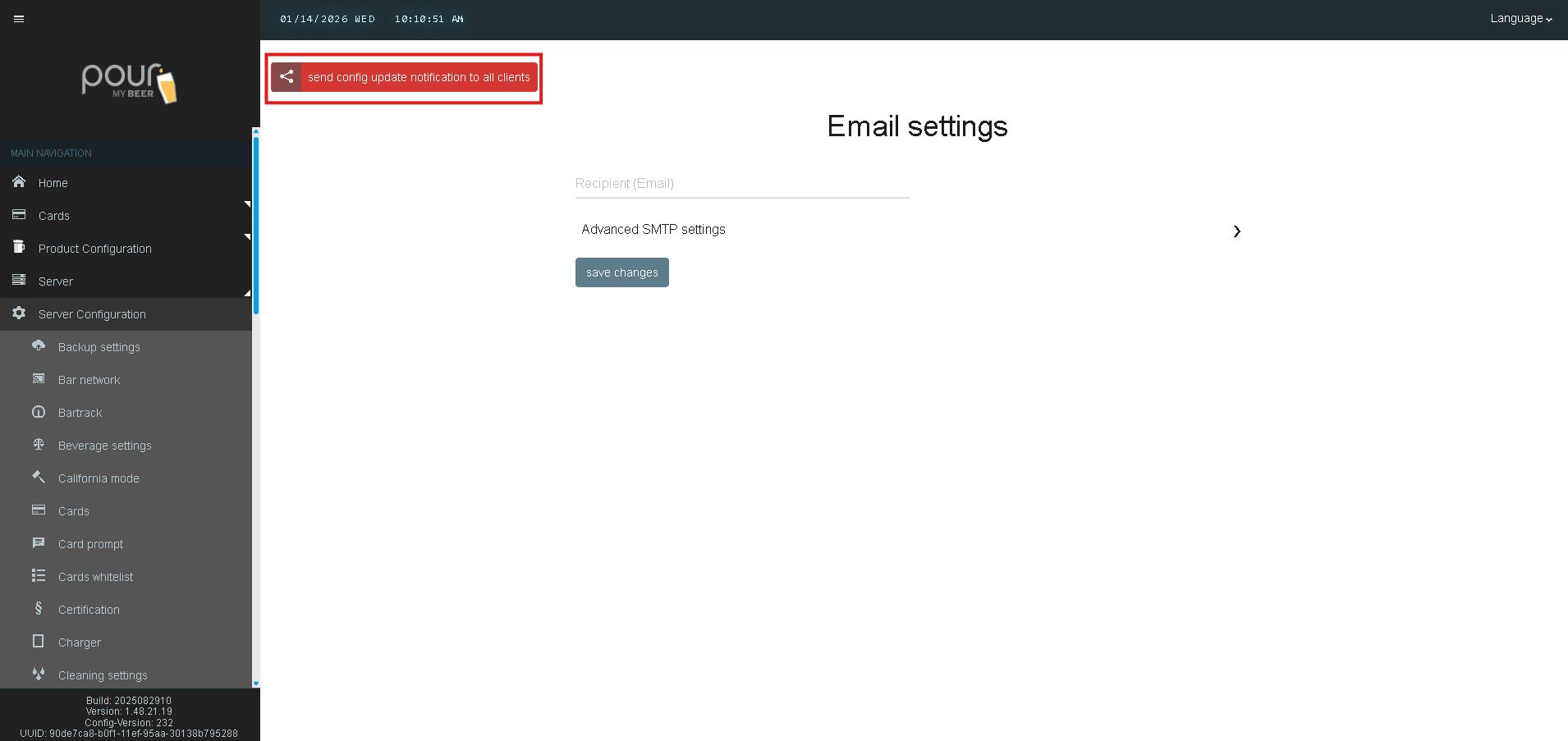
Send a Config Update Notification to ensure all clients are synced
Best Practices
-
Use a monitored email inbox for notification delivery
-
Add multiple recipients so alerts are never missed
-
Use venue-managed email accounts when possible
-
Confirm firewall/security software does not block outbound mail
Troubleshooting
If emails are not being delivered, check:
-
Recipient email spelling
-
SMTP server and port accuracy
-
SMTP user credentials
-
Spam/Junk folder
-
Firewall or antivirus blocking outbound traffic
-
Venue network restrictions on SMTP ports