Domain Settings
Configure domain identity, users, and language for Table Tap Go
The Domain Settings section defines the identity, authentication users, and language used by your Table Tap Go (TTG) system. These settings are foundational and are typically configured during initial installation or when onboarding new devices.
Accessing Domain Settings
-
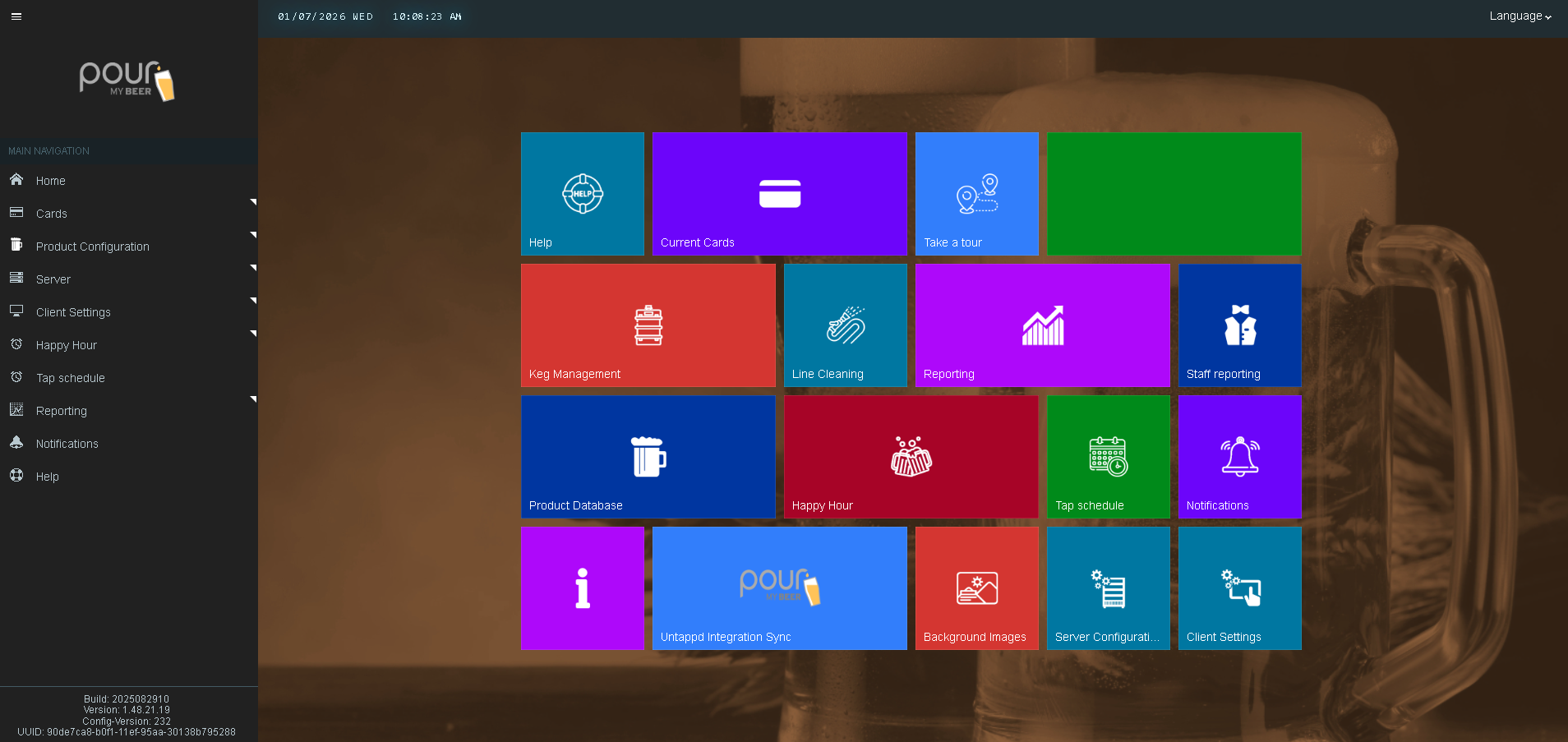
Open the Table Tap Go Server Management Page
-
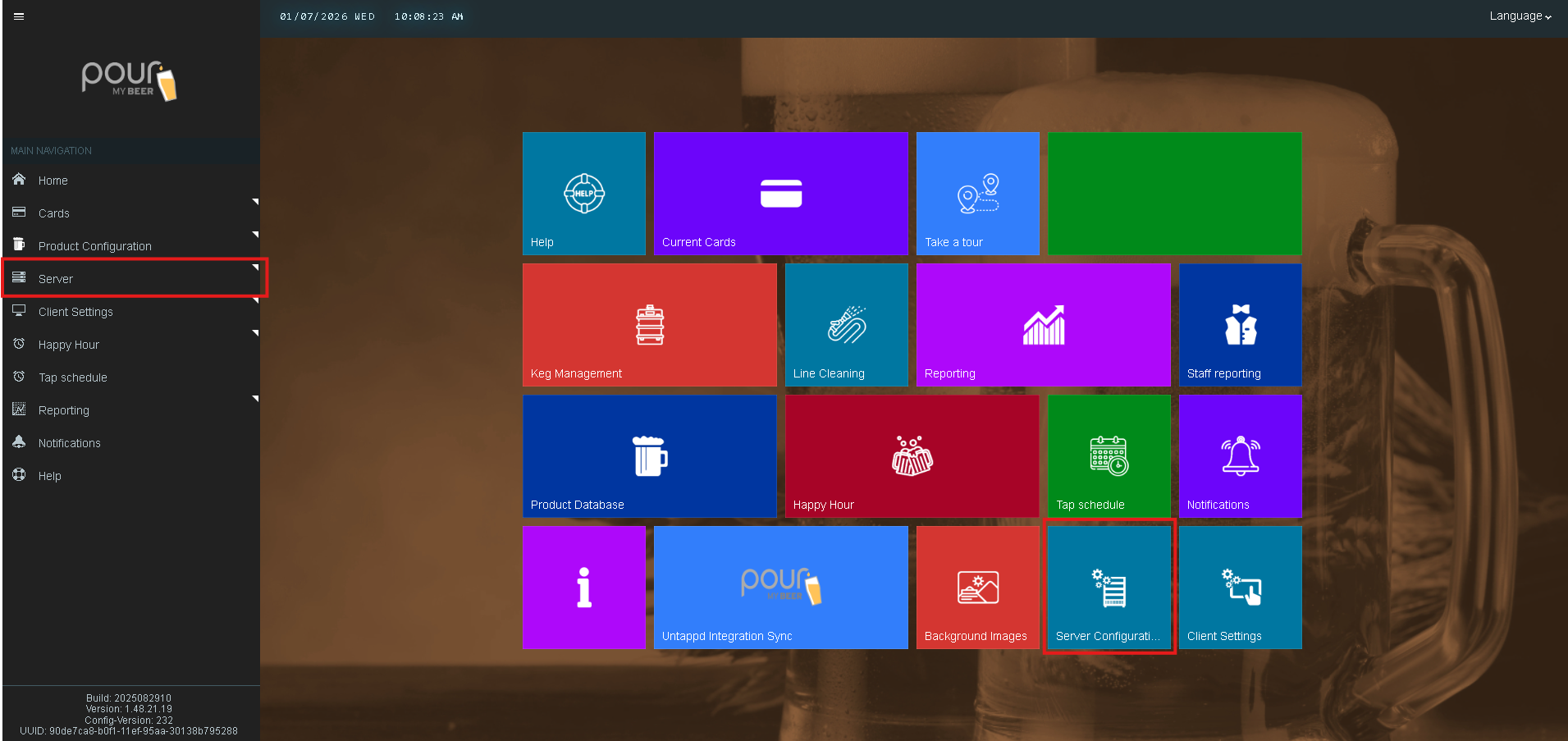
Navigate to Server Configuration
-
Select Domain Settings
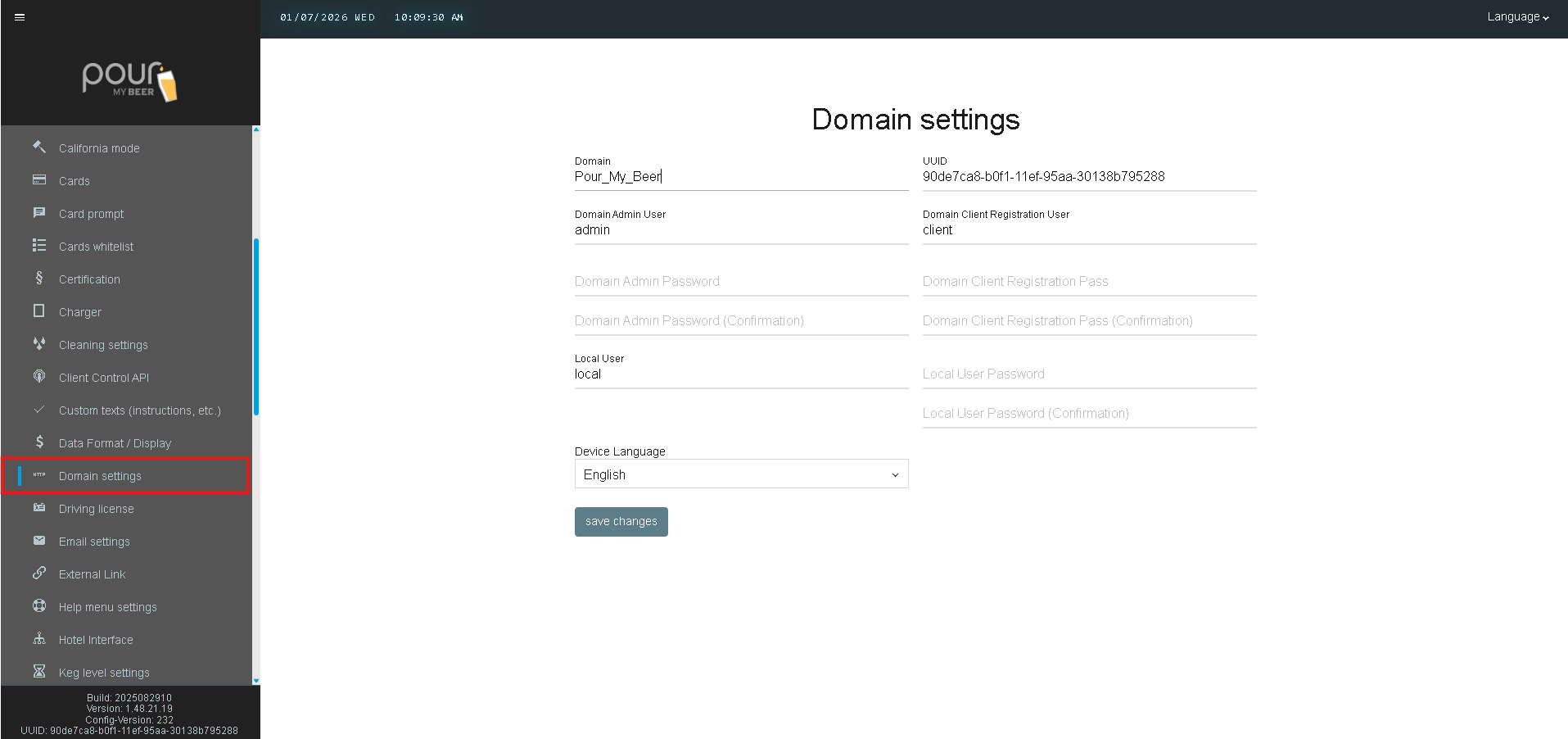
Some fields may be locked or preconfigured depending on your installation.
Domain Configuration Fields
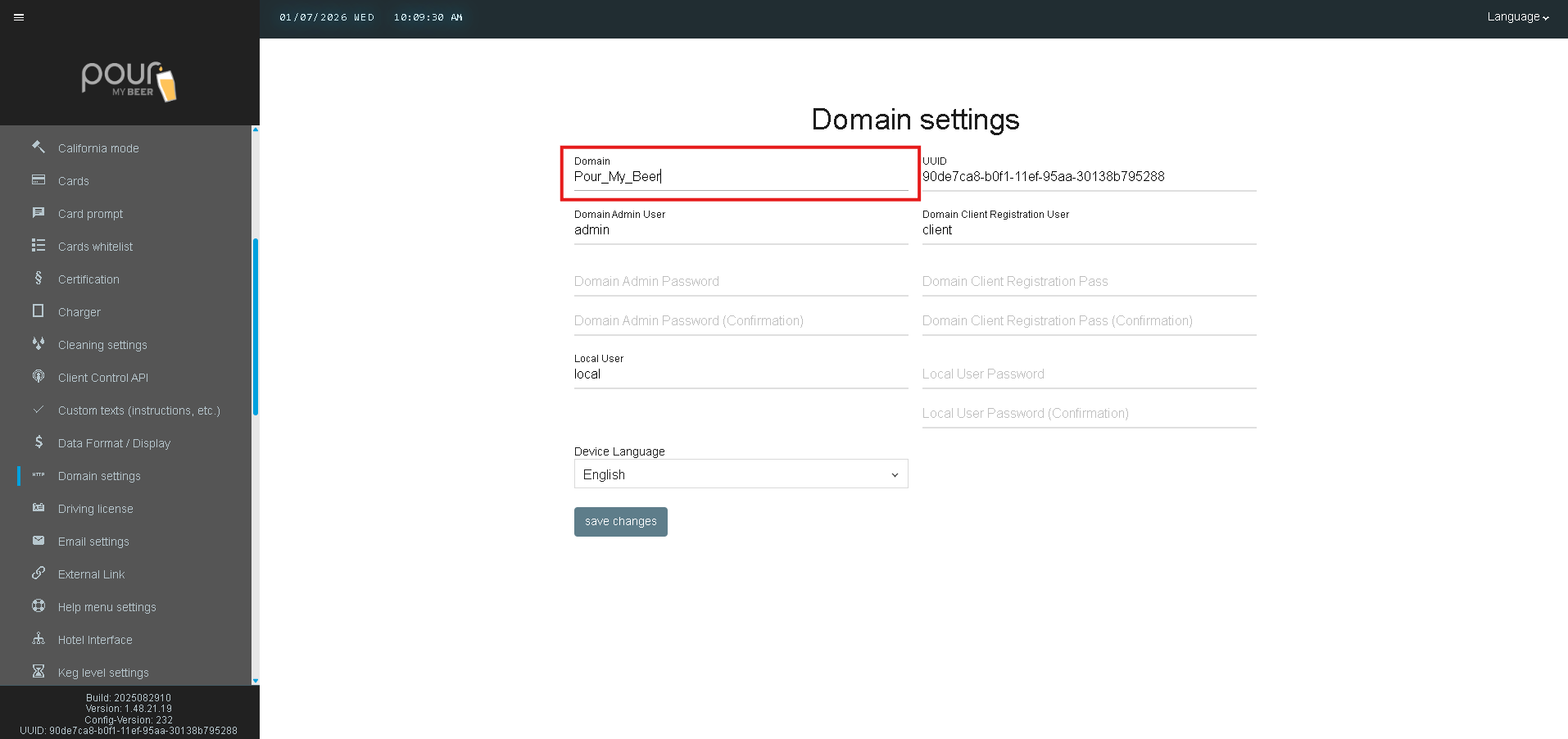
Domain
The unique name assigned to your TTG system.
-
Used to identify your installation
-
Typically set during system setup
-
Example:
Pour_My_Beer
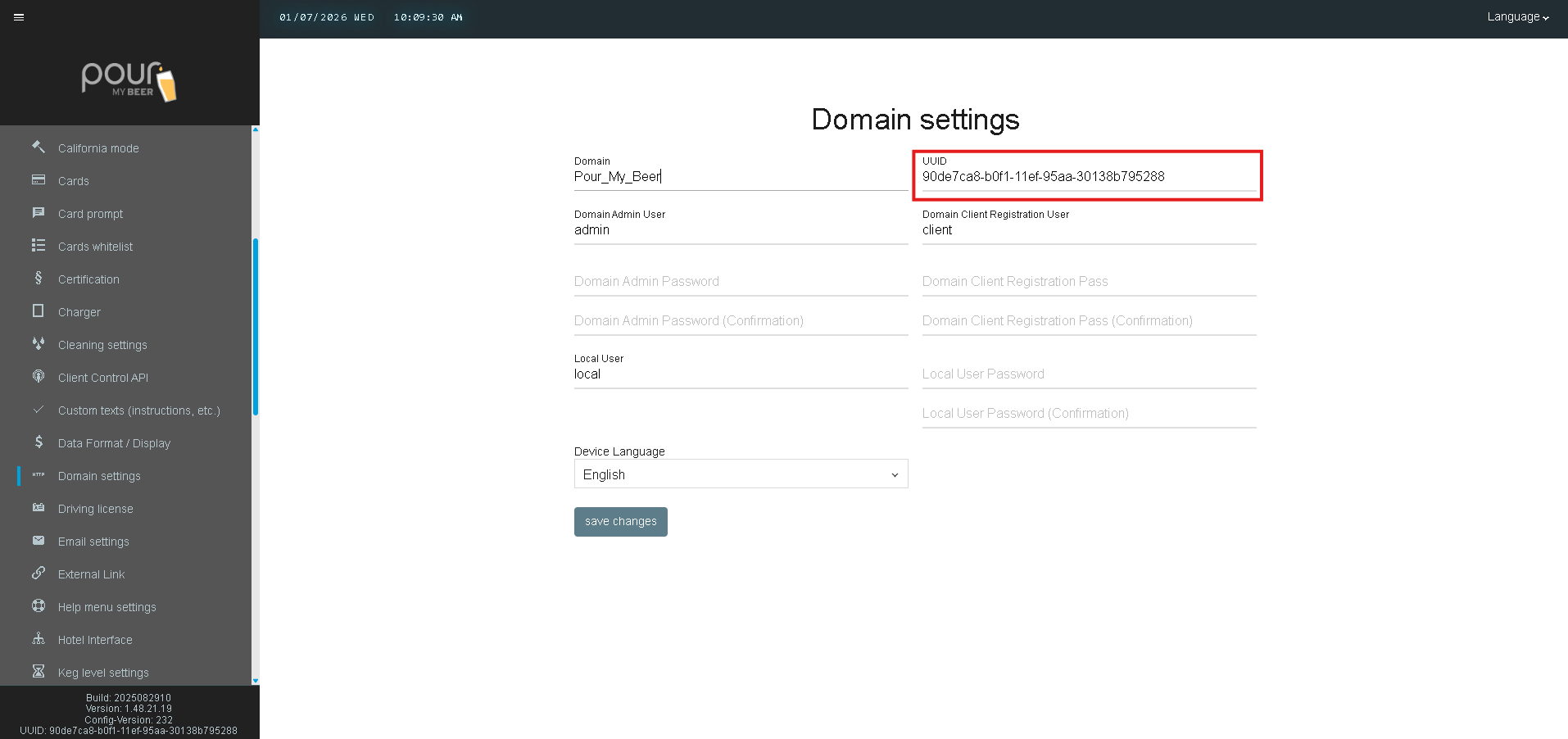
UUID
A system-generated unique identifier for your TTG domain.
-
Used internally by the system
-
Cannot be edited
-
Required for secure client registration
User Accounts & Authentication
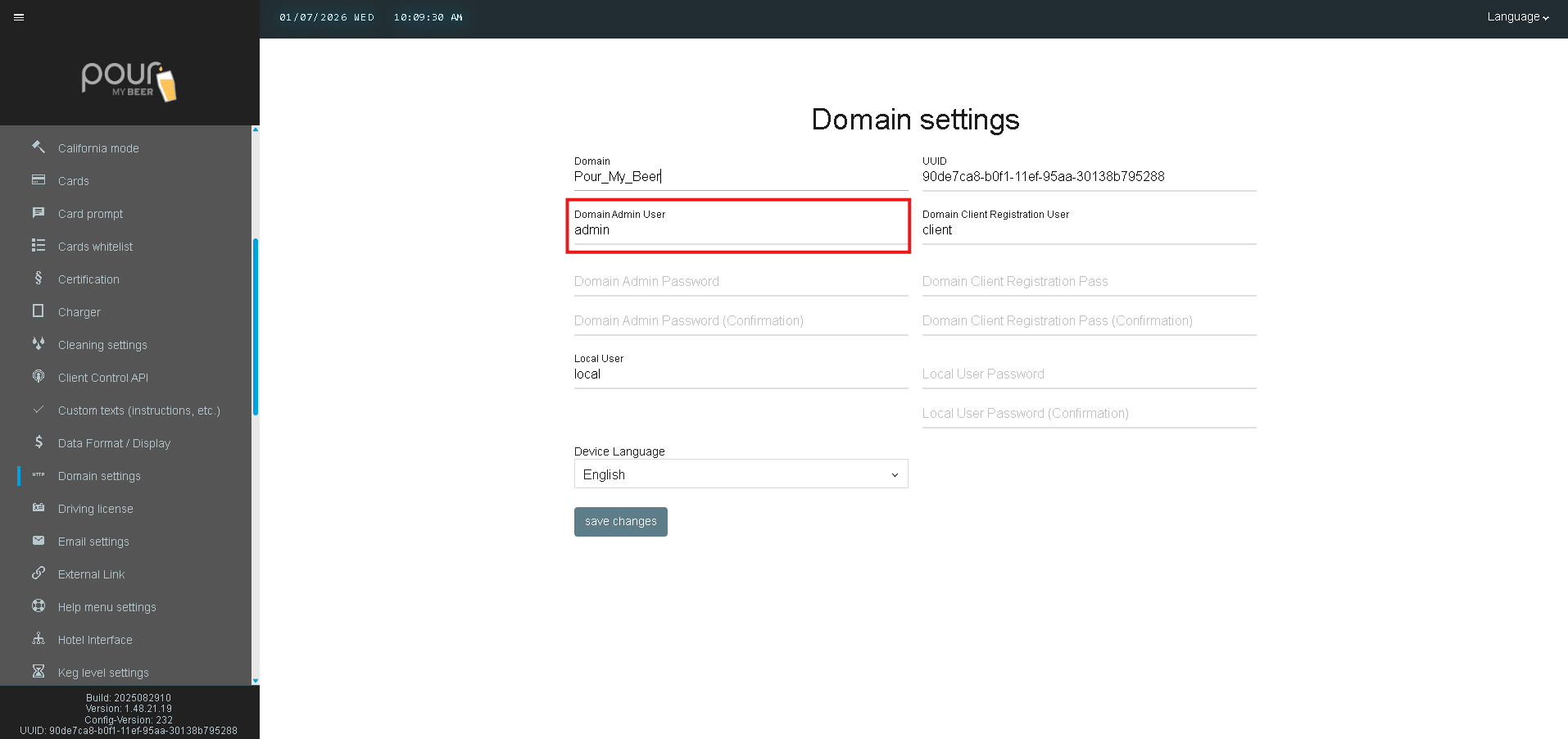
Domain Admin User
The primary administrative user for the TTG domain.
-
Default example:
admin -
Used for server-level configuration and management
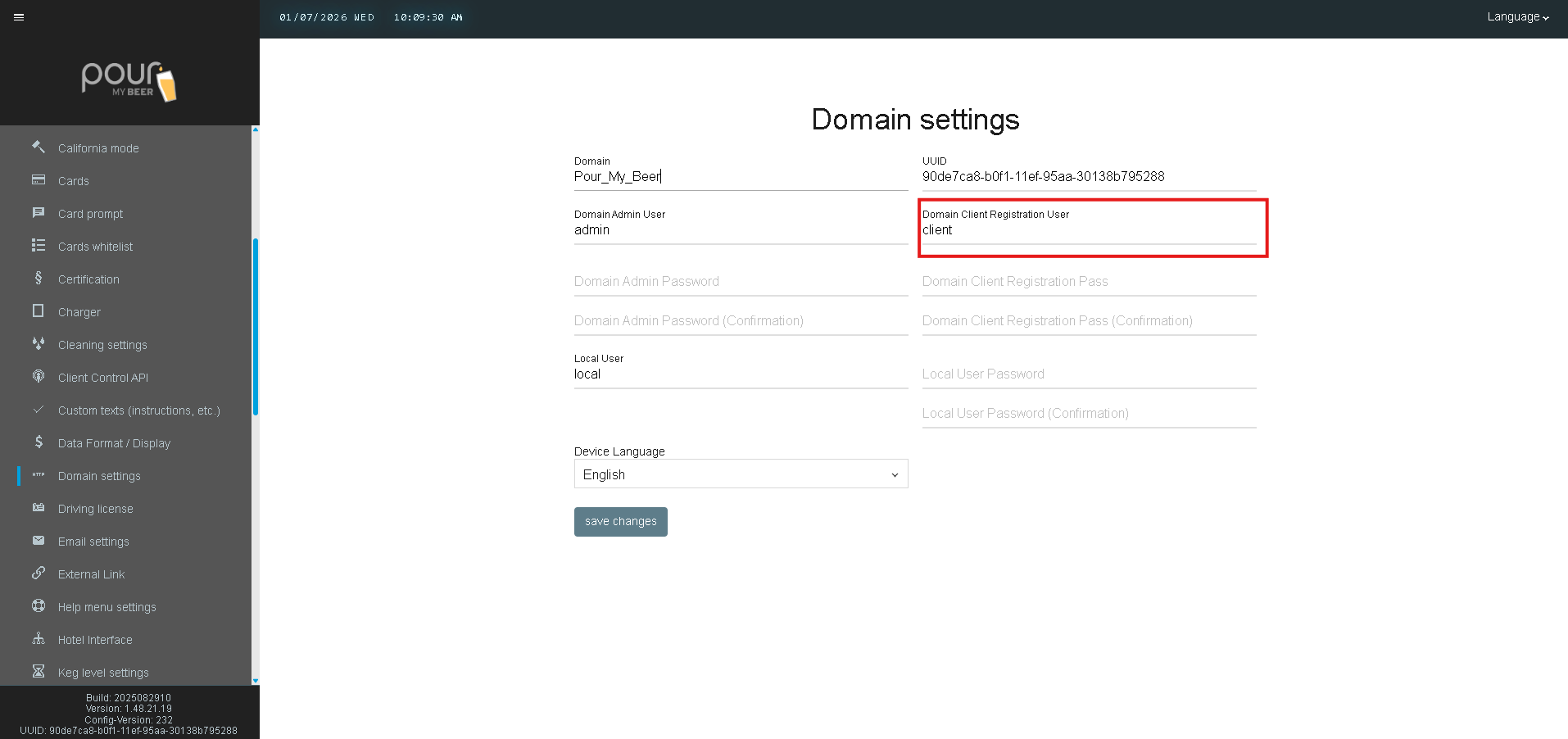
Domain Client Registration User
The user account used when new client devices (tap screens, chargers) register with the server.
-
Default example:
client -
Ensures secure device onboarding
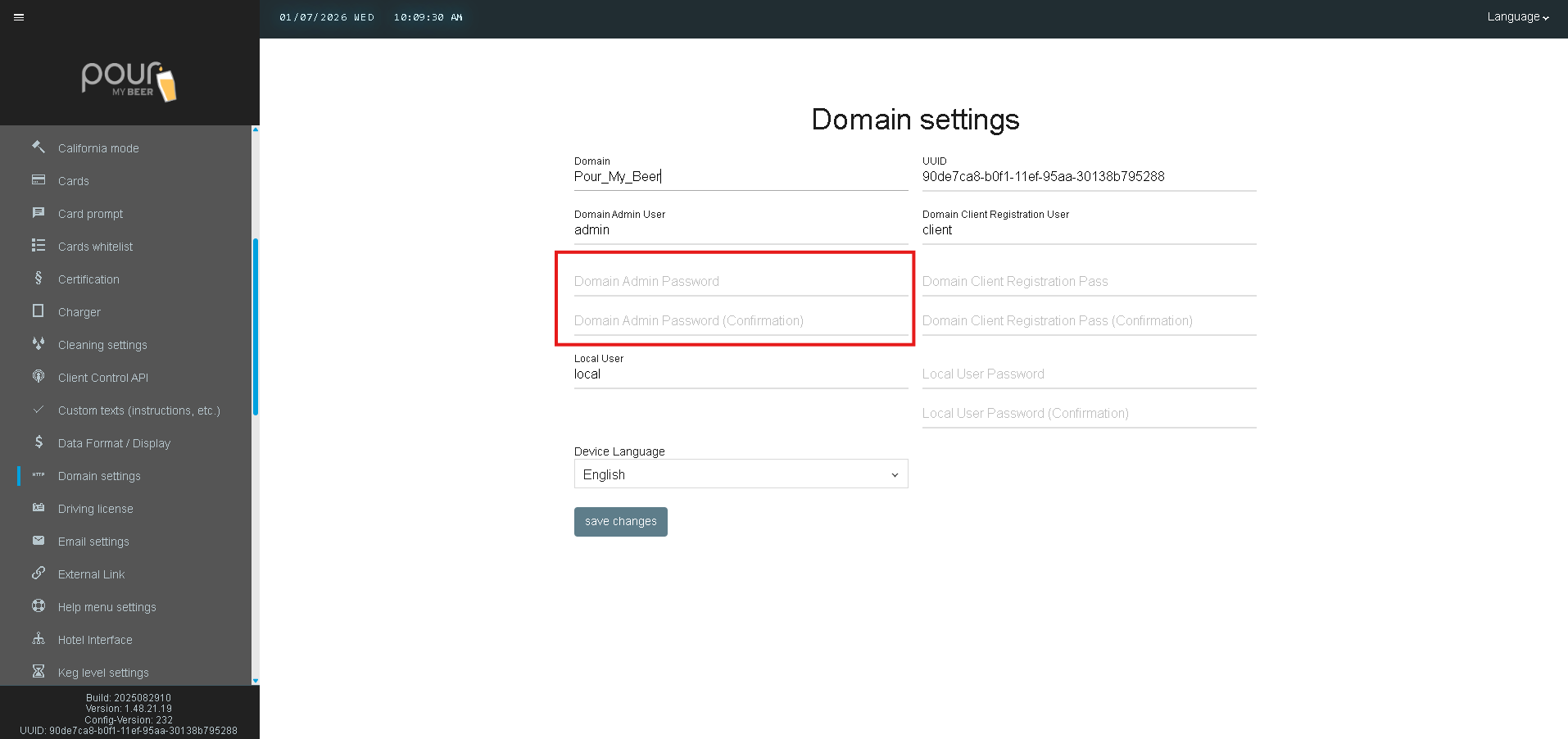
Domain Admin Password
Defines the password for the domain admin user.
-
Must be entered twice for confirmation
-
Recommended to change from default after installation
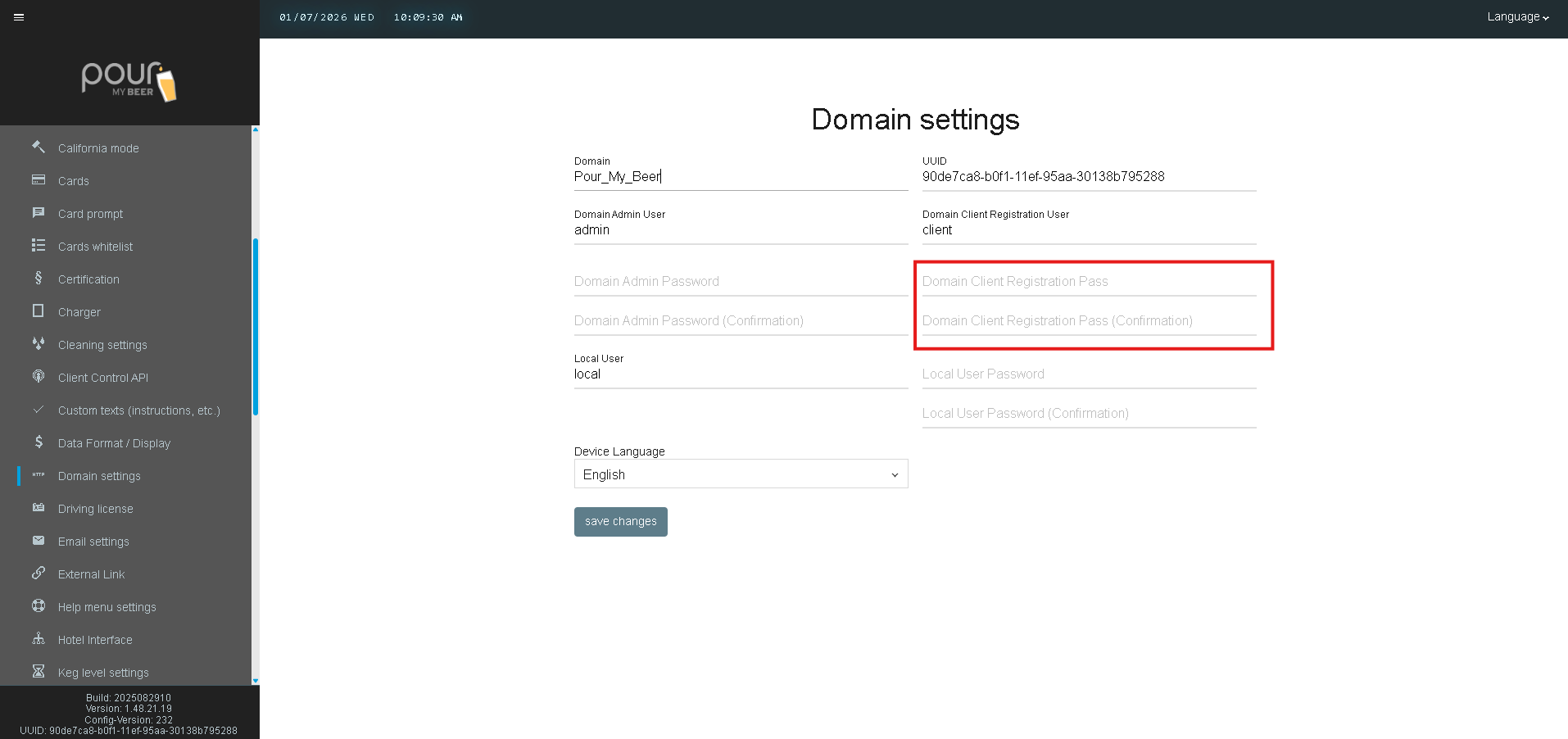
Domain Client Registration Password
Password used by clients during initial registration.
-
Required when adding new devices
-
Must match on both server and client
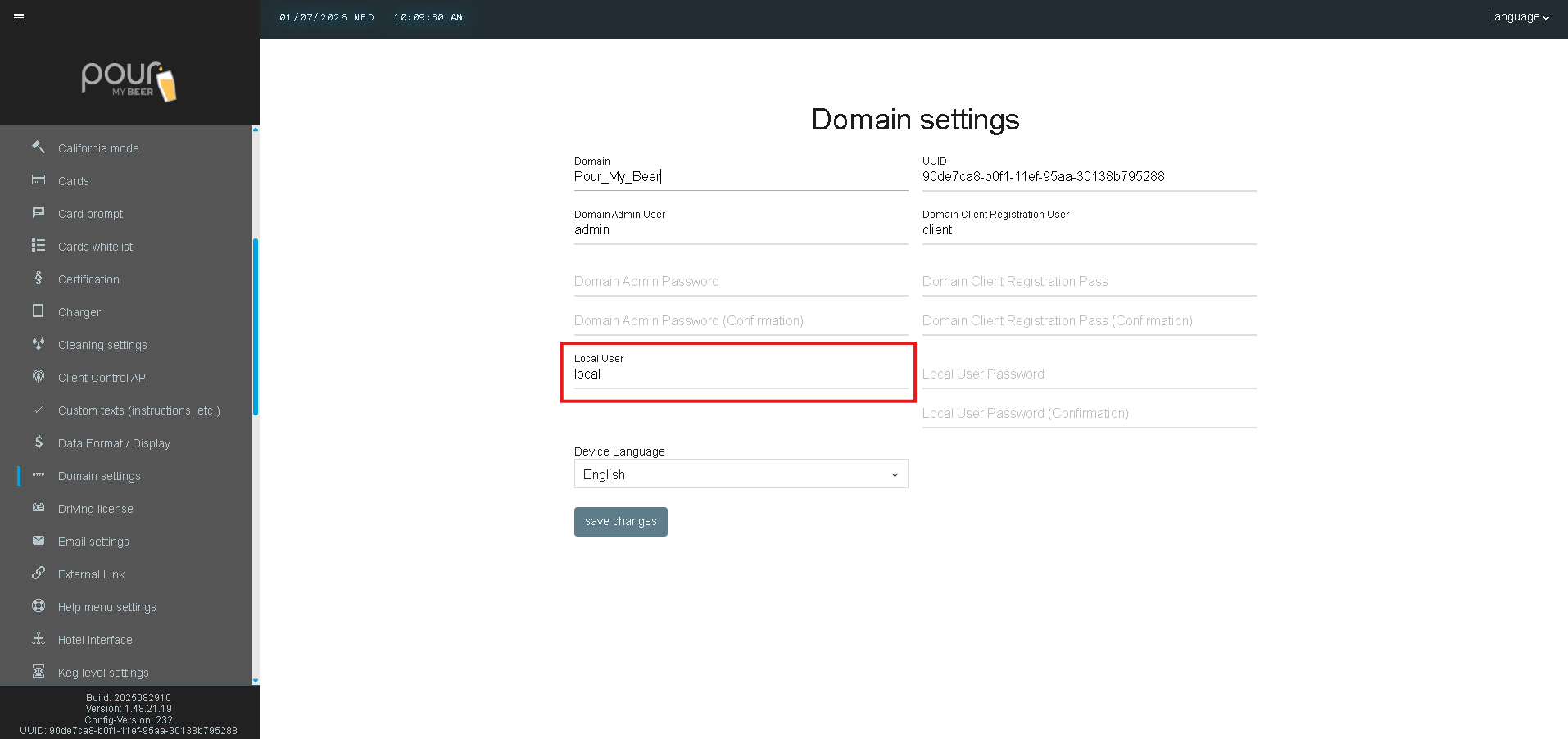
Local User
A local system user account.
-
Typically used for maintenance or fallback access
-
Default example:
local
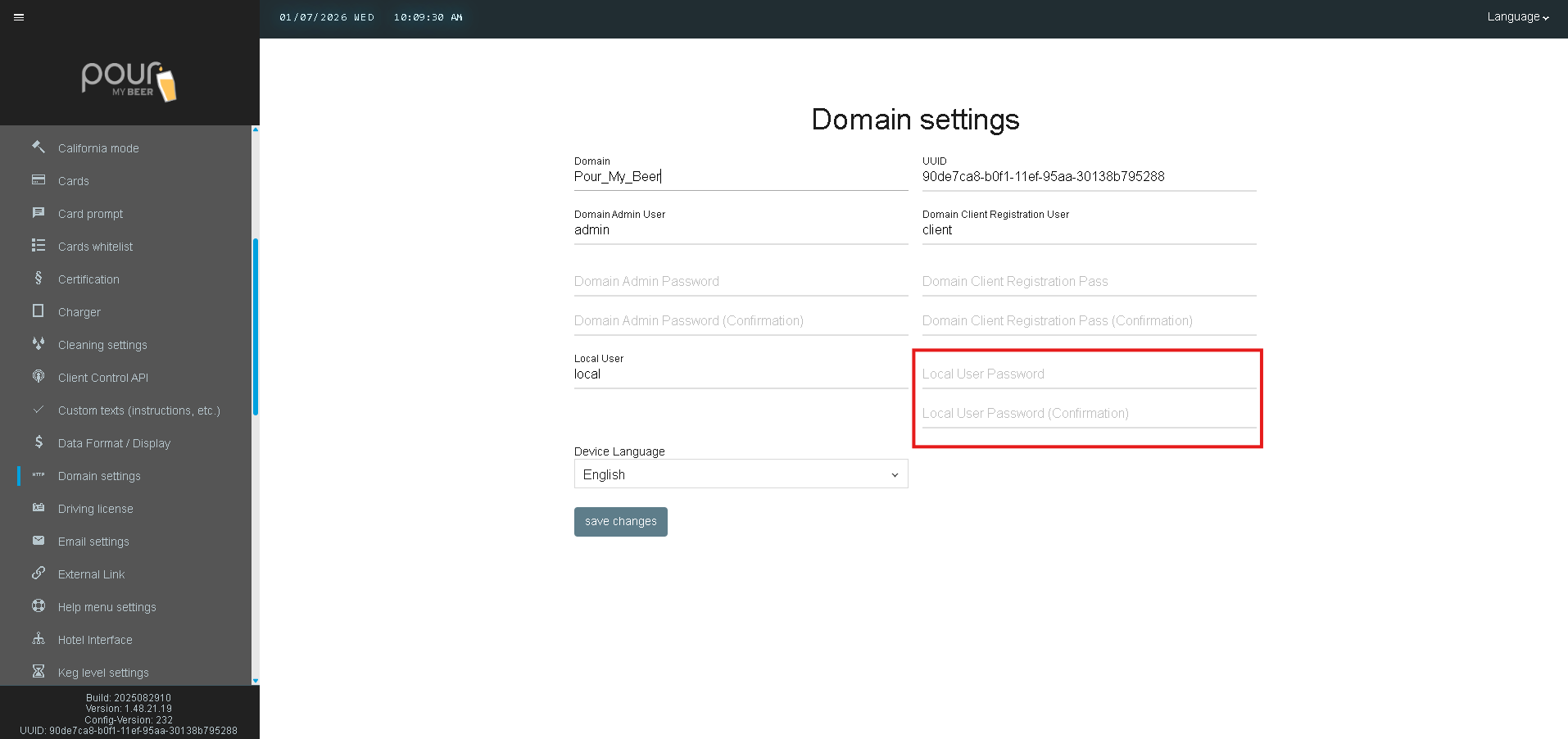
Local User Password
Password associated with the local user account.
-
Must be confirmed before saving
-
Useful if domain authentication is unavailable
Language Settings
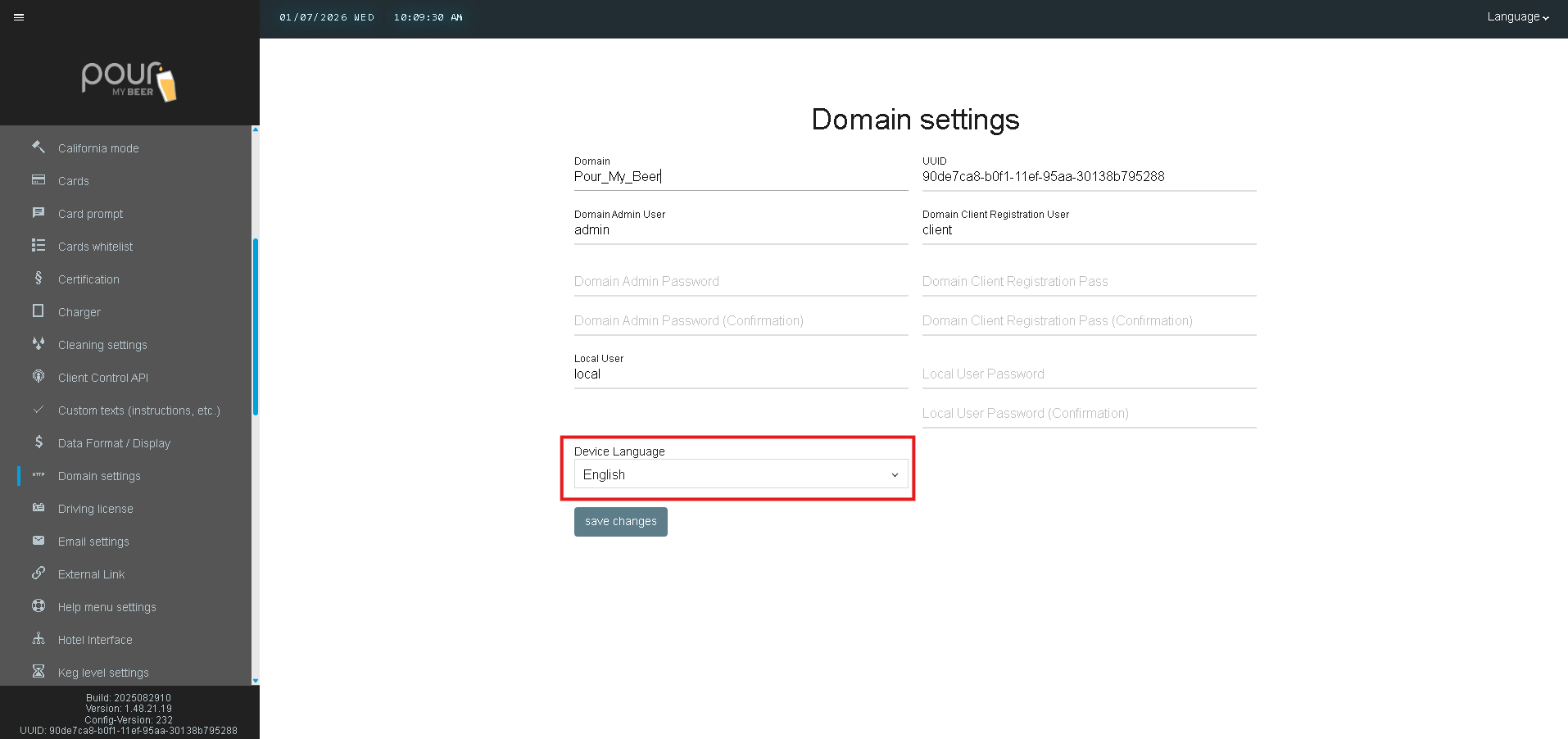
Device Language
Controls the language used across client devices and system messages.
-
Example: English
-
Applies to all connected clients
Saving Changes
After updating Domain Settings:
-
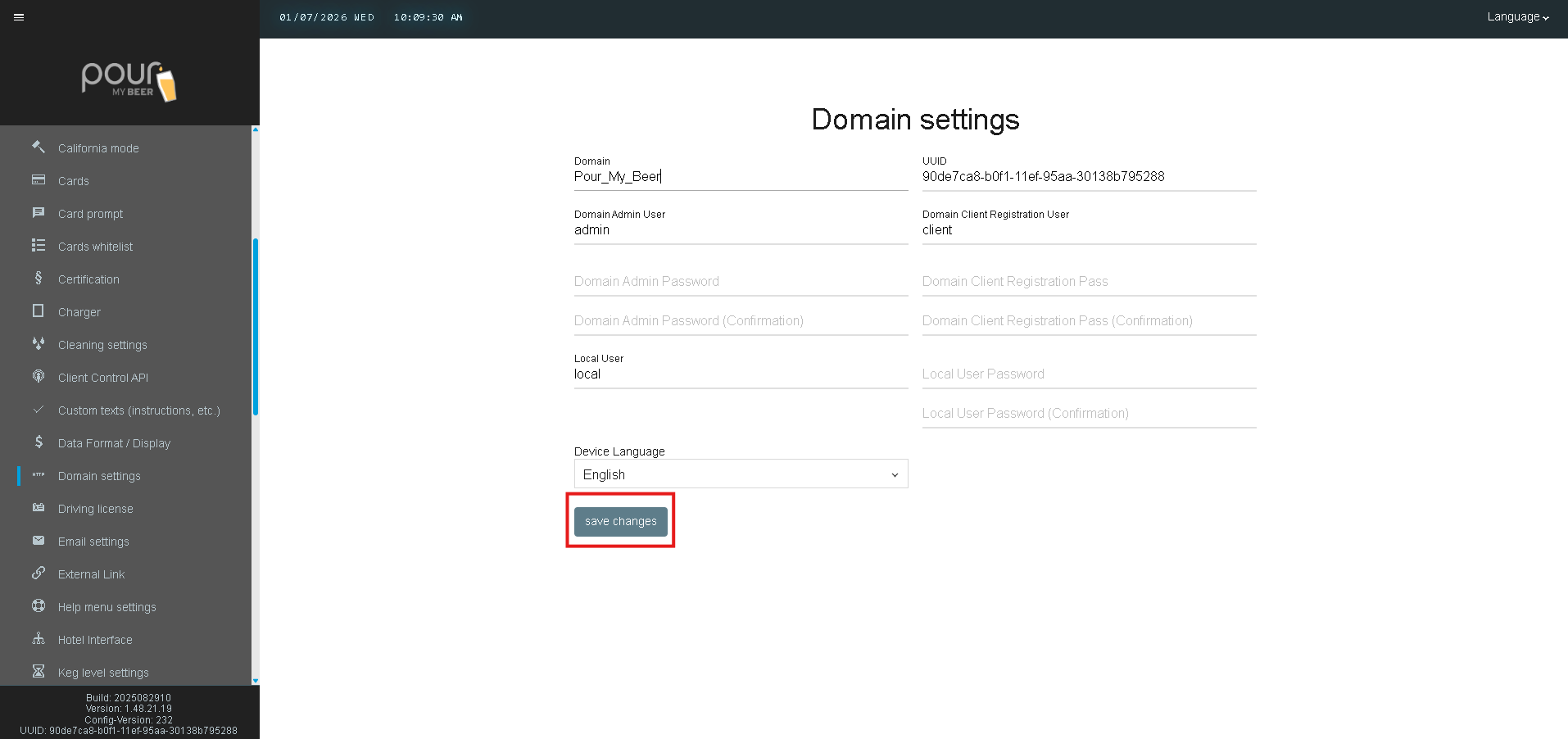
Click Save Changes
-
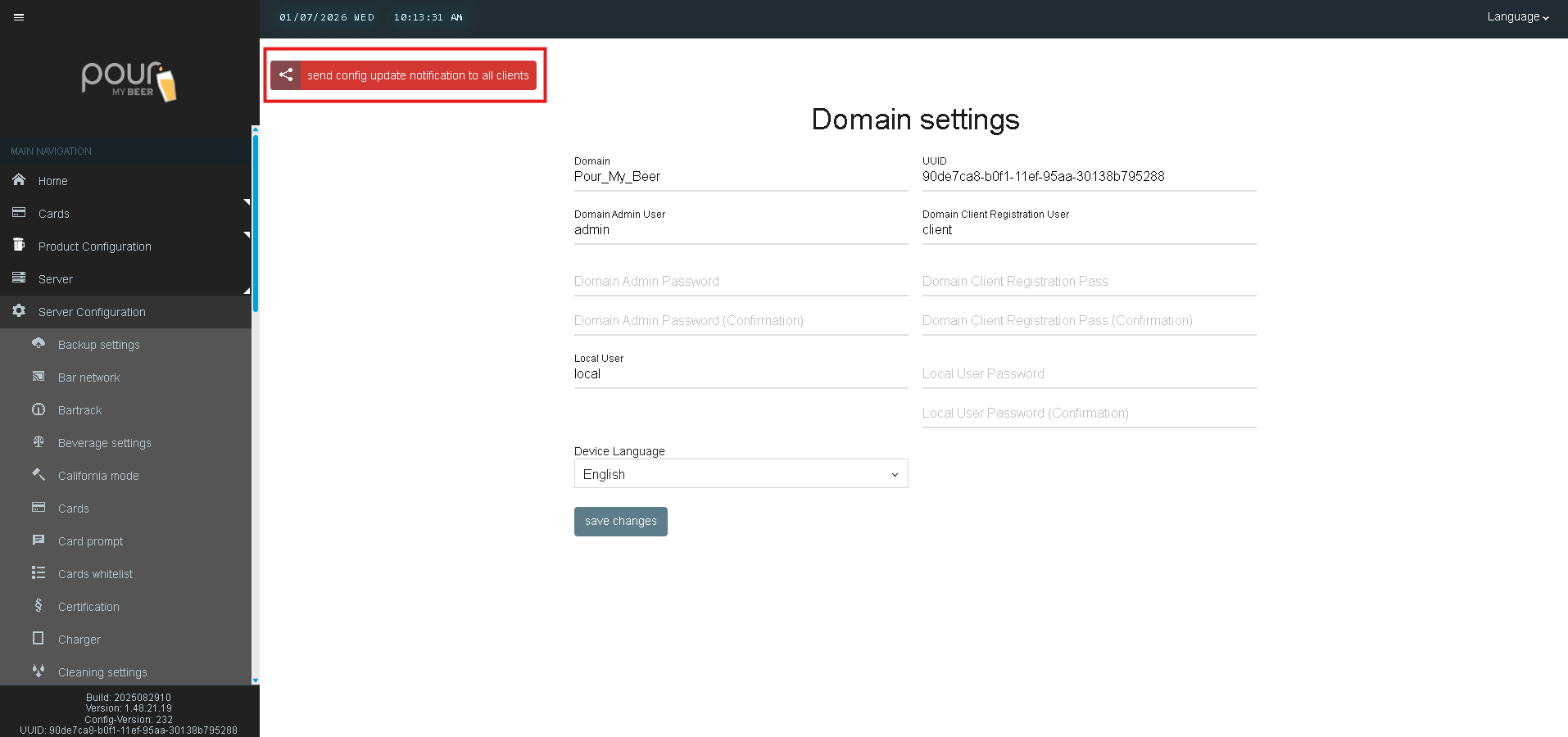
Click Send the Config Update Notification to all clients
-
Verify new devices can still register successfully
Important Notes
-
Changing domain credentials may prevent existing clients from reconnecting
-
Always document updated usernames and passwords
-
Avoid modifying domain or UUID values unless instructed by support