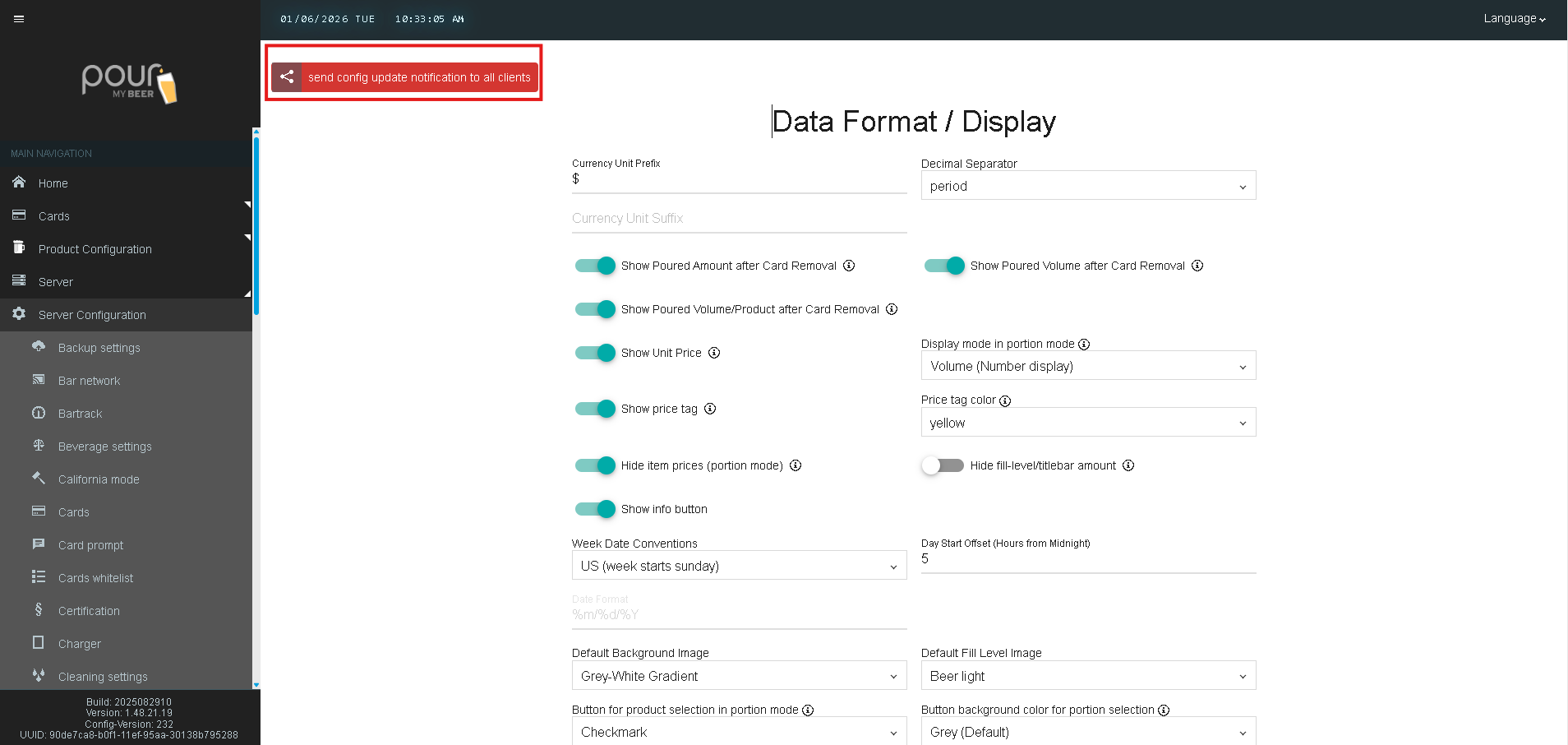
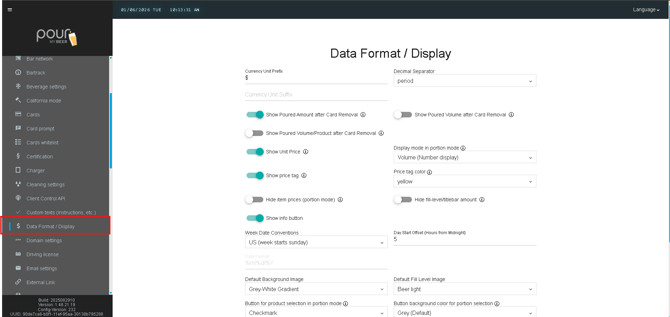
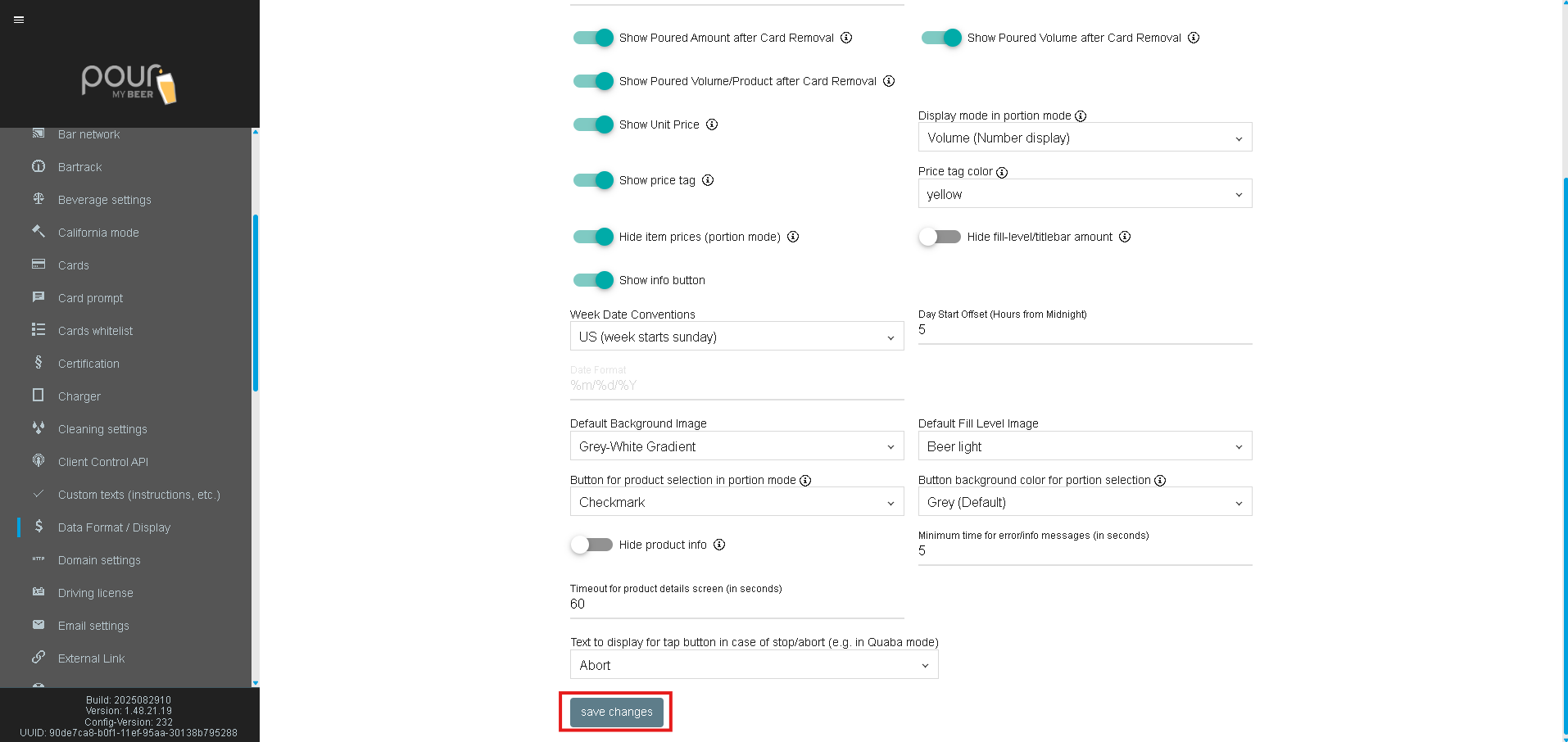
The Data Format / Display settings allow you to control how information is presented to customers on Table Tap Go tap screens. These options affect currency formatting, volume display, pricing visibility, date conventions, colors, buttons, and on-screen behavior.
Accessing Data Format & Display Settings
-
Open the Table Tap Go Server Management Page
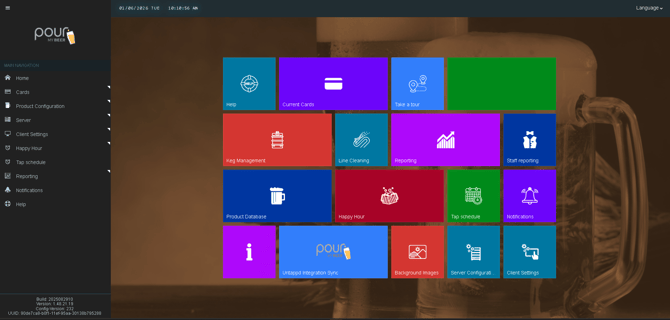
-
Navigate to Server Configuration
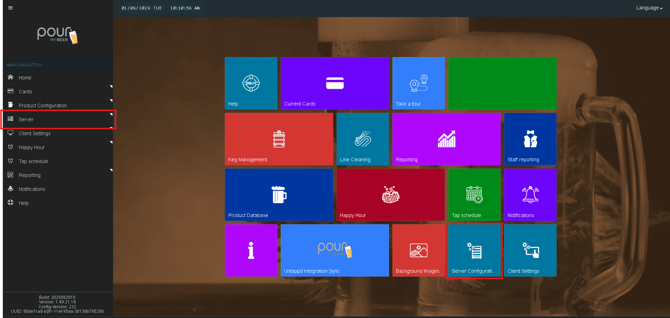
-
Select Data Format / Display
💲 Currency & Number Formatting
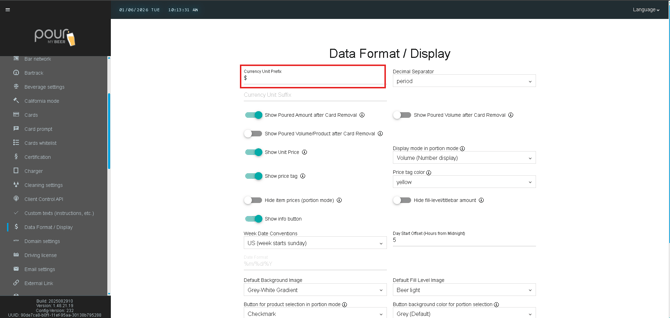
Currency Unit Prefix
Defines the symbol shown before prices.
-
Example:
$ -
Common prefixes:
$,€,£
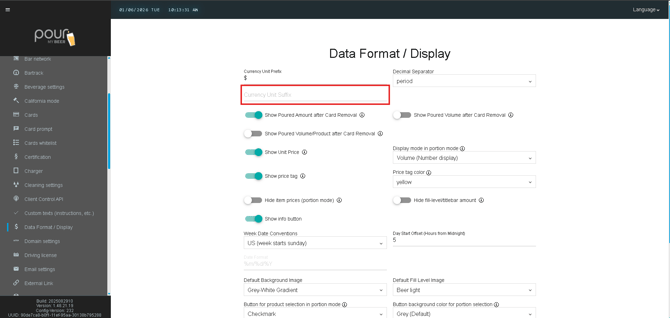
Currency Unit Suffix
Optional text displayed after prices.
-
Example:
USD -
Typically left blank
Decimal Separator
Controls how decimal values are displayed.
-
Period (.)
-
Comma (,)

🍺 Poured Amount & Price Display
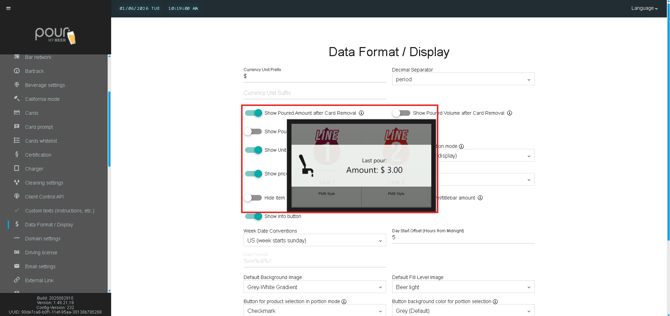
Show Poured Amount After Card Removal
Displays the total cost after a customer removes their card.
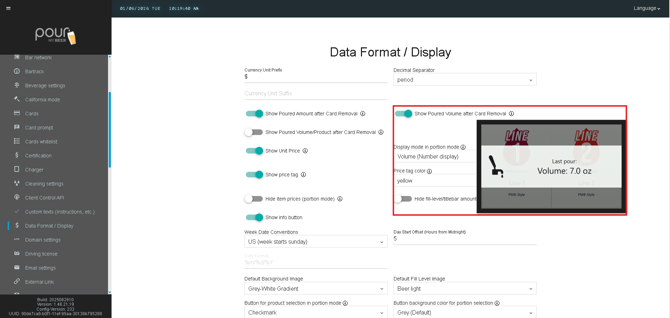
Show Poured Volume After Card Removal
Displays the total volume poured after the card is removed.
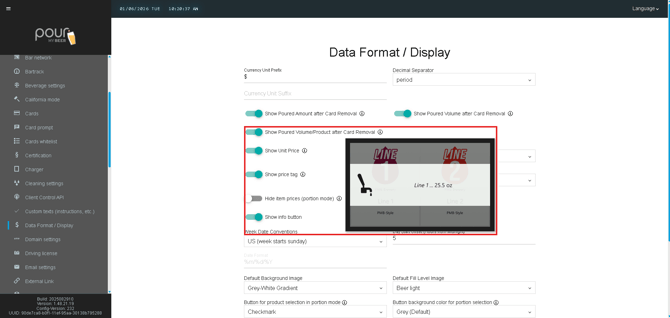
Show Poured Volume / Product After Card Removal
Shows both volume and product name after a pour completes.
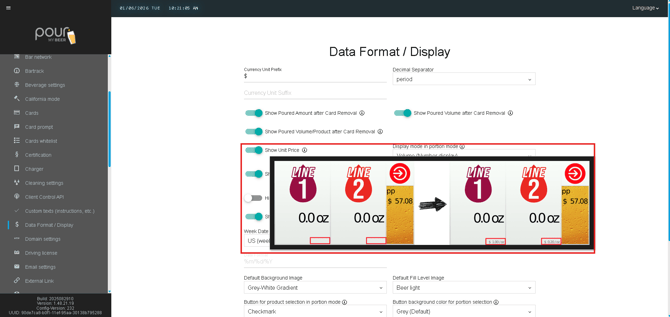
Show Unit Price
Displays the price per unit (e.g., price per ounce).
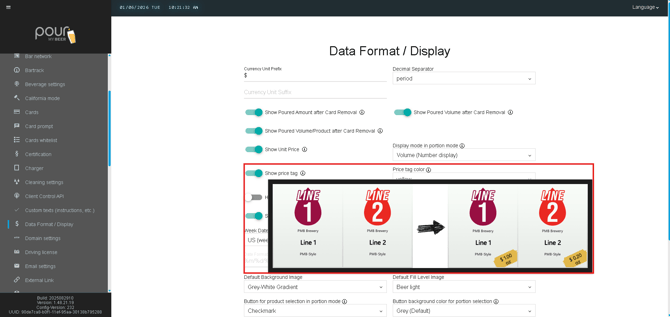
Show Price Tag
Shows a visible price indicator on the tap screen.
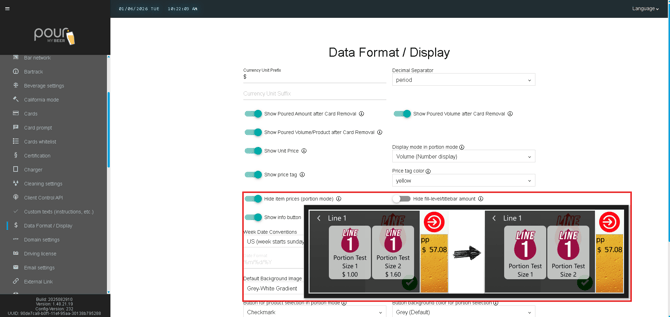
Hide Item Prices (Portion Mode)
Hides pricing when the system is operating in Portion Mode.
🧾 Portion Mode Display Options
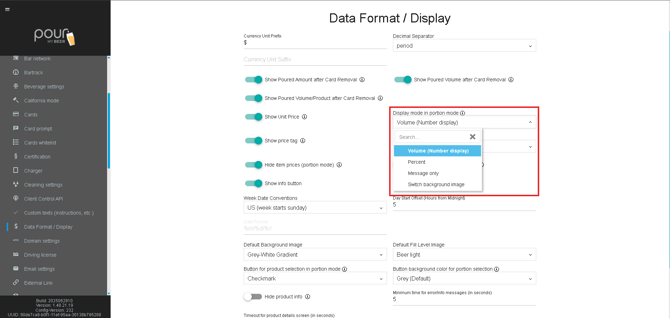
Display Mode in Portion Mode
Defines how portion sizes are displayed.
-
Volume (Number display)
-
Alternative display options may vary by version
Button for Product Selection in Portion Mode
Controls the confirmation button style.
-
Example: Checkmark

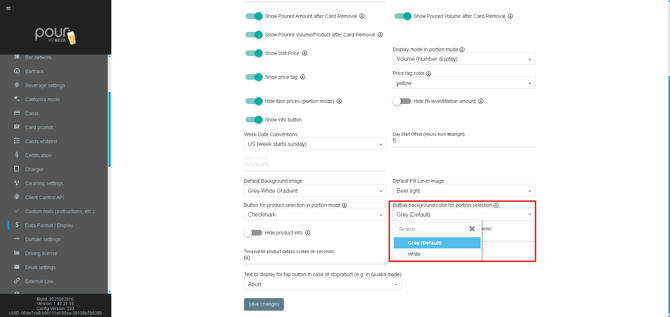
Button Background Color for Portion Selection
Sets the color of the portion selection button.
-
Example: Grey (Default)
🎨 Visual & UI Options
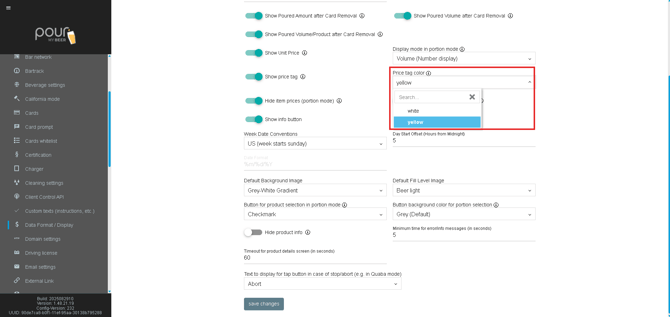
Price Tag Color
Defines the color used for price tags.
-
Example: Yellow
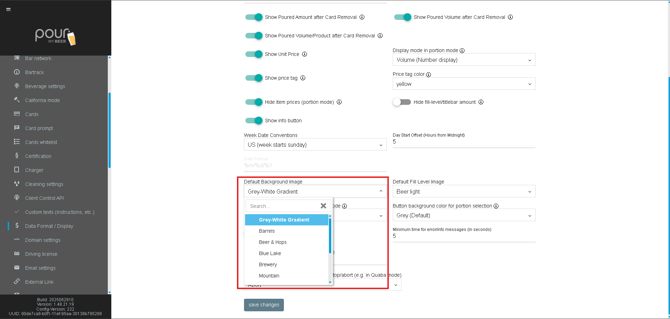
Default Background Image
Sets the background shown on tap screens.
-
Example: Grey-White Gradient
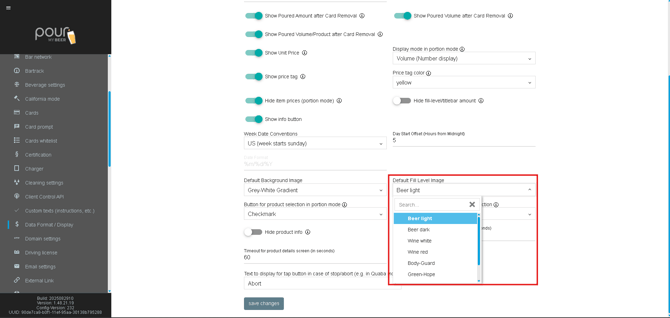
Default Fill Level Image
Sets the image used to display beverage fill levels.
-
Example: Beer Light
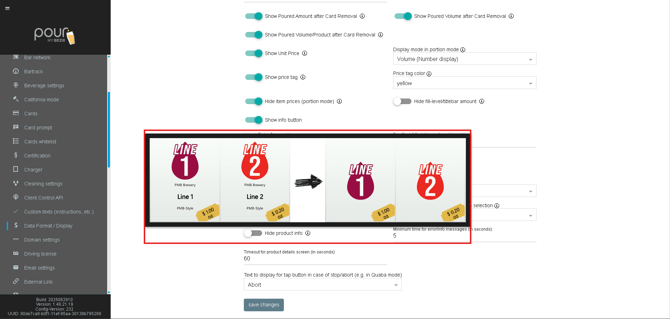
Show Info Button
Displays an info button for additional product details.

Hide Product Info
Hides detailed product information from customers.
📅 Date & Time Configuration
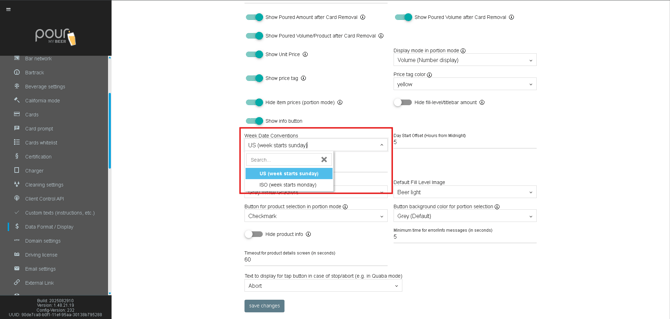
Week Date Conventions
Controls the start of the week.
-
Example: US (Week starts Sunday)
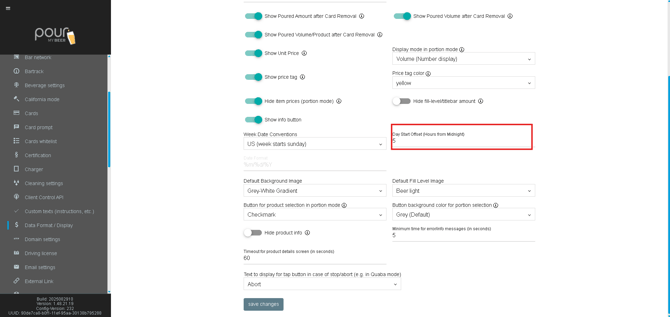
Day Start Offset (Hours from Midnight)
Adjusts when the system considers a new business day to start.
-
Example:
5→ Day begins at 5:00 AM
⏱️ Timeouts & Messaging
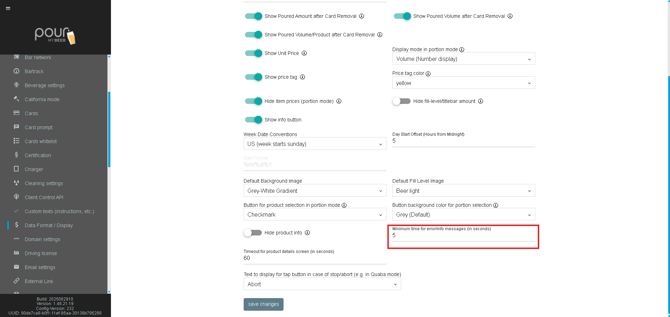
Minimum Time for Error/Info Messages
Sets how long system messages remain visible.
-
Example:
5 seconds
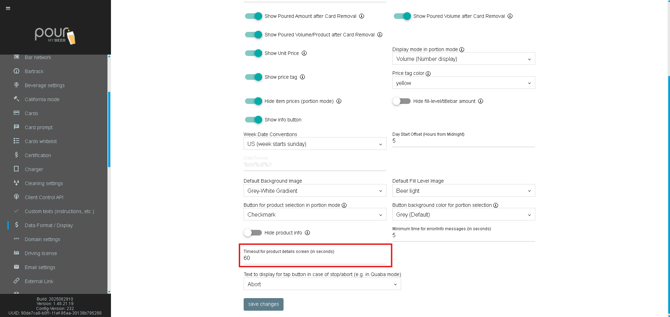
Timeout for Product Details Screen
Defines how long product details remain on screen before closing.
-
Example:
60 seconds
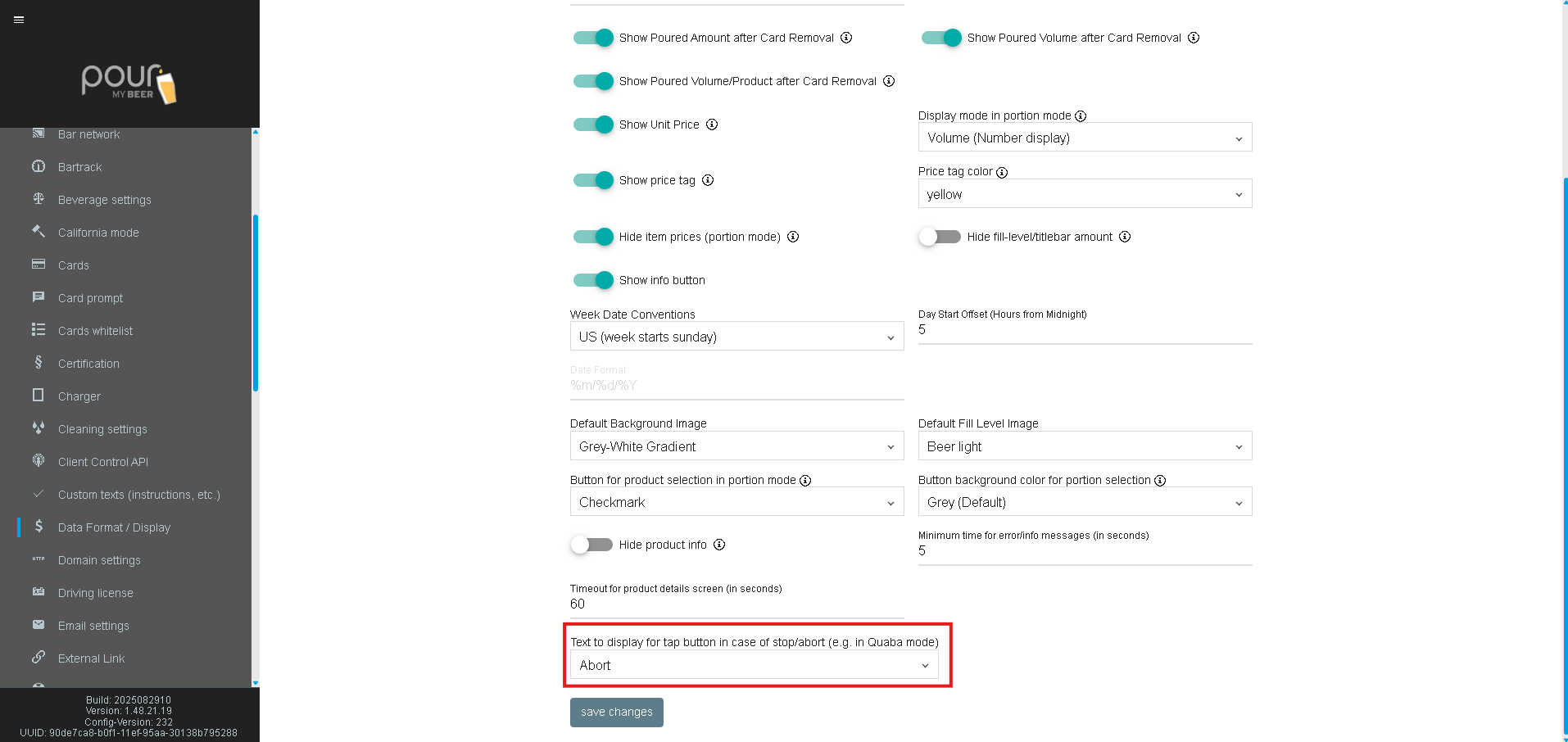
Text for Tap Button (Stop/Abort)
Customizes the label shown when a tap is stopped or aborted.
-
Example: Abort
💾 Saving Changes
After completing your updates:
-
Click Save Changes
-
Send a Config Update Notification to apply changes to all clients