The Custom Texts (Instructions, etc.) settings allow you to personalize the messages customers see on the tap screen during key moments such as card prompts, portion selection, payment confirmation, and pouring instructions. These settings help improve clarity, reduce confusion, and align the on-screen experience with your venue’s branding and service style.
Where to Find These Settings
-
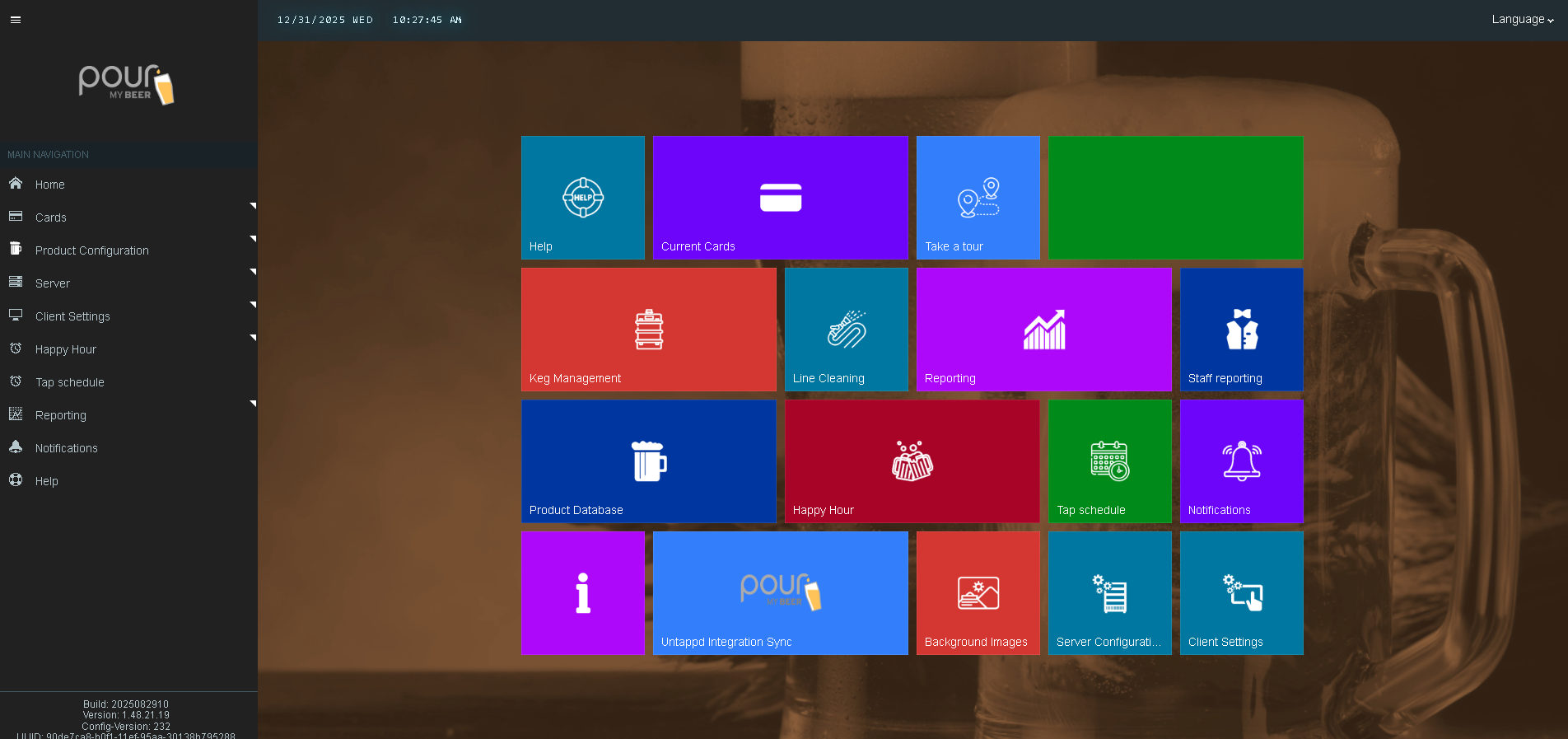
Open the Table Tap Go Server Management Page
-
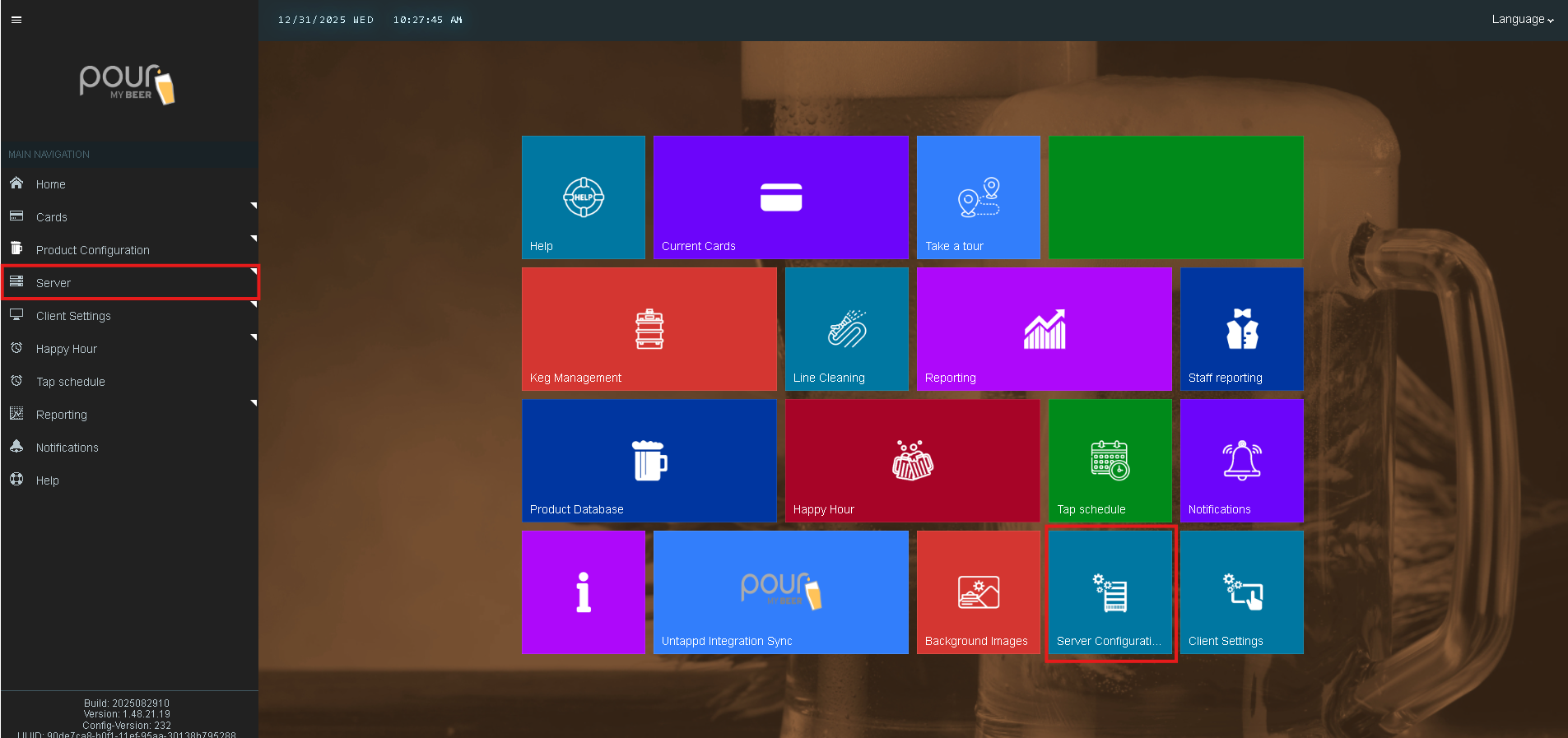
Navigate to Server Configuration
-
Select Custom Texts (Instructions, etc.)
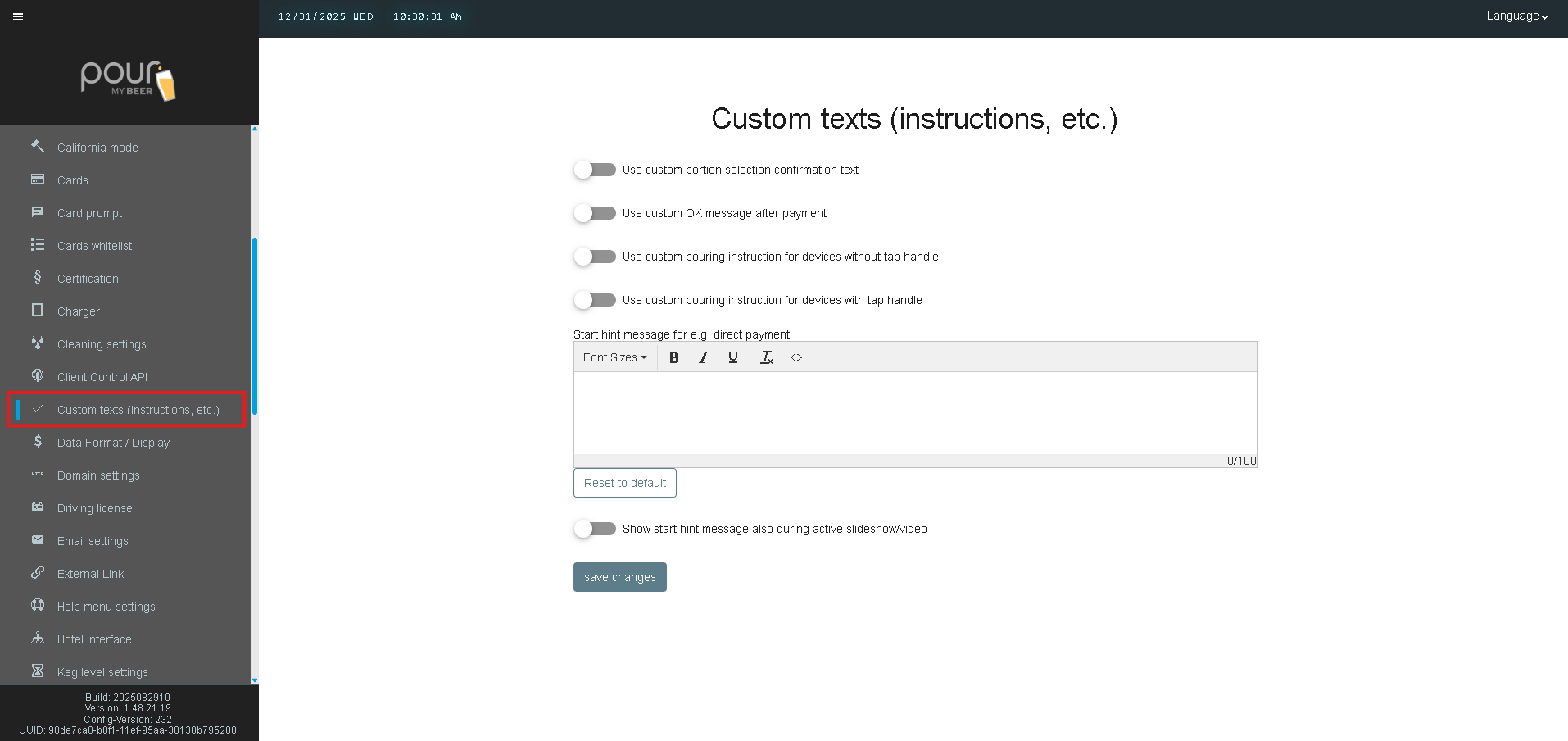
Available Custom Text Options
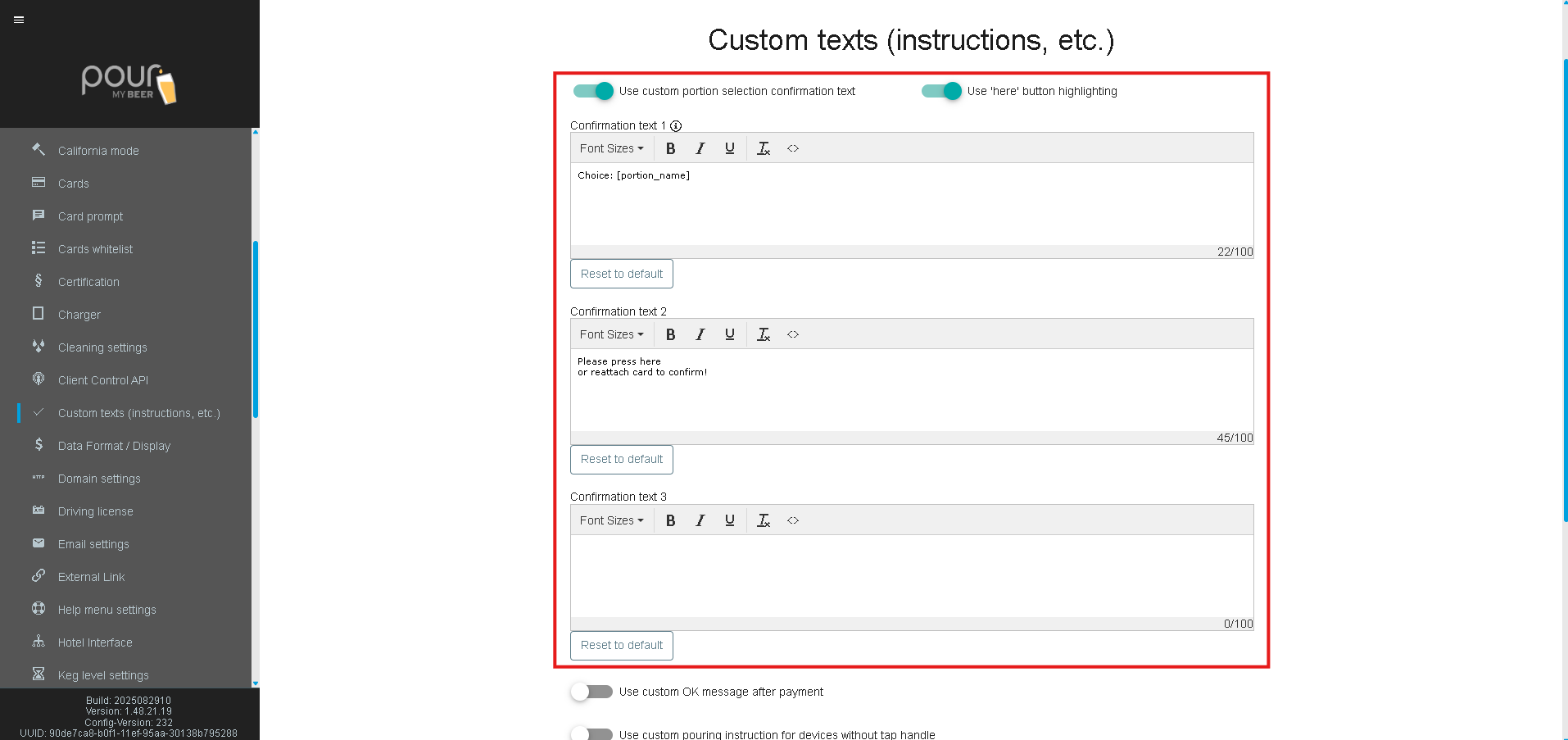
Use Custom Portion Selection Confirmation Text
-
Enables a custom message shown when a customer selects a portion size.
-
Common use:
“Please confirm your pour size before pouring.” -
Helpful for Portion Mode locations to prevent accidental selections.
Use Custom OK Message After Payment
-
Displays a custom confirmation message after successful payment.
-
Example:
“Payment accepted — you may begin pouring.”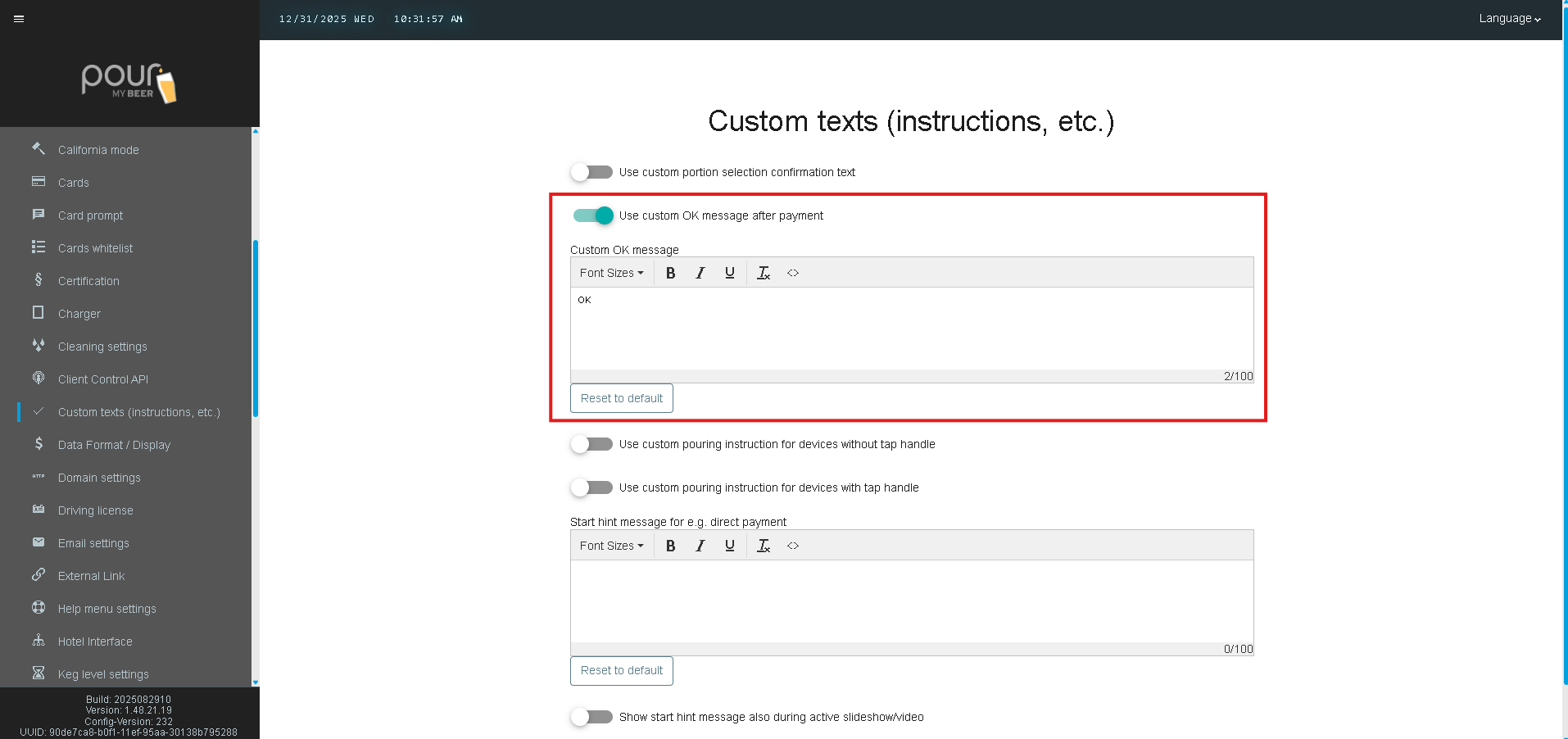
Use Custom Pouring Instruction (No Tap Handle)
-
Applies to devices without a physical tap handle.
-
Use this to explain how pouring is activated (e.g., button press or sensor).
-
Example:
“Press and hold the pour button to dispense.”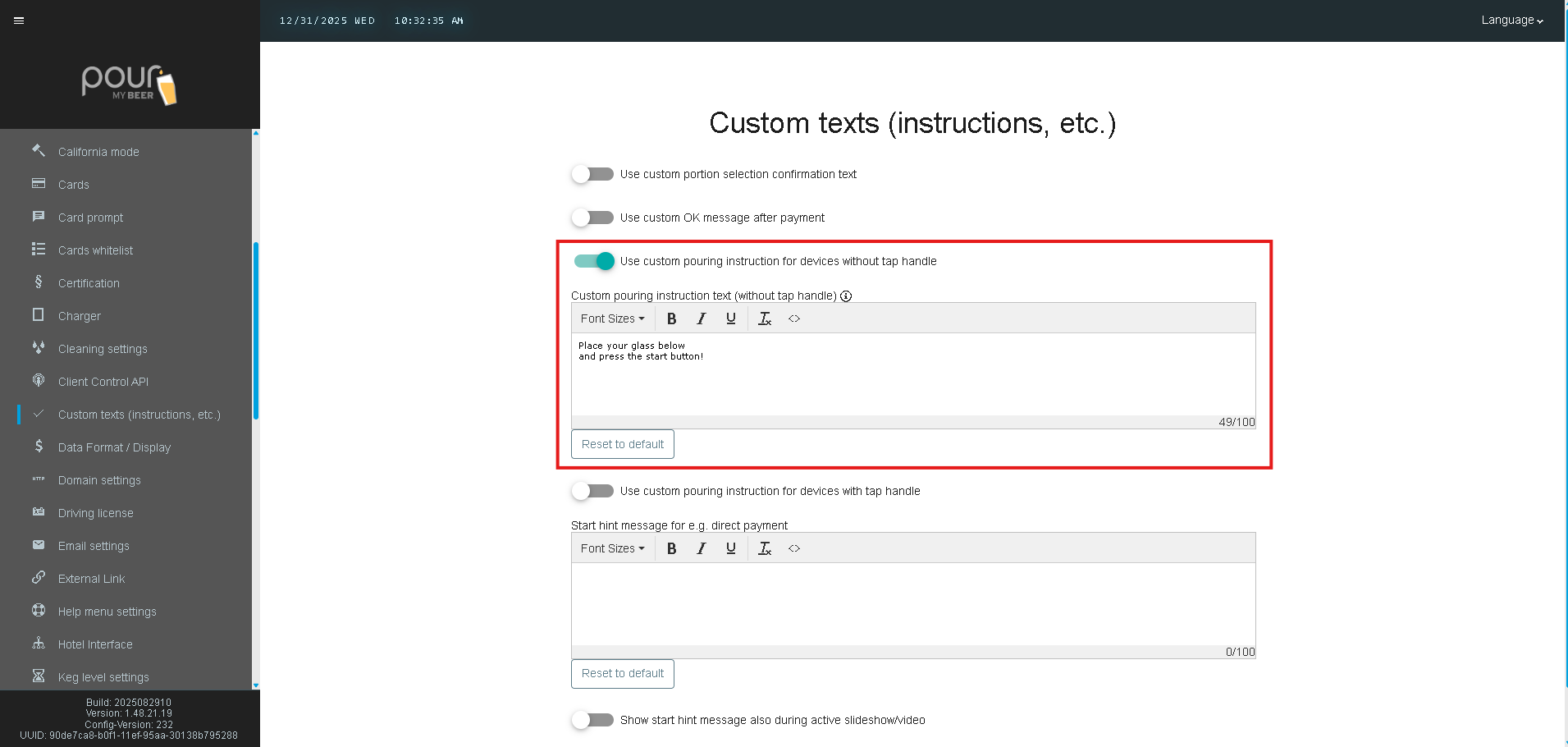
Use Custom Pouring Instruction (With Tap Handle)
-
Applies to standard tap handles.
-
Example:
“Pull the handle to pour. Release to stop.”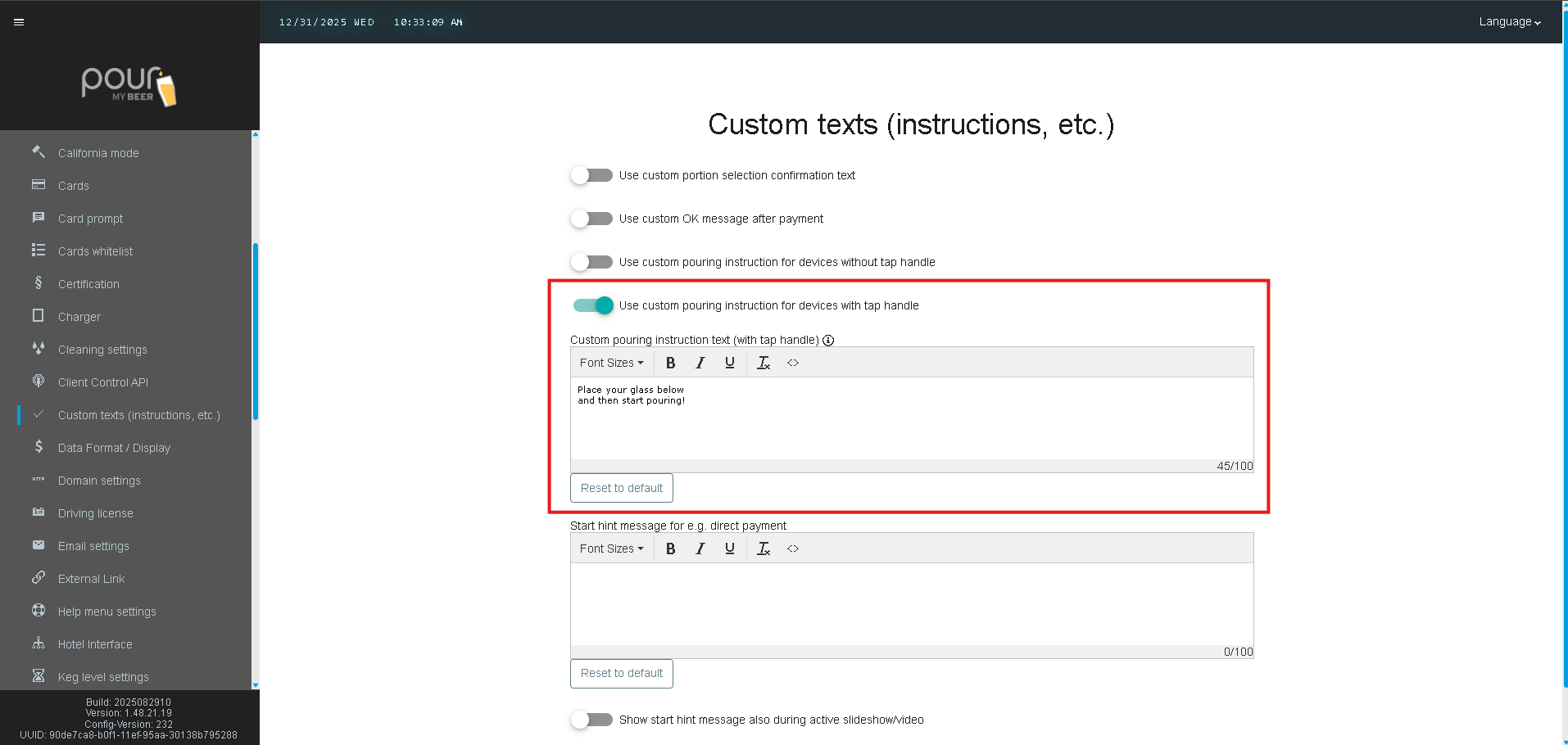
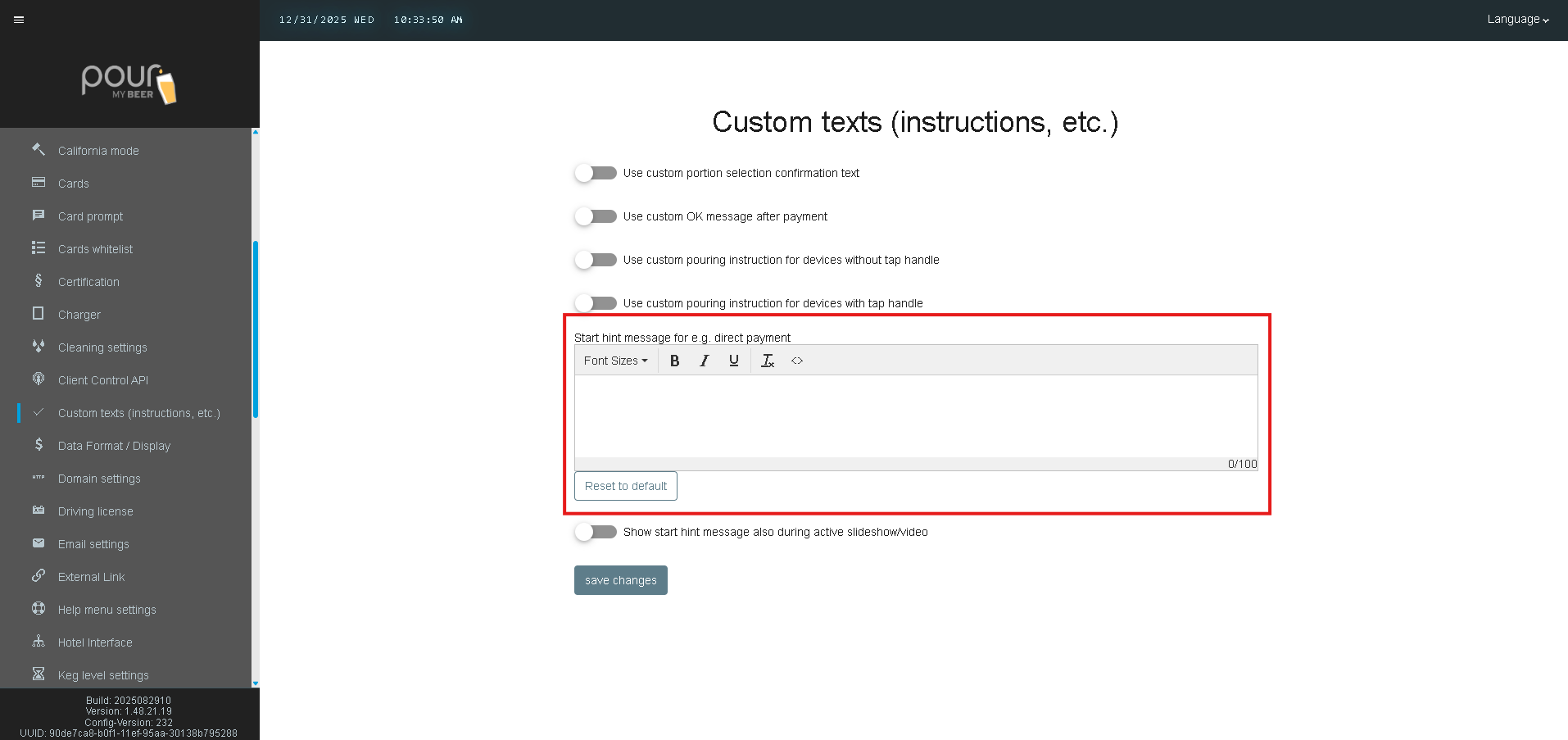
Start Hint Message (Direct Payment & Idle Screen)
Start Hint Message Text
-
Custom text shown to prompt customers to begin interaction.
-
Often used for direct payment or unattended walls.
-
Examples:
-
“Tap your card to begin”
-
“Scan or tap to start pouring”
-
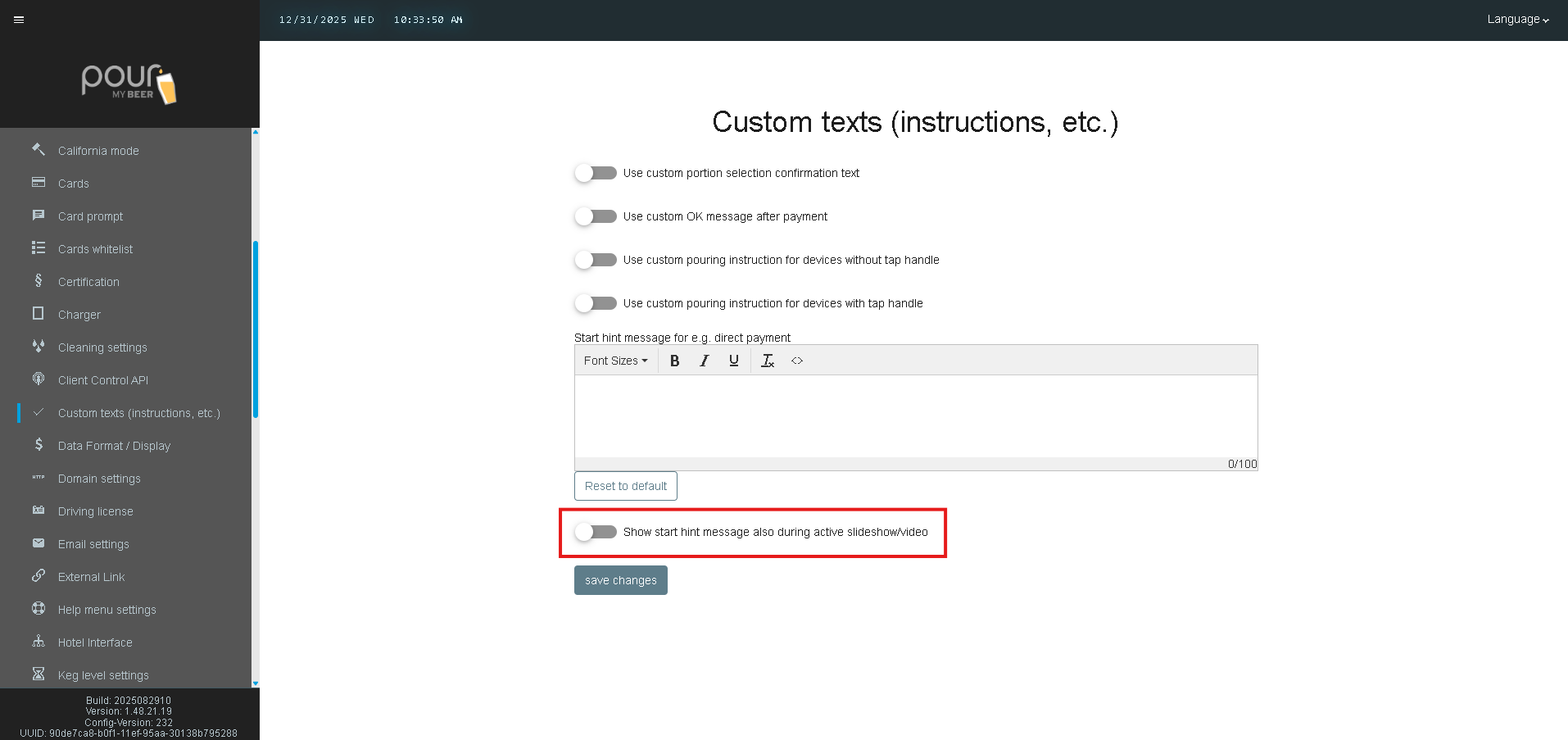
Show Start Hint Message During Slideshow/Video
-
When enabled, the start hint text remains visible even when promotional content is playing.
-
Recommended for high-traffic or first-time user locations.
Formatting Options
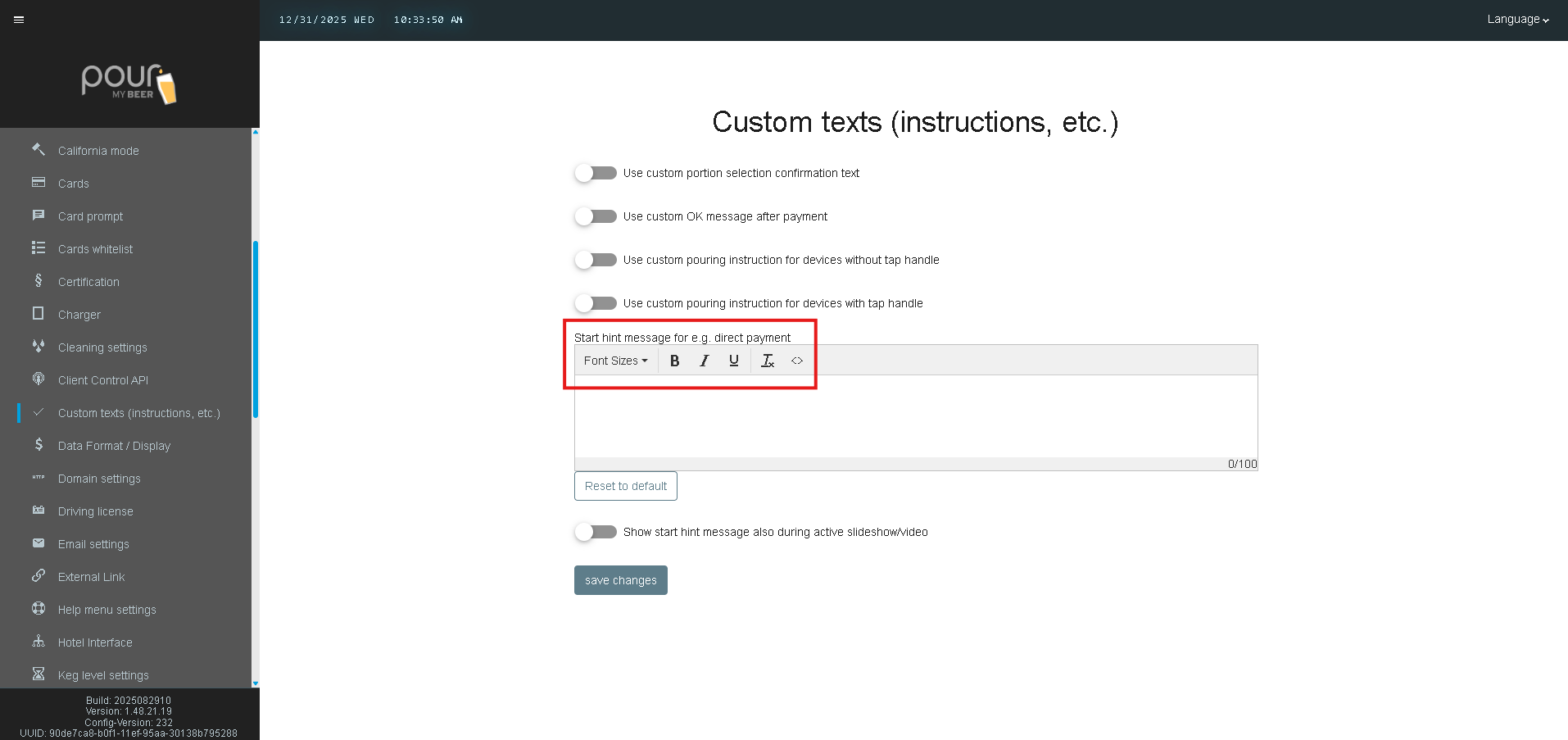
Each text field supports:
-
Font size selection
-
Bold / Italic / Underline
-
Text alignment
-
Character limits (shown per field)
Use concise, clear language to ensure readability on all screen sizes.
Best Practices
-
Keep messages short and action-oriented
-
Avoid overlapping instructions across multiple screens
-
Test changes on one tap screen before rolling out system-wide
-
Always send a Config Update Notification after saving changes