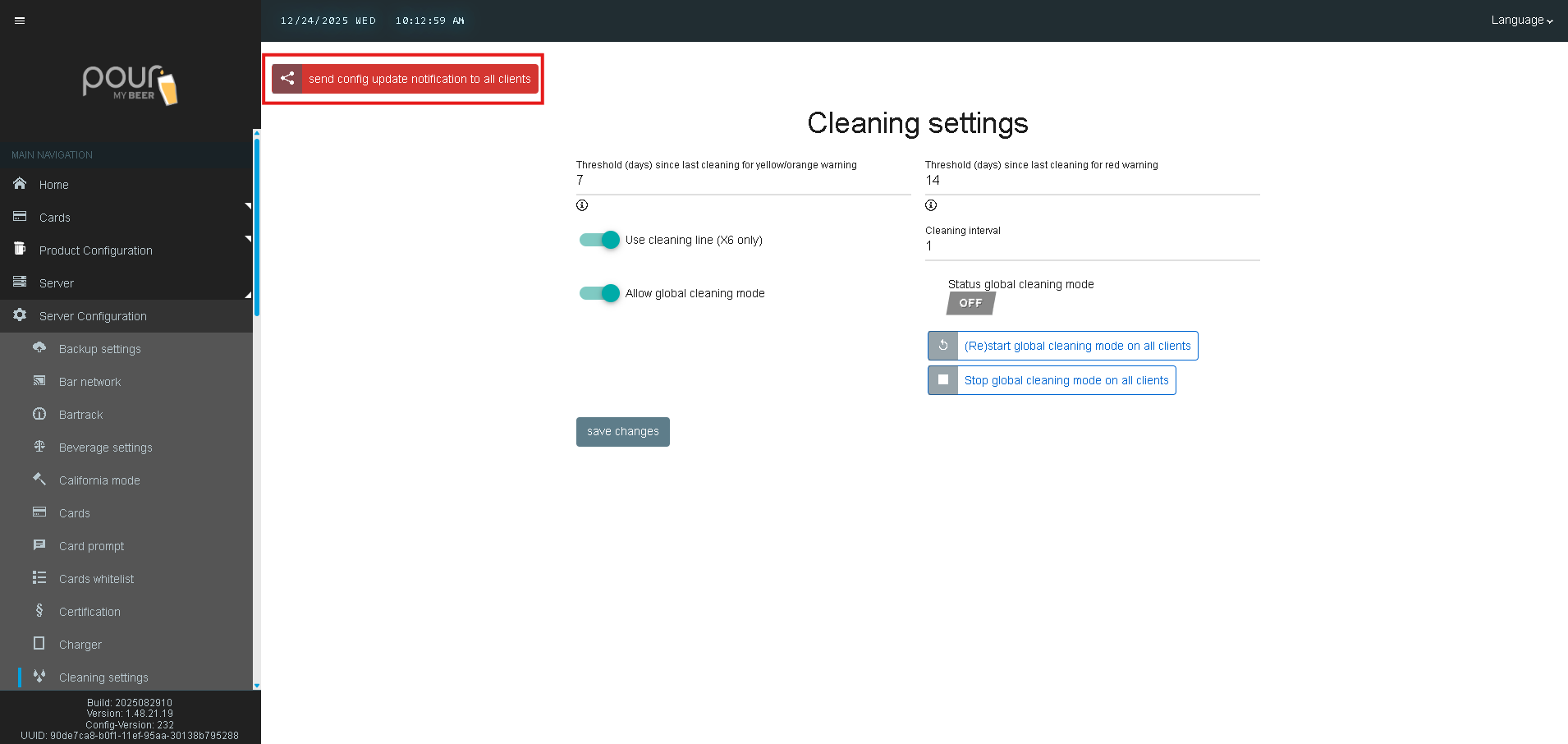
The Cleaning Settings section allows you to define cleaning intervals, enable cleaning line functionality, and manage global cleaning mode across all tap screens. These settings help ensure beverage quality, maintain equipment health, and provide clear visual warnings when cleaning is overdue.
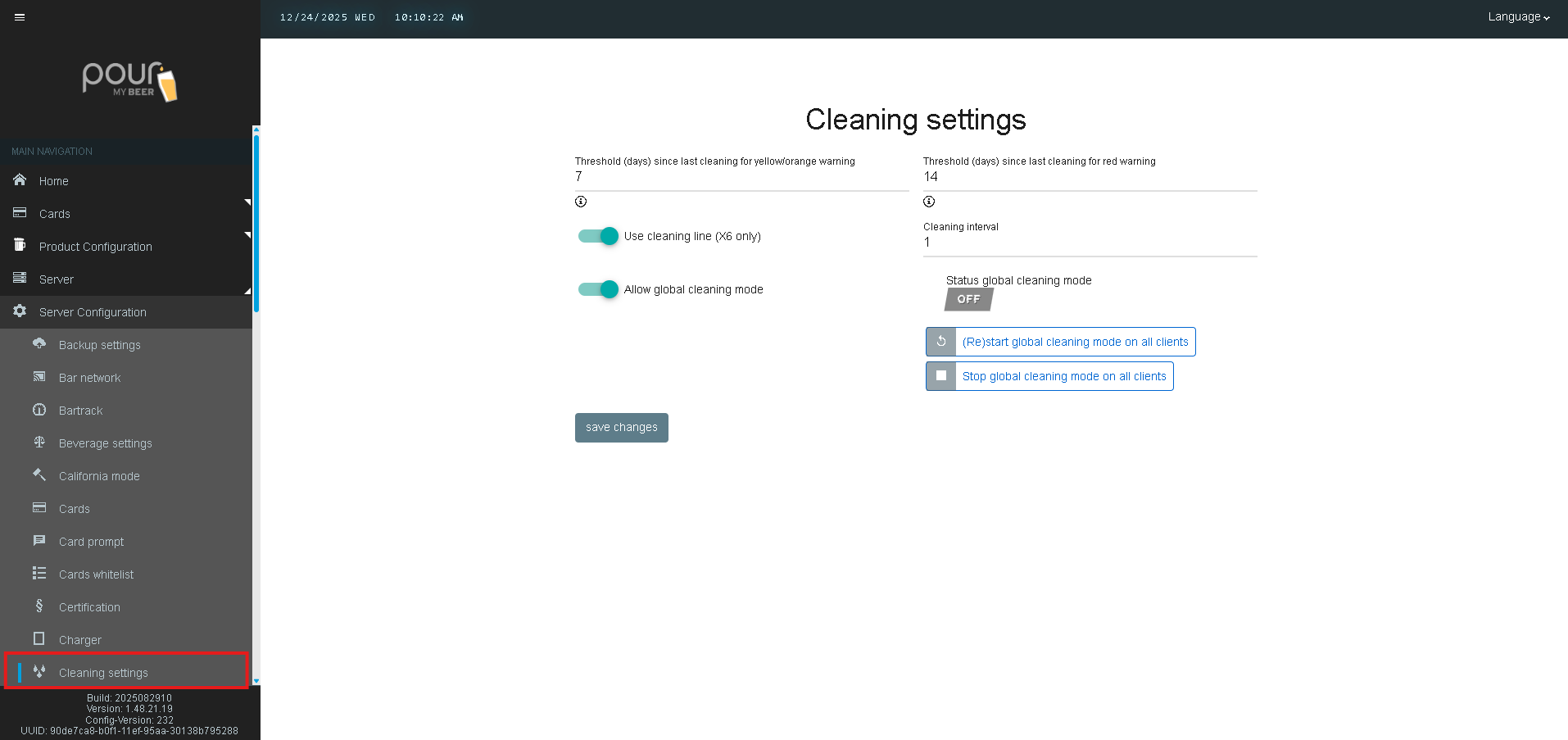
Step 1: Access Cleaning Settings
-
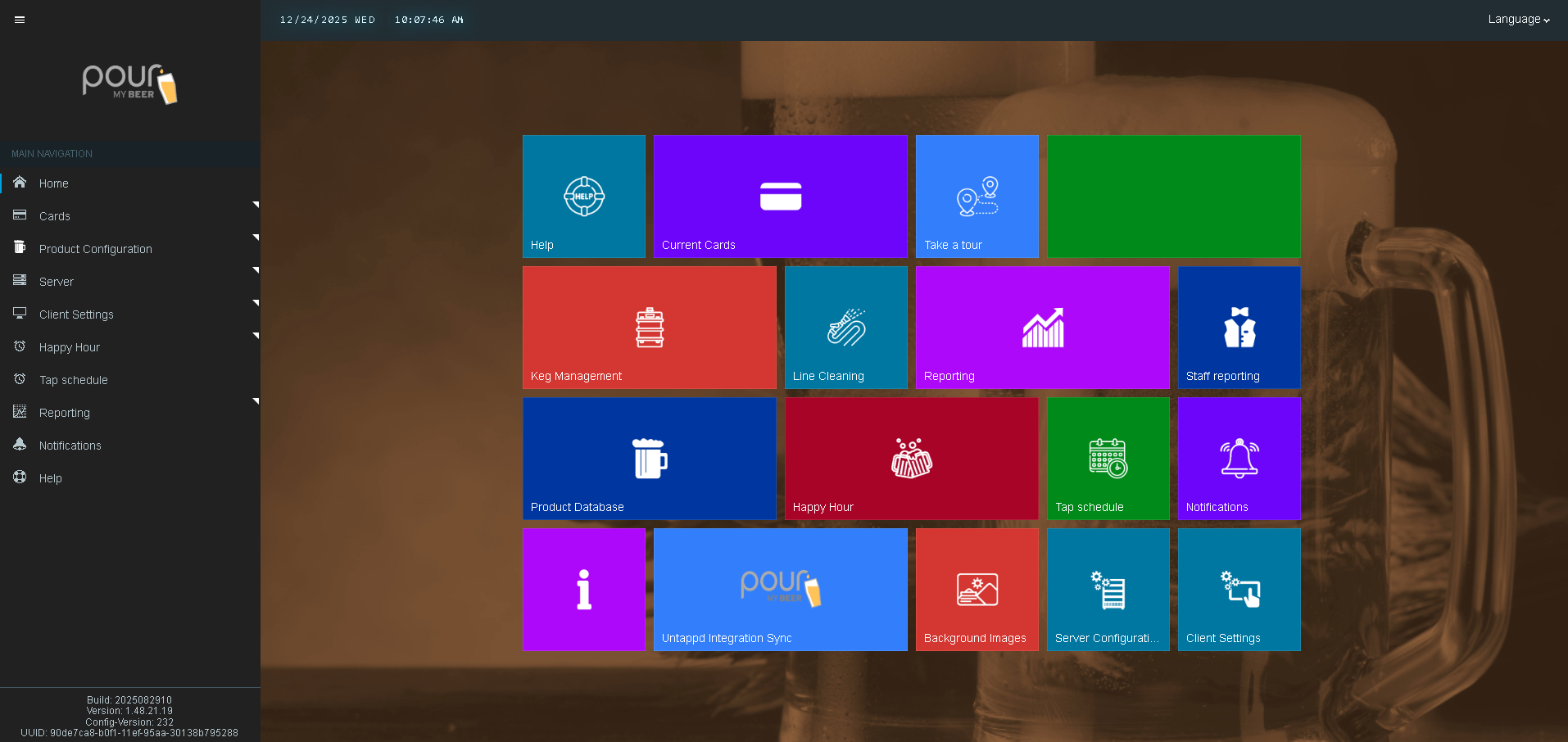
Open the Table Tap Go Server Management Page
-
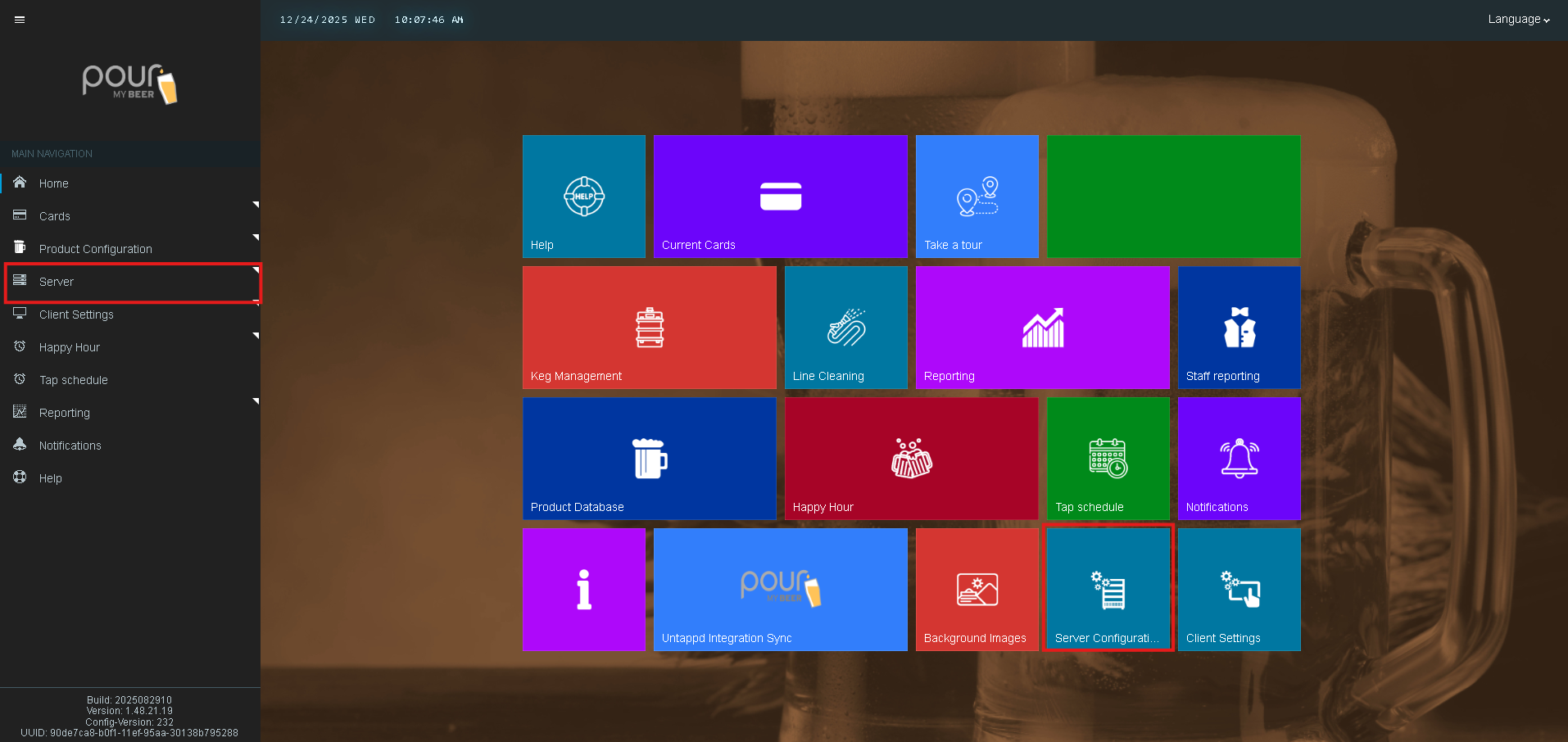
Navigate to Server Configuration
-
Select Cleaning Settings
Step 2: Configure Cleaning Warning Thresholds
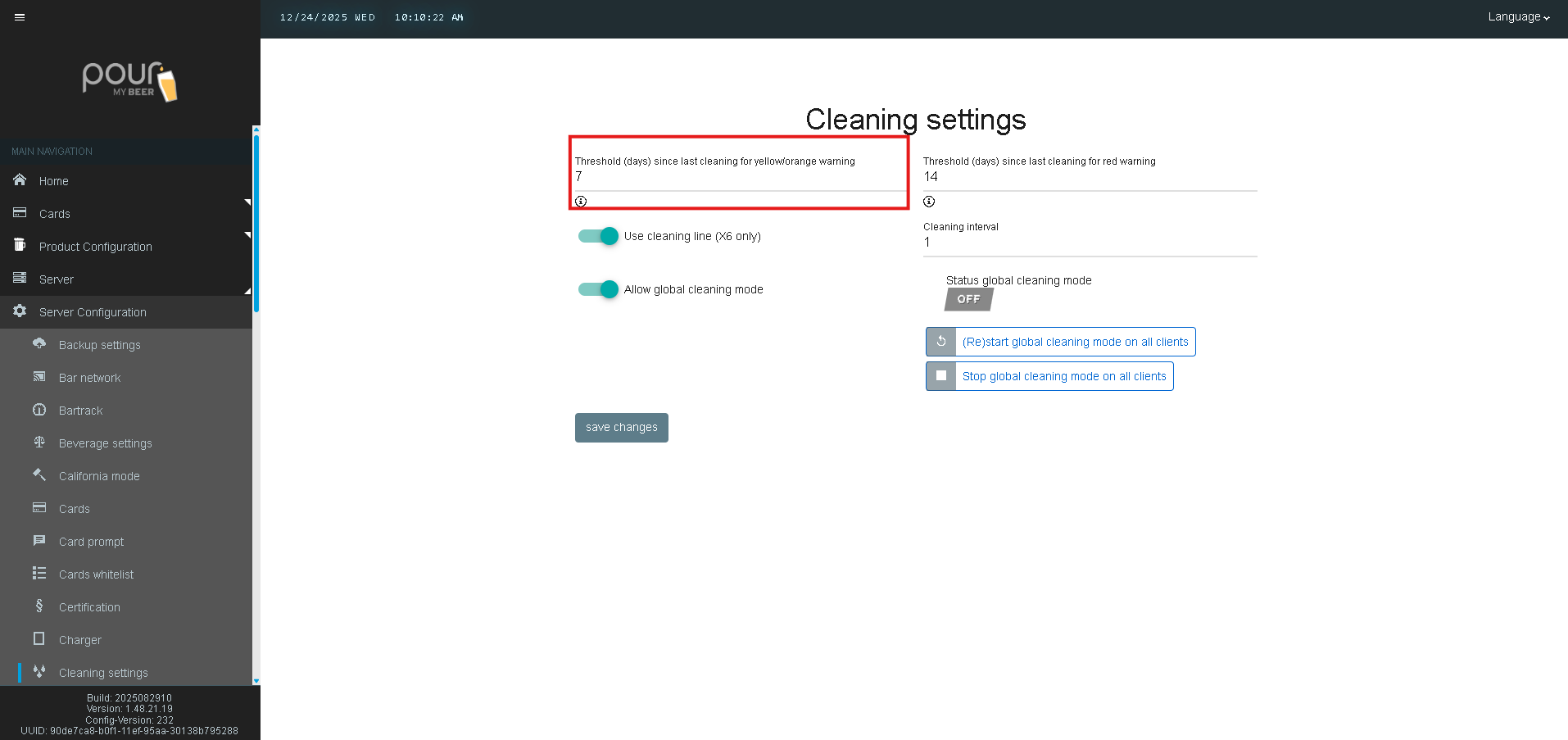
Yellow/Orange Warning Threshold
Threshold (days) since last cleaning for yellow/orange warning
-
Defines how many days can pass before a warning indicator appears
-
Commonly used as an early reminder for upcoming cleaning
Example:7 days → warning appears 7 days after last recorded cleaning
Red Warning Threshold
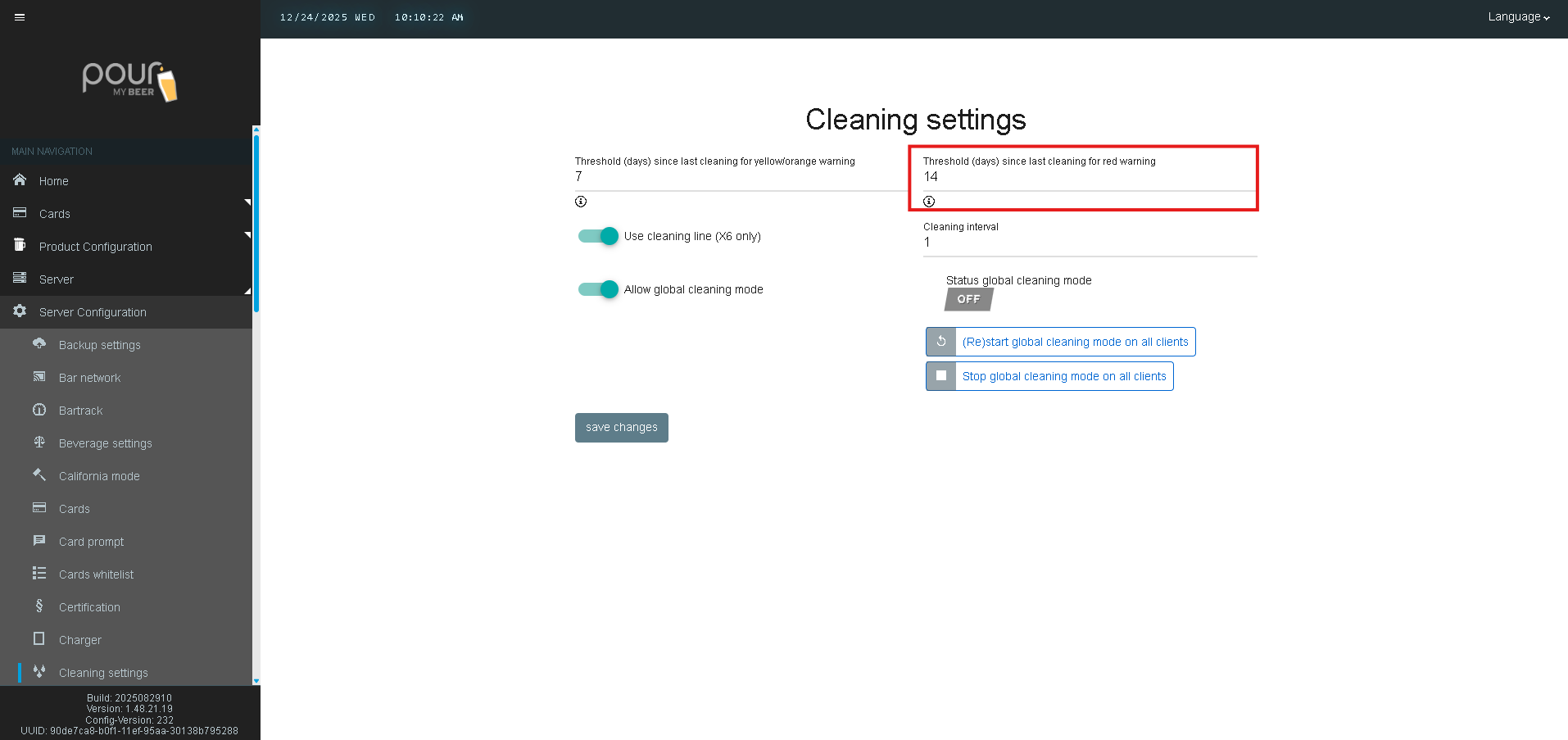
Threshold (days) since last cleaning for red warning
-
Defines when a critical cleaning alert appears
-
Indicates the line is overdue for cleaning
Example:14 days → red warning appears after 14 days
Step 3: Set Cleaning Interval
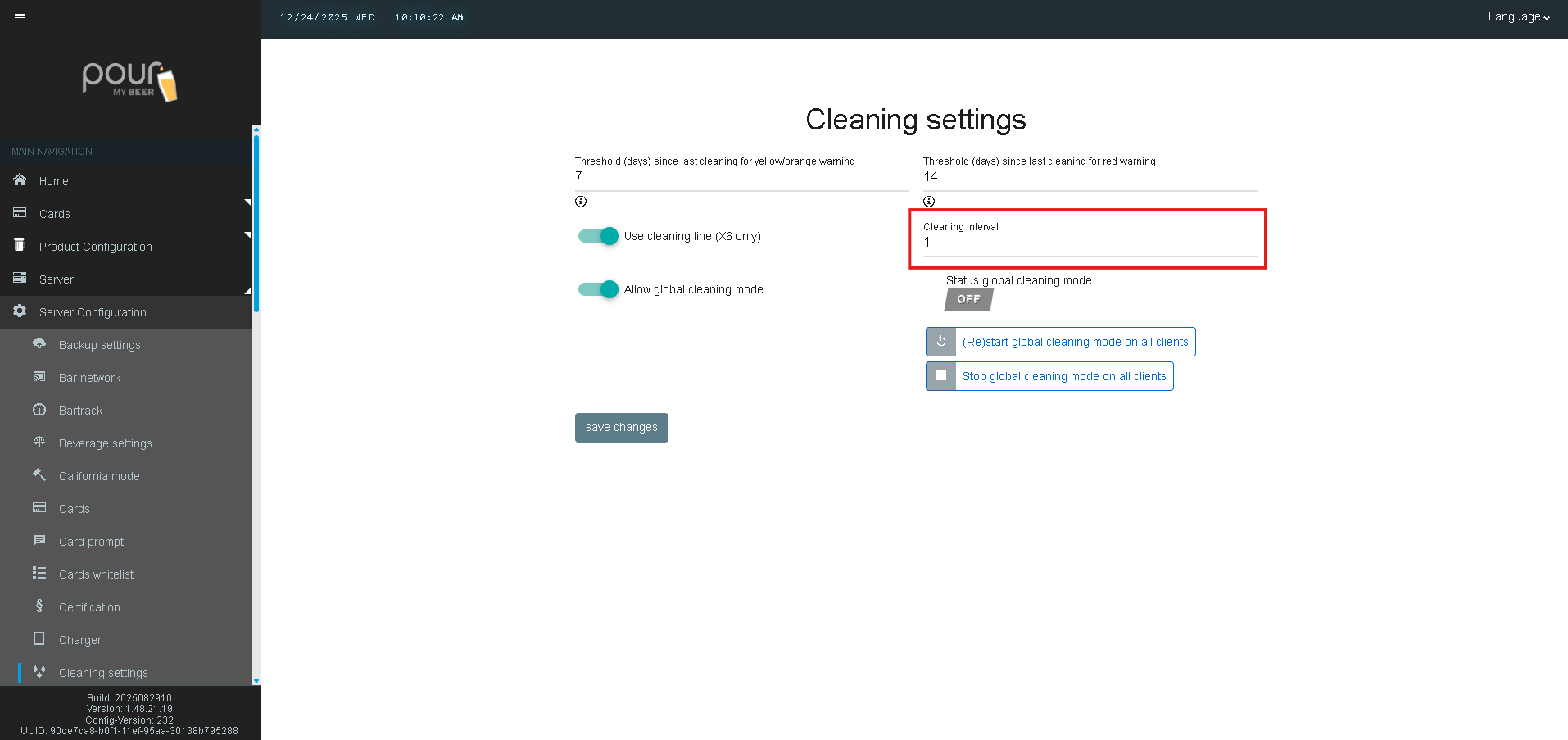
Cleaning Interval
-
Determines how often the system expects a cleaning to occur
-
Used for tracking and warning calculations
Typical value:1 (daily interval tracking)
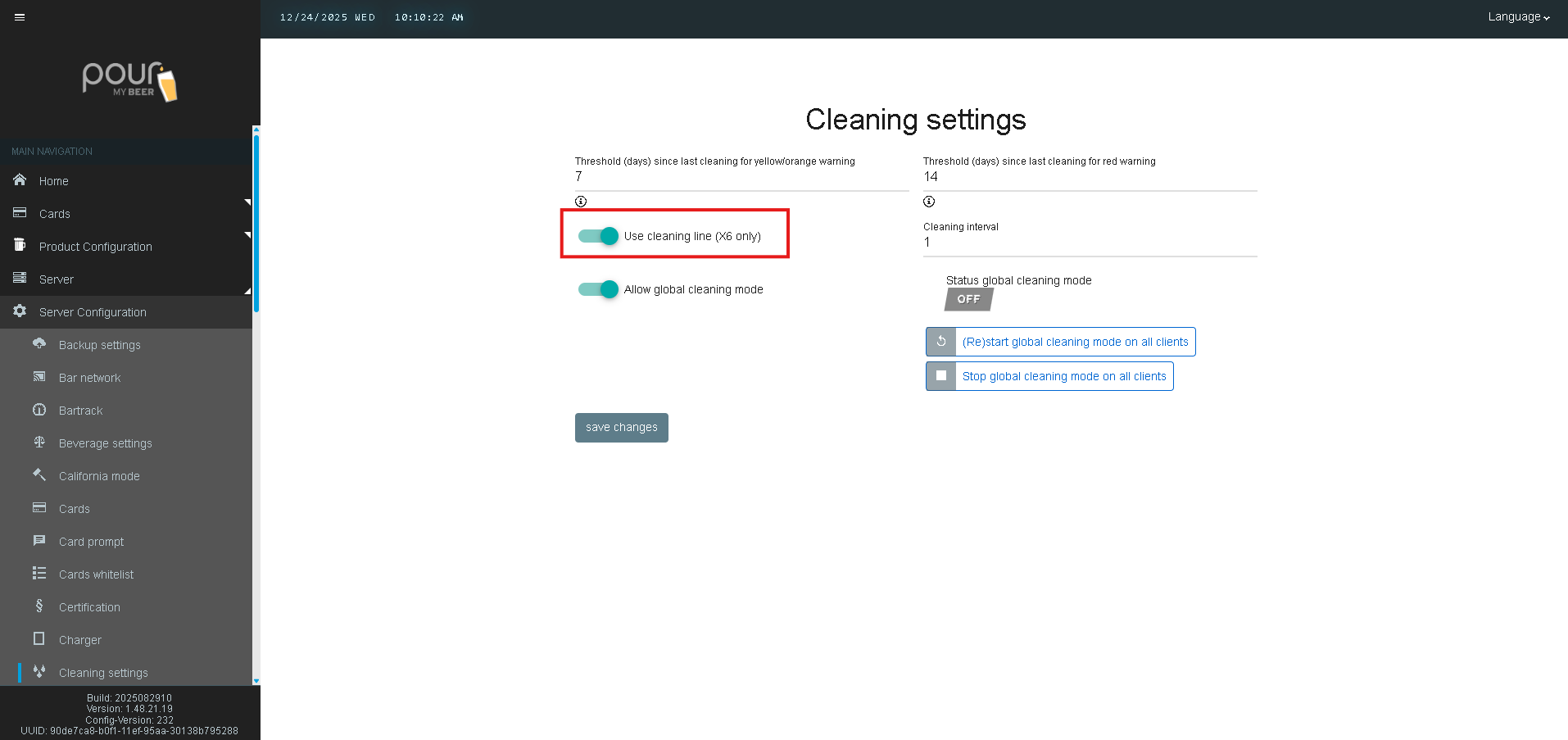
Step 4: Enable Cleaning Line (X6 Only)
Use cleaning line (X6 only)
-
Enables support for a dedicated cleaning line
-
Applies only to X6 hardware configurations
-
Allows proper tracking and handling of cleaning cycles
Toggle ON if your system includes a cleaning line.
Step 5: Enable Global Cleaning Mode
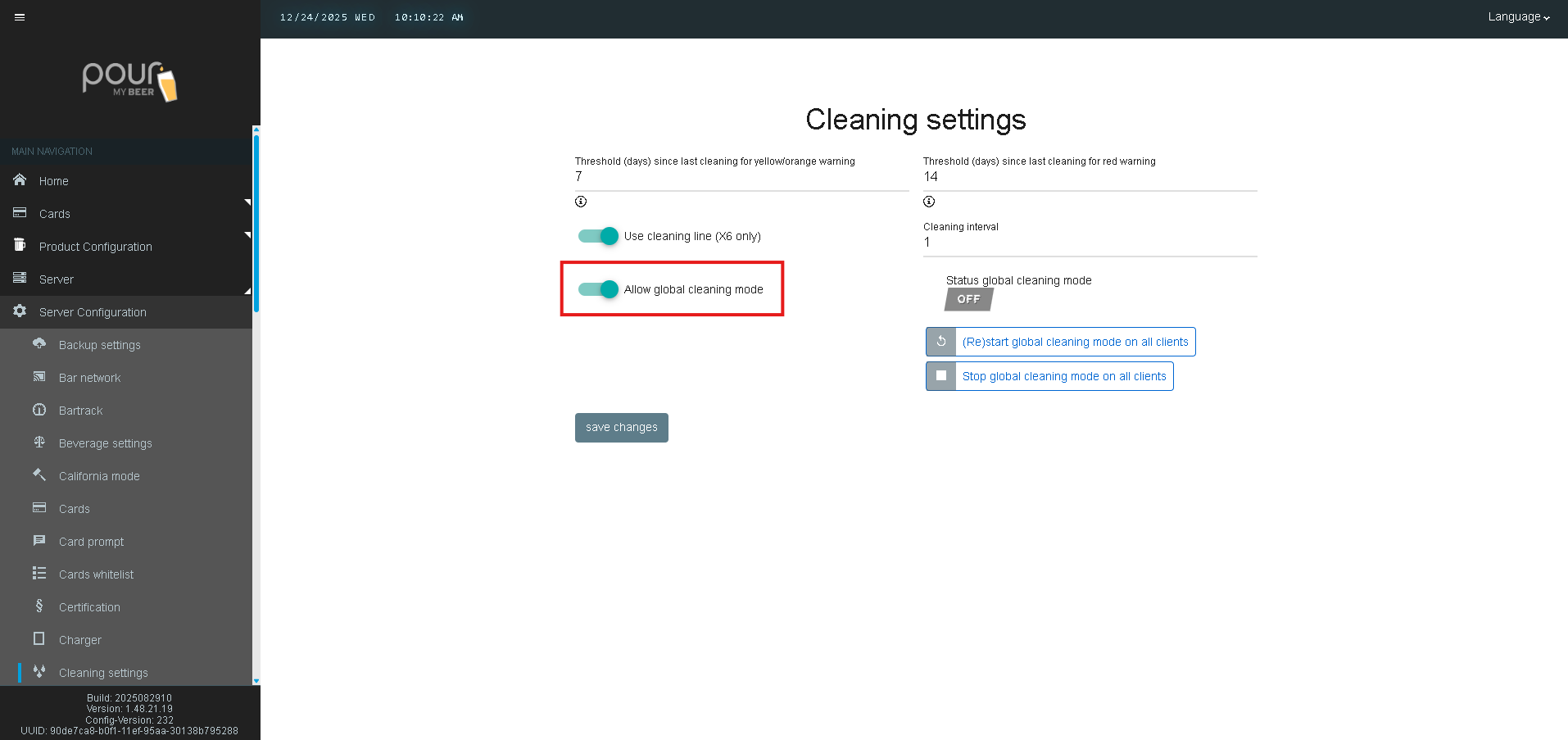
Allow global cleaning mode
-
Enables centralized control of cleaning mode for all clients
-
Allows staff to start or stop cleaning mode across all tap screens simultaneously
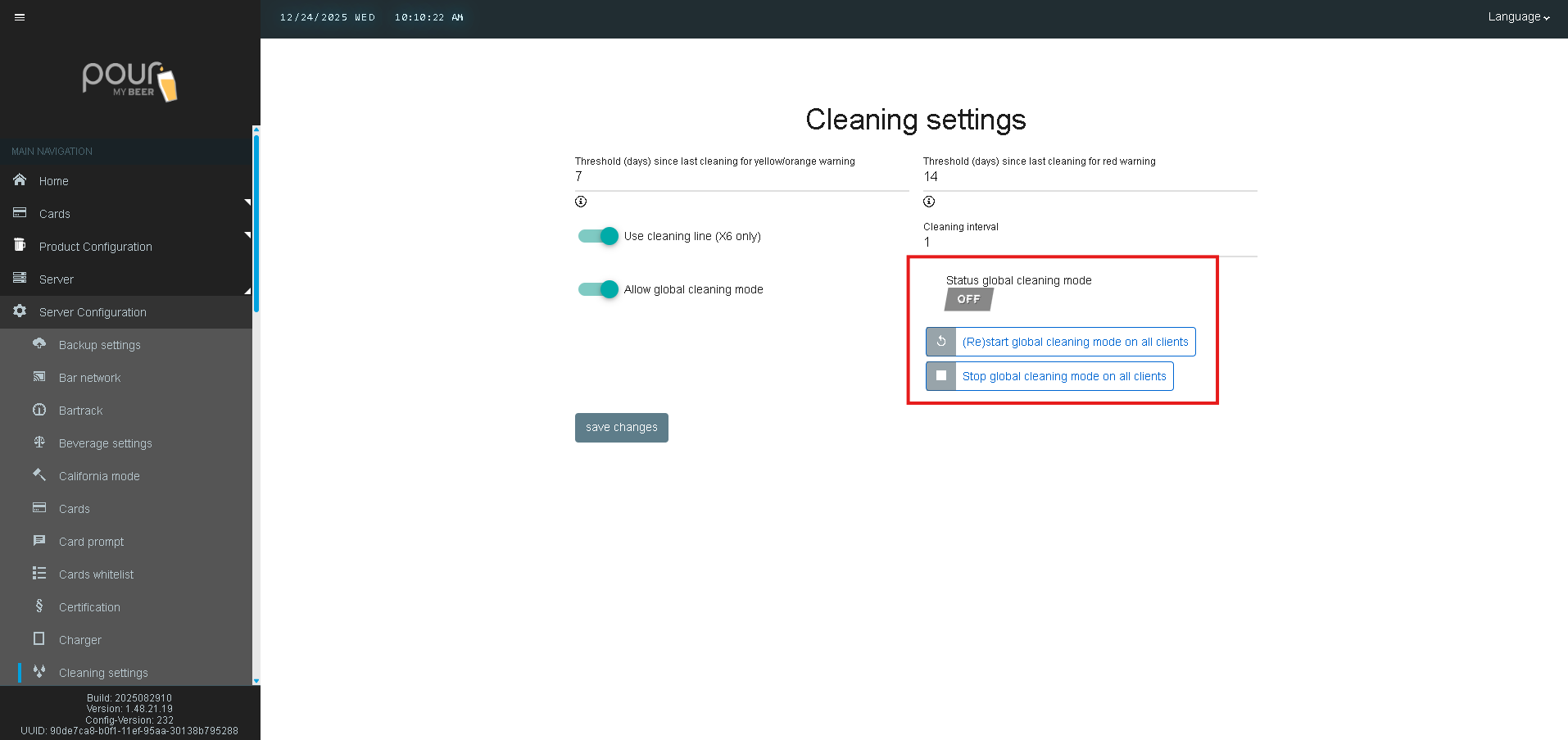
Once enabled, the Status Global Cleaning Mode indicator will display whether the system is currently active or inactive.
Step 6: Start or Stop Global Cleaning Mode
Restart Global Cleaning Mode on All Clients
-
Activates cleaning mode on every connected tap screen
-
Used when starting a cleaning cycle across the venue
Stop Global Cleaning Mode on All Clients
-
Ends cleaning mode on all clients
-
Returns tap screens to normal operation
These controls are ideal for multi-screen locations that want consistent cleaning behavior.
Step 7: Save Changes
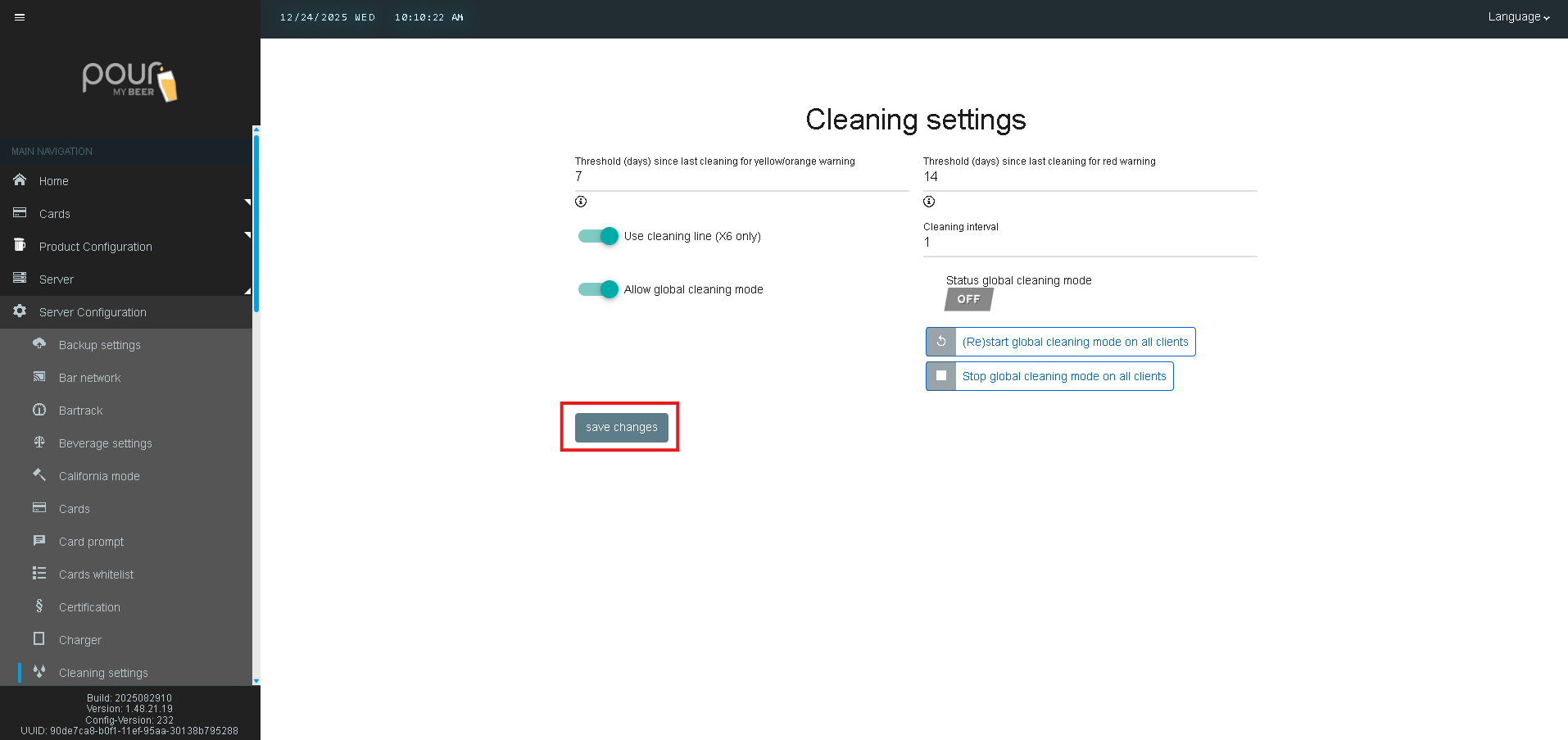
After making any adjustments:
-
Click Save Changes
-
Send a Configuration Update to ensure all clients receive the updated settings