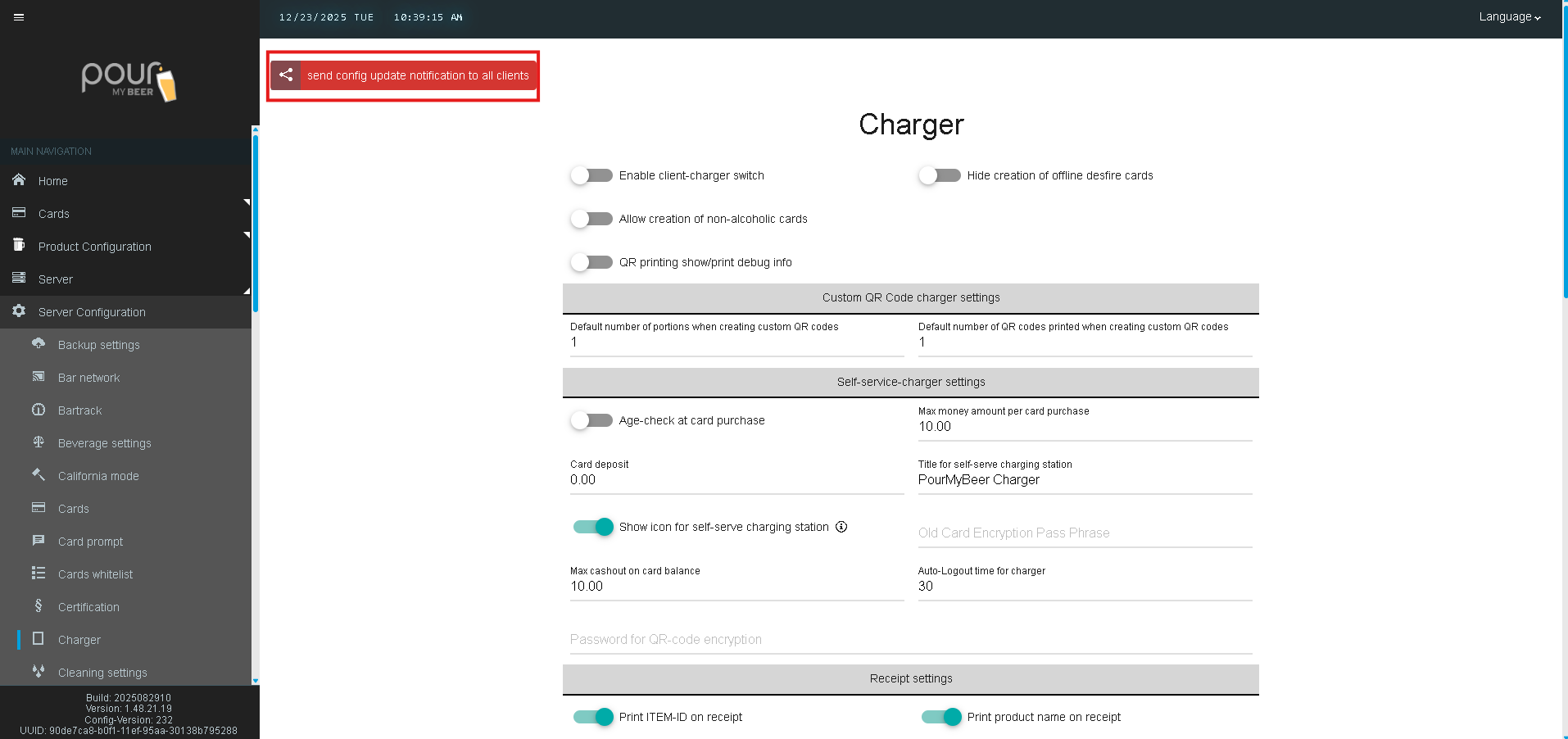
The Charger settings in Table Tap Go control how customer cards and QR codes are created, managed, and printed at charging stations. These options are typically used at host stands, kiosks, or self-service charging locations.
Accessing Charger Settings
-
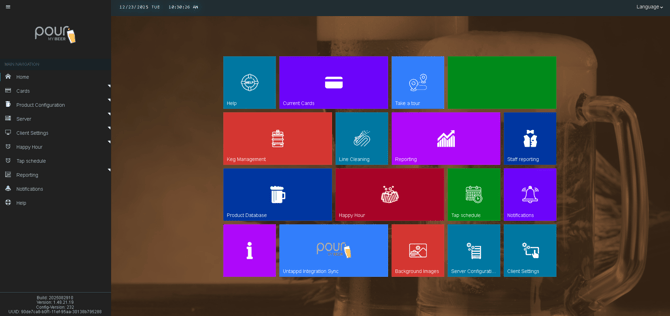
Open the Table Tap Go Server Management Page.
-
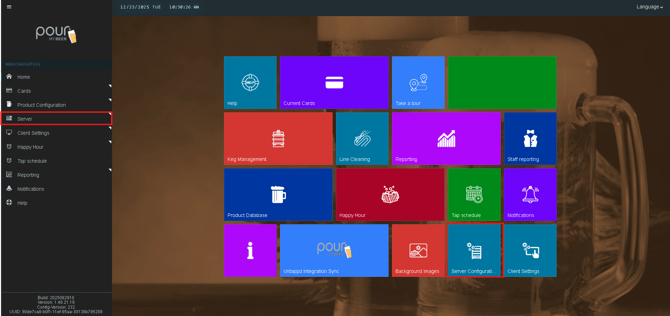
Navigate to Server Configuration.
-
Select the Charger tab.
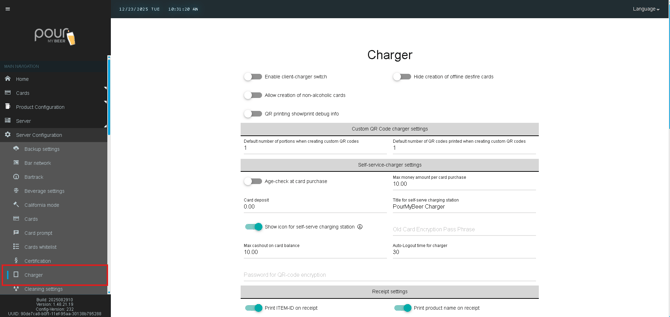
Charger Configuration Options
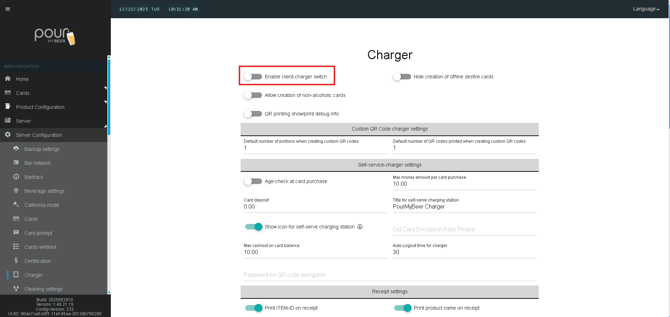
Enable Client-Charger Switch
When enabled, this allows a TTG client device to function as a charger station instead of a dispensing screen.
Use case:
-
Locations that want a single device to switch between dispensing and charging roles.
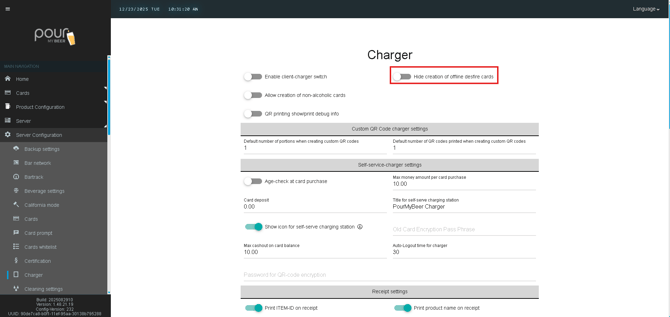
Hide Creation of Offline DESFire Cards
When enabled, this prevents staff from creating offline DESFire cards at the charger.
Recommended when:
-
Your location primarily uses online cards
-
You want to limit card types available to staff
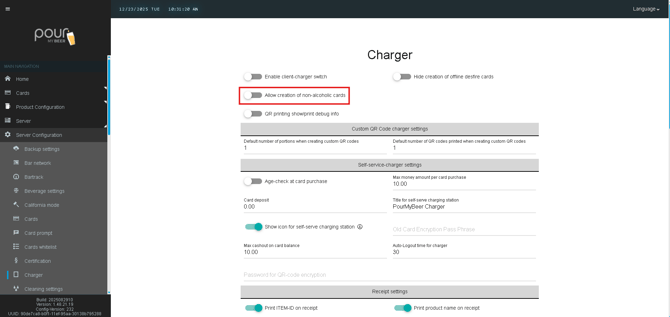
Allow Creation of Non-Alcoholic Cards
When enabled, staff can create cards that are restricted to non-alcoholic products only.
Helpful for:
-
Under-21 guests
-
Designated drivers
-
Family-friendly venues
QR Printing Show / Print Debug Info
This option enables additional debug information when printing QR codes.
Note:
-
This is generally used for troubleshooting and is not recommended for daily operations.

Custom QR Code Charger Settings
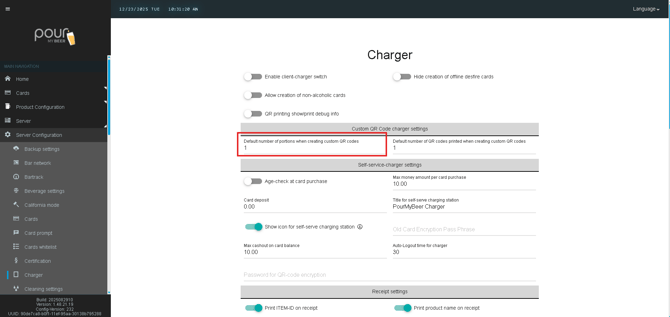
Default Number of Portions When Creating Custom QR Codes
Sets the default portion quantity assigned when generating a custom QR code.
Example:
-
A value of
1creates a QR code valid for one portion.
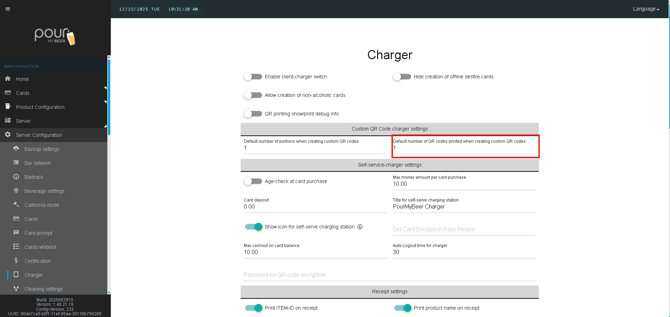
Default Number of QR Codes Printed When Creating Custom QR Codes
Defines how many QR codes are printed automatically per transaction.
Helpful for:
-
Events
-
Group purchases
-
Ticket-based service
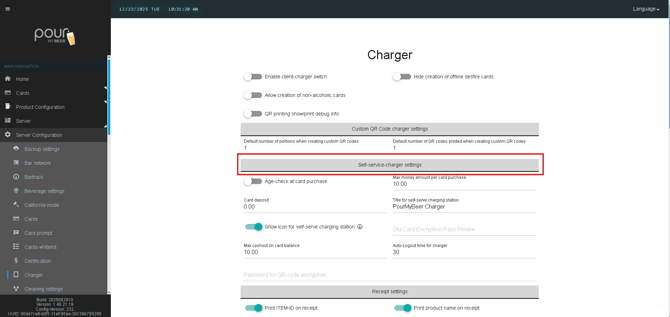
Self-Service Charger Settings
Configure customer-facing card charging behavior in Table Tap Go
The Self-Service Charger Settings allow you to control how customers purchase, reload, and manage RFID cards at a self-service charging station. These settings help enforce age verification, spending limits, deposits, and user experience behavior.
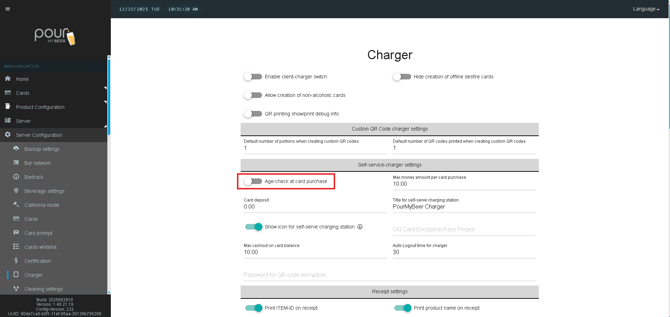
Age Check at Card Purchase
When enabled, customers must pass an age verification step before purchasing a card at the self-service charger.
Recommended for:
-
Alcohol-serving locations
-
Compliance with local age regulations
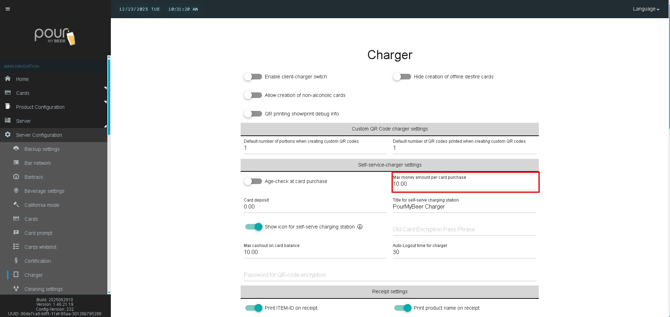
Max Money Amount per Card Purchase
Defines the maximum dollar amount a customer can load onto a card in a single transaction.
Example:
-
Setting this to
10.00limits each purchase to $10 per transaction.
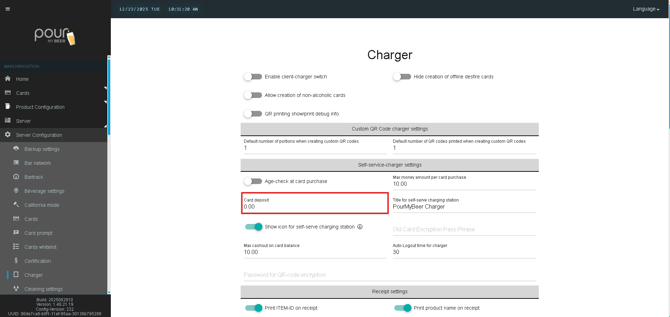
Card Deposit
Sets an optional deposit amount required when a card is issued.
-
Commonly used to encourage card returns
-
Set to
0.00if no deposit is required
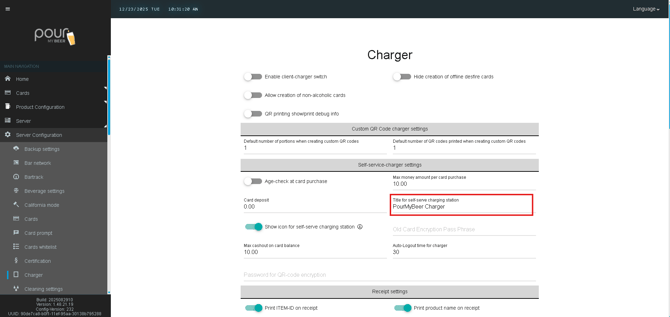
Title for Self-Service Charging Station
This text appears on the self-service charger screen and identifies the station to customers.
Default:PourMyBeer Charger
You may customize this to match your venue branding.
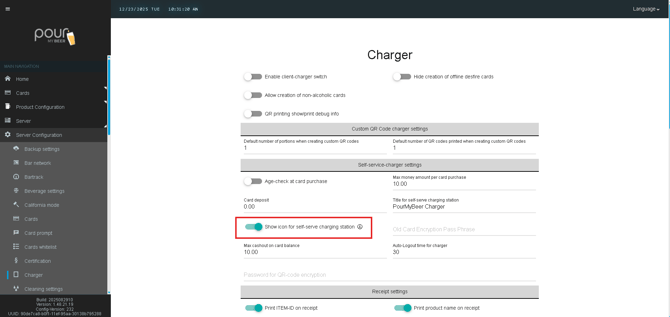
Show Icon for Self-Service Charging Station
When enabled, an icon for the self-service charger appears on supported screens, making it easier for customers to identify where to charge or reload cards.
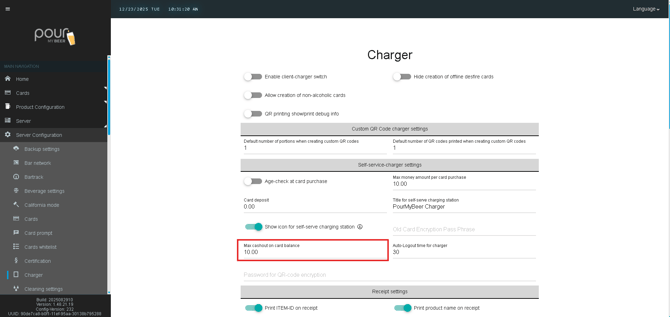
Max Cashout on Card Balance
Sets the maximum refundable balance allowed on a card.
-
Helps limit cash handling
-
Prevents large refund requests
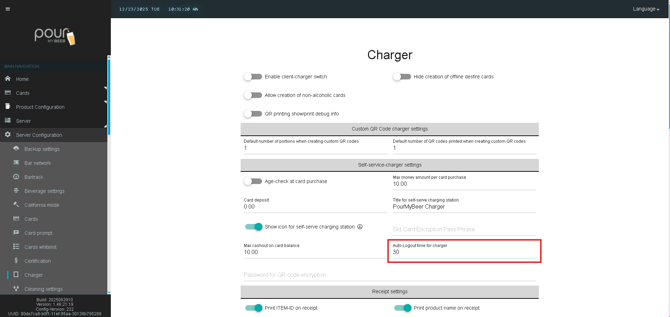
Auto-Logout Time for Charger
Defines how many seconds of inactivity occur before the charger automatically logs out.
Example:
-
30seconds ensures the system resets quickly between users
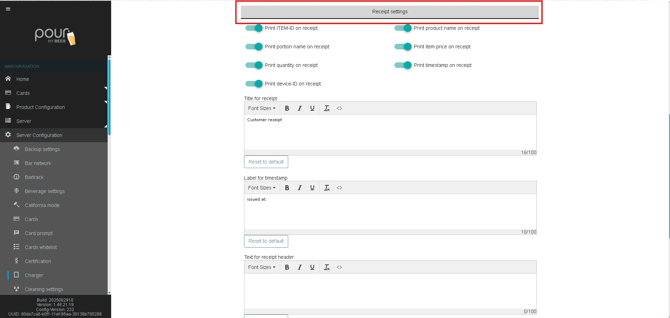
Receipt Settings
Configure what information appears on printed receipts
The Receipt Settings section allows you to control exactly what information is printed on customer receipts when cards are purchased, reloaded, or cashed out. This ensures receipts match your operational, accounting, and customer communication needs.
Receipt Content Options
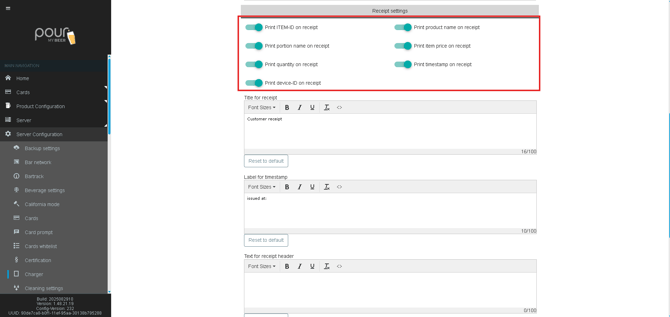
Use the toggles to enable or disable specific information on printed receipts.
Line Item Details
-
Print ITEM-ID on receipt
Displays the internal item ID associated with the transaction. -
Print product name on receipt
Shows the beverage or product name. -
Print portion name on receipt
Displays the selected portion size (e.g., 4 oz, 8 oz, 16 oz). -
Print item price on receipt
Shows the price charged for each item. -
Print quantity on receipt
Displays the volume or quantity dispensed. -
Print timestamp on receipt
Prints the date and time of the transaction. -
Print device-ID on receipt
Identifies which charger or device processed the transaction.
Custom Receipt Text Fields
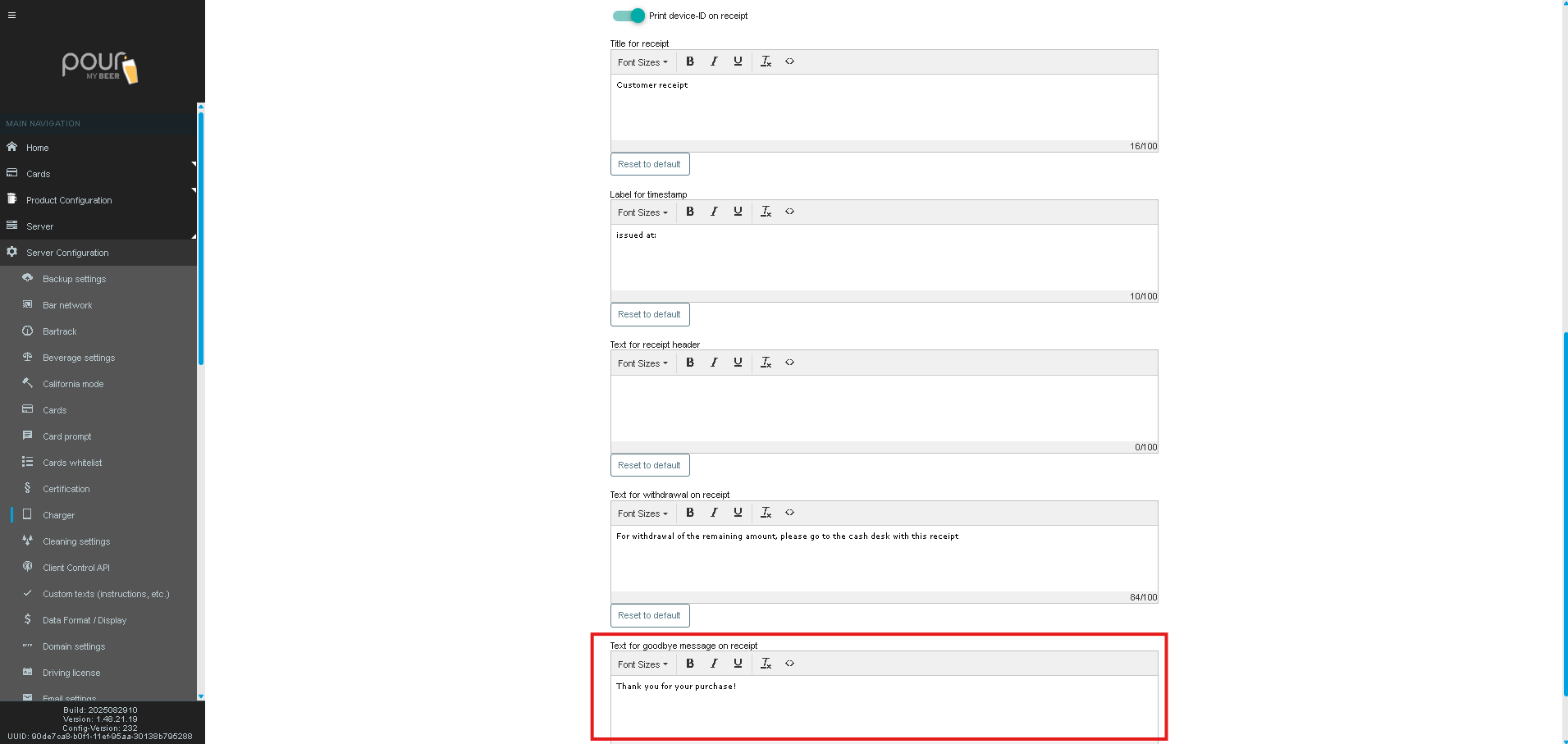
You can customize the text shown on different parts of the receipt using the built-in text editor.
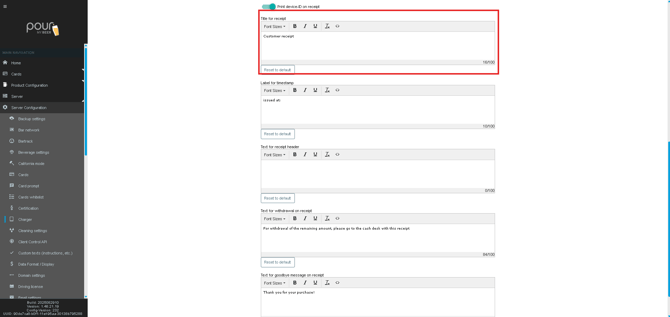
Title for Receipt
-
Appears at the top of the receipt
-
Commonly used for venue name or “Customer Receipt”
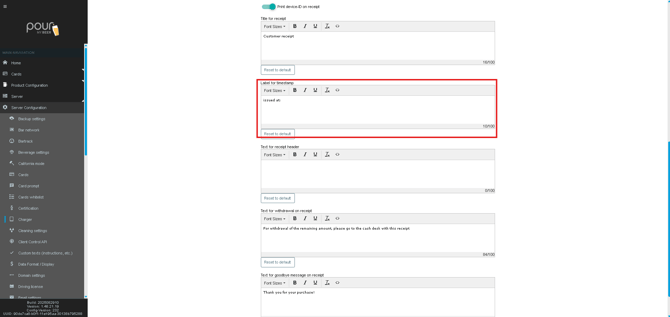
Label for Timestamp
-
Customizes the wording shown next to the date/time
-
Example:
Issued at:
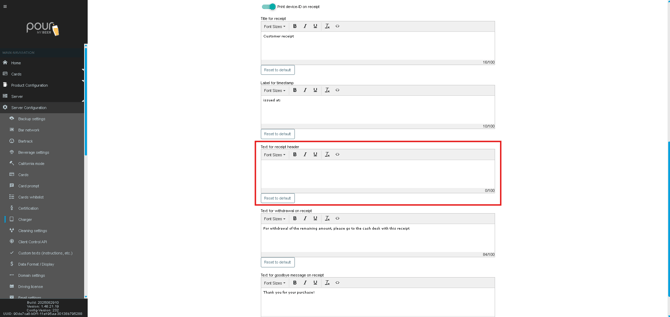
Text for Receipt Header
-
Optional message shown below the receipt title
-
Useful for promotions, legal notices, or branding
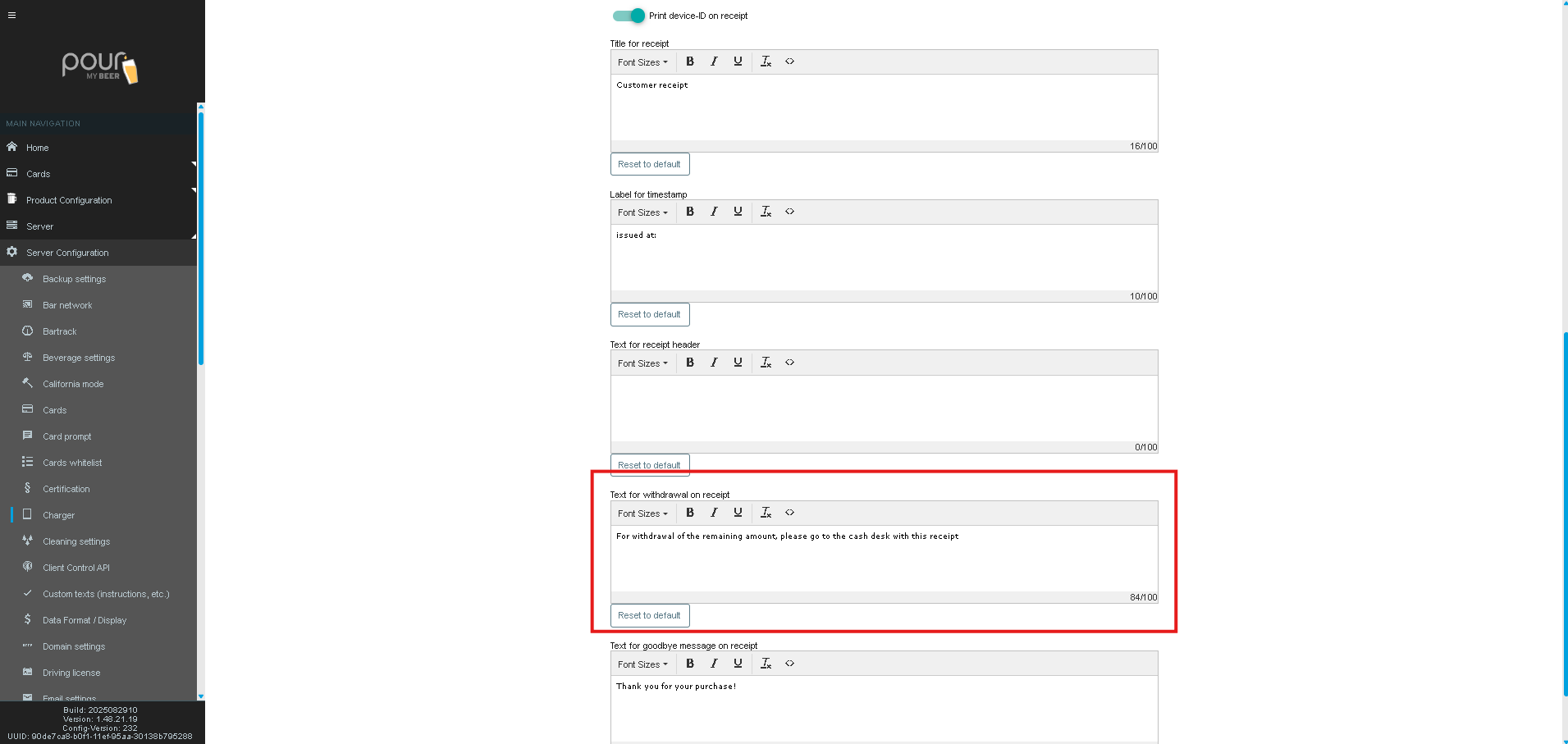
Text for Withdrawal on Receipt
-
Shown when a customer requests a cash-out
-
Default example:
“For withdrawal of the remaining amount, please go to the cash desk with this receipt.”
Text for Goodbye Message on Receipt
-
Displayed at the bottom of the receipt
-
Common examples:
“Thank you for your purchase!”
“Enjoy responsibly!”
Resetting to Default
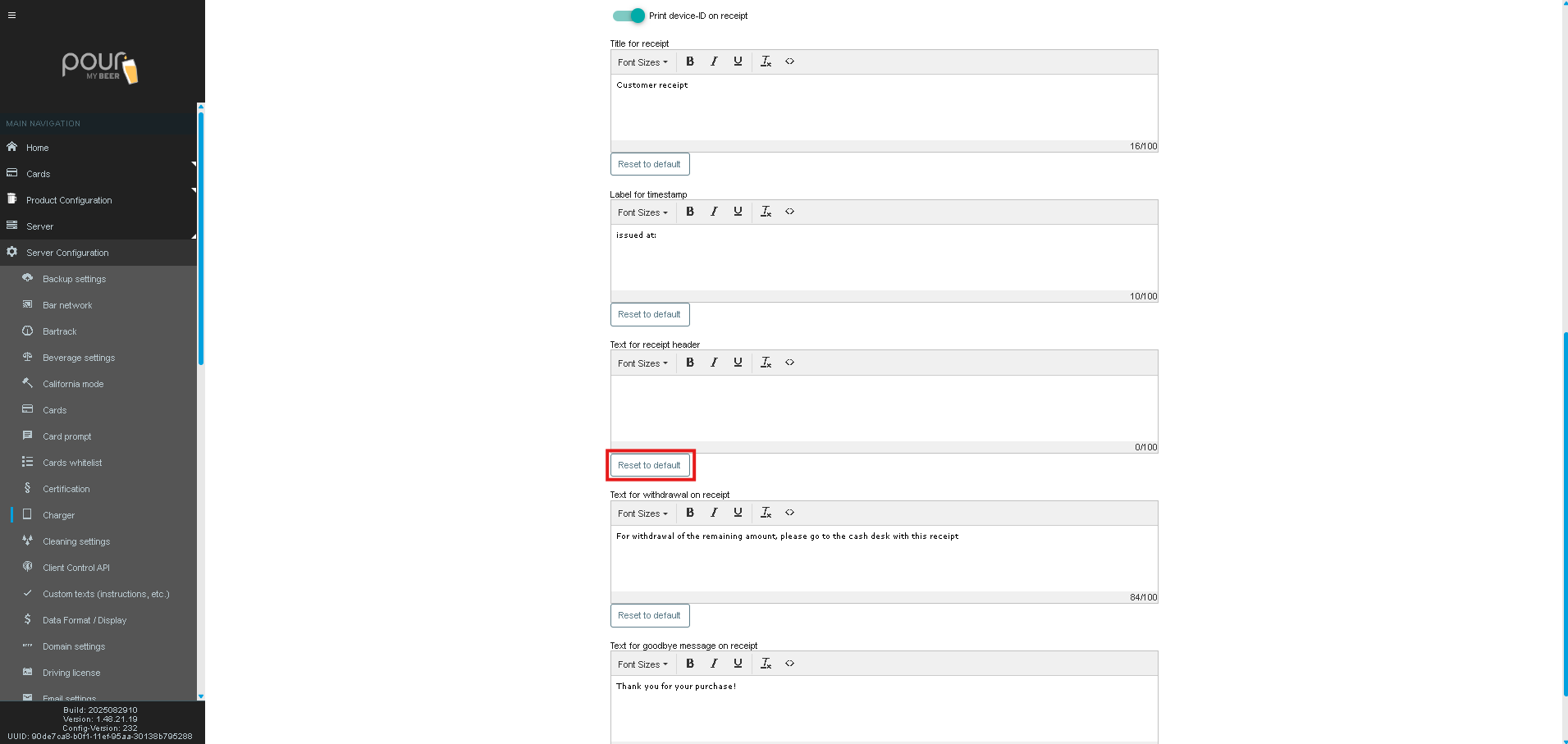
Each text field includes a Reset to default button if you need to revert to the system’s default messaging.
Saving Changes
After making any updates:
-
Click Save Changes

-
Send the configuration update to all clients