The Certification setting in Table Tap Go (TTG) allows your system to apply certification-based rules to customer access and pouring behavior.
This setting is typically used to support compliance requirements, training verification, or location-specific operational policies.
How to Access Certification Settings
-
Open the Table Tap Go Server Management Page, or navigate to:
http://localhost:8585 -
Log in using your Admin credentials.
-
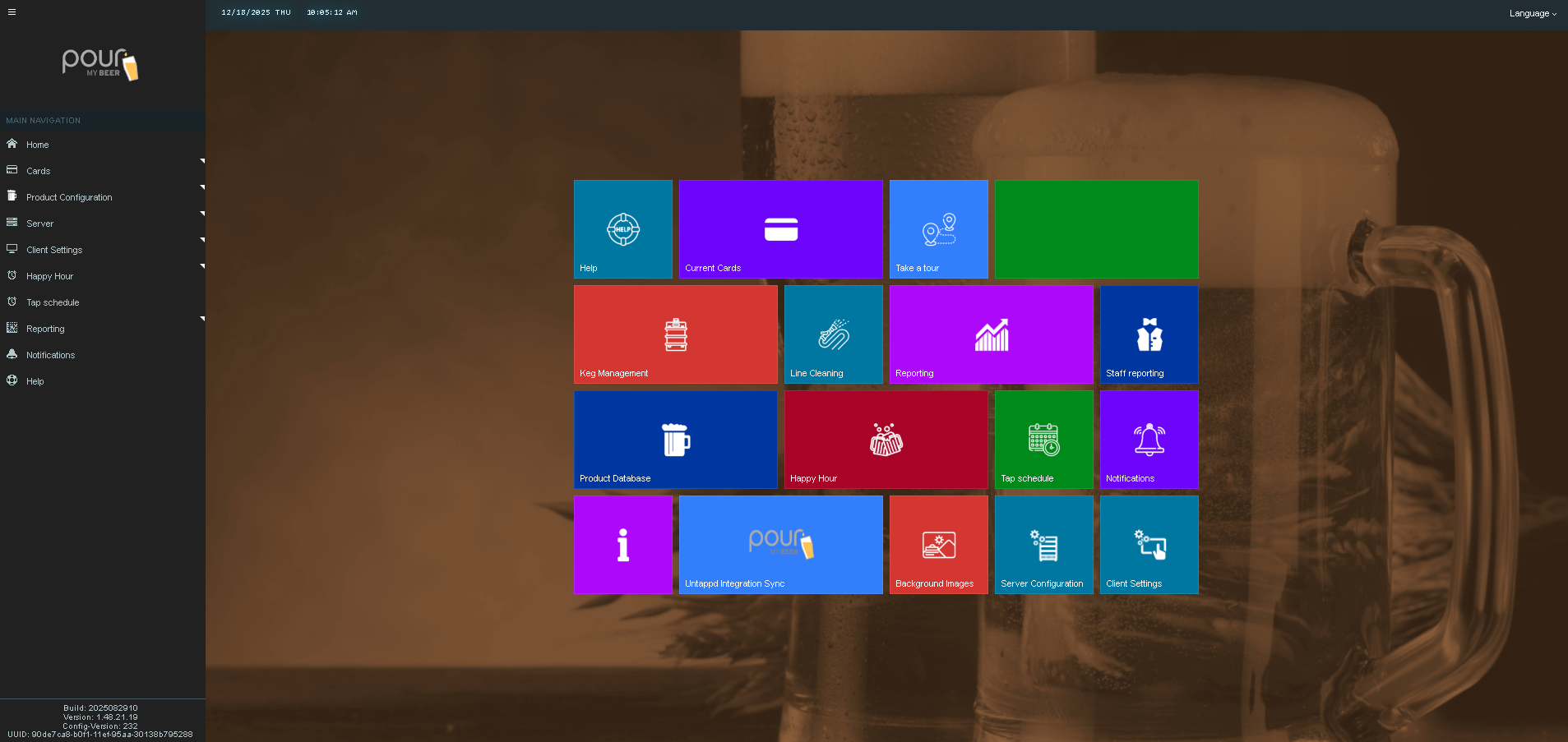
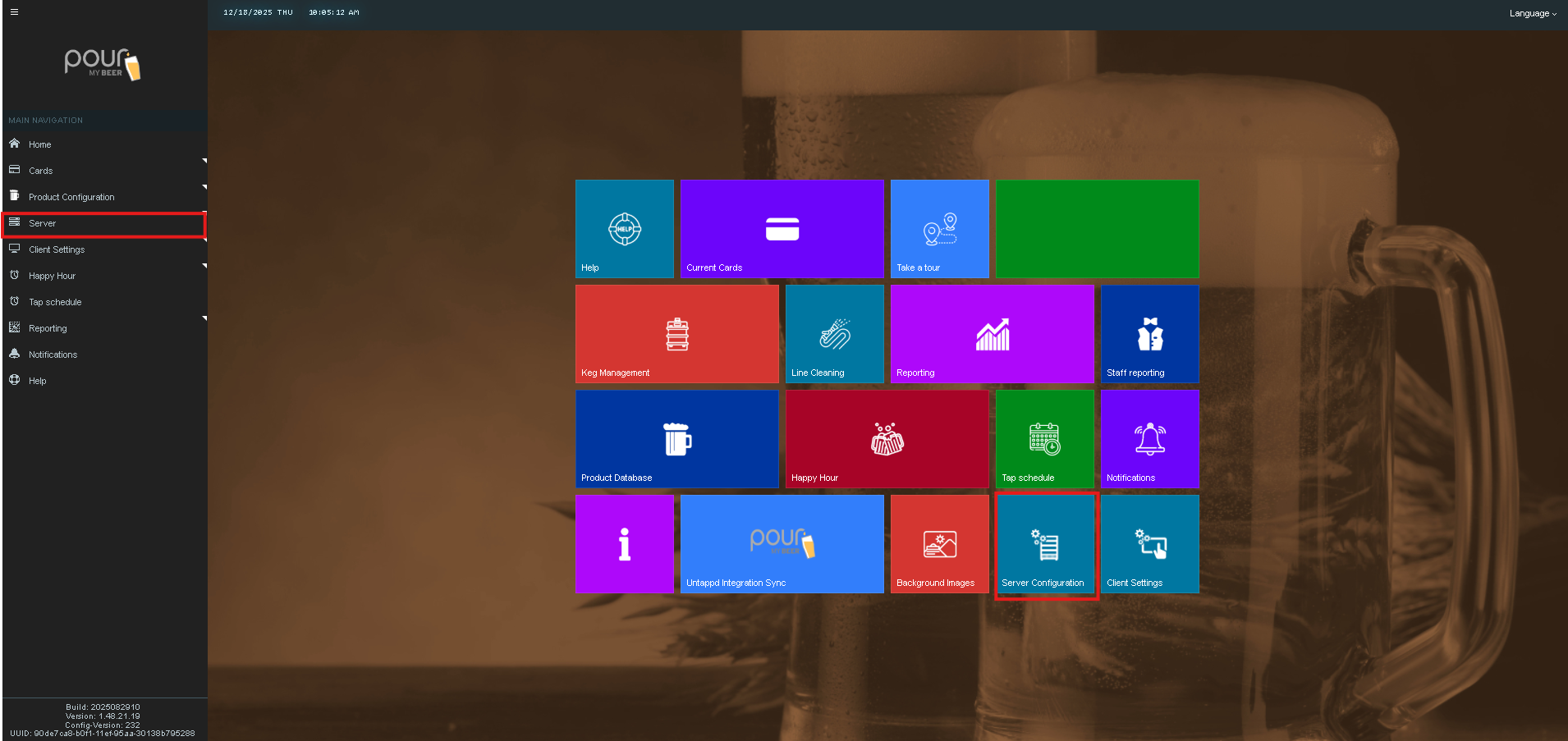
Click Server Configuration.
-
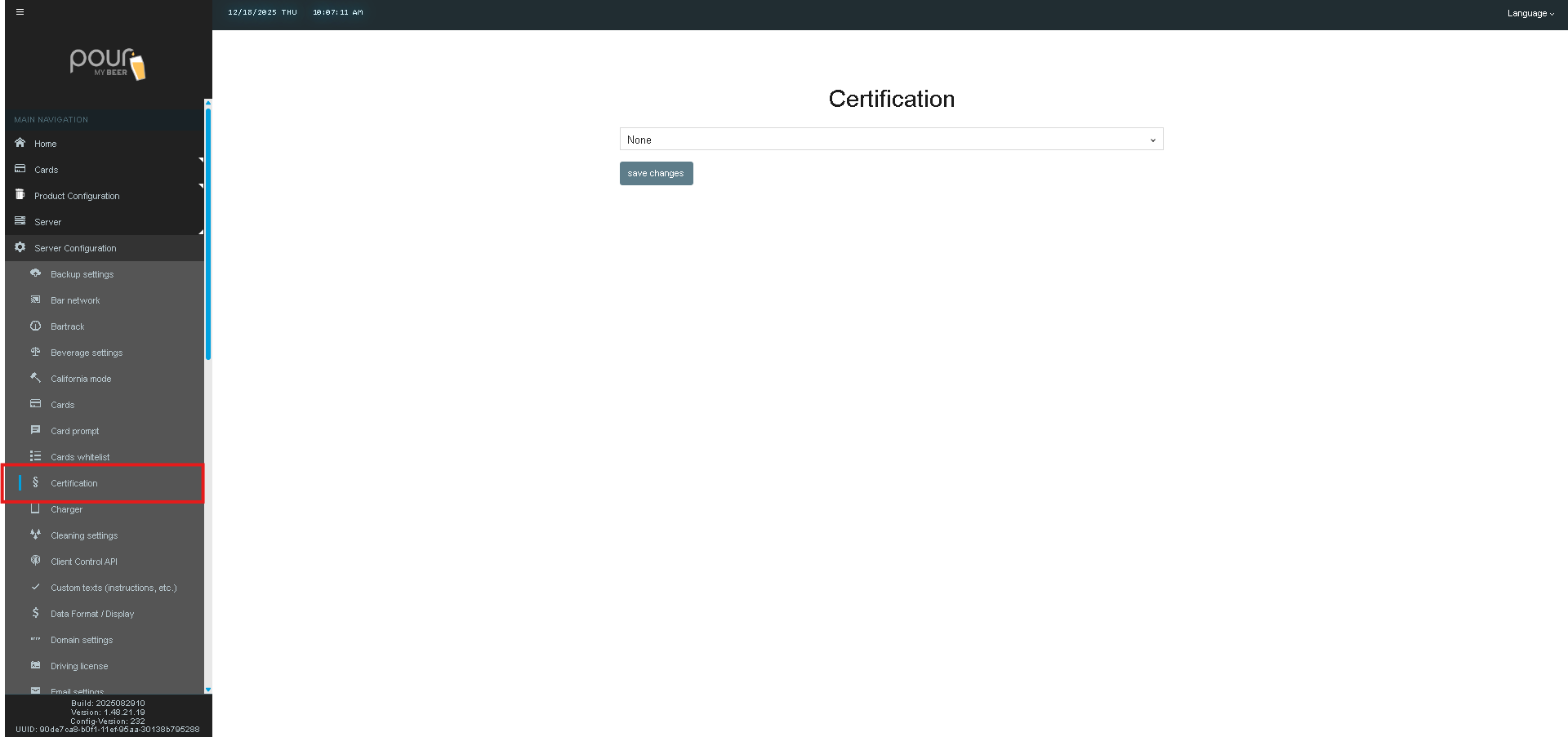
Select Certification from the configuration menu.
Certification Setting Explained
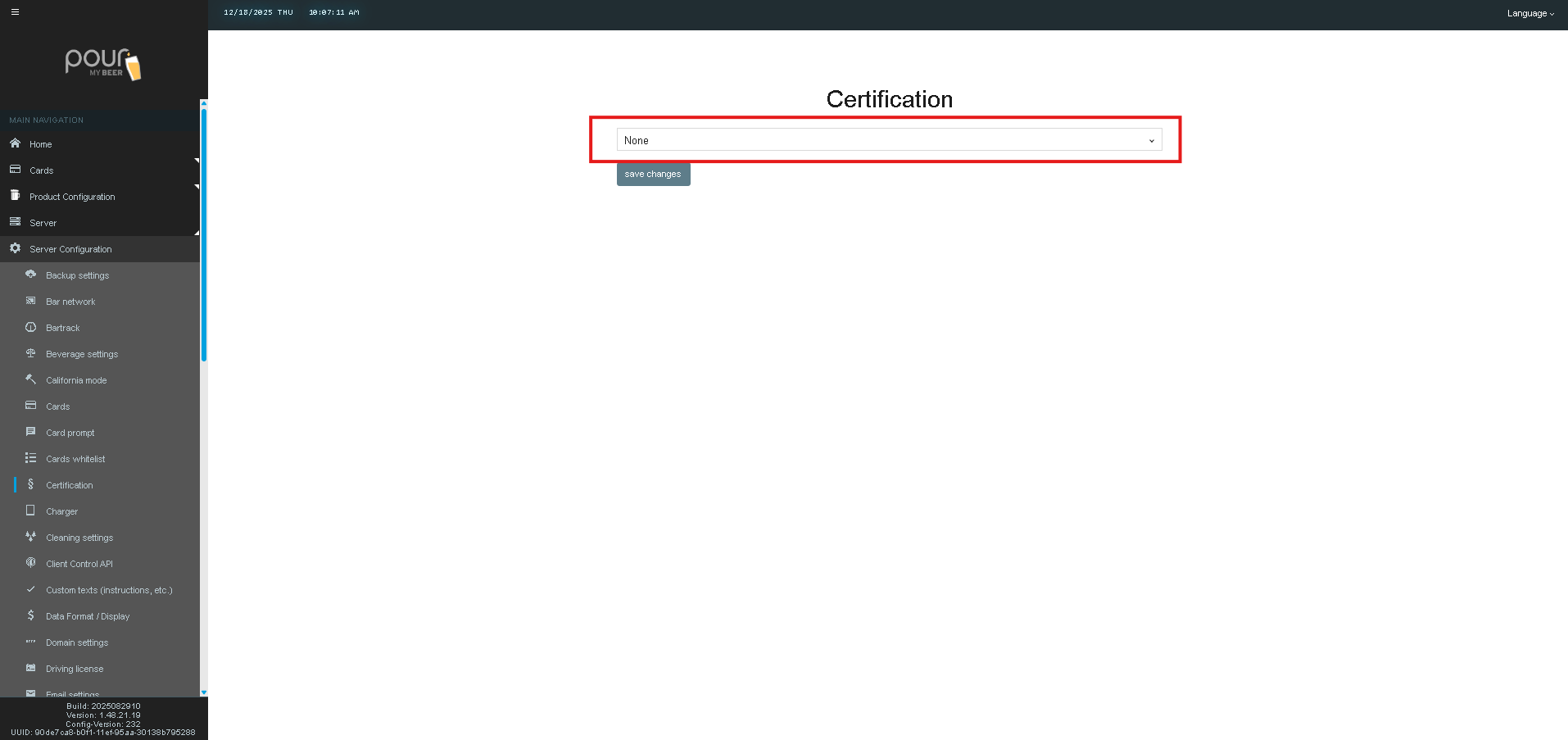
Certification Dropdown
This dropdown allows you to select a certification profile that applies to your TTG system.
Default value:
-
None
When set to None, no certification-based restrictions are applied, and the system operates under standard access rules.
What Certification Is Used For
Depending on your configuration and TTG version, certification settings may be used to:
-
Enforce staff or customer certification requirements
-
Support state or regional compliance rules
-
Integrate with third-party validation workflows
-
Control access to specific system features based on certification status
Certification options are typically configured or enabled by PourMyBeer support and may vary by installation.
When Should This Be Changed?
Most venues will leave this setting set to “None.”
Only change the Certification setting if:
-
You have been instructed by PourMyBeer Support
-
Your location requires a custom compliance workflow
-
A specific certification profile has been created for your system
Saving Changes
If a certification option is selected:
-
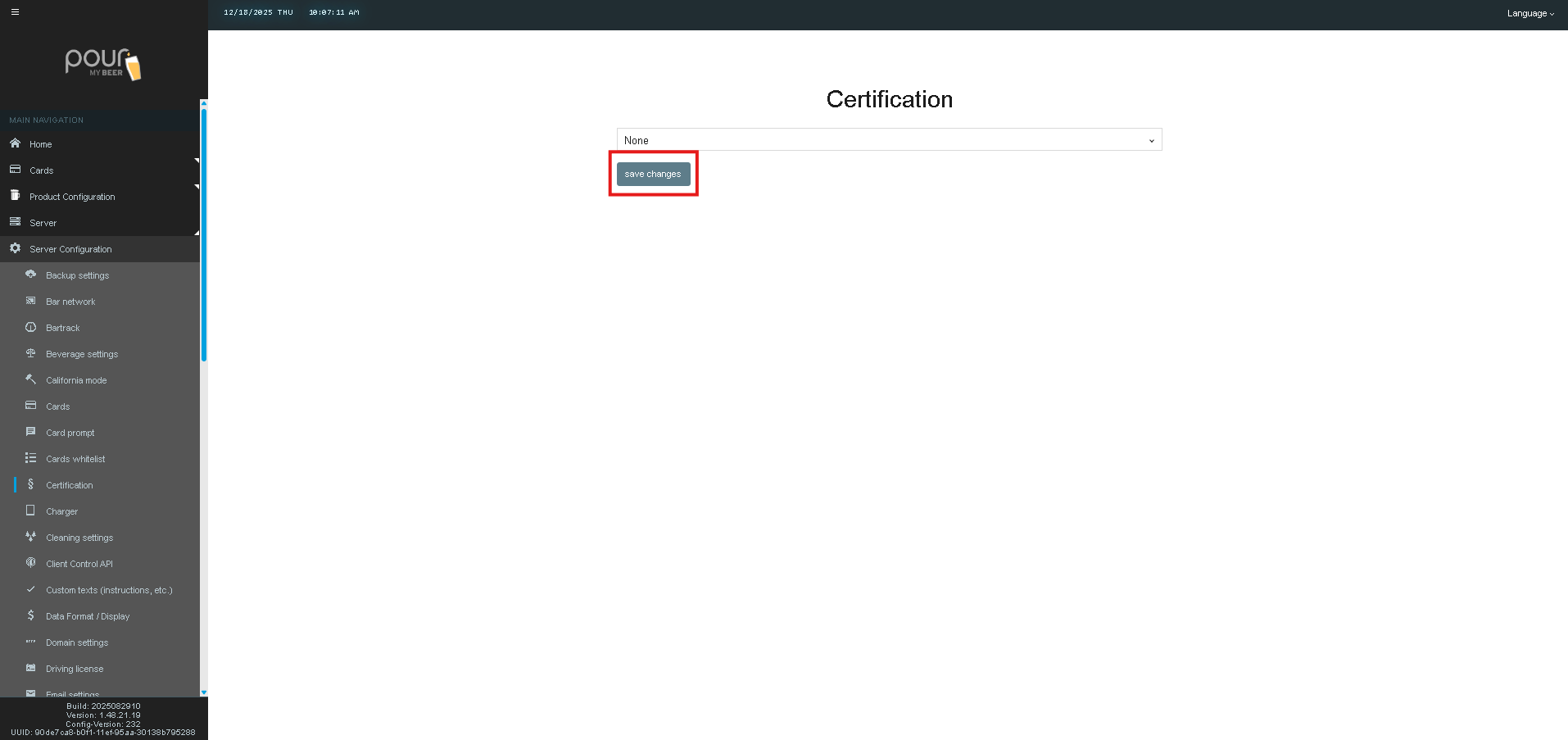
Click Save Changes
-
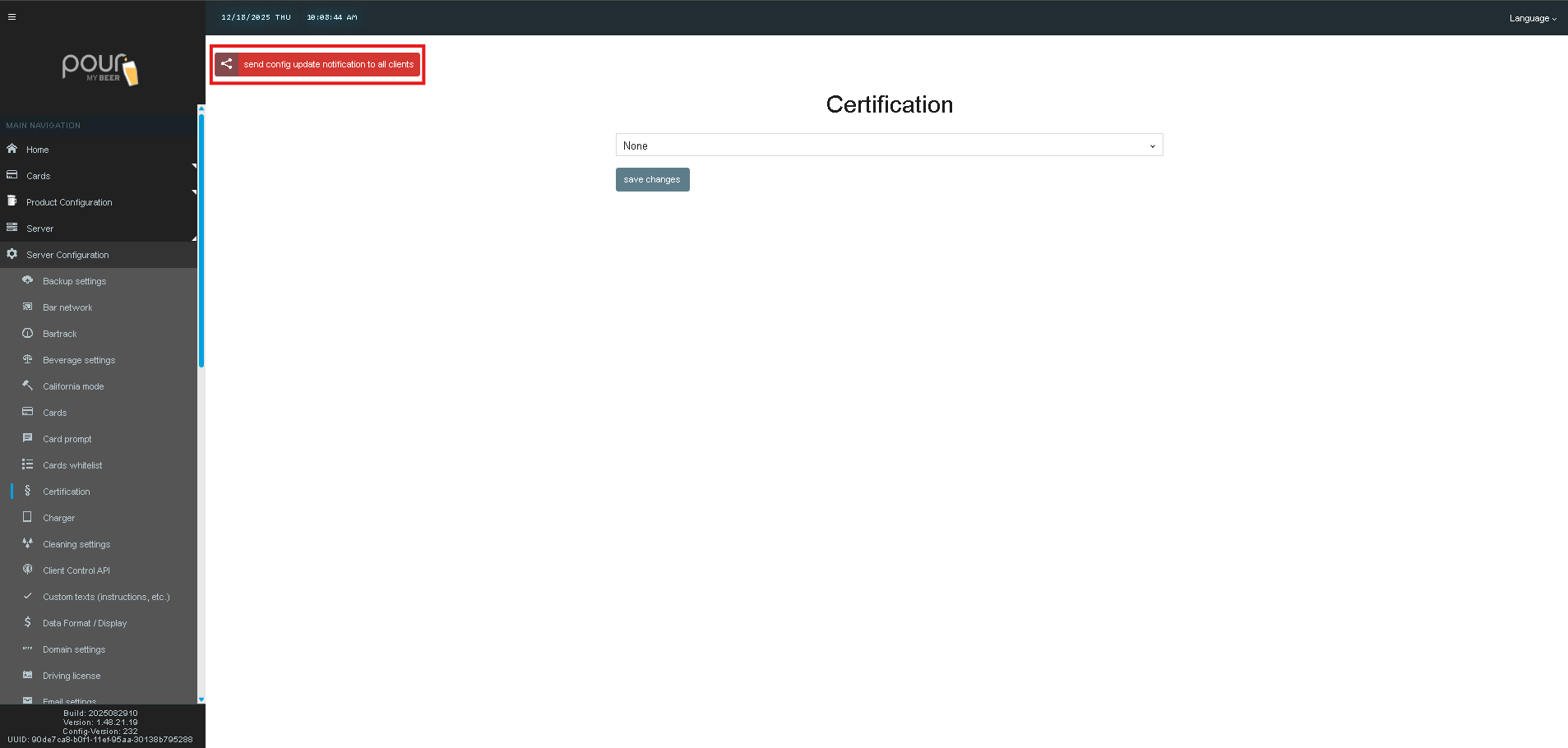
Send a Config Update Notification to ensure all clients receive the update
Important Notes
-
Selecting an incorrect certification profile may restrict customer access
-
Certification settings can affect card behavior, pour eligibility, or login flow
-
Always consult PourMyBeer Support before enabling a certification option