
The Cards Whitelist feature allows you to restrict usage of your Table Tap Go (TTG) system so that only approved cards or devices are permitted to dispense beverages.
This setting is commonly used for private events, members-only venues, or locations requiring tighter access control.
What Is the Cards Whitelist?
When enabled, only cards explicitly added to the whitelist can be used on the tap wall.
All other cards—even valid TTG cards—will be rejected unless they appear in the whitelist.
Step 1: Access the Cards Whitelist Settings
-
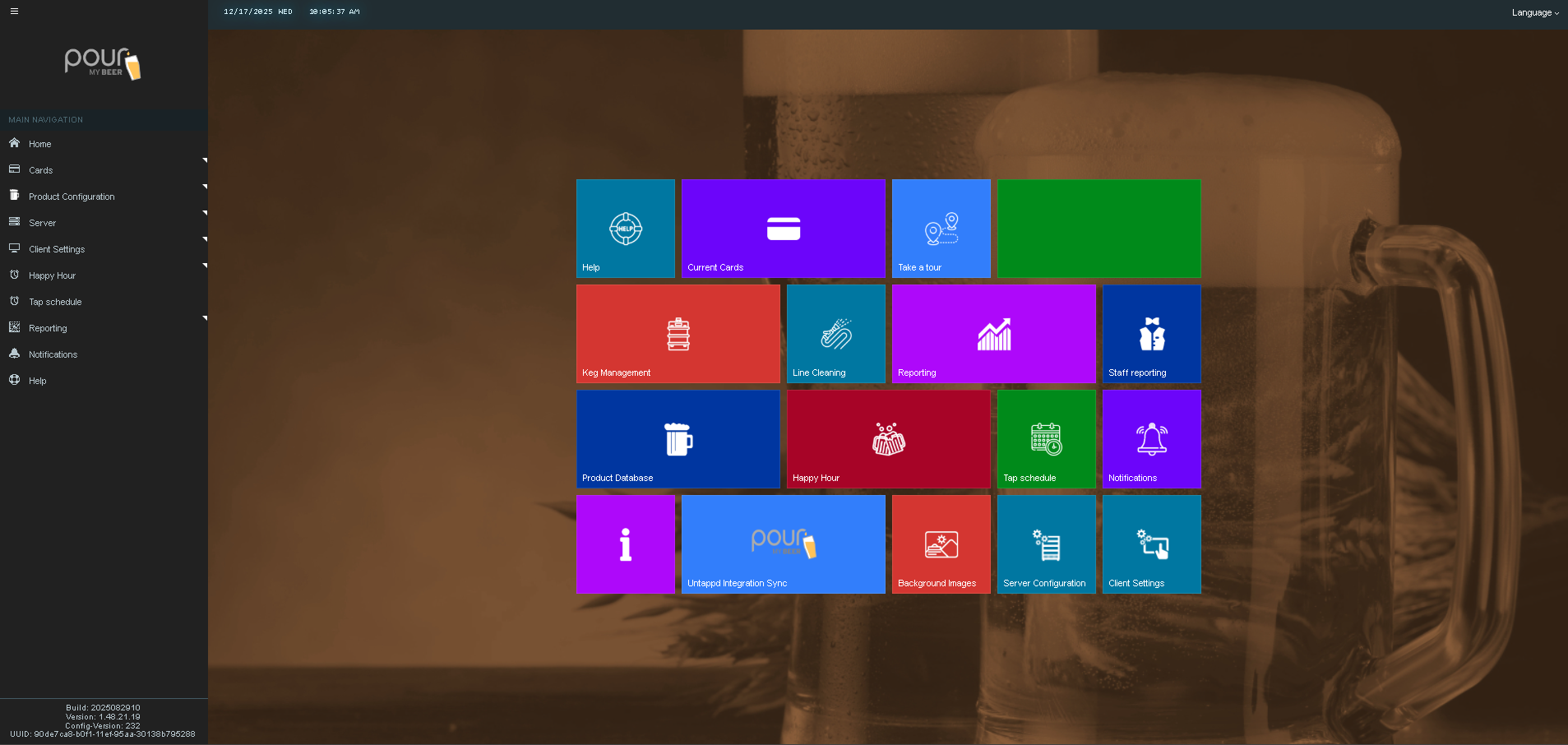
Open the Table Tap Go Server Management Page, or go to:
http://localhost:8585 -
Log in using your Admin credentials.
-
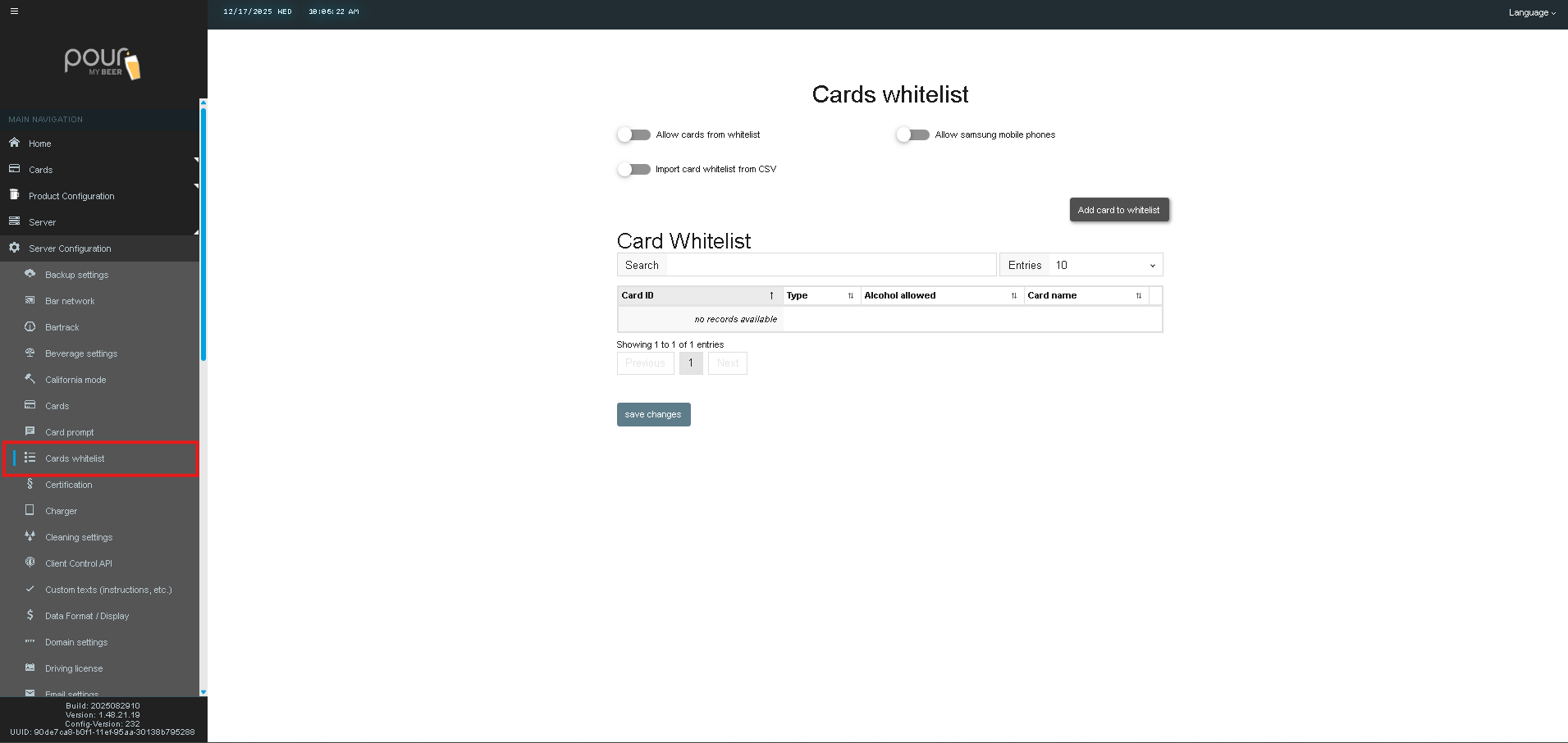
Navigate to Server Configuration.

-
Select Cards Whitelist from the menu.
Cards Whitelist Settings Explained
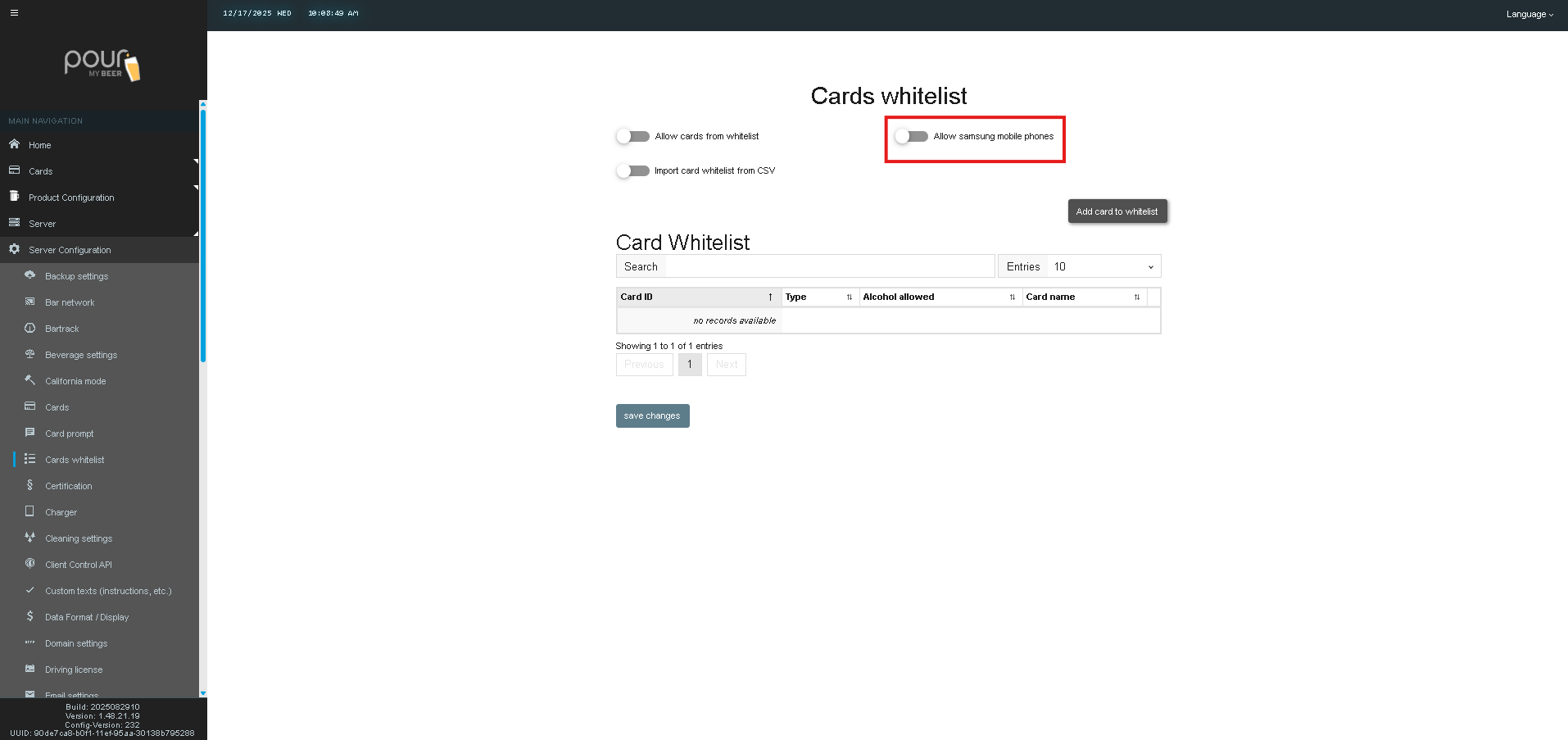
Allow Cards from Whitelist
-
Enabled:
Only cards listed in the whitelist are allowed to pour. -
Disabled:
All valid cards may pour normally.
When this is enabled, any card not on the whitelist will be denied access.

Import Card Whitelist from CSV
Allows you to bulk-upload approved cards using a CSV file.
Typical use cases:
-
Large events
-
Corporate access lists
-
Membership-based venues
CSV files must follow the required TTG format.

Allow Samsung Mobile Phones
When enabled, Samsung mobile devices using compatible NFC credentials may be permitted as whitelisted access devices.
This is typically used with:
-
Mobile credential programs
-
NFC-based access solutions
Adding Cards to the Whitelist
Add Card to Whitelist
-
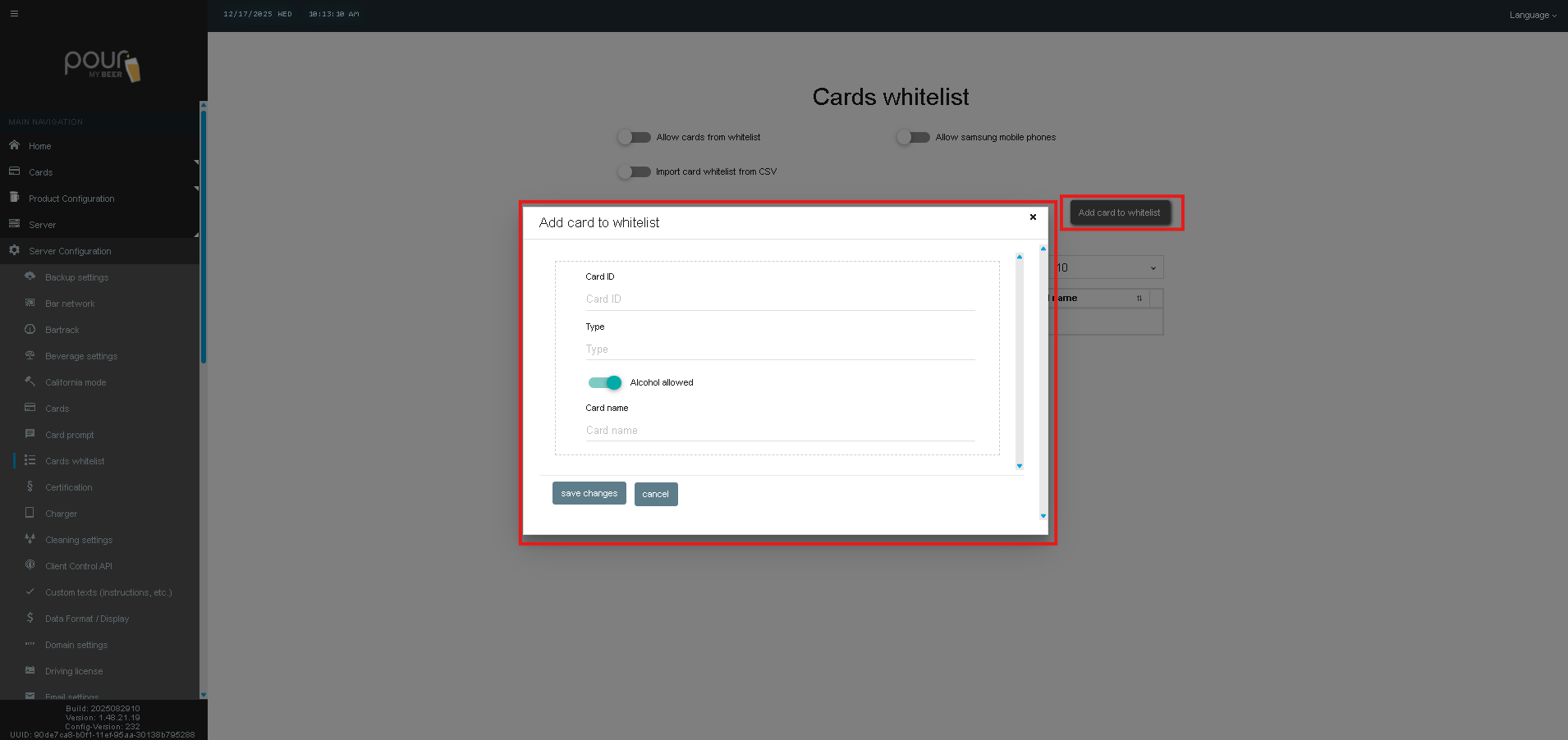
Click Add Card to Whitelist.
-
Present the card to the reader or manually enter the card information.
-
Define:
-
Card Name
-
Card Type
-
Alcohol Allowed (Yes/No)
-
-
Save the entry.
The card will now appear in the whitelist table.
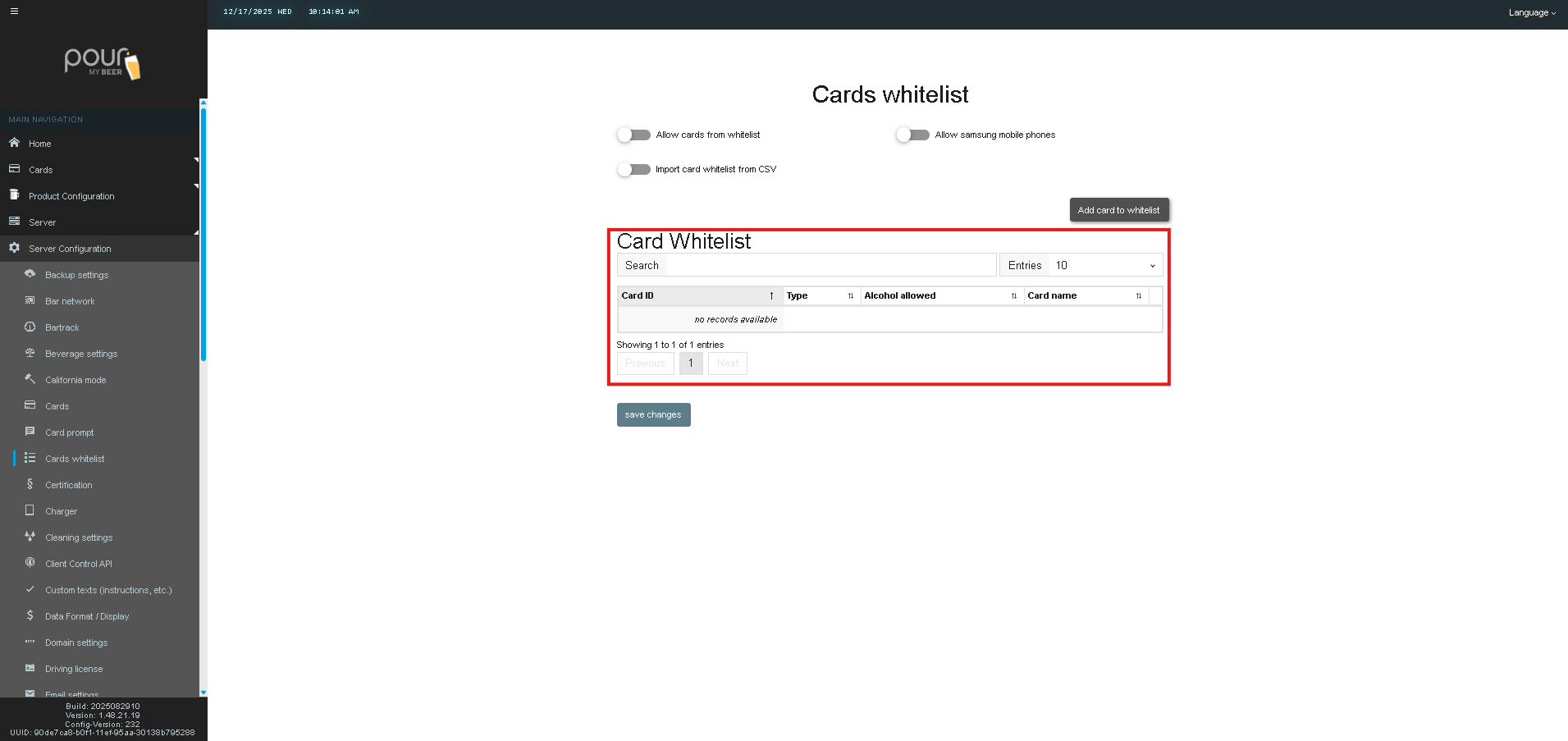
Whitelist Table Overview
The whitelist table displays all approved cards with the following details:
| Column | Description |
|---|---|
| Card ID | Unique identifier of the card |
| Type | Card or device type |
| Alcohol Allowed | Indicates alcohol permissions |
| Card Name | Friendly name for identification |
If no records are shown, no cards have been added yet.
Save and Apply Changes
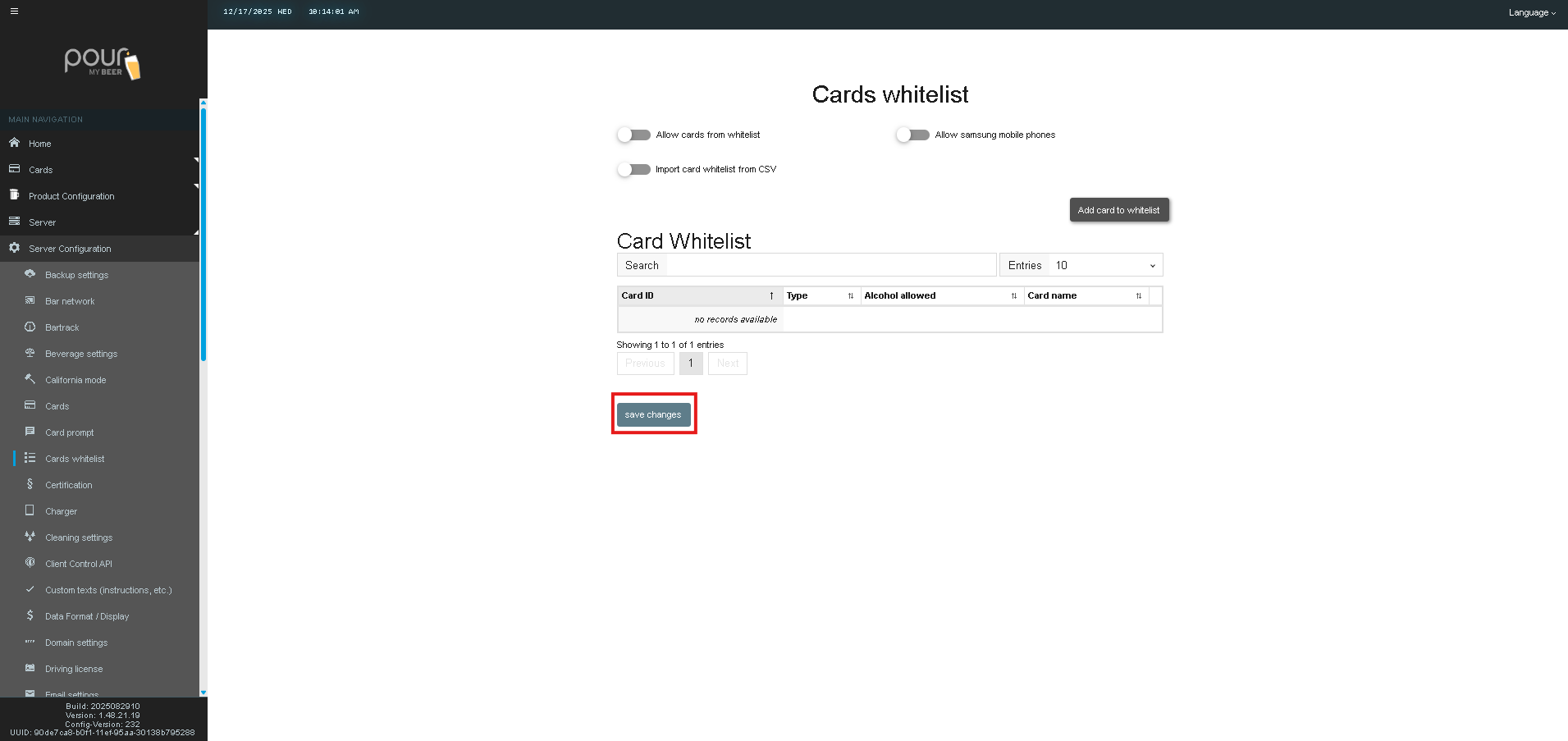
After making any updates:
-
Click Save Changes.
-
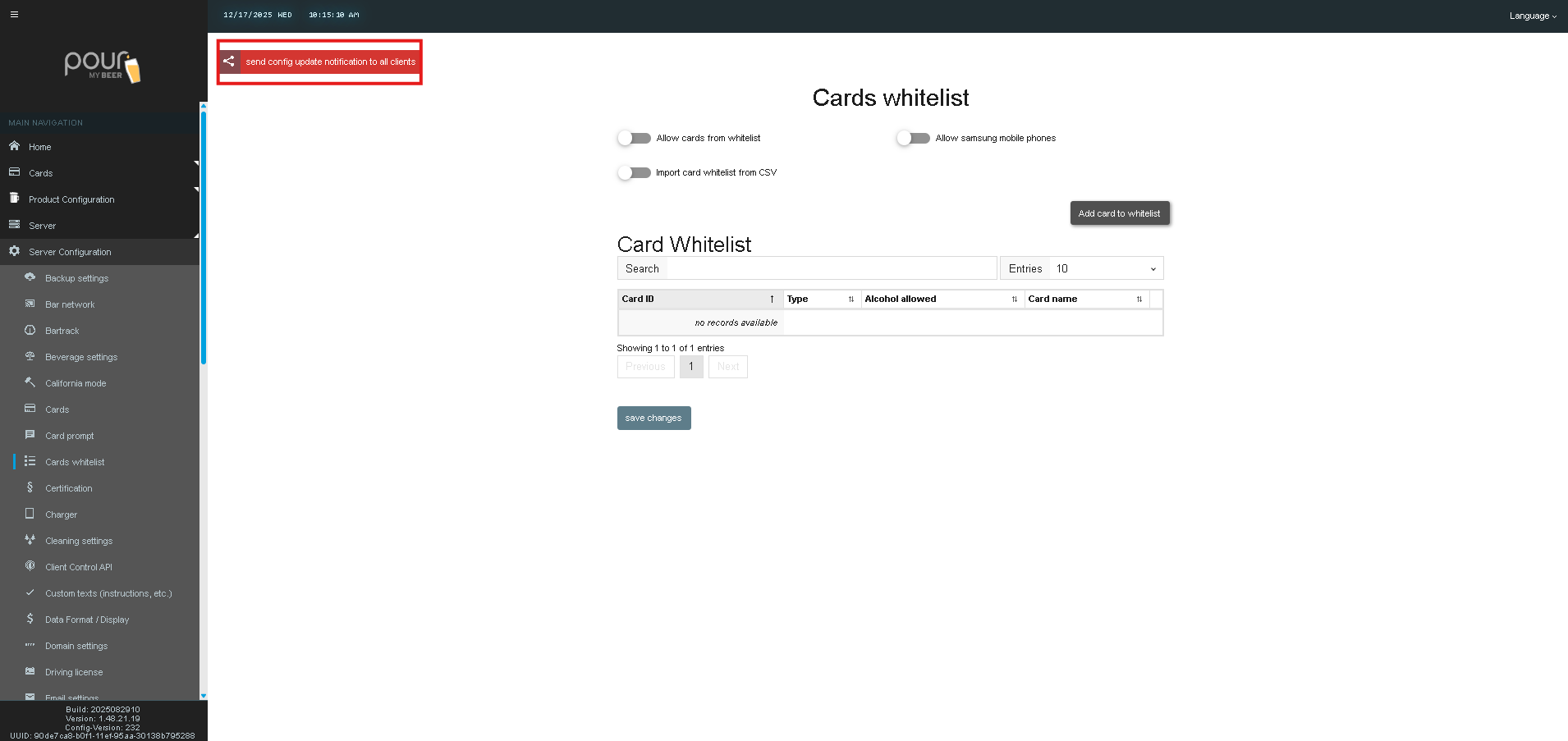
Click Send Config Update Notification to All Clients to ensure all tap screens apply the whitelist rules.
Important Notes
-
Enabling whitelist mode without adding cards will block all customers from pouring.
-
Always test with an admin card before going live.
-
Whitelist settings are commonly paired with:
-
California Mode
-
Private Event setups
-
Staff-only access modes
-