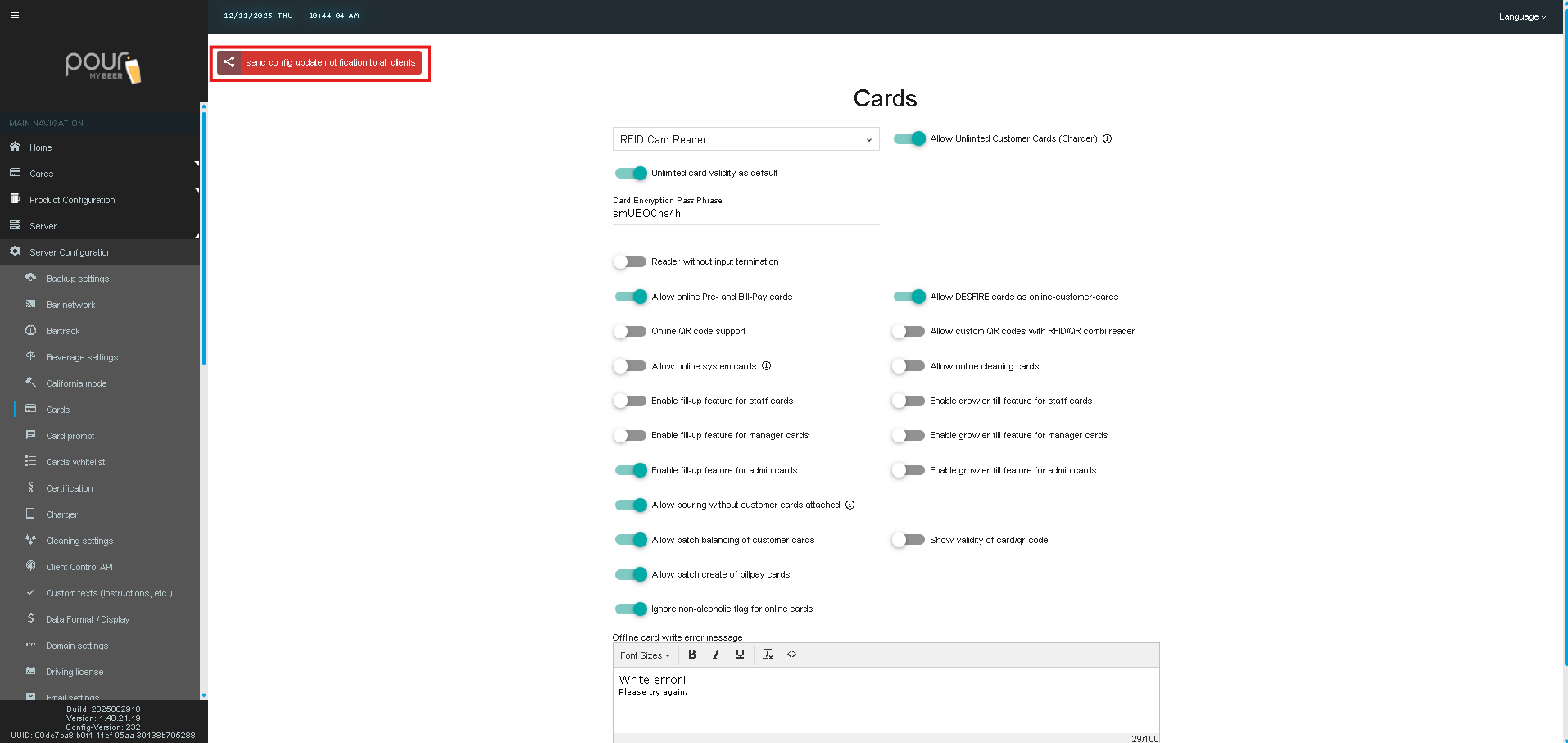
The Cards settings page allows you to configure how different RFID, DESFIRE, and QR-based cards behave in your Table Tap Go system. These settings control everything from card type support, to fill-up permissions, to online/offline behavior, and customer access.
Use this guide to understand each option and choose the configuration that best fits your venue’s workflow.
Accessing the Cards Settings Page
-
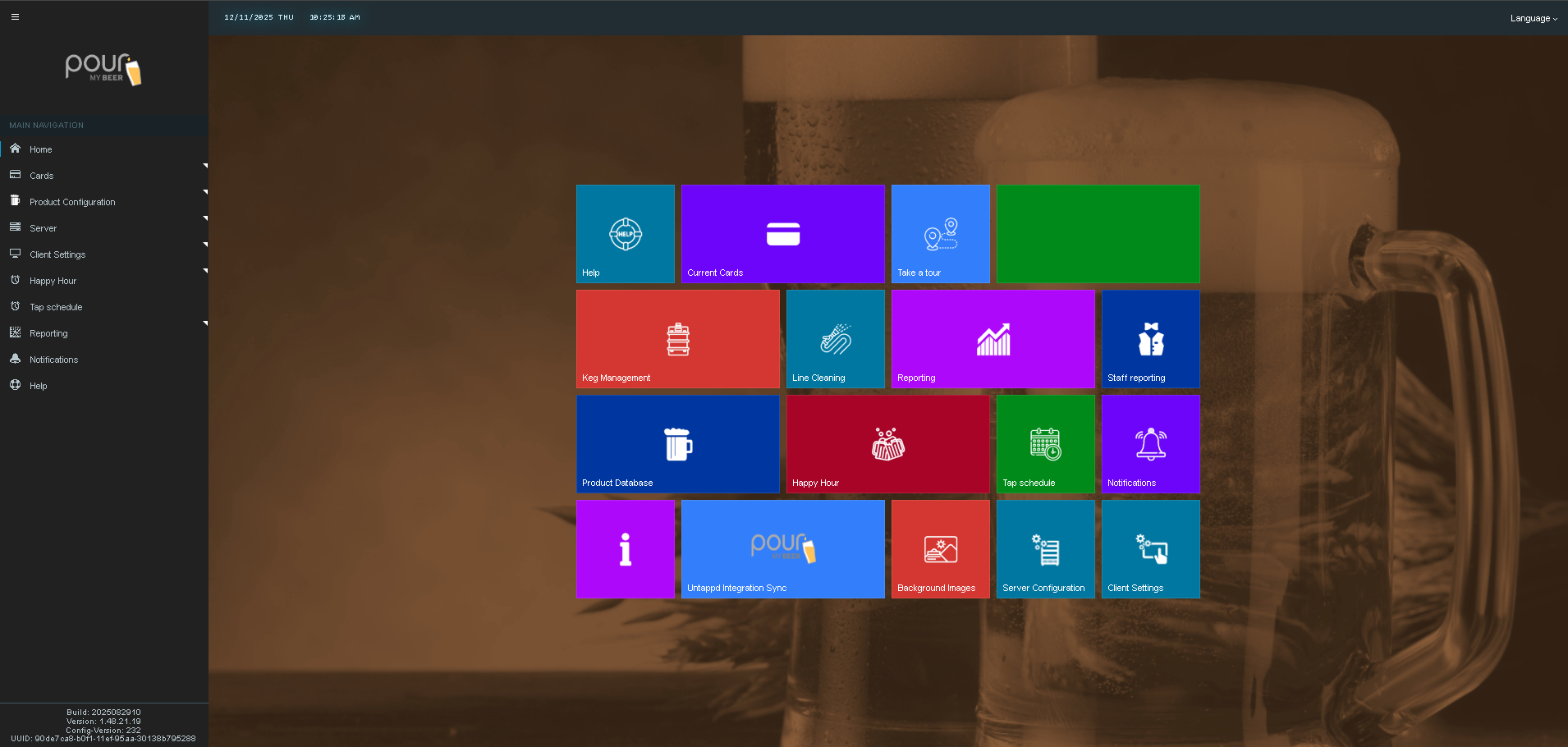
Open your TTG Server Management Page.
-
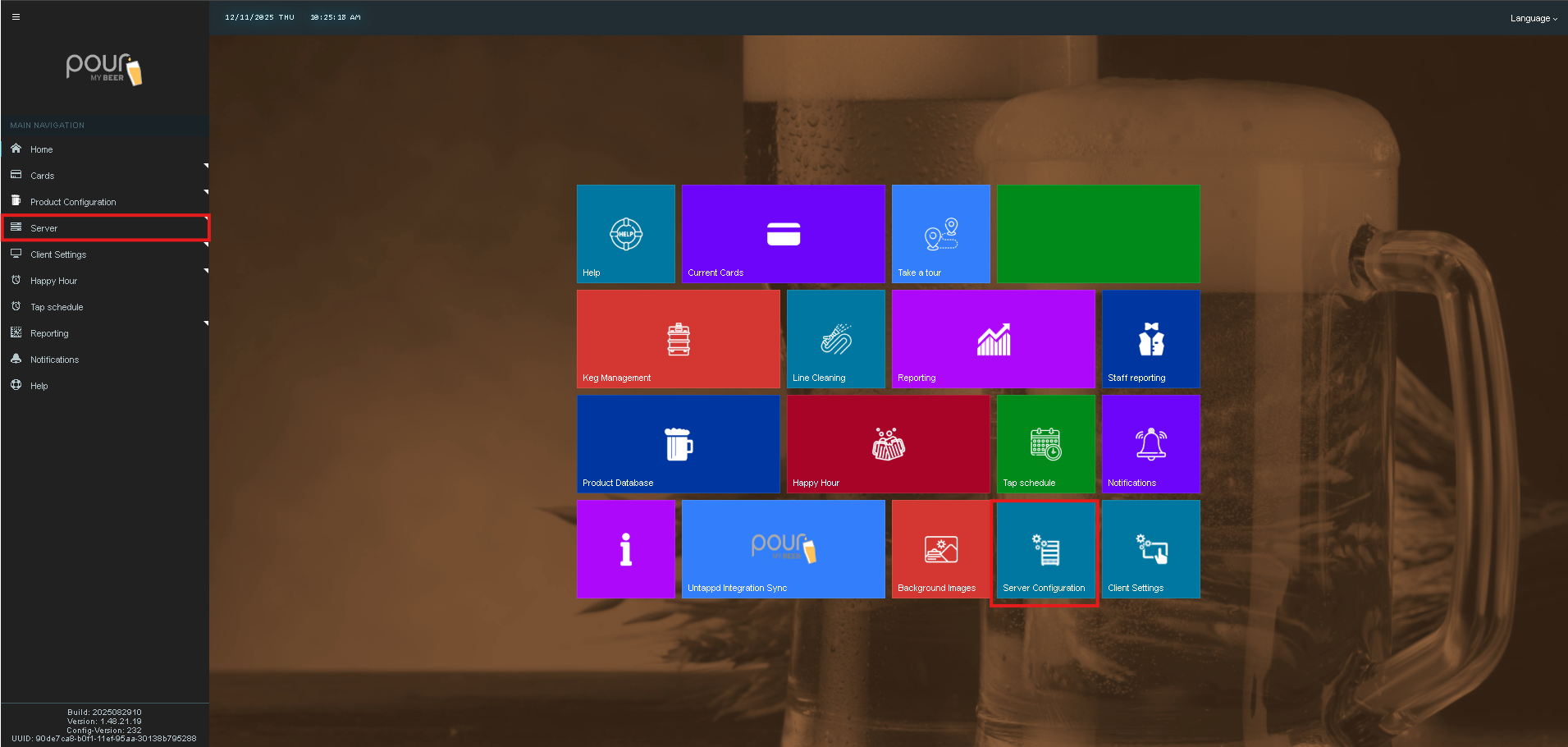
Navigate to Server Configuration.
-
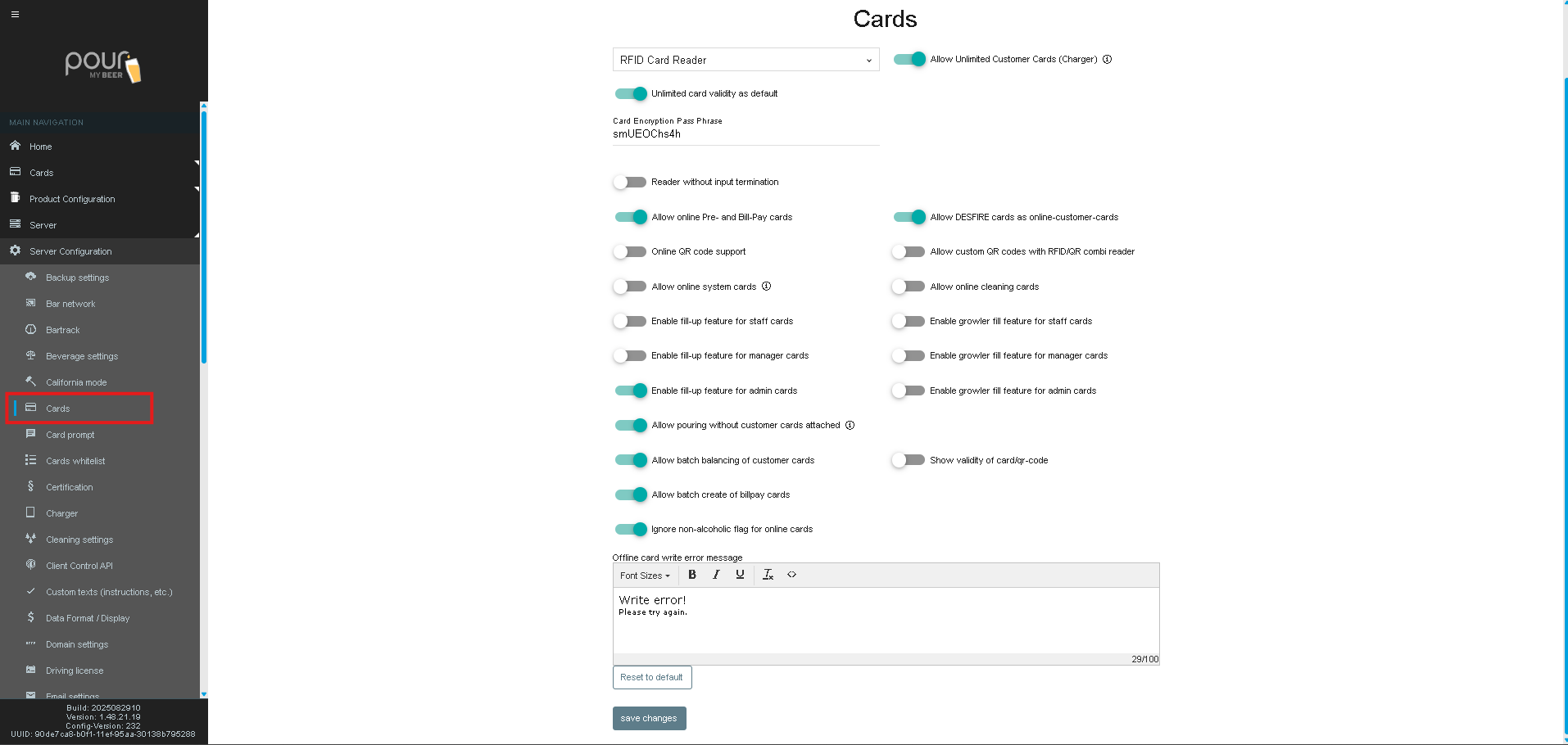
Select the Cards tab at the top of the screen.
Cards Settings Explained
1. Card Reader Type
Select the card reader hardware being used on your system.
Examples include:
-
RFID Card Reader
-
QR/Combi Reader
Choose the option that matches the physical readers installed at your taps or charger.

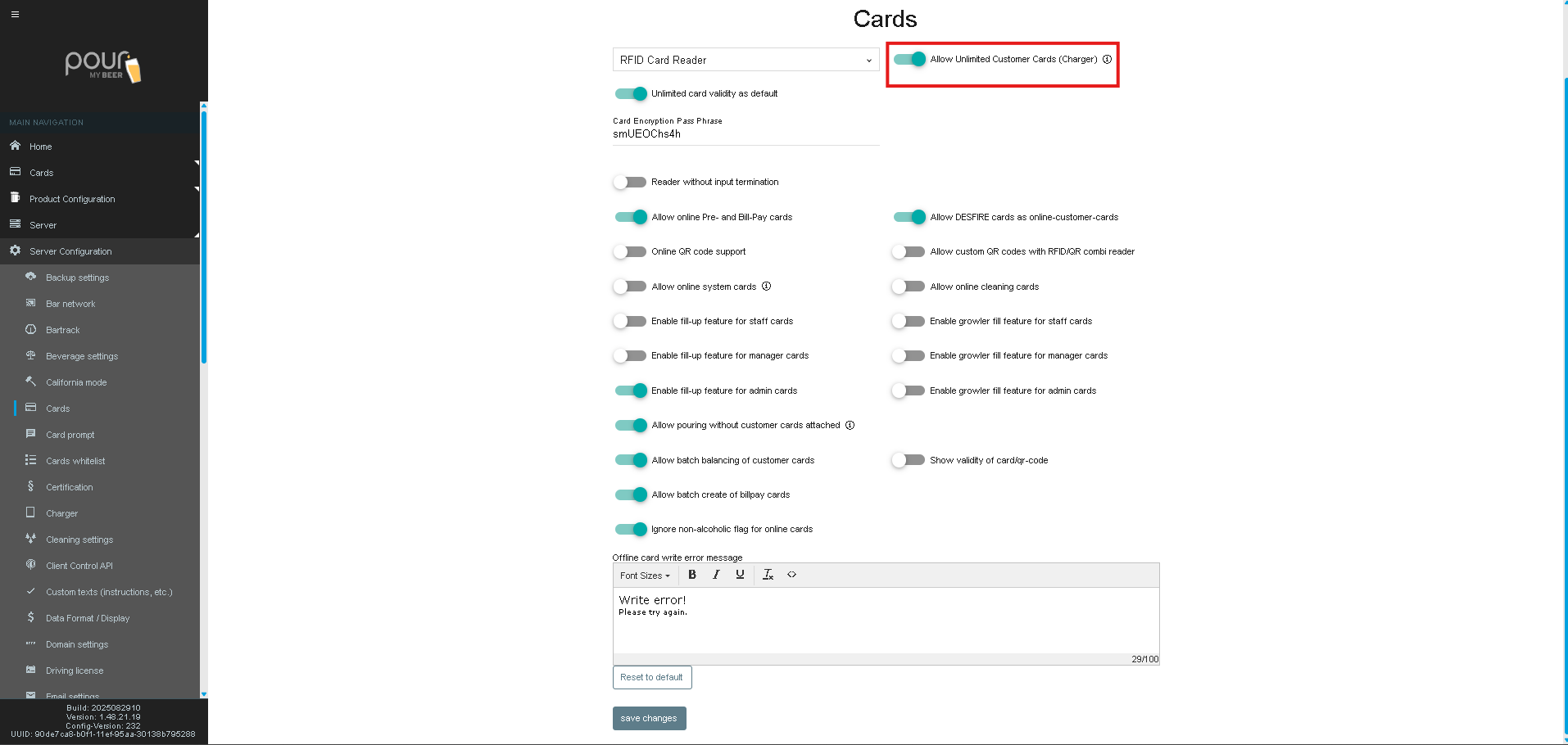
2. Unlimited Customer Cards (Charger)
Toggle: ON/OFF
Allows chargers to create unlimited customer cards without restriction.
Useful for high-volume or self-serve environments.
3. Unlimited Card Validity as Default
Toggle: ON/OFF
If enabled, newly created customer cards will default to having no expiration date.
(You can still override validity per-card during creation.)

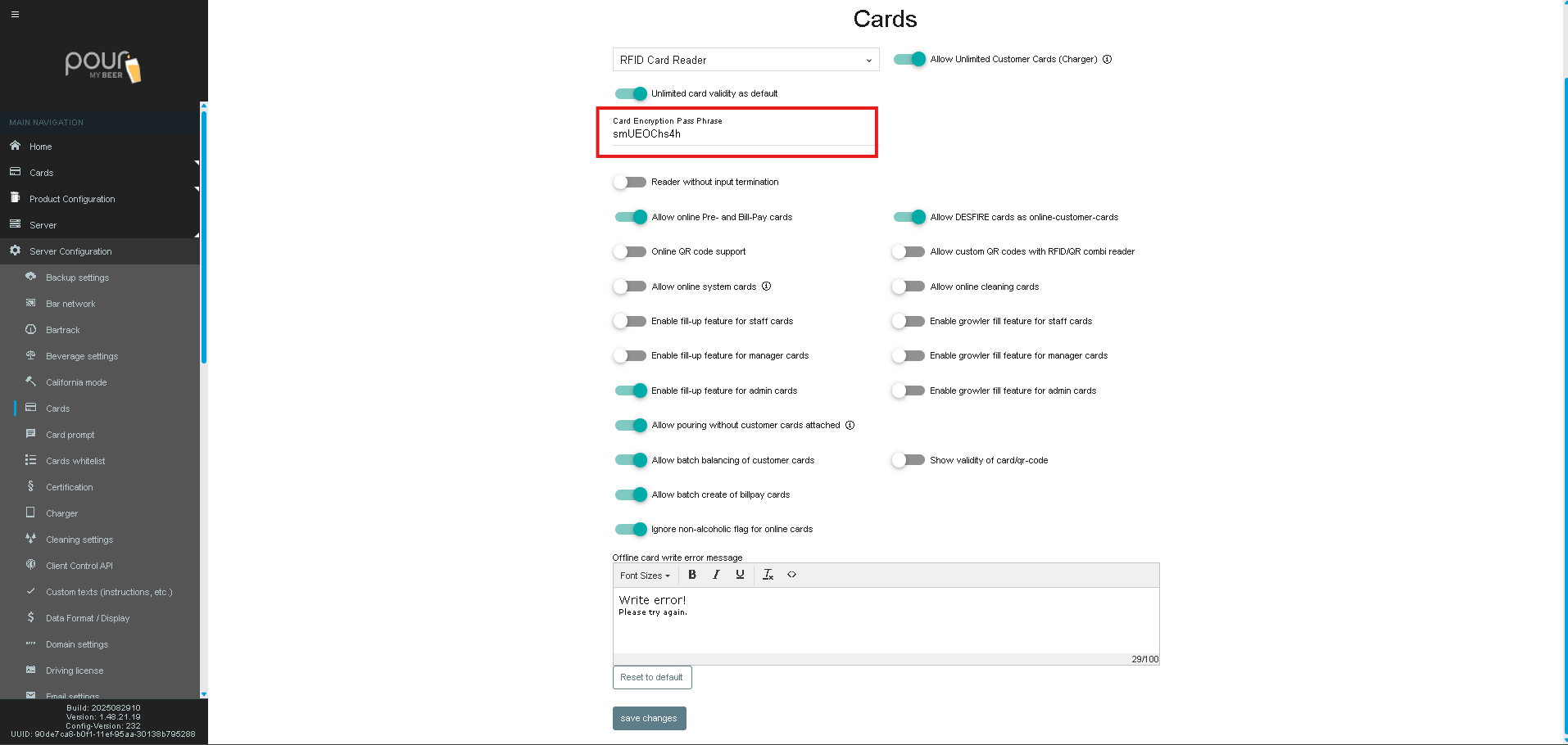
4. Card Encryption Passphrase
This is the card password for system cards.
Only modify this if instructed by TTG Support.
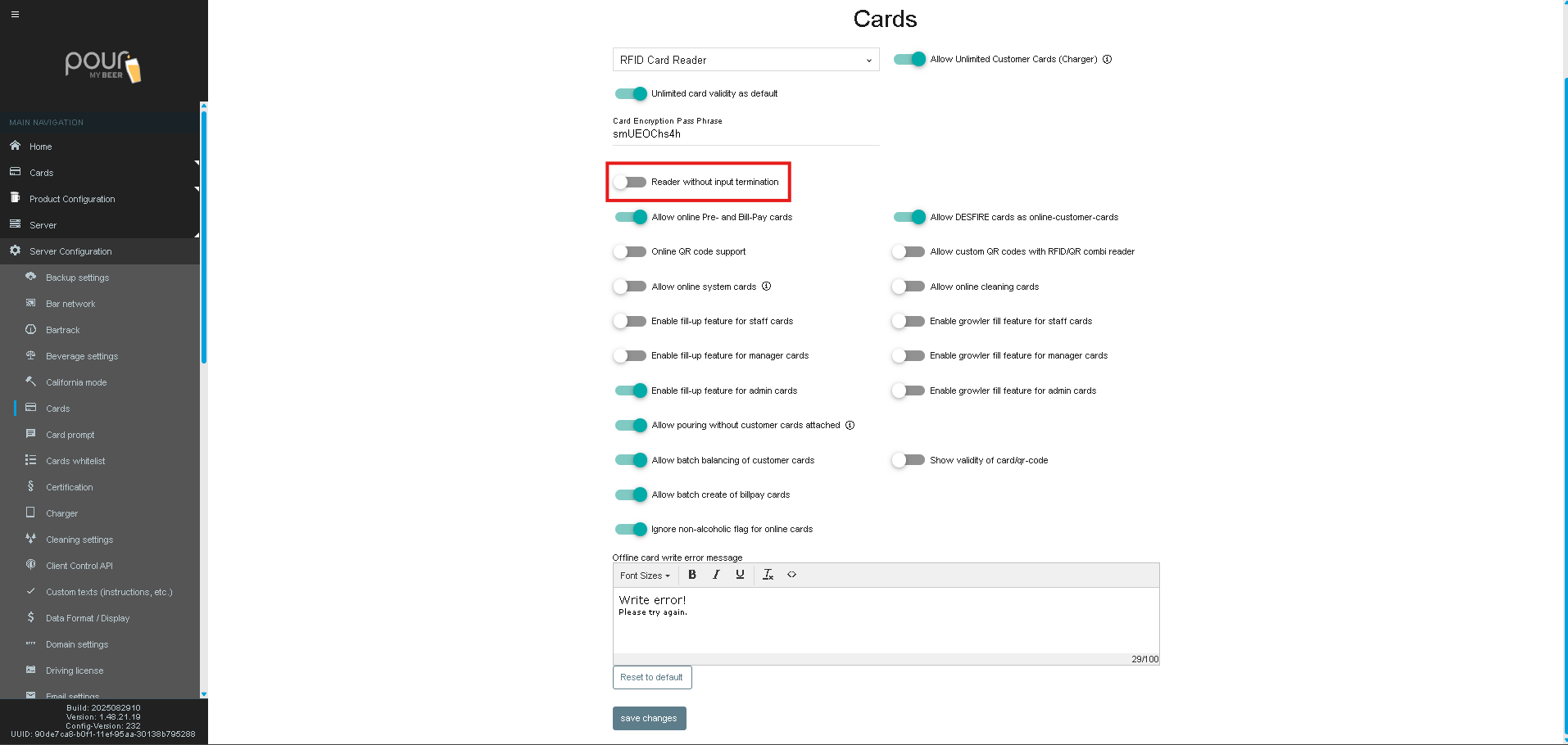
5. Reader Without Input Termination
Allows the reader to continue reading cards even if the input signal is absent.
Primarily used in special hardware integrations.
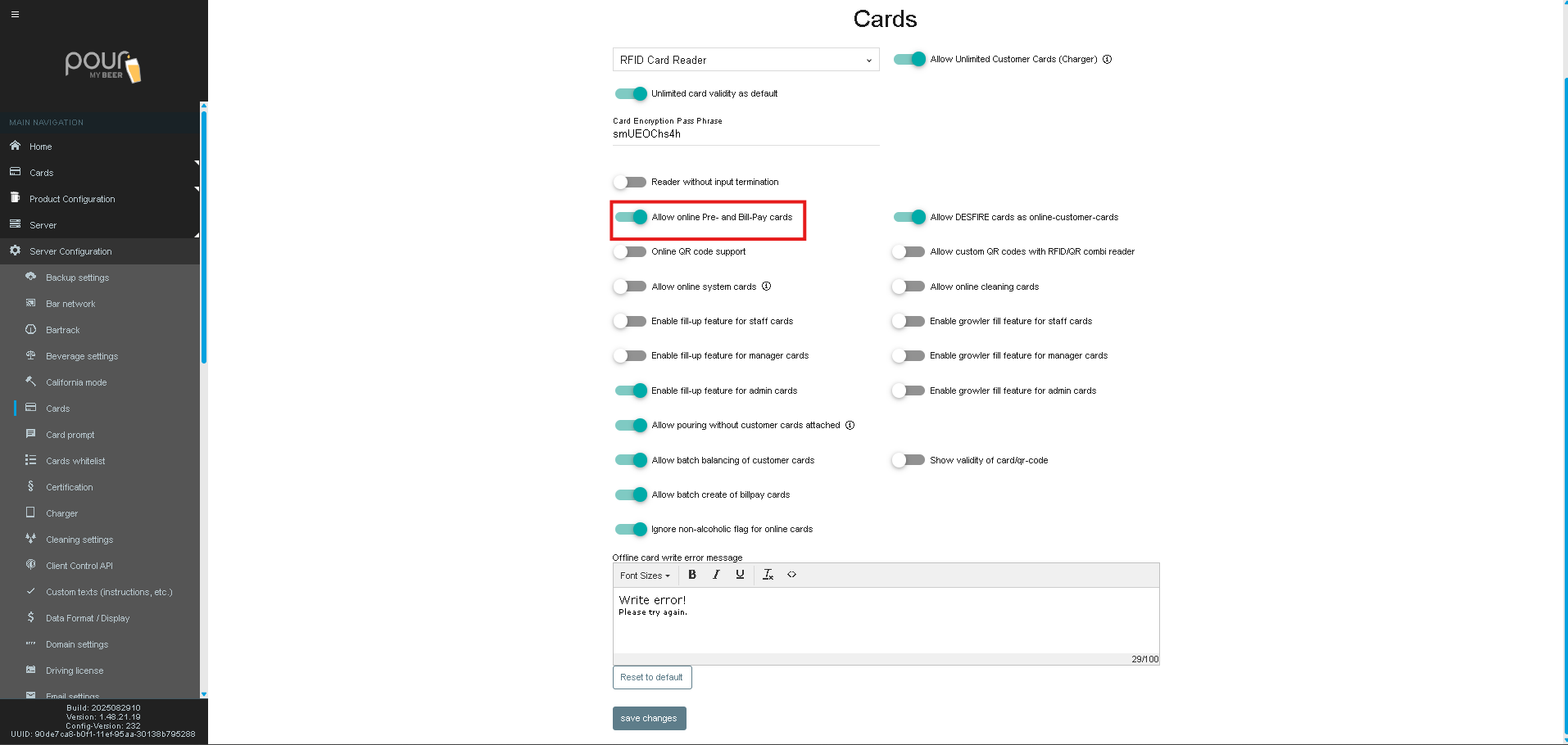
6. Allow Online Pre- and Bill-Pay Cards
Toggle: ON/OFF
Enables support for online customer accounts that use:
-
Pre-pay
-
Bill-pay/house account spending limits
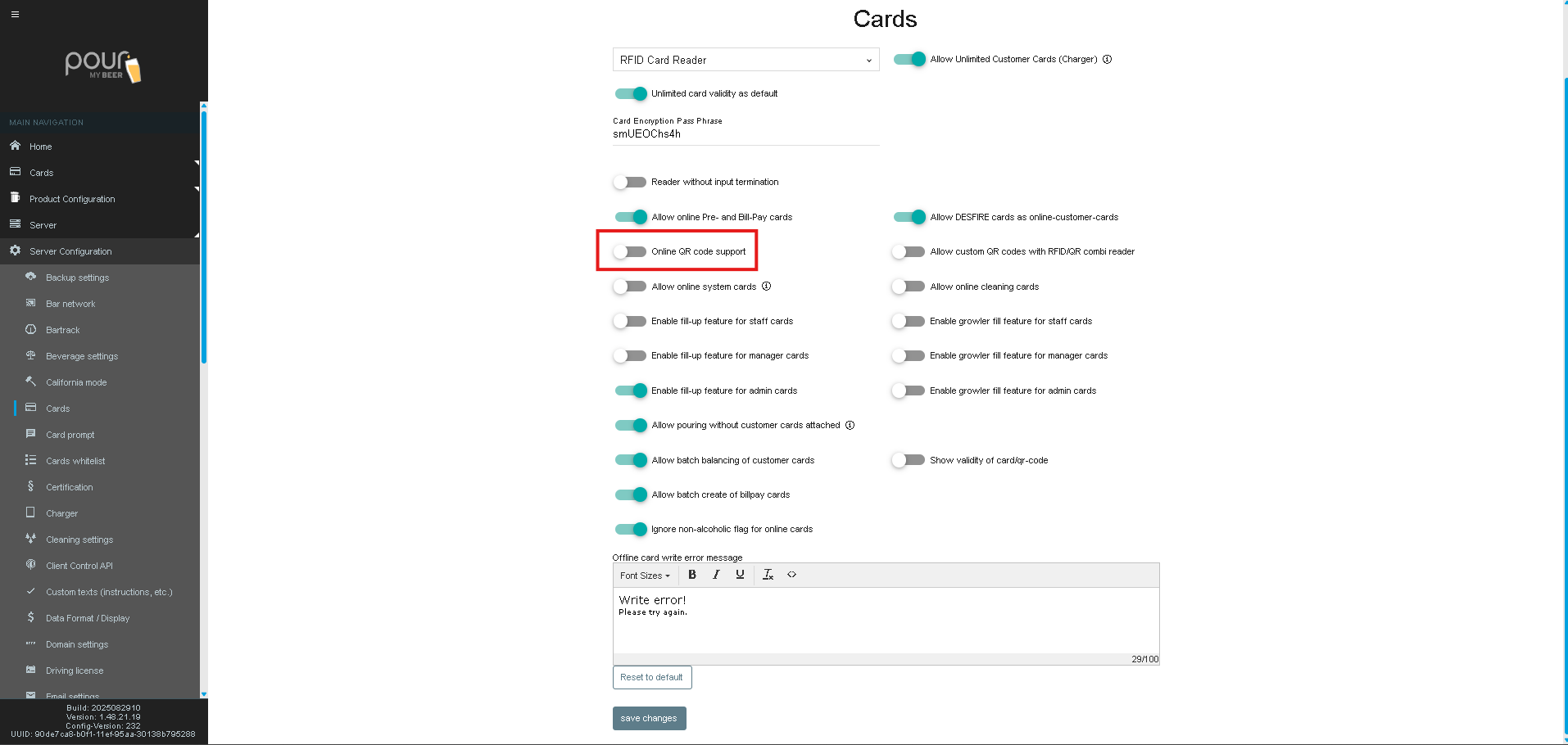
7. Online QR Code Support
Toggle: ON/OFF
Enables QR-based customer accounts that authenticate through a mobile or external system.
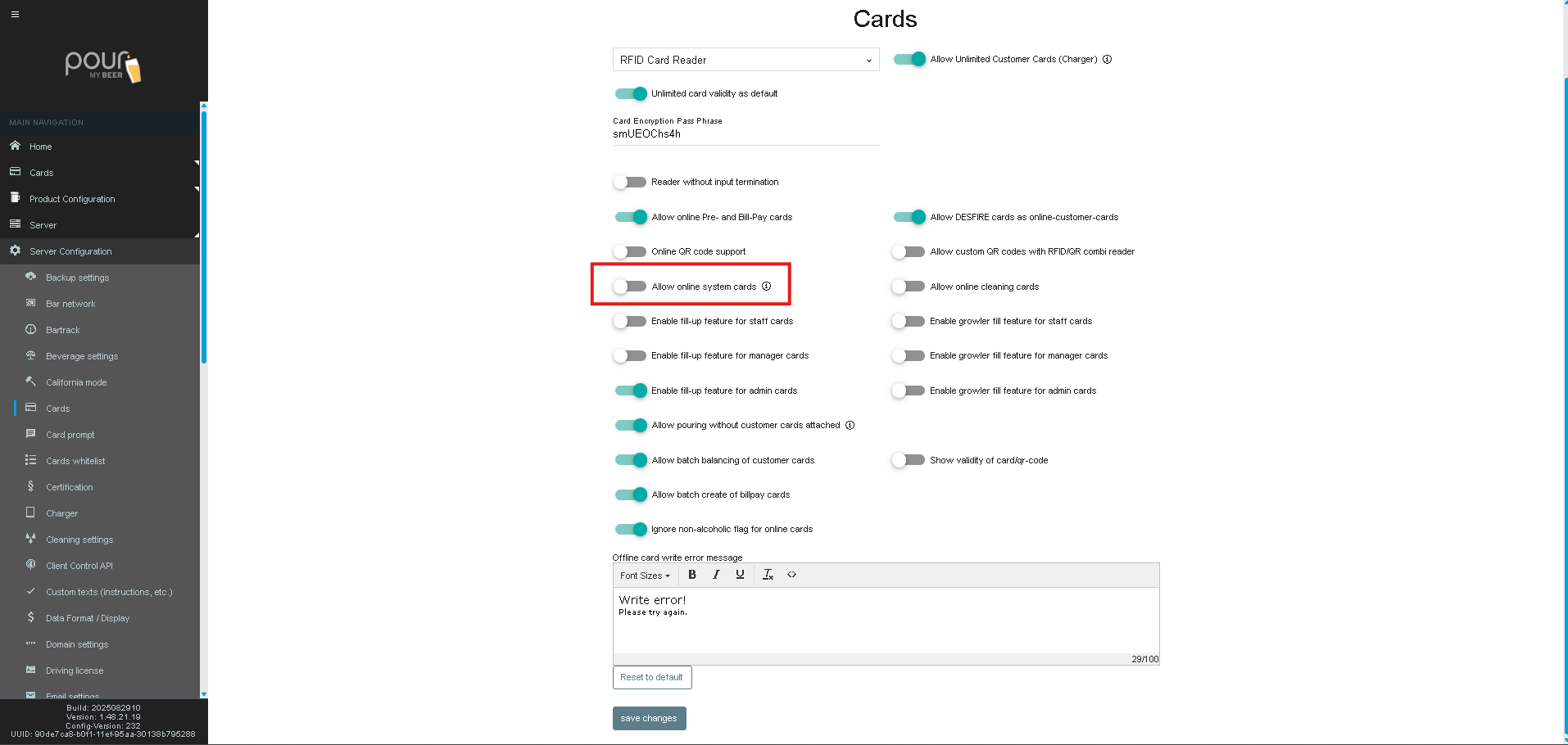
8. Allow Online System Cards
Toggle: ON/OFF
Allows the usage of online system-level cards such as:
-
Admin
-
Staff
-
Maintenance cards
These operate via the central server instead of local encoding.
9. Fill-Up Features
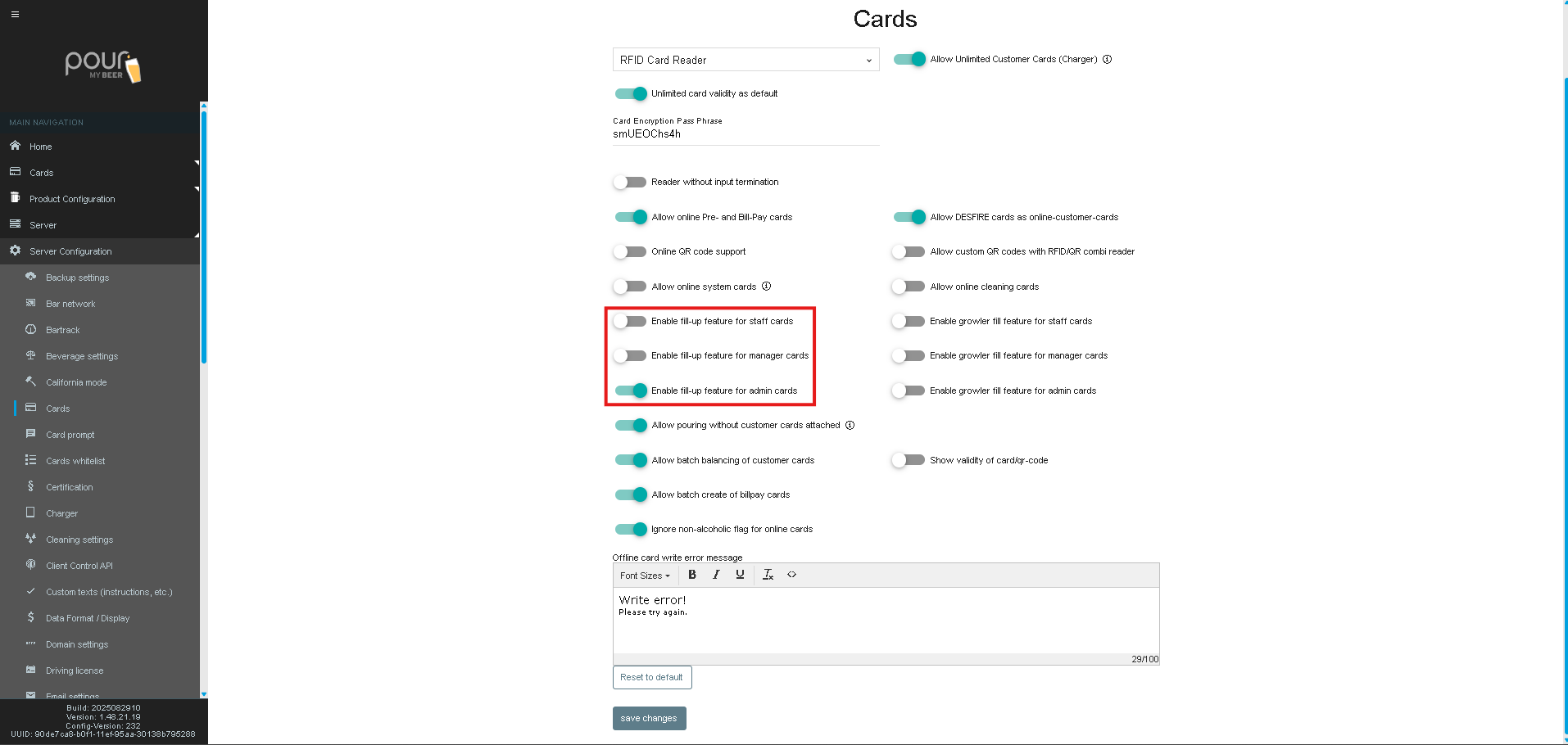
These options allow Admin, Manager, and Staff cards to pour for the guest at no charge to the guest. This is typically used if the guest is having issues pouring.
Enable Fill-Up for Staff Cards
Allows staff cards to fill-up.
Enable Fill-Up for Manager Cards
Allows manager cards to fill-up.
Enable Fill-Up for Admin Cards
Allows admin cards to fill-up.
(Recommended ON for admin operational flexibility.)
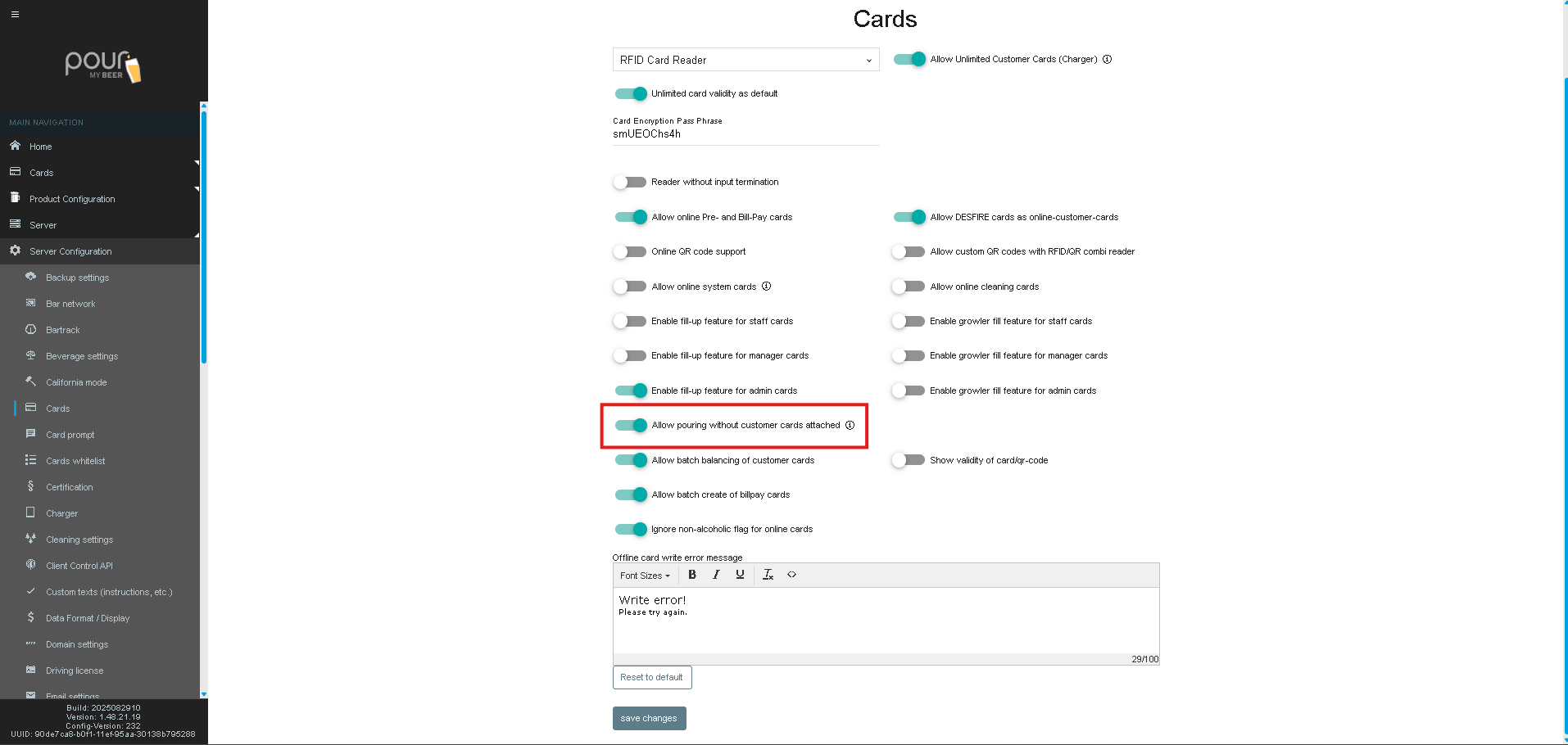
10. Allow Pouring Without Customer Cards Attached
When enabled, the system allows dispensing without the customer’s card remaining on the reader throughout the pour.
Useful for Portion Tap Mode.
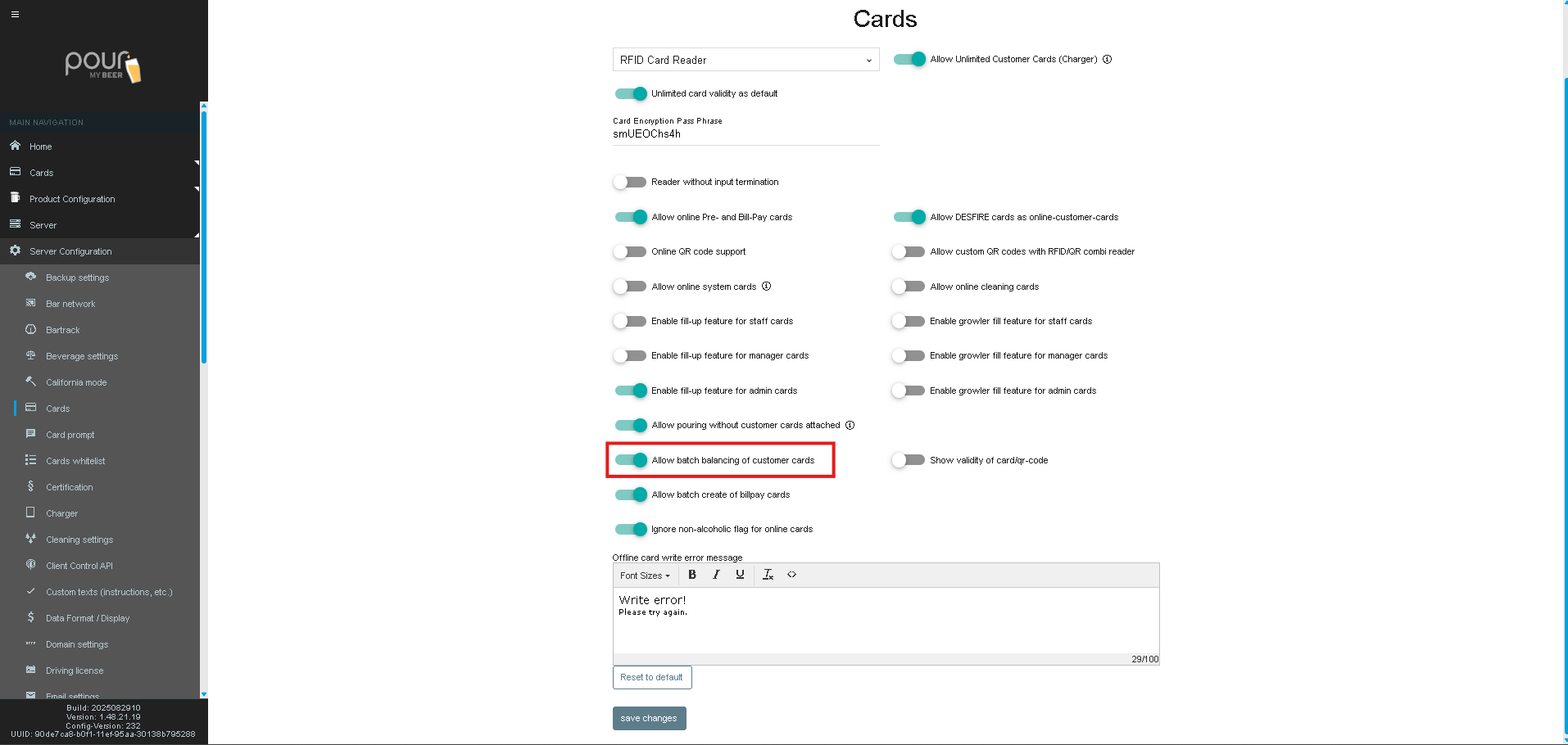
11. Allow Batch Balancing of Customer Cards
Allows adjusting the balance for multiple cards at once—used for reconciliation or group resets.
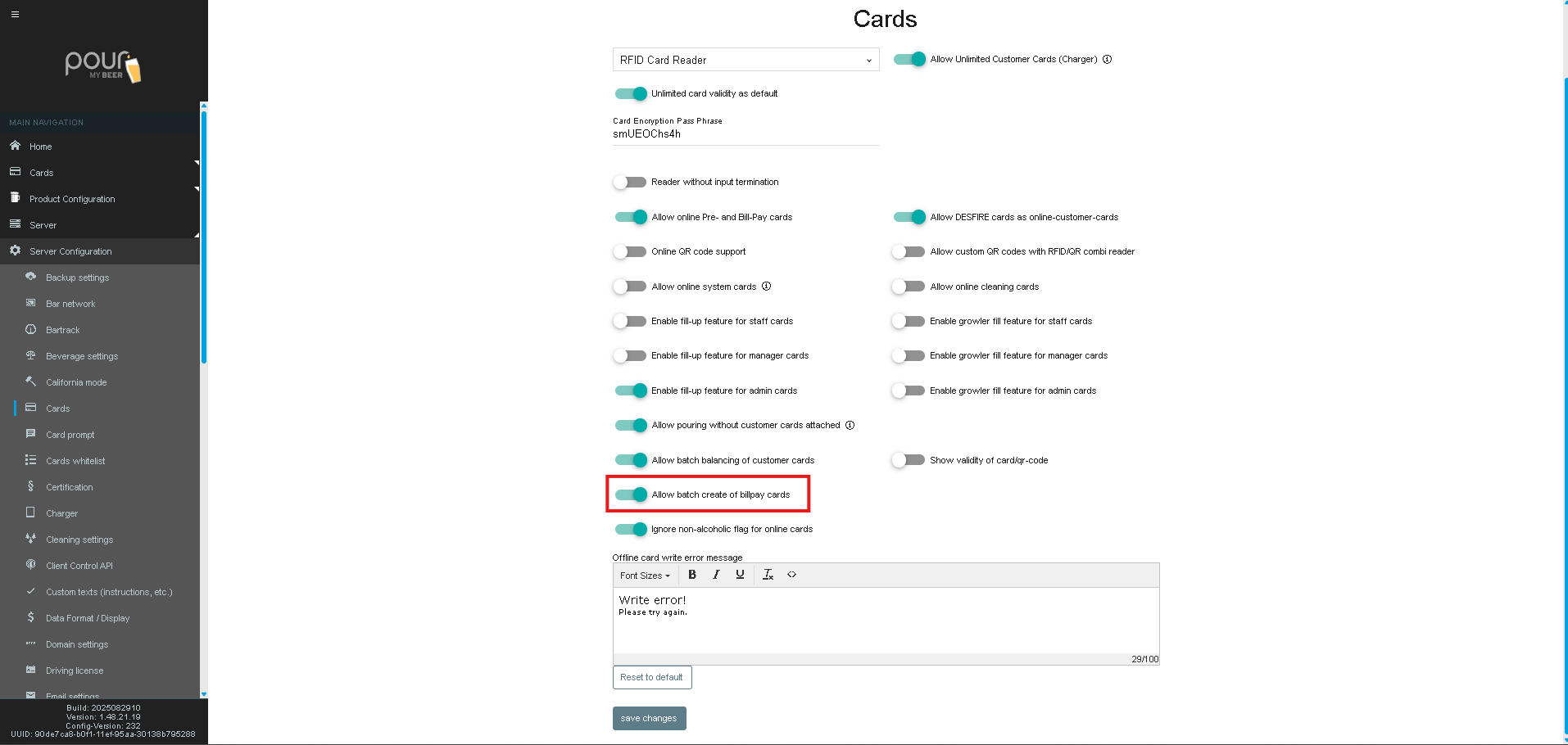
12. Allow Batch Creation of Bill-Pay Cards
Creates multiple bill-pay customer cards in bulk.
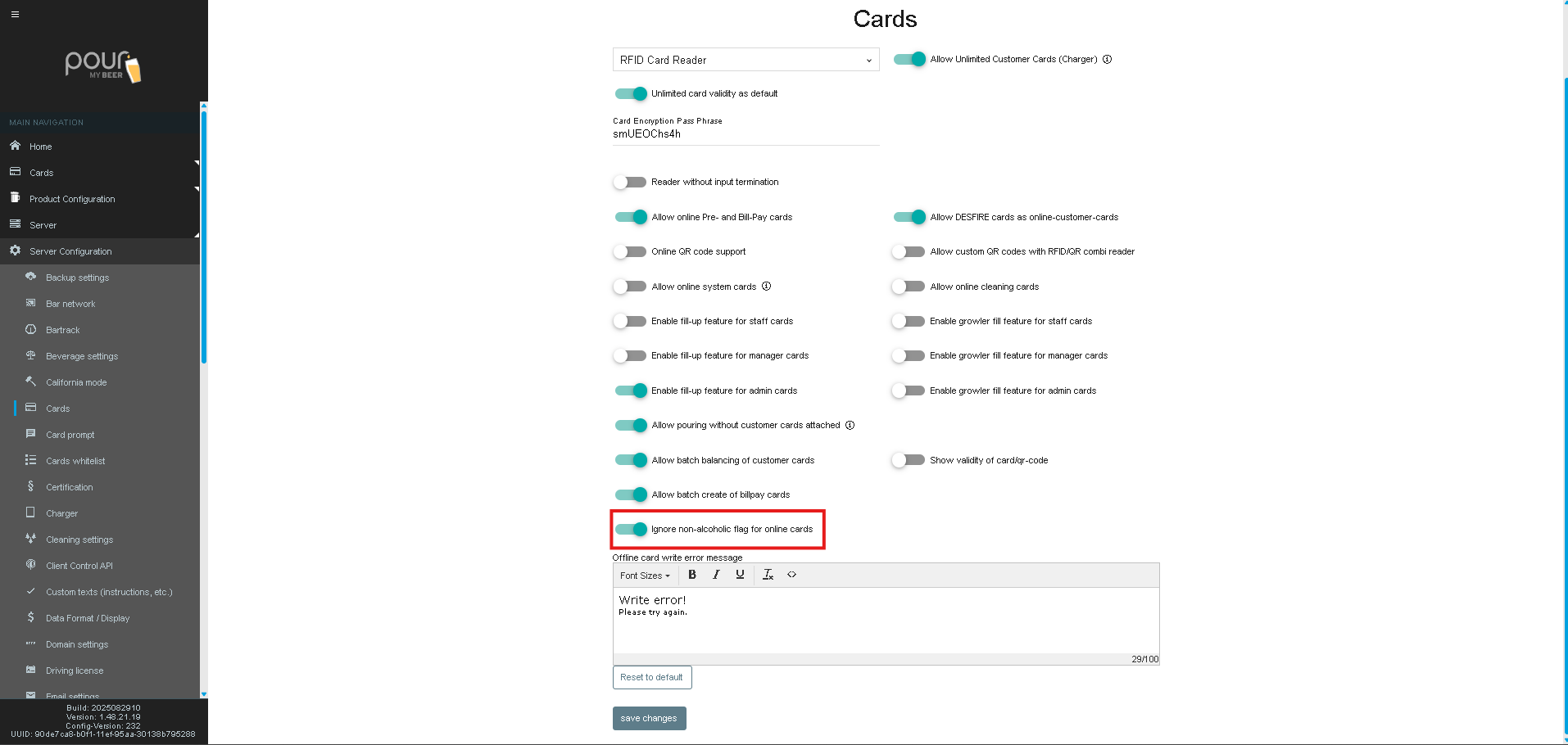
13. Ignore Non-Alcoholic Flag for Online Cards
By default, TTG tracks whether a beverage is alcoholic.
This setting allows online cards to pour alcoholic beverages even when flagged otherwise.
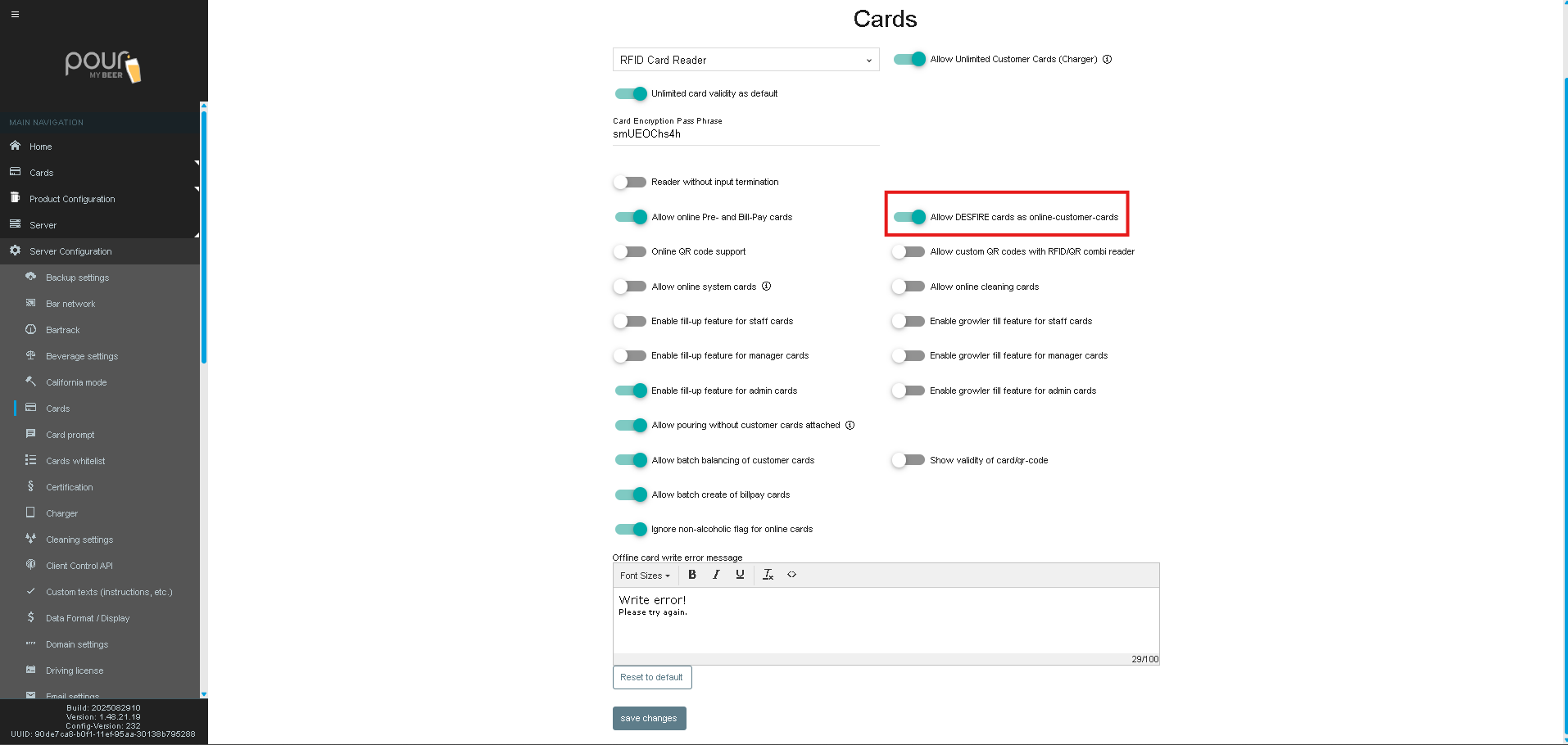
14. Allow DESFIRE Cards as Online Customer Cards
Allows DESFIRE card types to function as online accounts instead of offline encoded cards.
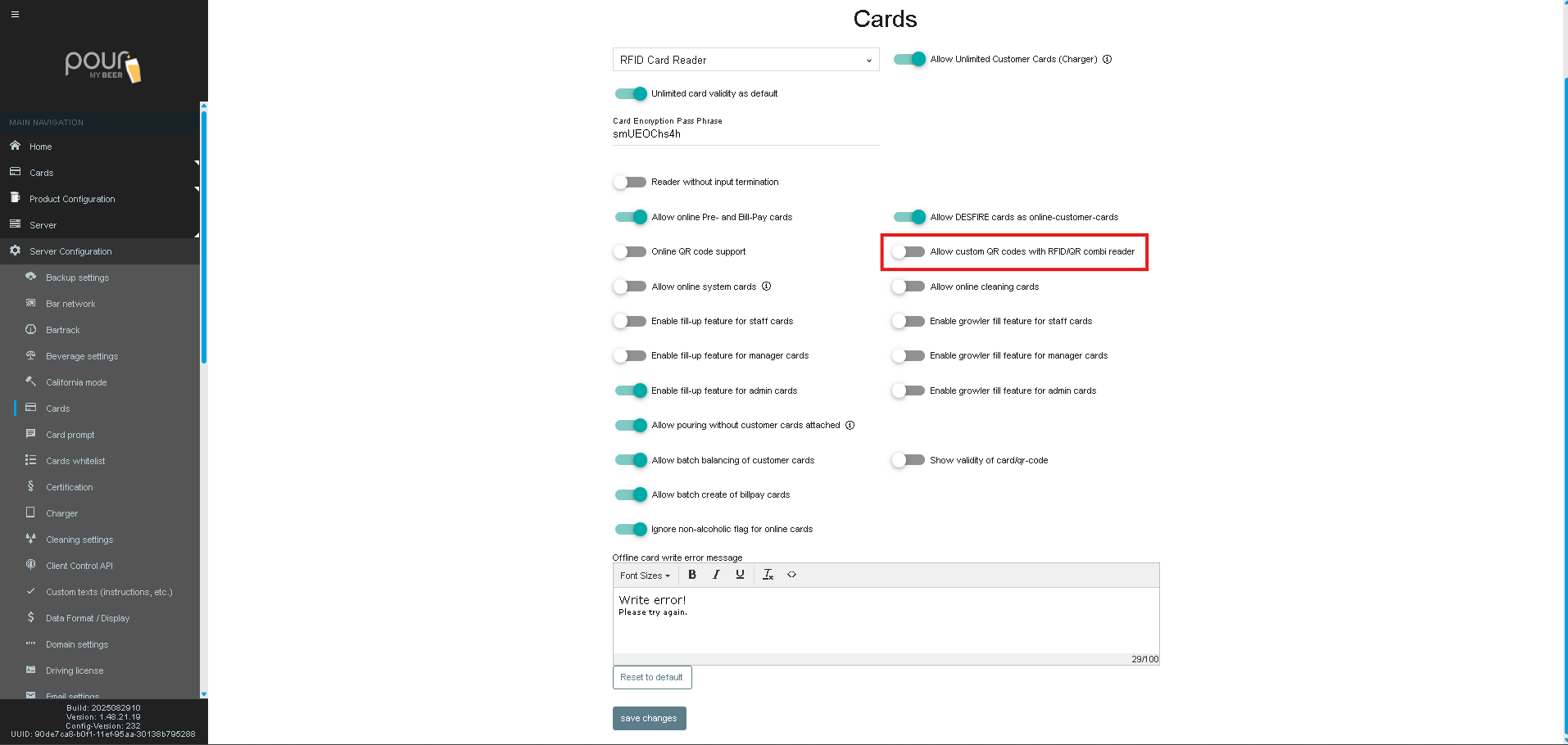
15. Allow Custom QR Codes With RFID/QR Combi Reader
Enables custom QR formatting for integrations that require:
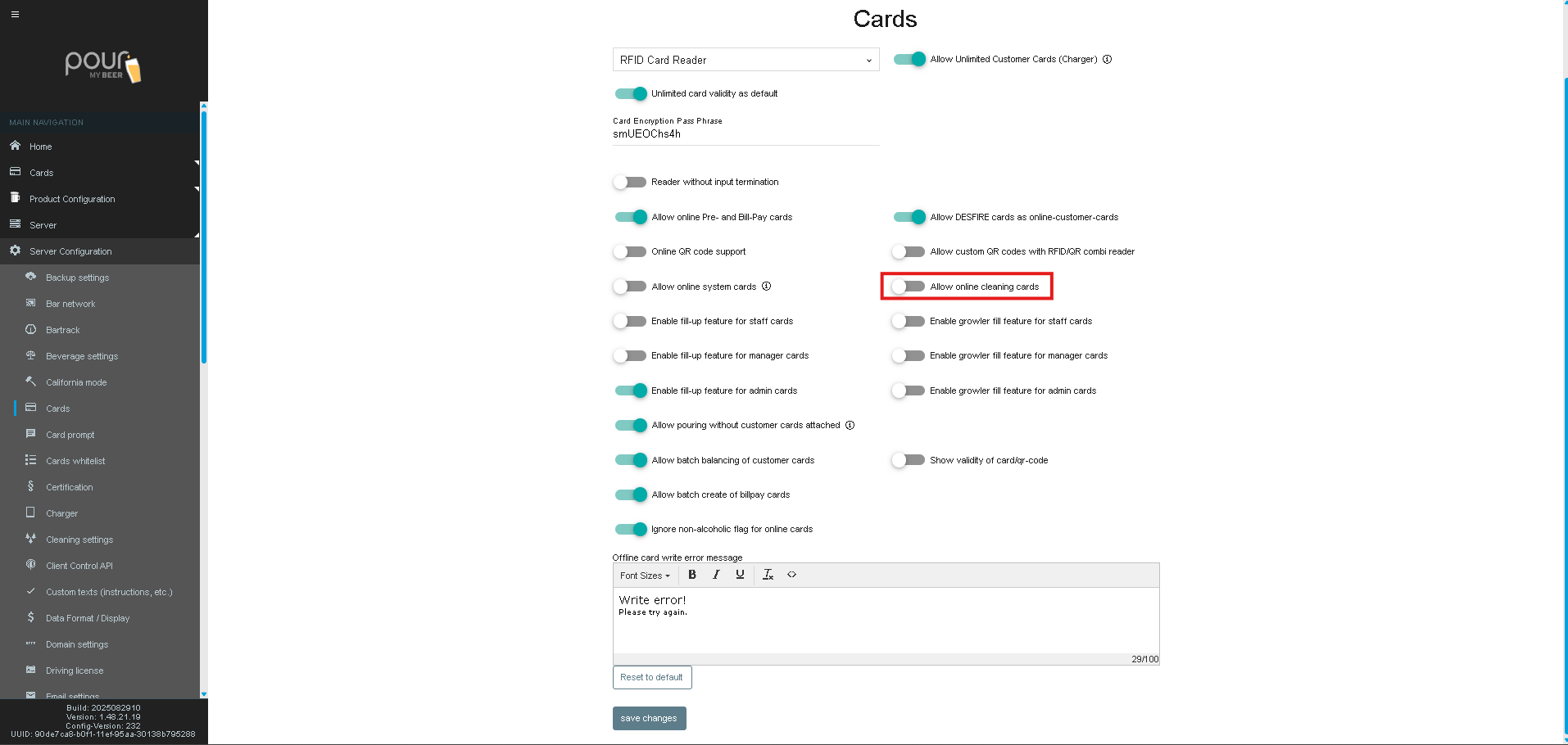
16. Allow Online Cleaning Cards
Allows designated cleaning cards (digital, online type) to initiate cleaning operations.
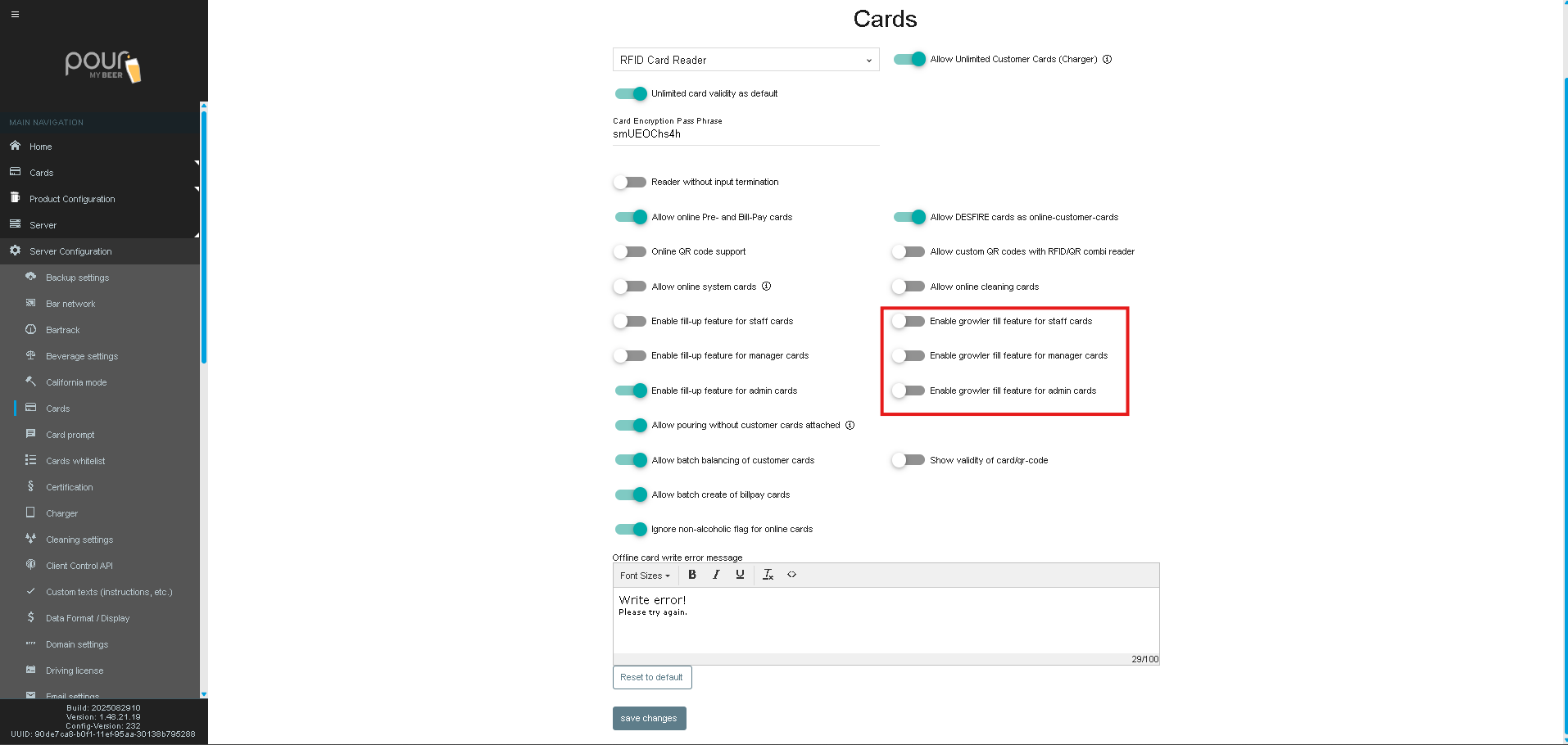
17. Growler Fill Features
These options allow selected staff roles to perform growler fills using defined tax or pricing structures.
-
Staff Cards
-
Manager Cards
-
Admin Cards
When enabled, the card type can process growler pours through tap screens.
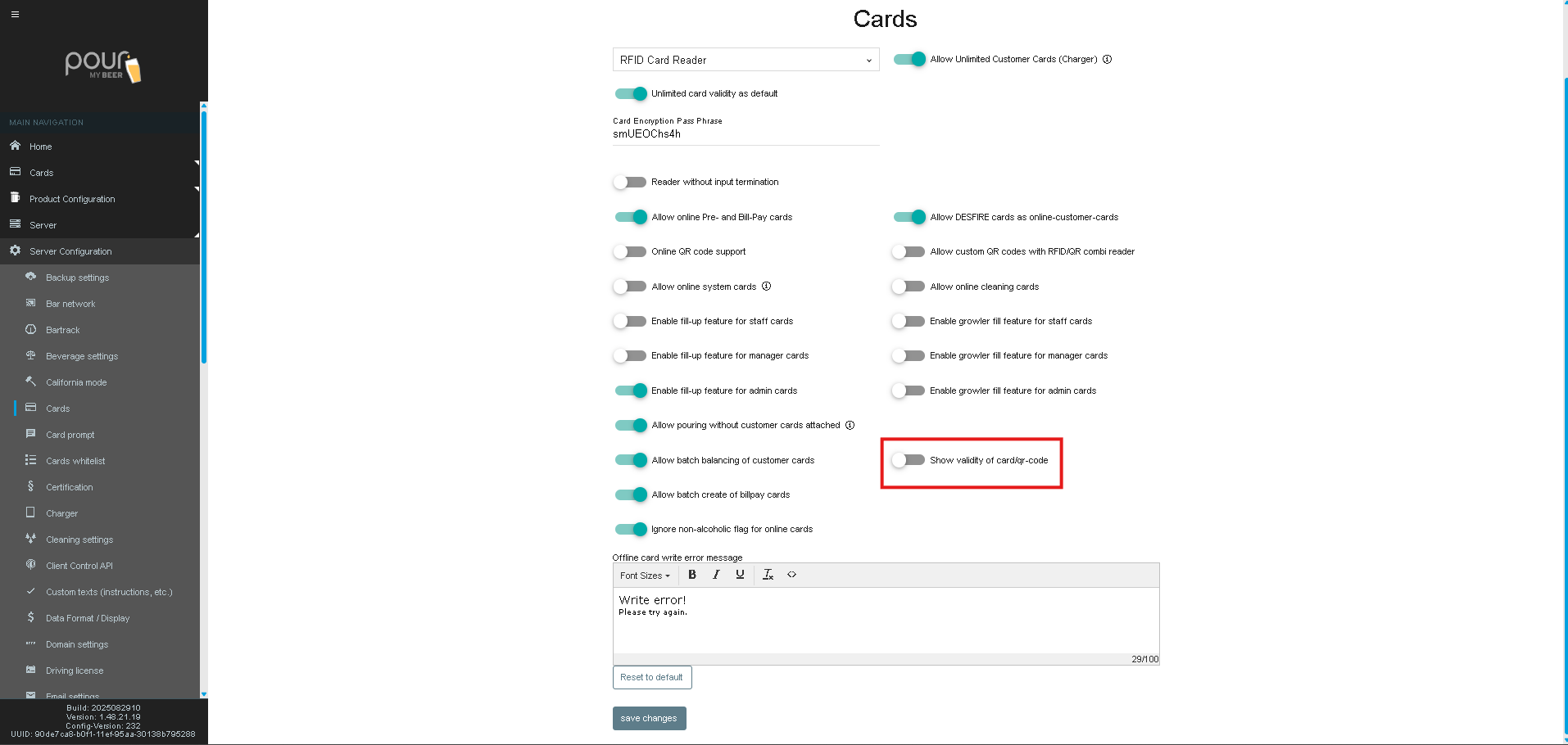
18. Show Validity of Card/QR Code
Displays the expiration date of:
-
Customer cards
-
QR codes
Useful for compliance in age-restricted regions or time-limited passes.
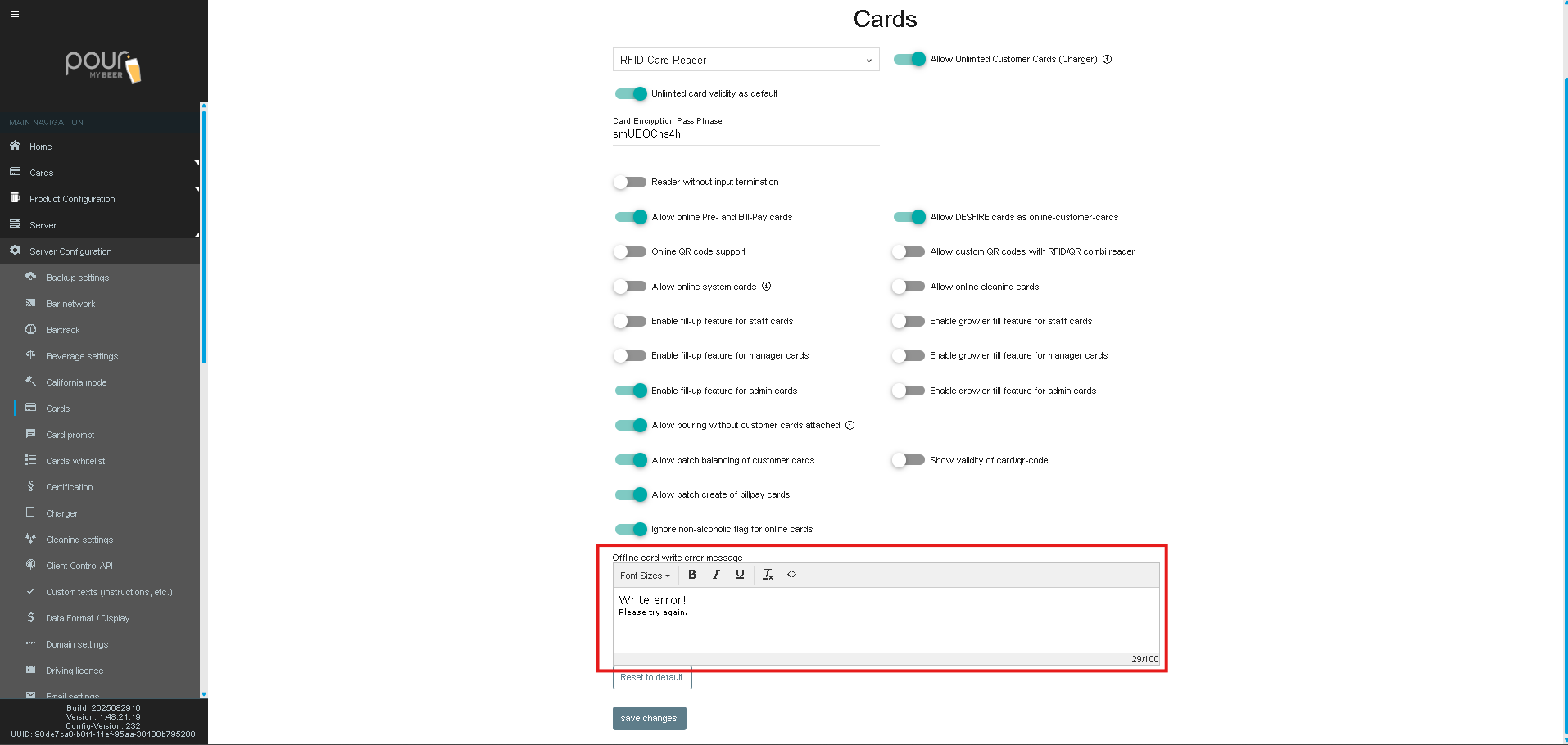
19. Offline Card Write Error Message
Customize the message shown on a tap screen if a card cannot be written to in offline mode.
Example message:
“Write error! Please try again.”
You can format the text using the editor above the message box.
20. Save or Reset Changes
-
Save Changes applies all modifications.
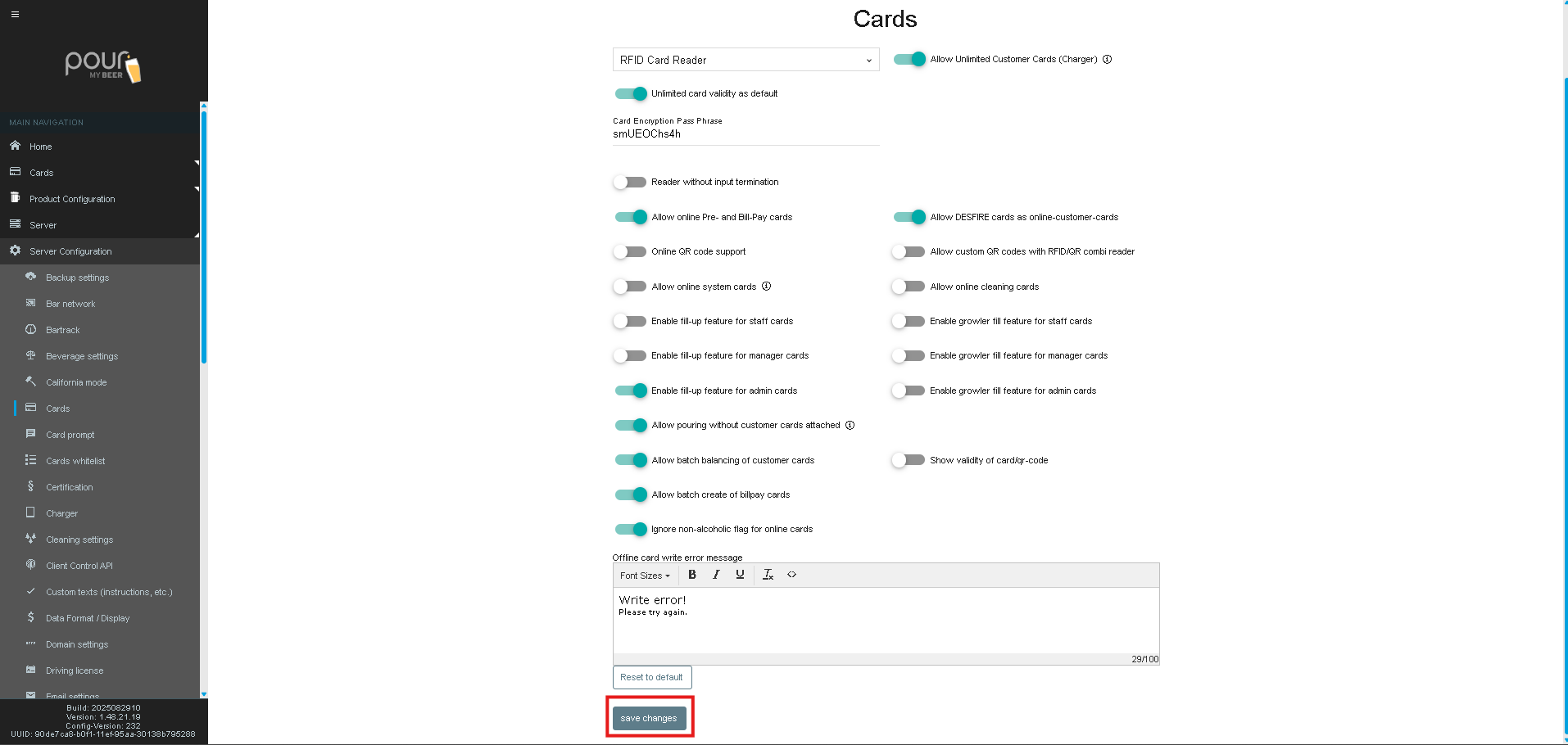
Always finish by selecting Send Config Update Notification to All Clients from the server homepage to push updates to the tap screens.