California state regulations require beverage dispensing systems to display pricing and volume information in specific ways. California Mode is a built-in Table Tap Go (TTG) feature that helps your venue meet those requirements by adjusting how pour data, pricing, and volume units are shown to guests.
This article covers how to enable California Mode and explains each available setting.
Accessing California Mode Settings
-
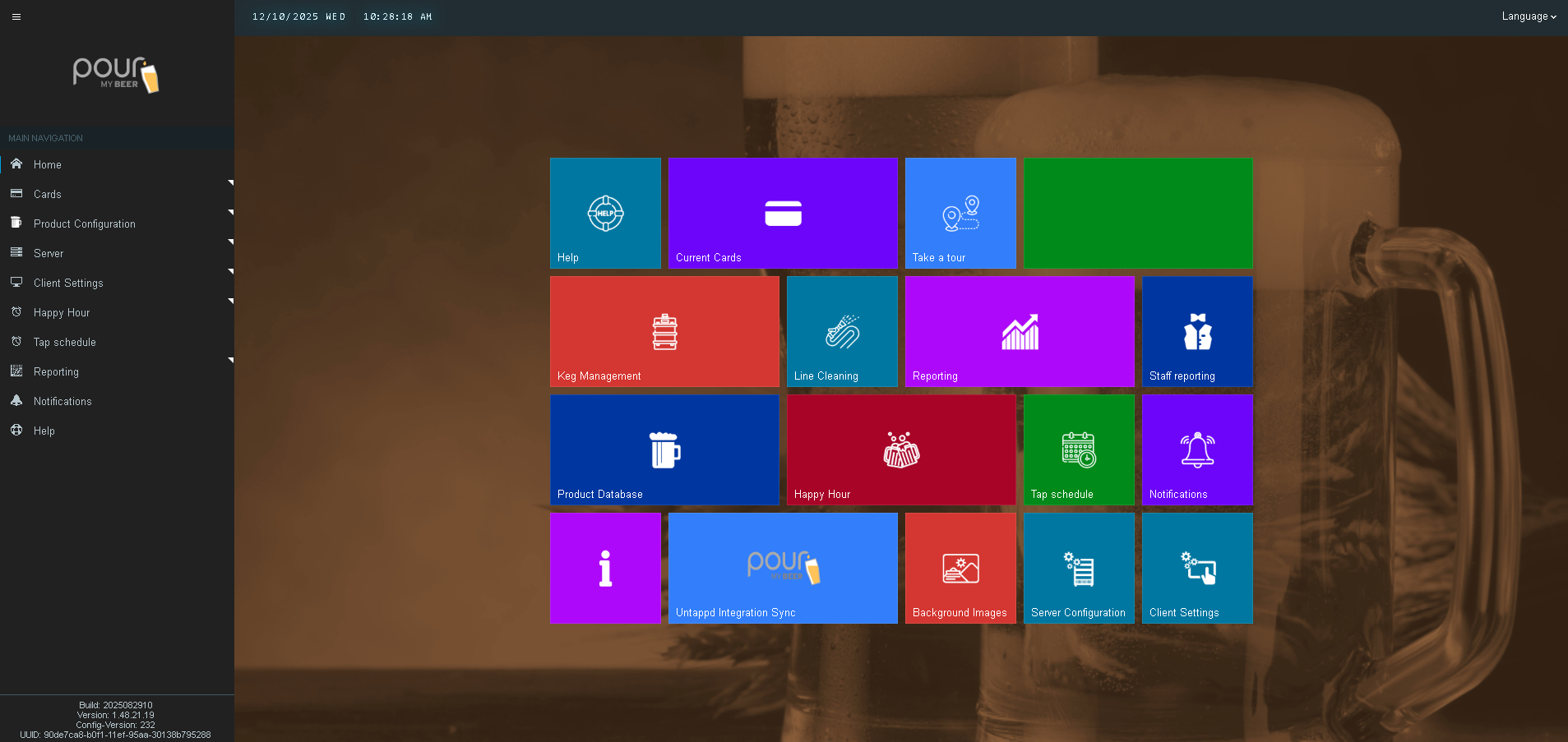
Log into the TTG Server Management Page.
-
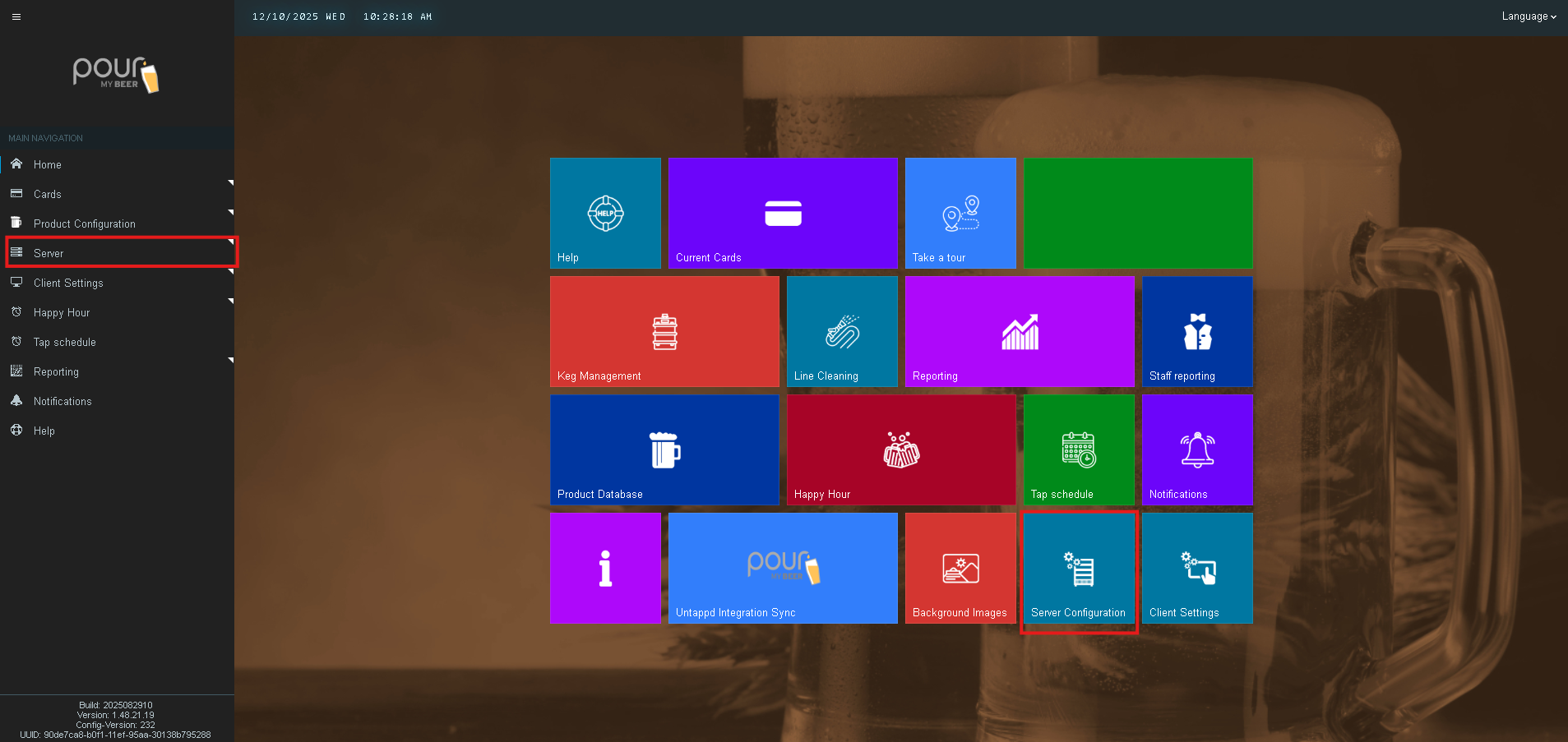
Navigate to Server Configuration.
-
Select the tab labeled California Mode.
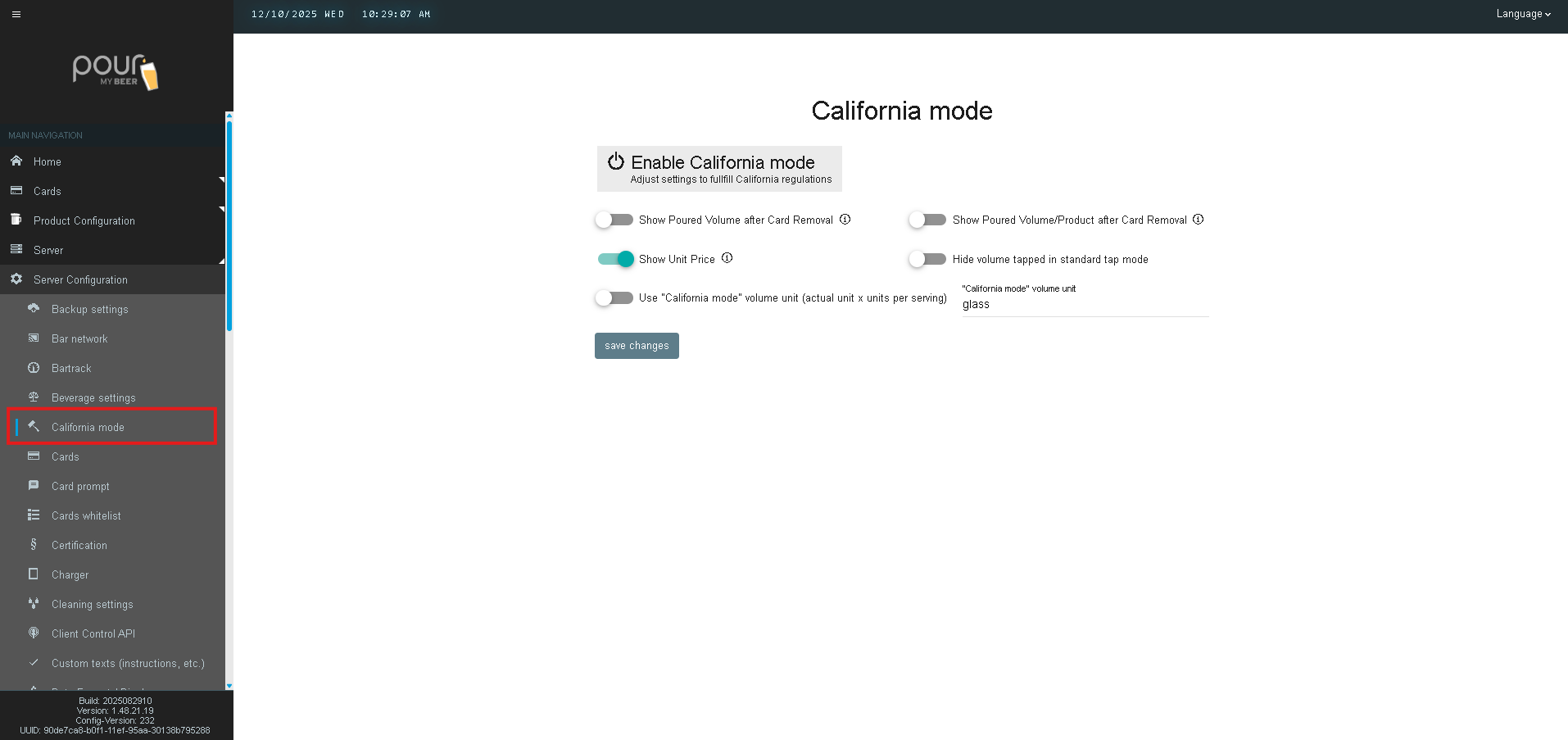
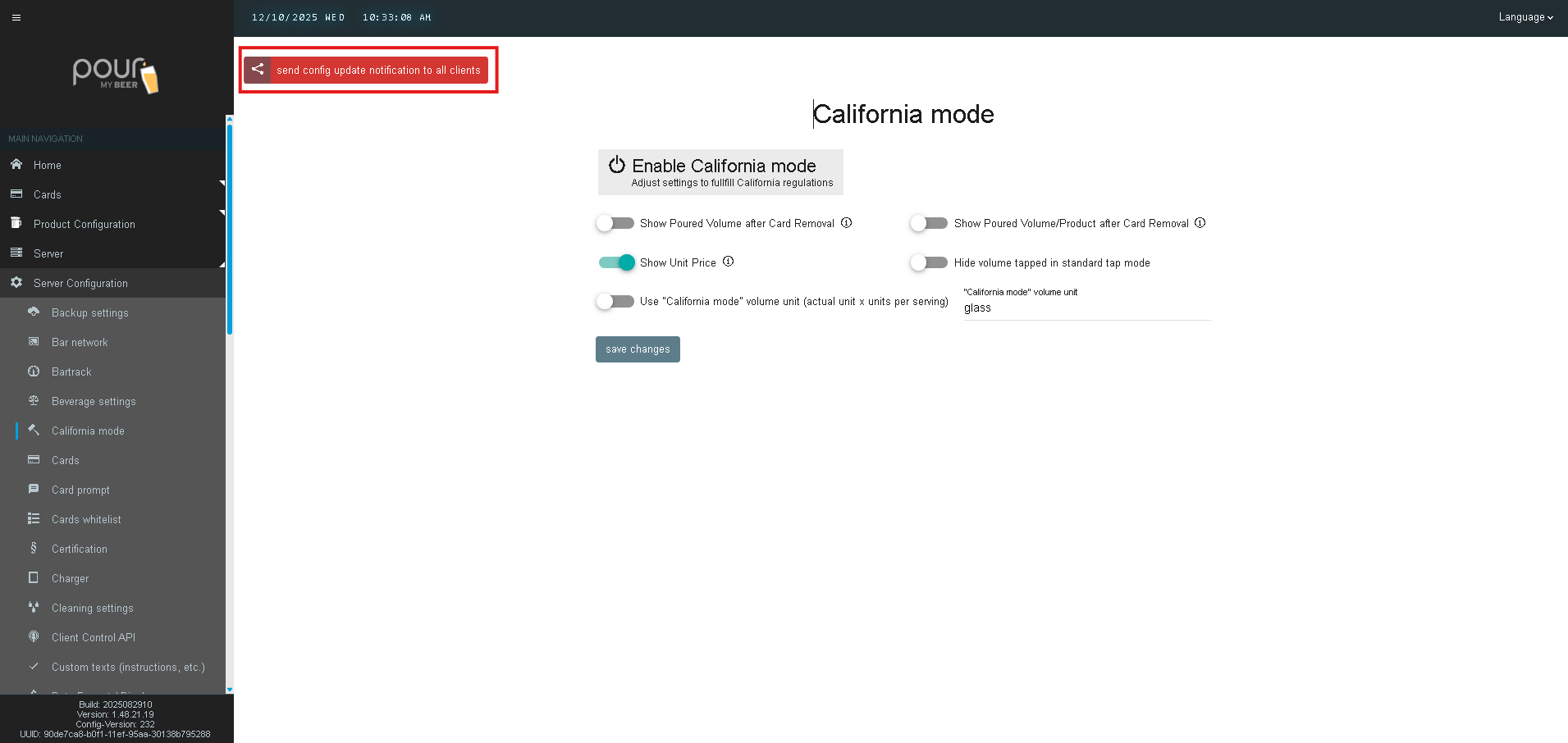
You will be presented with the configuration screen shown below (mocked from your interface).
California Mode Settings
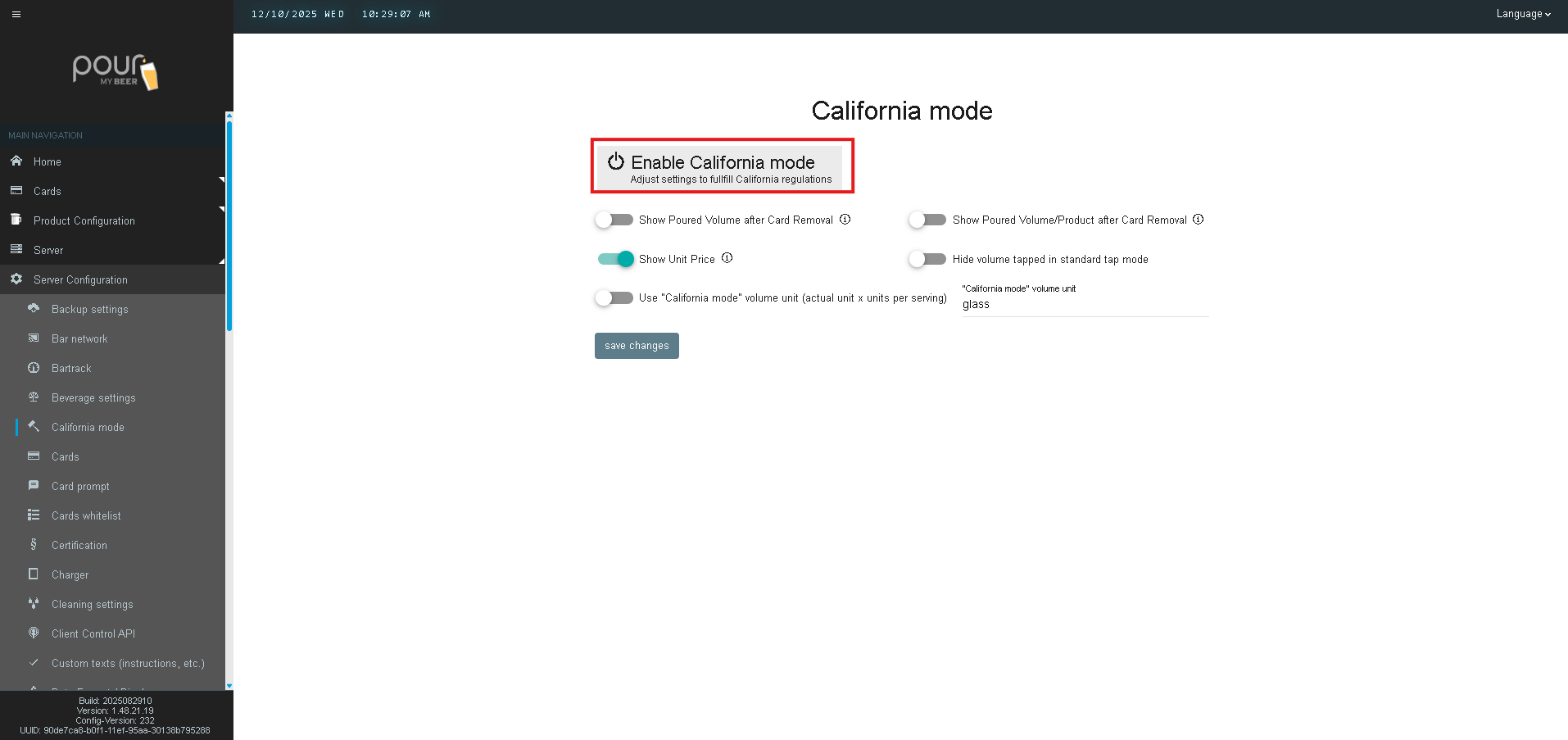
Enable California Mode
Toggle this option ON to activate all California-specific compliance features.
When enabled, TTG updates how pour information is displayed to meet state guidelines.
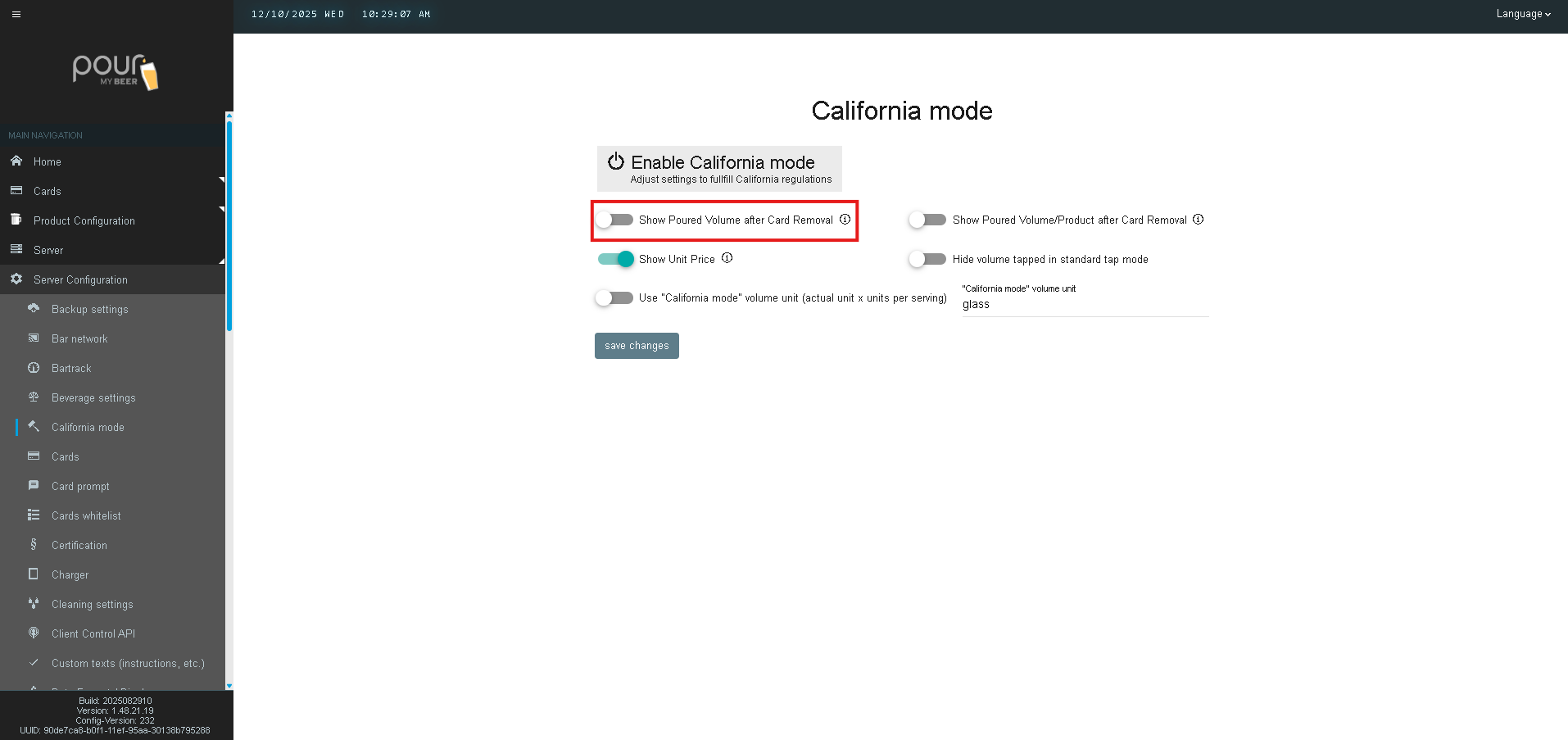
Show Poured Volume After Card Removal
When enabled, the tap screen will show the final poured volume after the customer removes their RFID card.
-
Helps guests verify how much they poured.
-
Required for certain CA consumer transparency expectations.
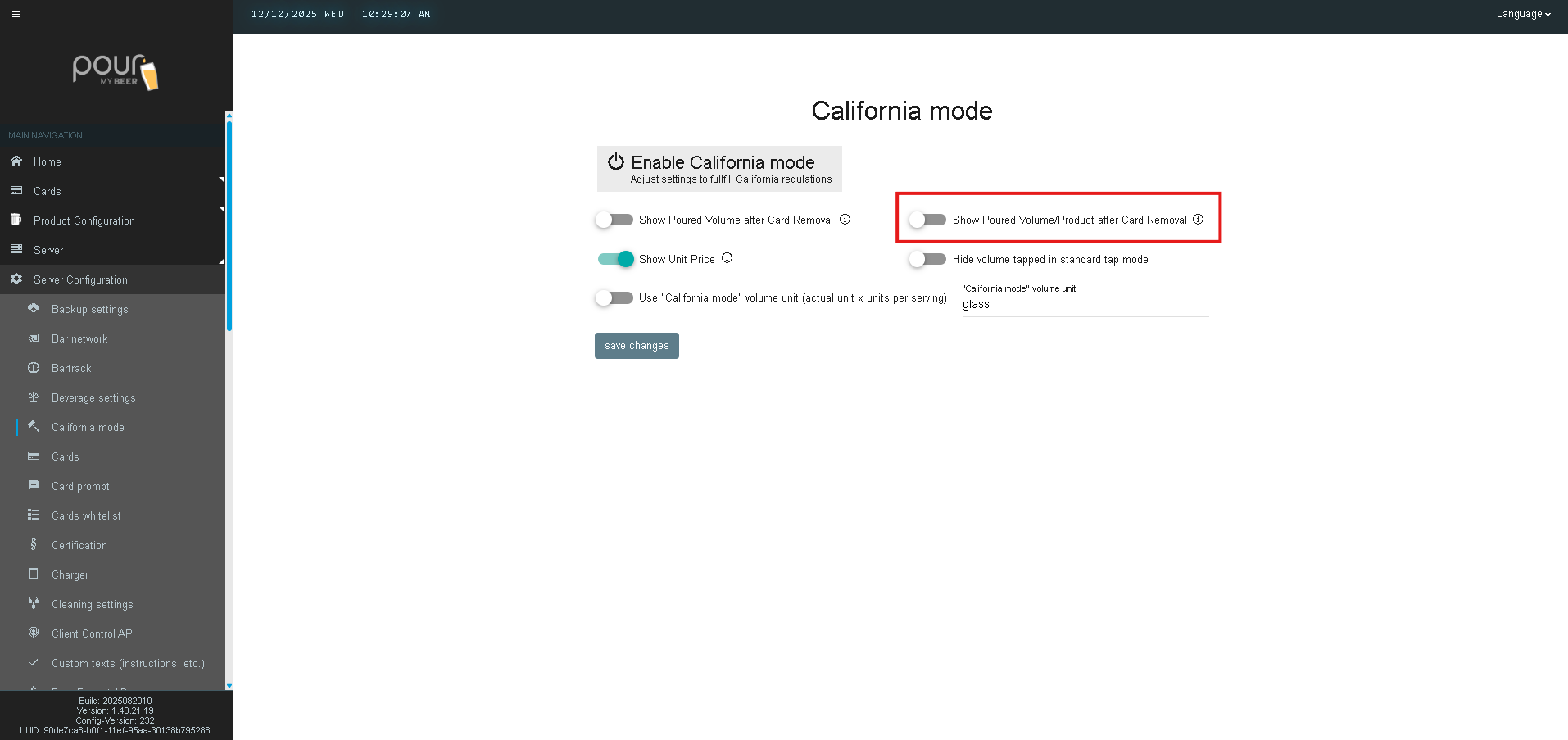
Show Poured Volume/Product After Card Removal
This option displays both the poured volume and the name of the product dispensed after the customer removes their card.
This may be useful for:
-
Clear product confirmation
-
Avoiding disputes about which product was tapped
Show Unit Price
When enabled, the system displays the price per unit (e.g., per ounce or per glass, depending on your configuration).
This is particularly important in California, where:
-
Pricing transparency is required
-
Guests must clearly understand how they are being billed

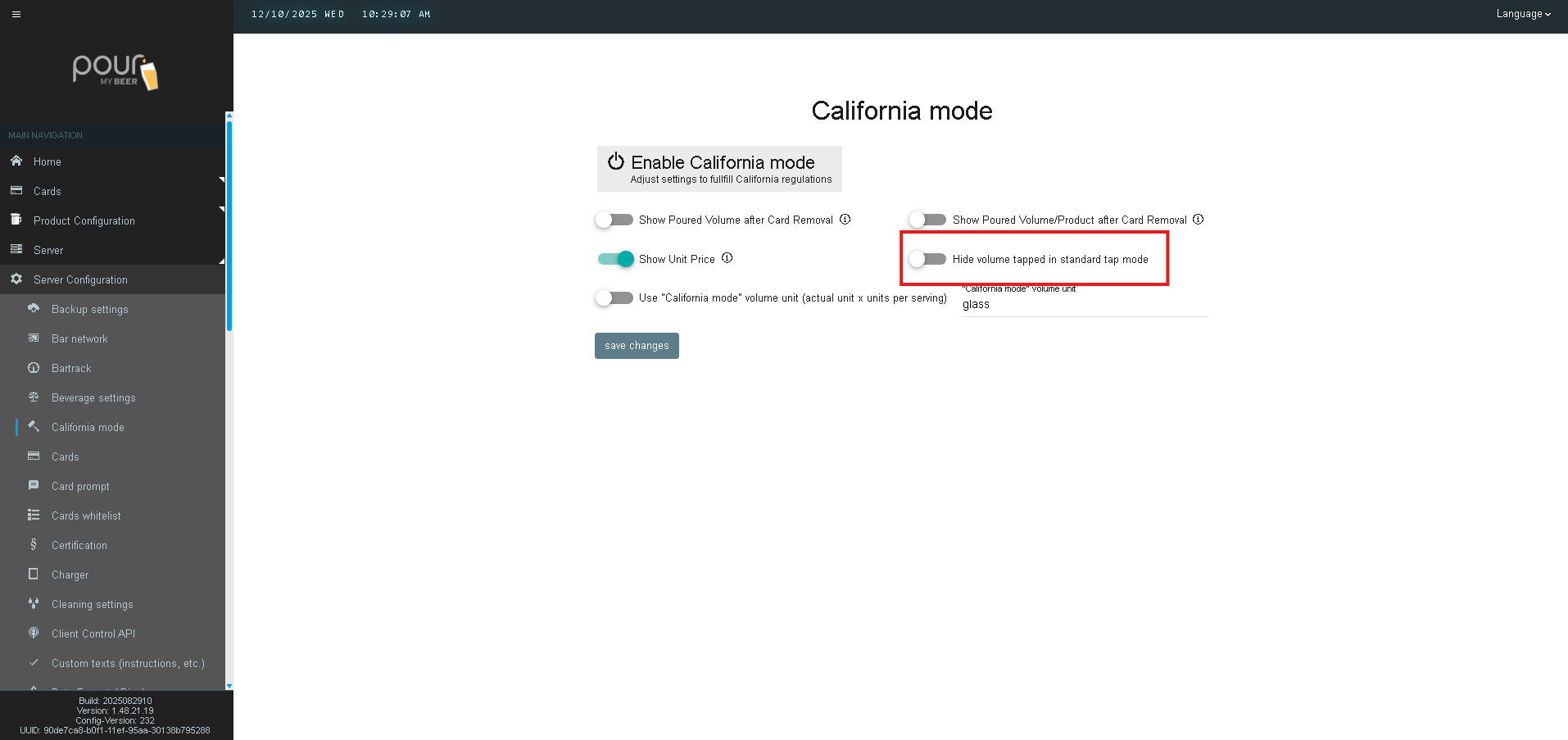
Hide Volume Tapped in Standard Tap Mode
If enabled, this setting hides live-updating pour volume during dispensing in standard tap mode.
Venues may enable this to:
-
Reduce on-screen clutter
-
Display only required end-of-pour information
-
Match California regulatory expectations for simple consumer displays
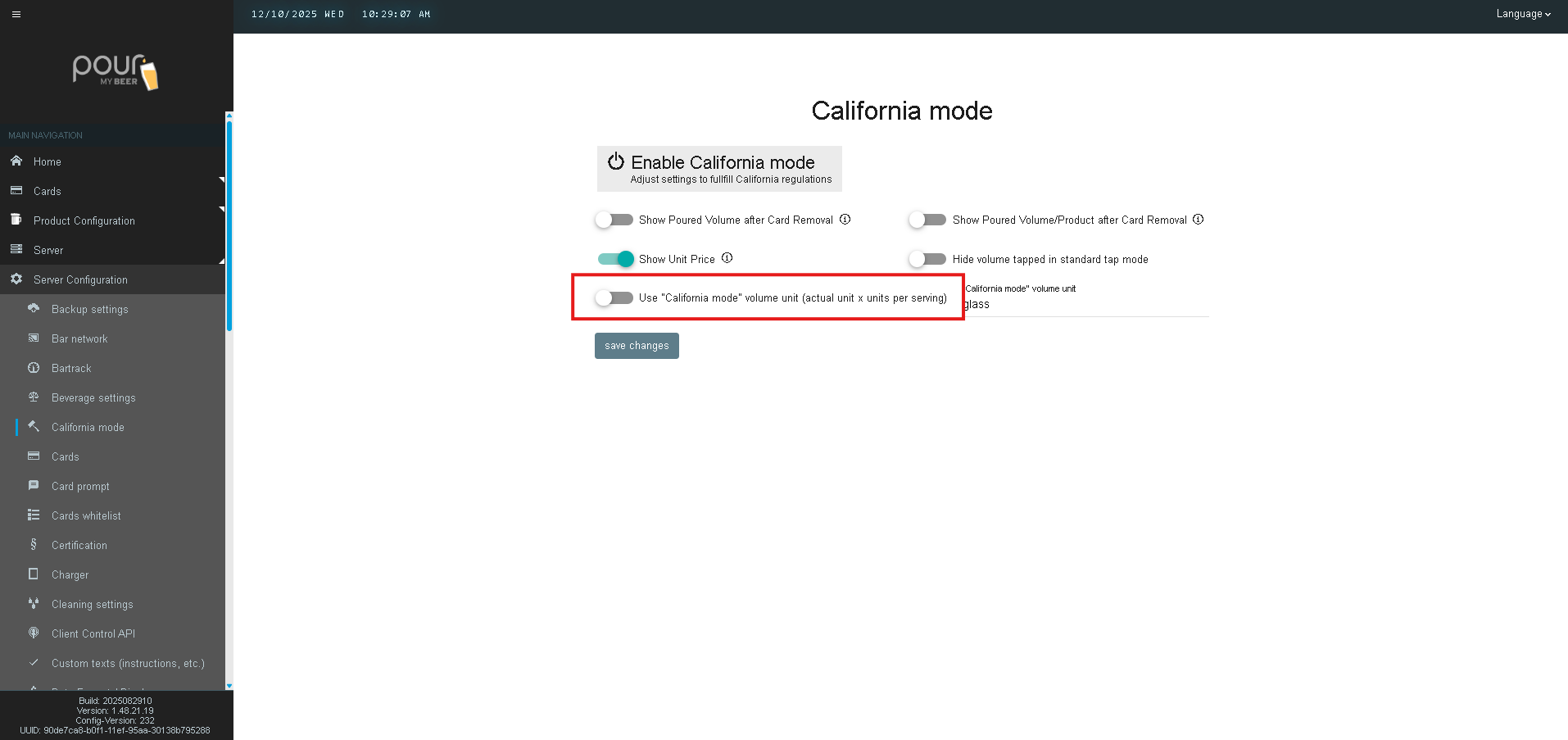
Use "California Mode" Volume Unit
This setting changes the way volume is measured and displayed.
In California Mode, you may substitute the typical ounce-based measurement with a consumer-friendly unit, such as:
-
glass (default as shown)
-
cup
-
serving
-
or any custom text you choose
TTG will calculate and display volume as:
Actual volume × units per serving
For example:
-
If a serving equals 12 oz and you choose “glass,” TTG may show pours as 0.5 glass, 1.0 glass, etc.
This improves clarity for venues where customers expect menu items listed by serving instead of ounces.
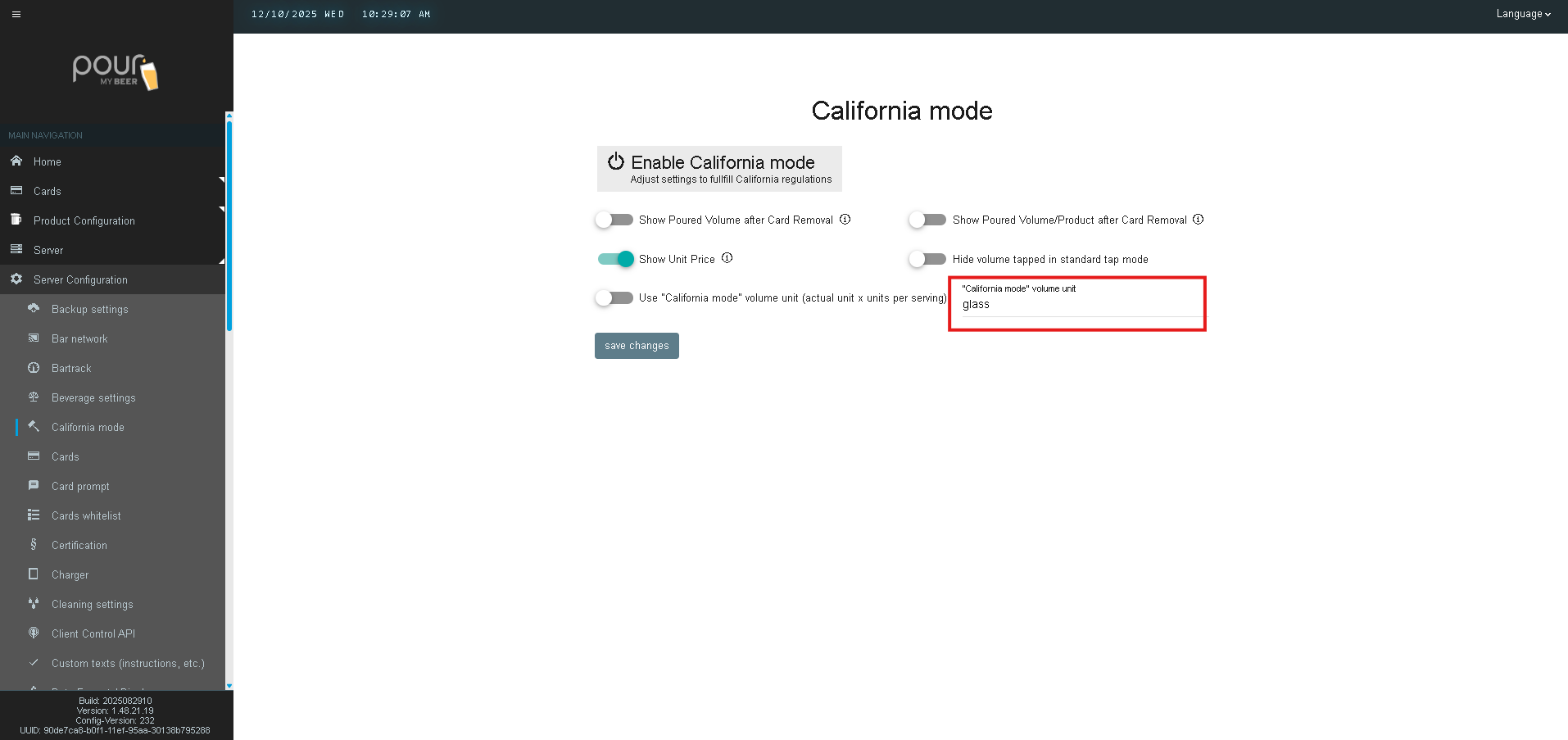
California Mode Volume Unit Field
Enter the text you want displayed as the unit (example shown: glass).
This setting allows:
-
Custom naming
-
Alignment with your menu terminology
-
Clear communication of serving sizes
Saving Your Settings
-
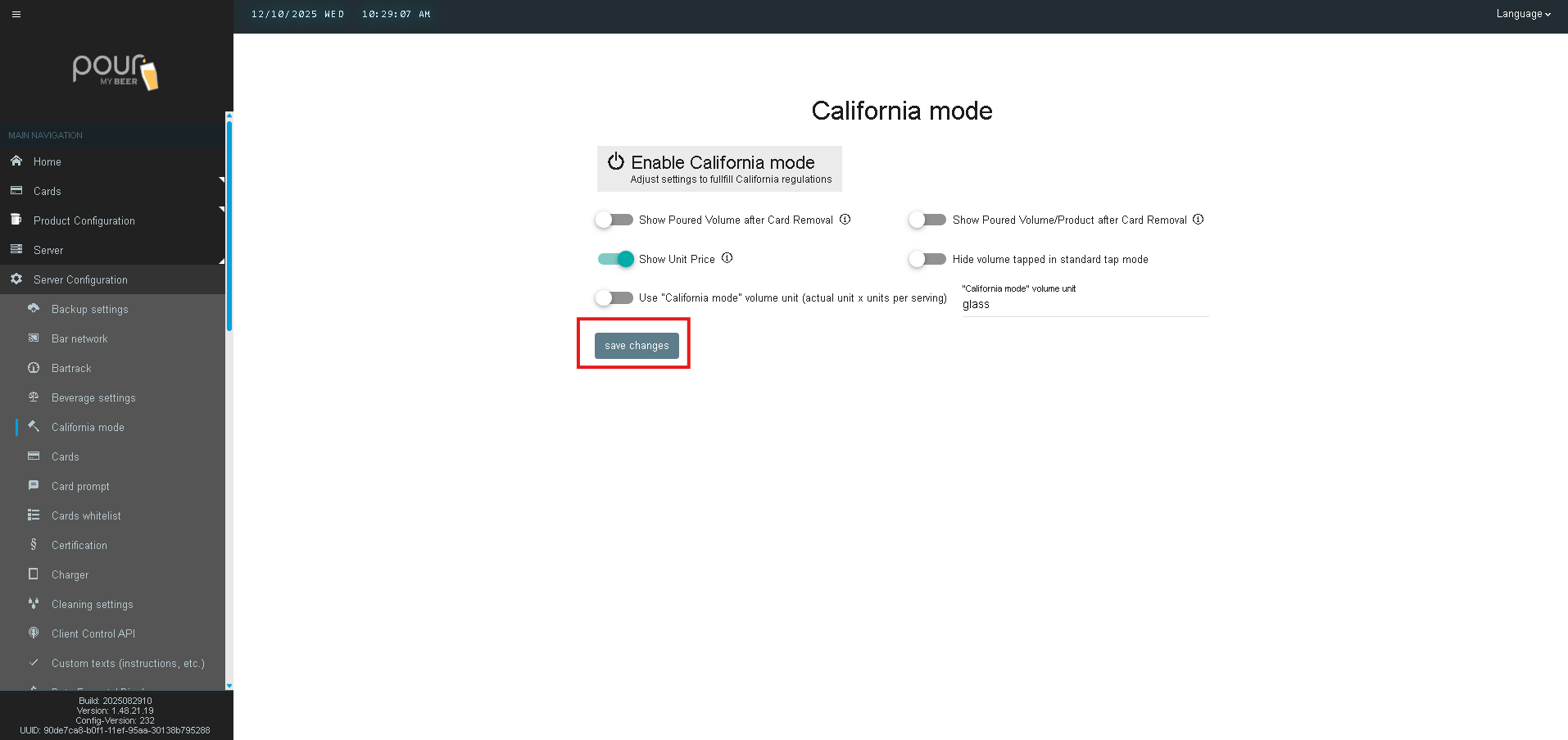
After selecting your preferred options, click Save Changes.
-
Then click Send Config Update Notification (if prompted) to apply settings to all tap screens.