How to configure serving limits, volume units, drinking age, and product expiration settings in Table Tap Go
The Beverage Settings section of the Table Tap Go (TTG) Server allows you to control how beverage volumes, servings, legal drinking age rules, and product expiration behave across your system.
These settings help maintain compliance, improve responsible service, and keep your beverage database clean and up to date.
Step 1: Access the TTG Server Management Page
-
Open the Table Tap Go Server Management Page or navigate to:
http://localhost:8585 -
Log in with your Admin credentials
-
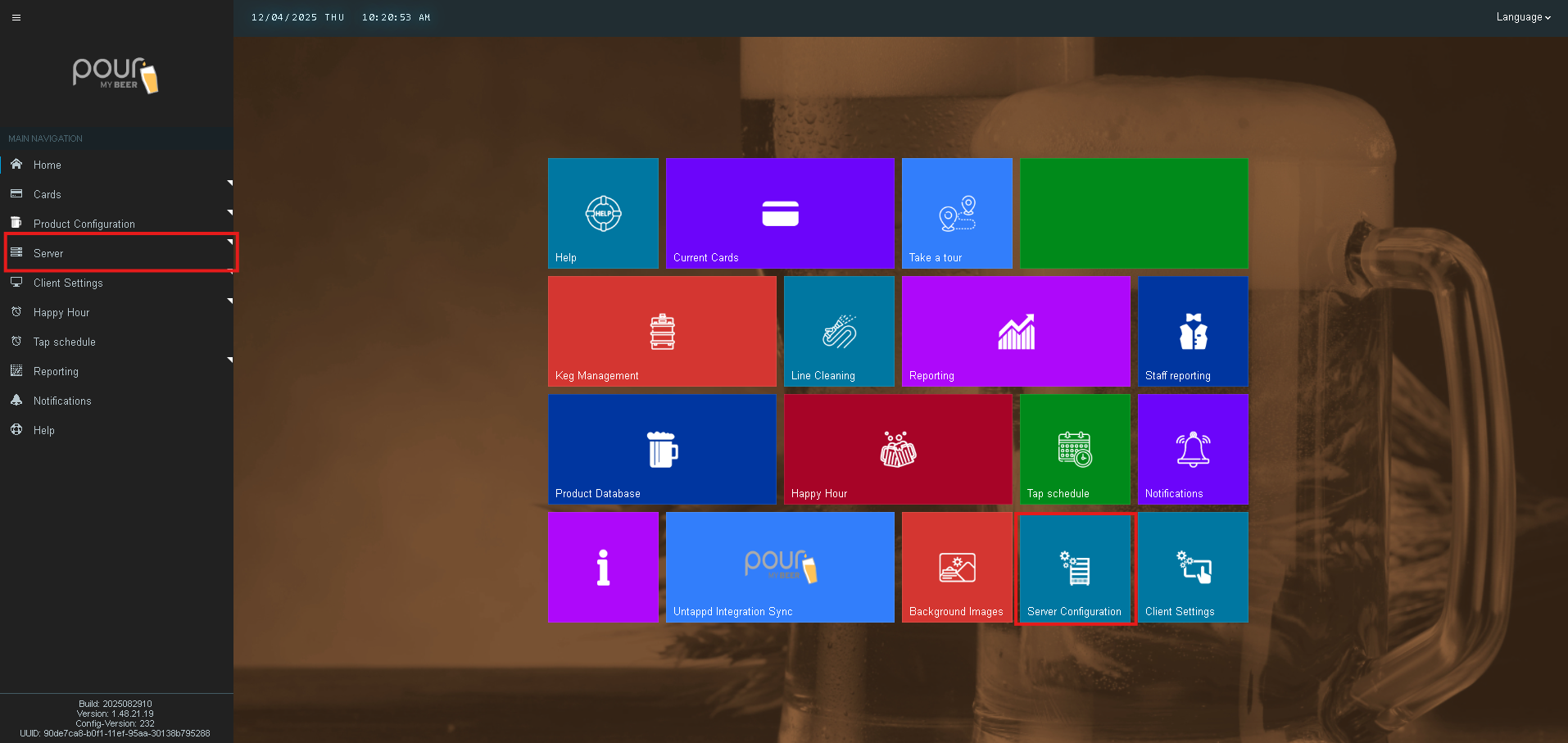
Click Server Configuration,
-
Then select Beverage Settings from the left-hand menu.
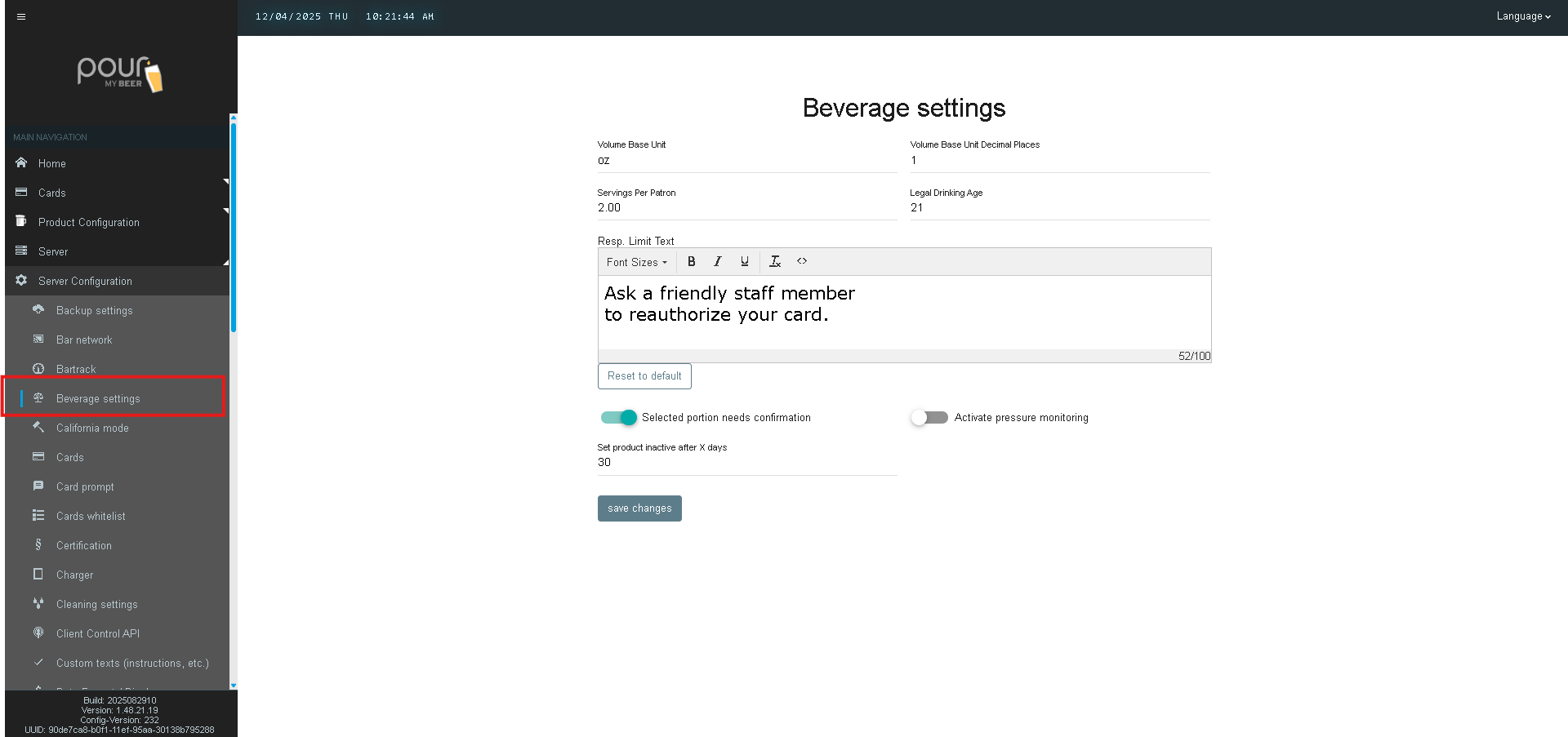
Beverage Settings Breakdown
Below is a description of each setting and how it affects your tap wall and customer experience.
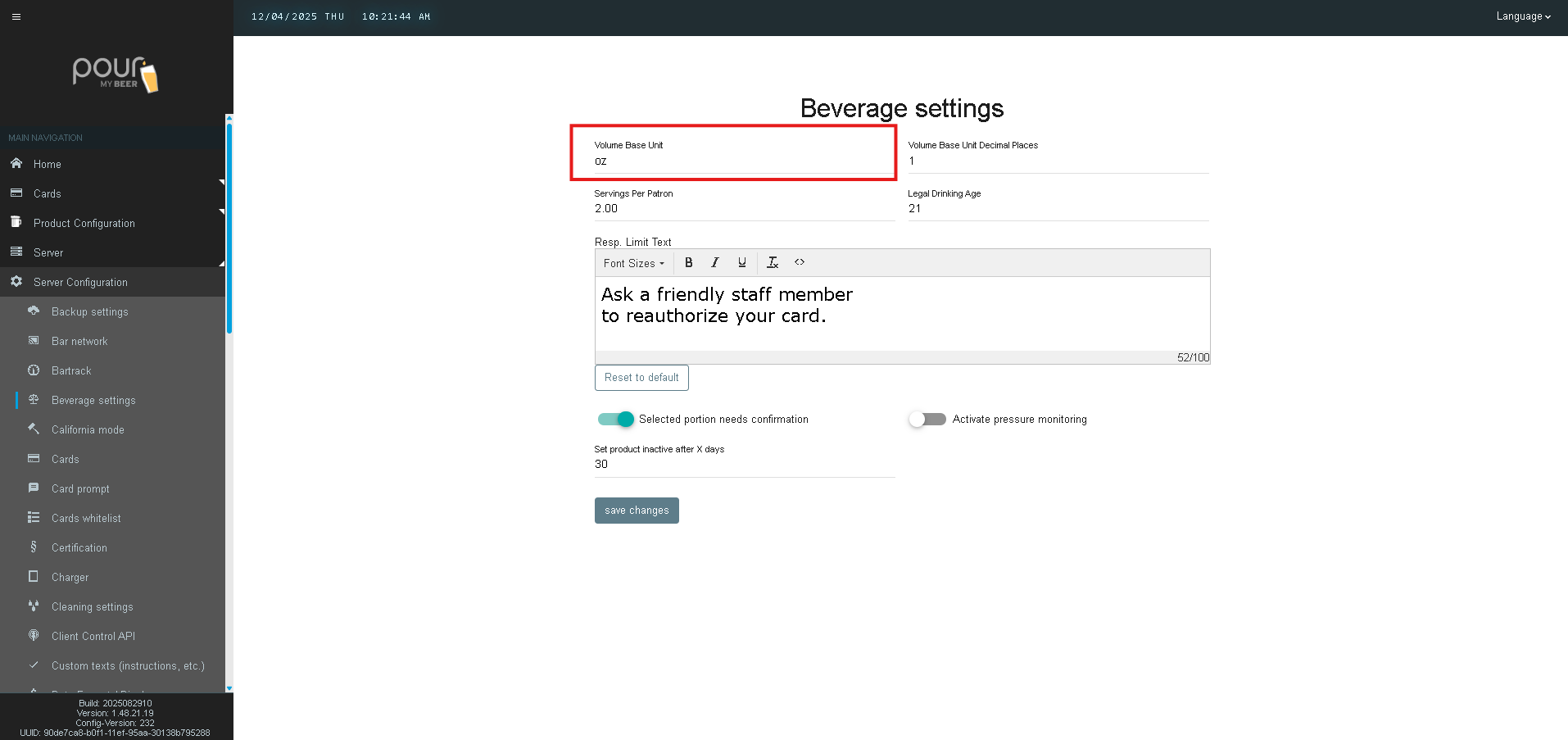
Volume Base Unit
Setting: oz
This defines the unit of measurement used for all pours throughout the TTG system.
When set to ounces, all pour volumes, pricing, and inventory values will display in oz.
Most North American venues use oz as the standard measurement.
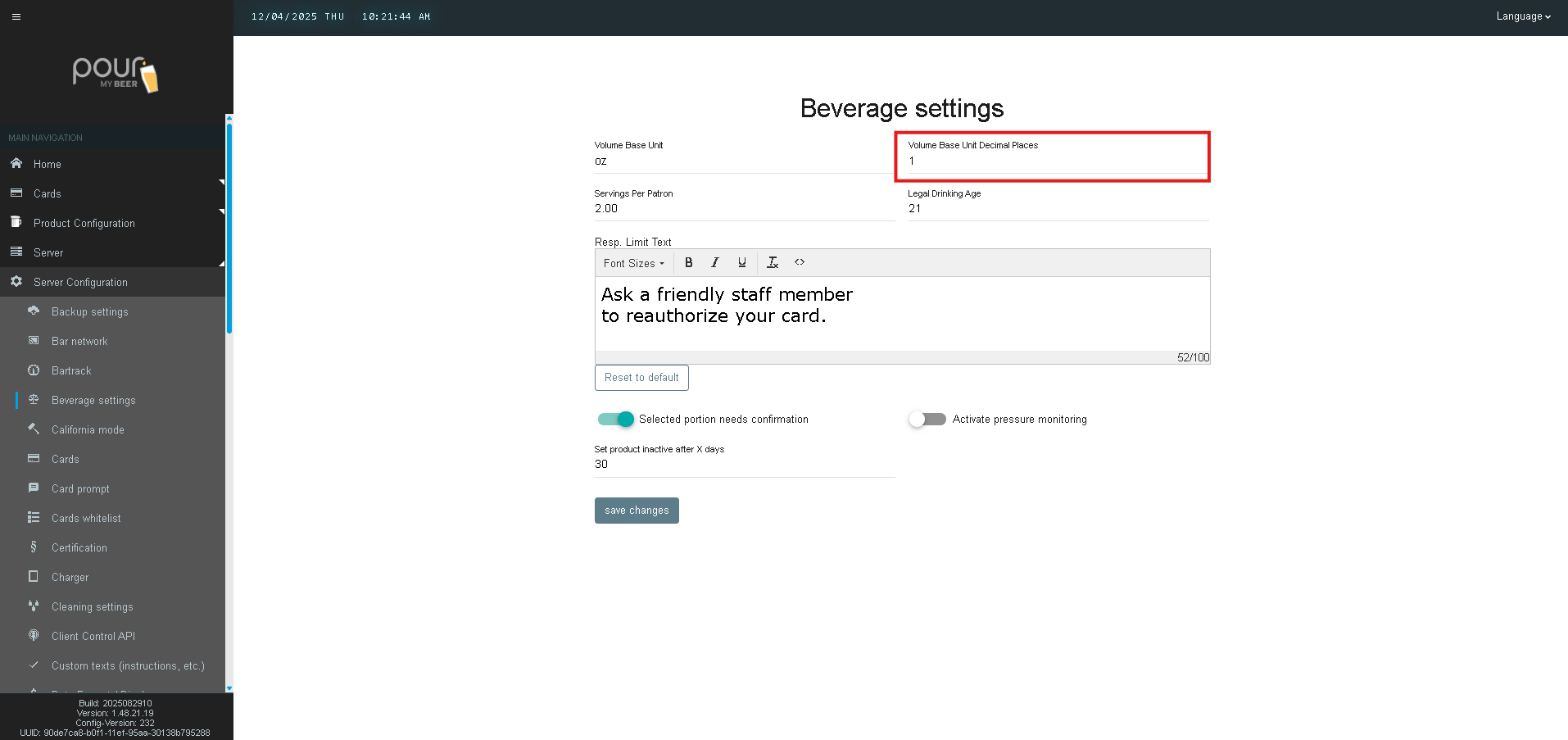
Volume Base Unit Decimal Places
Setting: 1
Controls how many decimal places are shown on the tap screens and reports.
Examples:
-
1 decimal place: 4.5 oz
-
2 decimal places: 4.56 oz
A setting of 1 provides a clean, readable display for customers.
Servings Per Patron
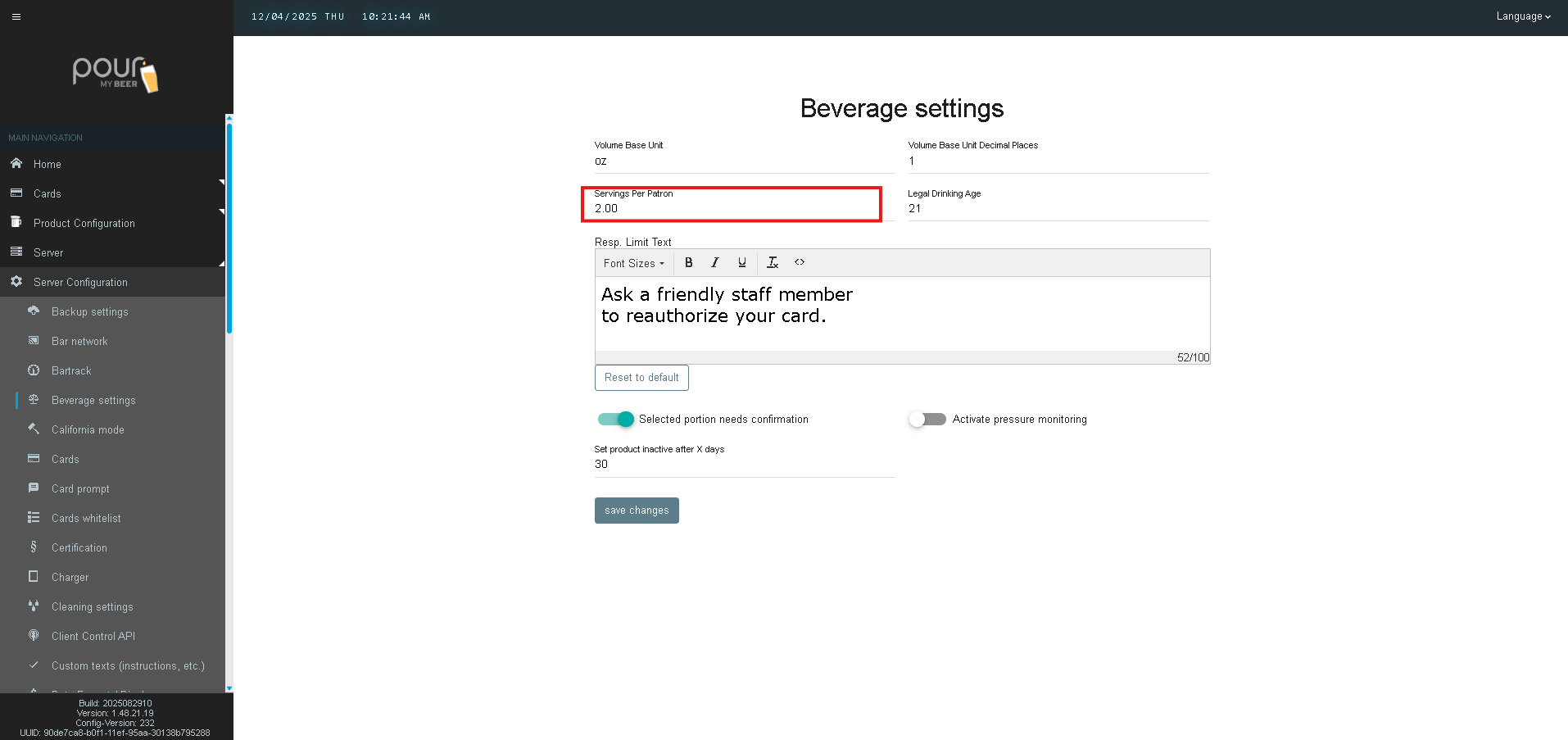
Setting: 2.00 (or similar value depending on system rules)
This defines how many full servings a patron is allowed to pour before reaching the responsible consumption limit.
This setting works alongside the Units Per Serving defined in the Product Database.
Example:
-
Units Per Serving = 16 oz
-
Servings Per Patron = 2.00
→ Patron limit = 32 oz total
You can adjust this number to meet venue-specific responsible service requirements.
Legal Drinking Age
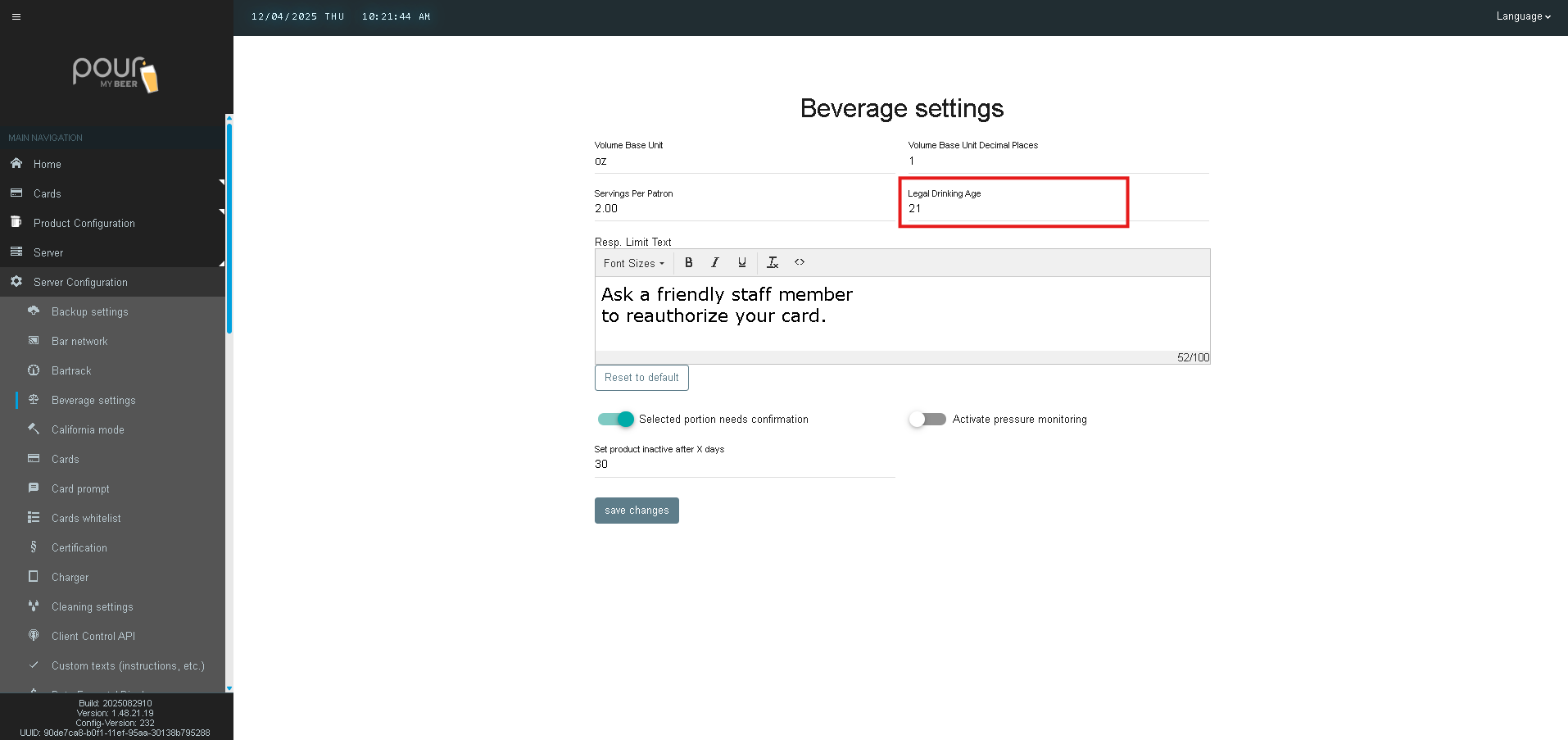
Setting: 21
Defines the minimum age required to use the system.
If driver’s license scanning is enabled, TTG verifies age automatically using this value.
Responsible Limit Text
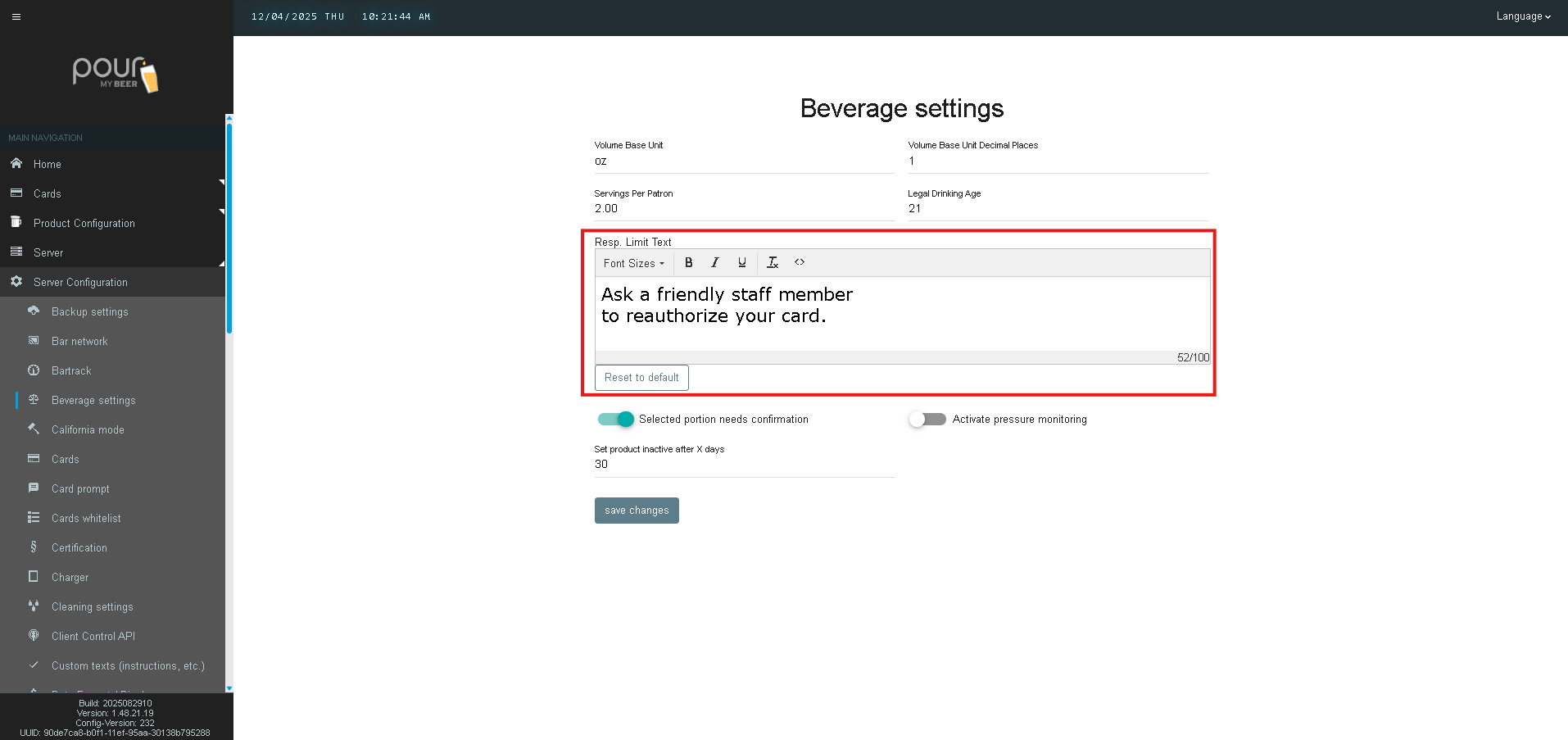
Custom message displayed when a patron reaches their pour limit.
This text appears on the tap screen when a customer hits their max allowed serving volume.
Font Size Adjustment
Each text line includes a Font Size slider (0–100).
Example Setting: 52/100
This controls how large the message appears on the tap screen.
Adjust font size for improved readability on X5 or X9 screens.
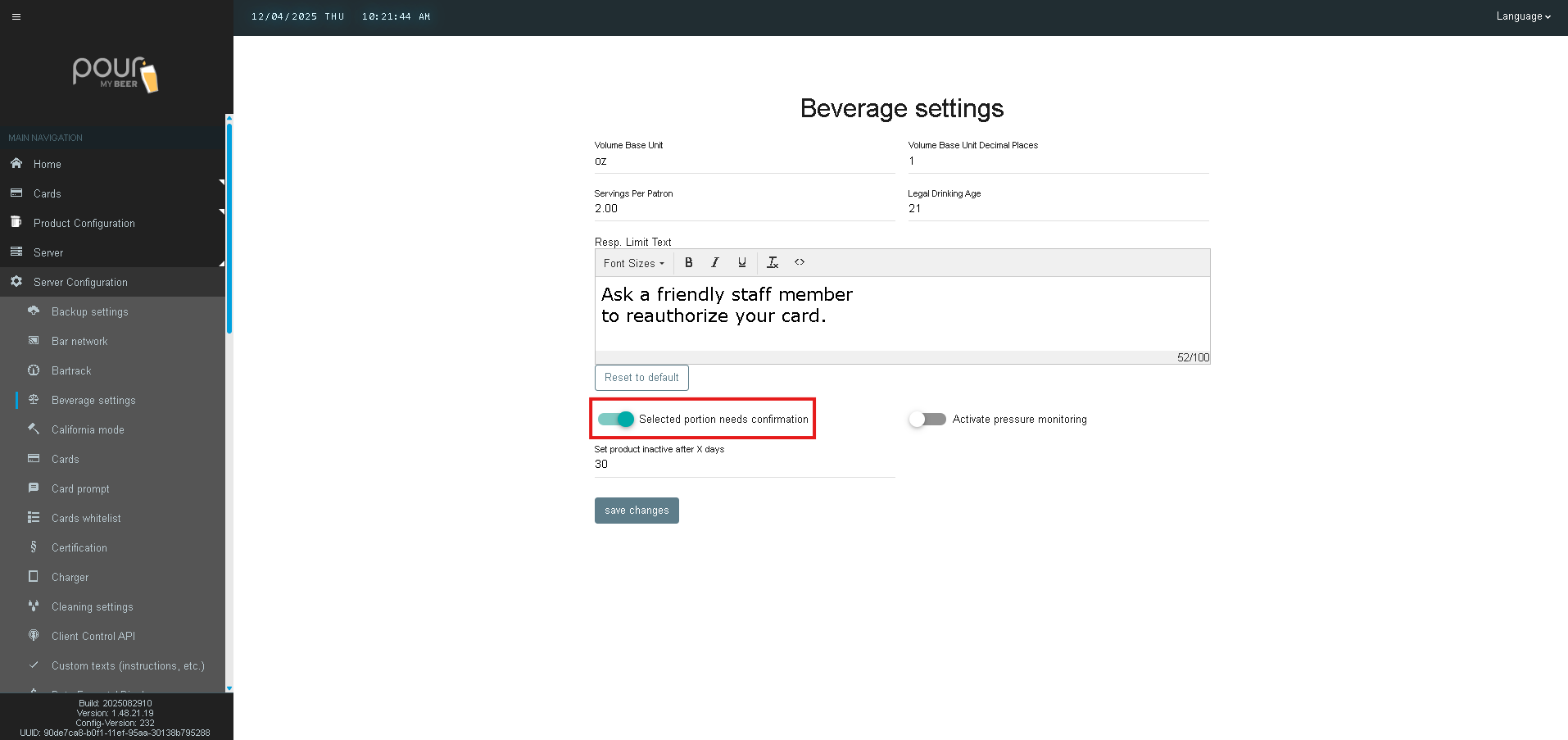
Selected Portion Needs Confirmation
The Selected Portion Needs Confirmation setting determines whether a customer must confirm their chosen portion size before the tap becomes active.
This applies when your system is using Portion Mode, allowing customers to choose preset pour sizes such as 4 oz, 8 oz, or 16 oz.
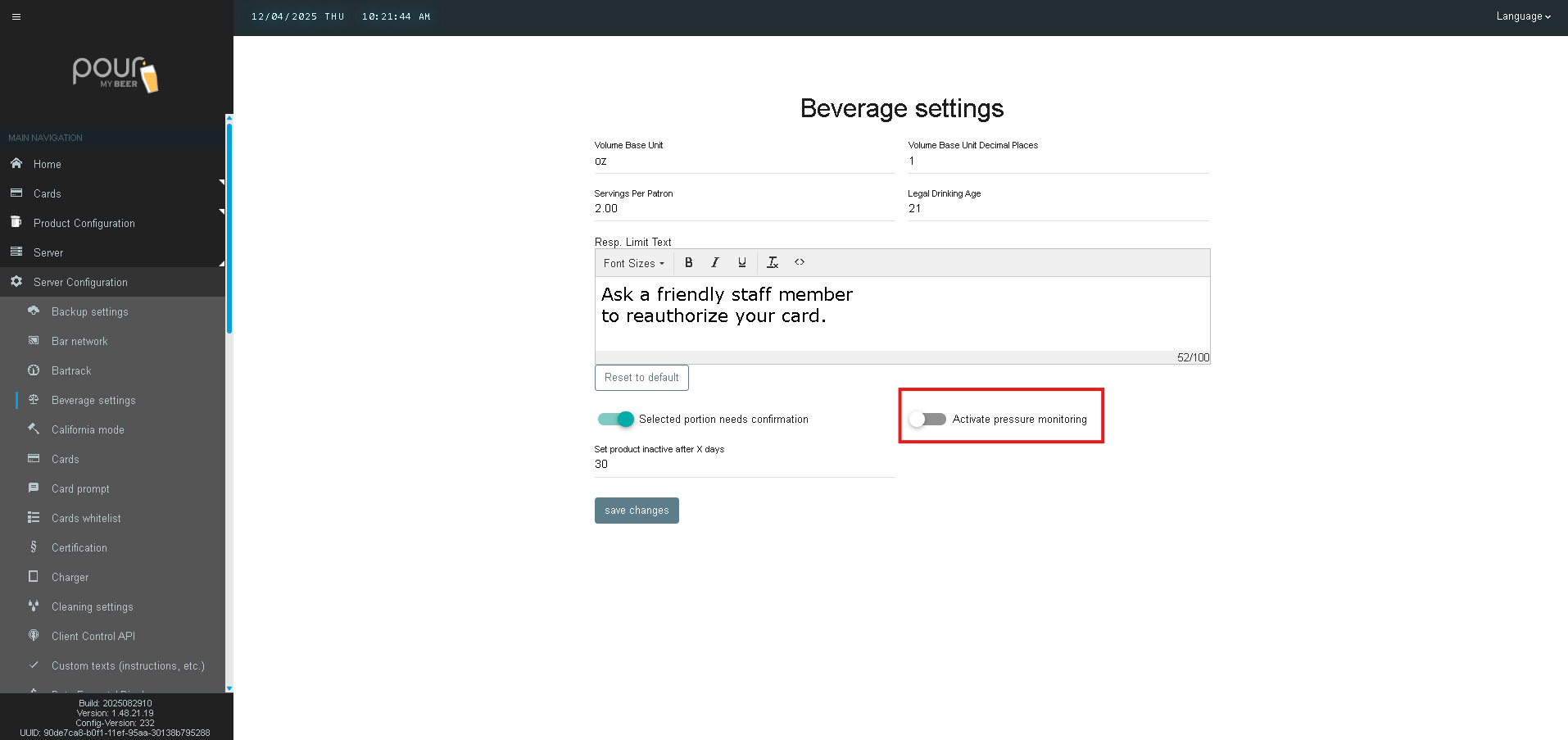
Activate Pressure Monitoring
The Activate Pressure Monitoring setting enables Table Tap Go (TTG) to receive and interpret pressure data from connected BarTrack sensors or compatible monitoring hardware.
When enabled, TTG can incorporate real-time pressure information into its keg diagnostics and alert systems.
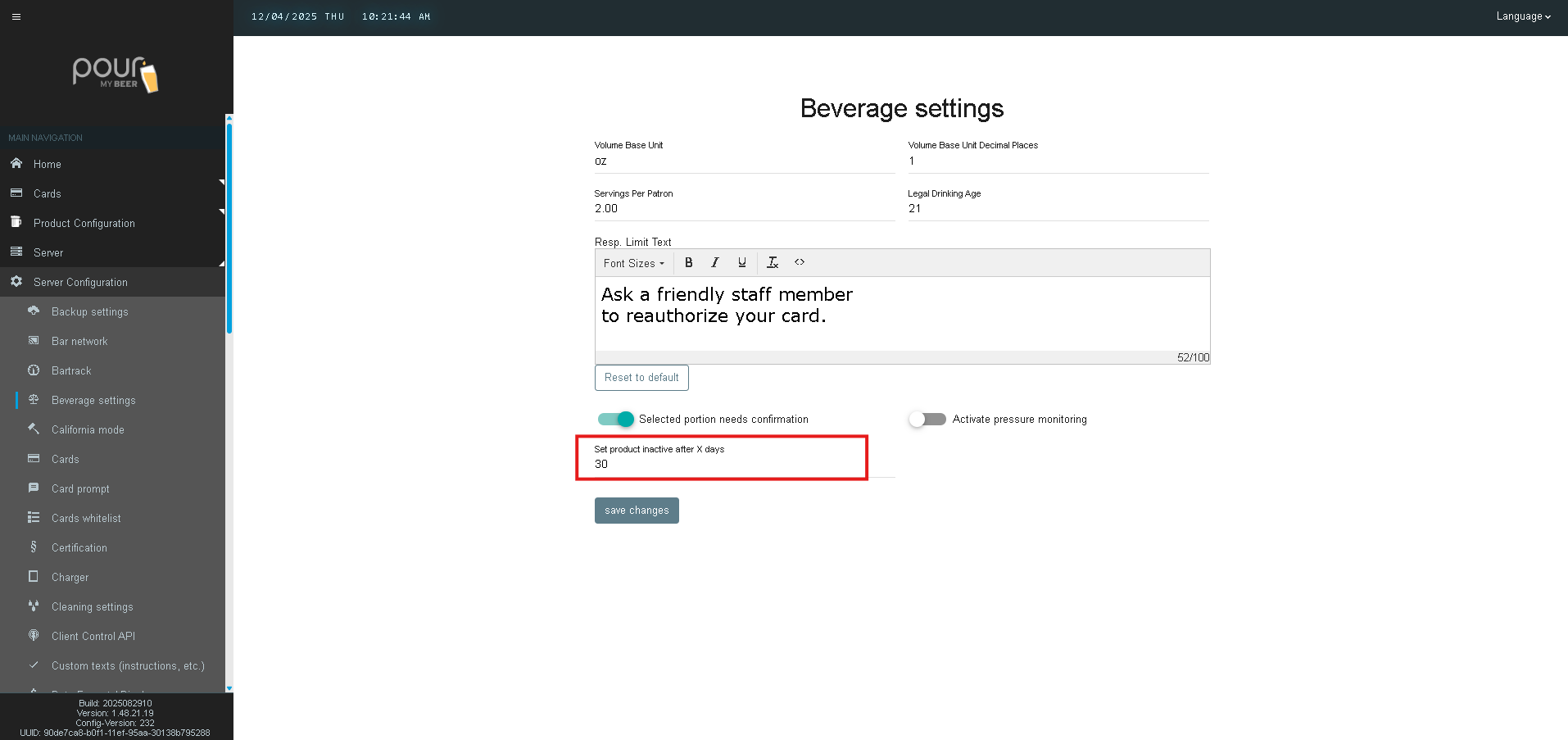
Set Product Inactive After X Days
Setting: 30
This automatically marks beverages as inactive if they haven’t been updated or used within the specified number of days.
This helps venues:
-
Keep beverage lists clean
-
Remove expired or unused products
-
Prevent displaying outdated items on tap screens
Example:
If set to 30, any product untouched for 30 days will be hidden from active use until reactivated.
Useful for venues with rotating craft taps or seasonal menus.
Step 2: Save and Apply Settings
After making changes:
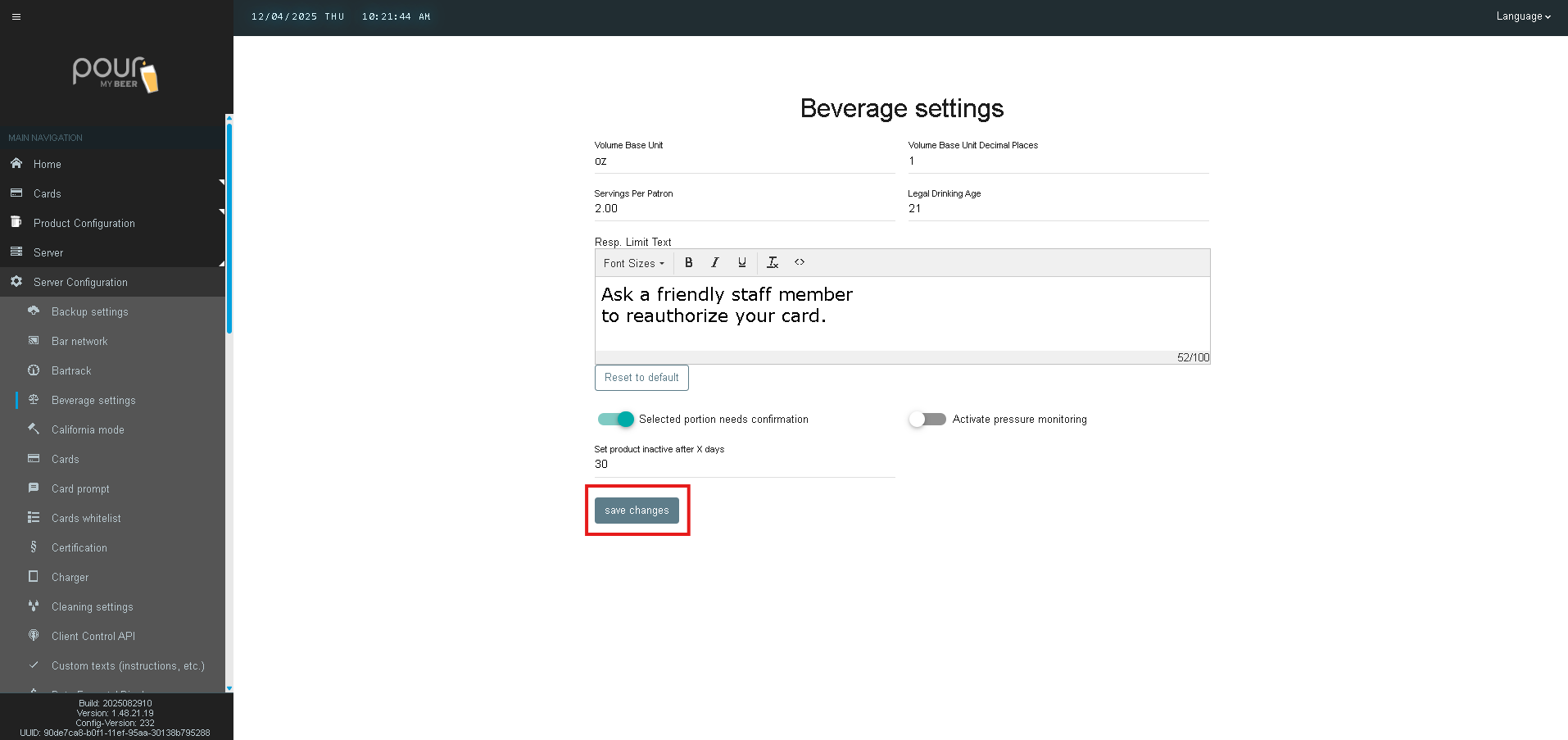
-
Click Save Changes
-
Click Send Config Update Notification to All Clients
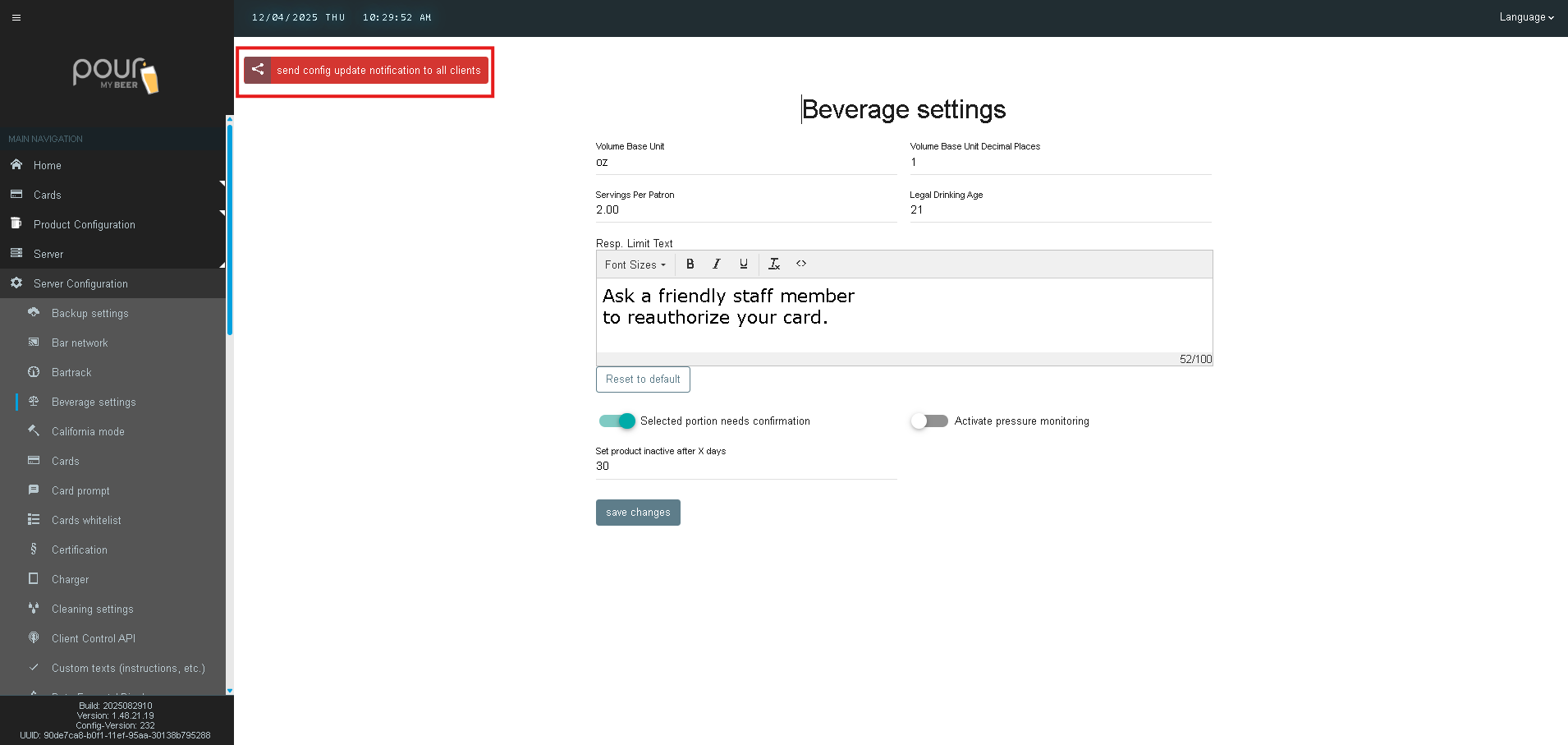
This ensures all tap screens display the updated behavior immediately.
Step 3: Verify on a Tap Screen
Place an Admin Card on a tap screen and verify:
-
Correct volume decimal display
-
Responsible limit messages appear correctly
-
Pour limits reflect your updated Servings Per Patron
-
Inactive products no longer appear in selection menus
Troubleshooting
| Issue | Cause | Solution |
|---|---|---|
| Pour limits not applying | Units per serving not set | Update product database |
| Text is too small/large | Font size adjustment needed | Modify font slider |
| Products disappearing | Inactivity timer set too low | Increase X-days value |
| Decimal display incorrect | Base decimal setting | Adjust decimal places |