
Connecting TTG to your BarTrack gateway for real-time keg data
The BarTrack Gateway Settings section in the Table Tap Go (TTG) Server allows your system to communicate directly with the BarTrack gateway device.
The gateway collects sensor data (keg levels, temperature, pressure, flow consistency) from BarTrack hardware and sends it to TTG.
If your venue uses BarTrack, these fields must be configured correctly to ensure accurate keg monitoring.
Step 1: Access the TTG Server
-
Open the Table Tap Go Server Management Page on the server desktop
or visit:http://localhost:8585 -
Log in using your Admin credentials or Admin Card.
Step 2: Open BarTrack Settings
-
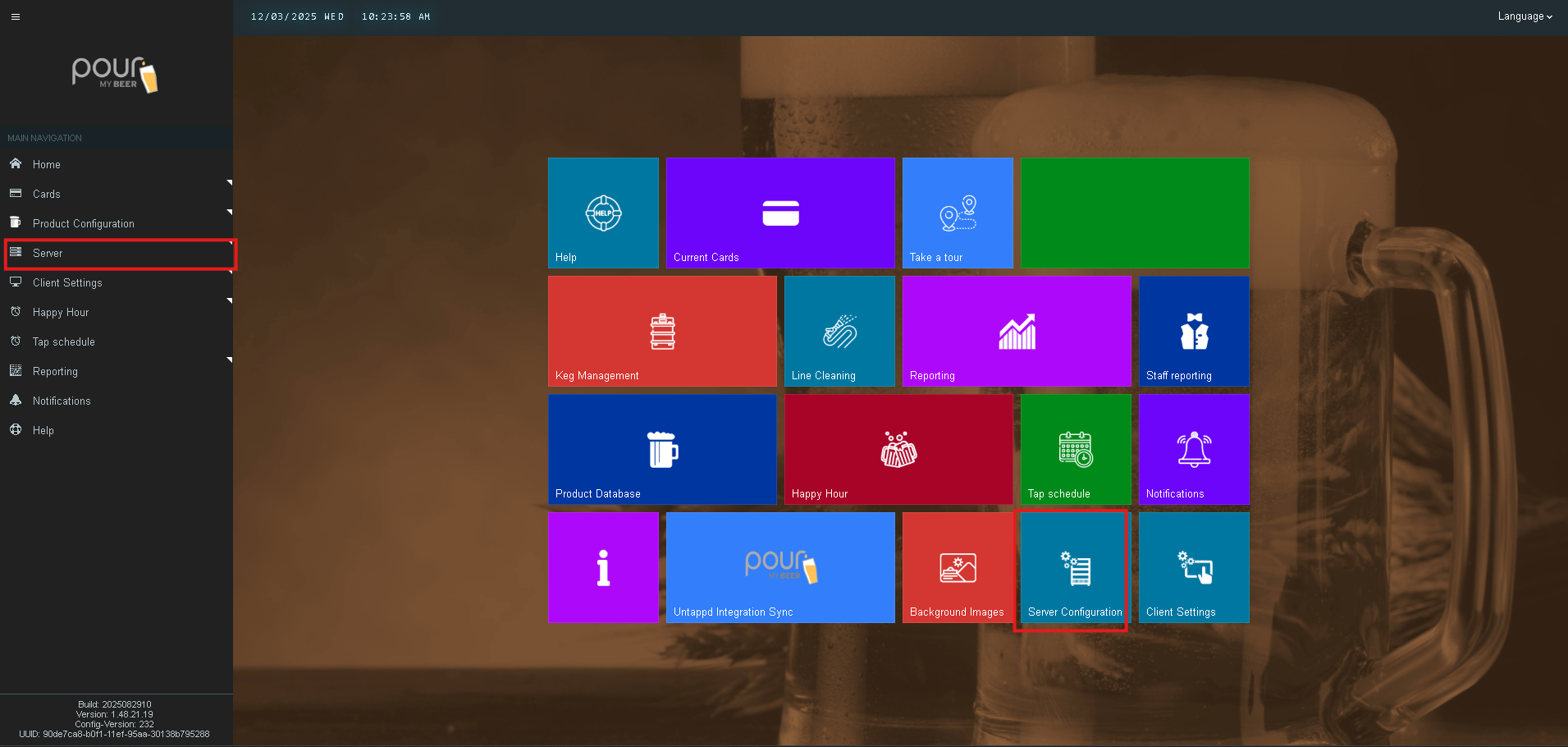
From the TTG home screen, click Server Configuration.
-
Select BarTrack Settings from the left-side menu.
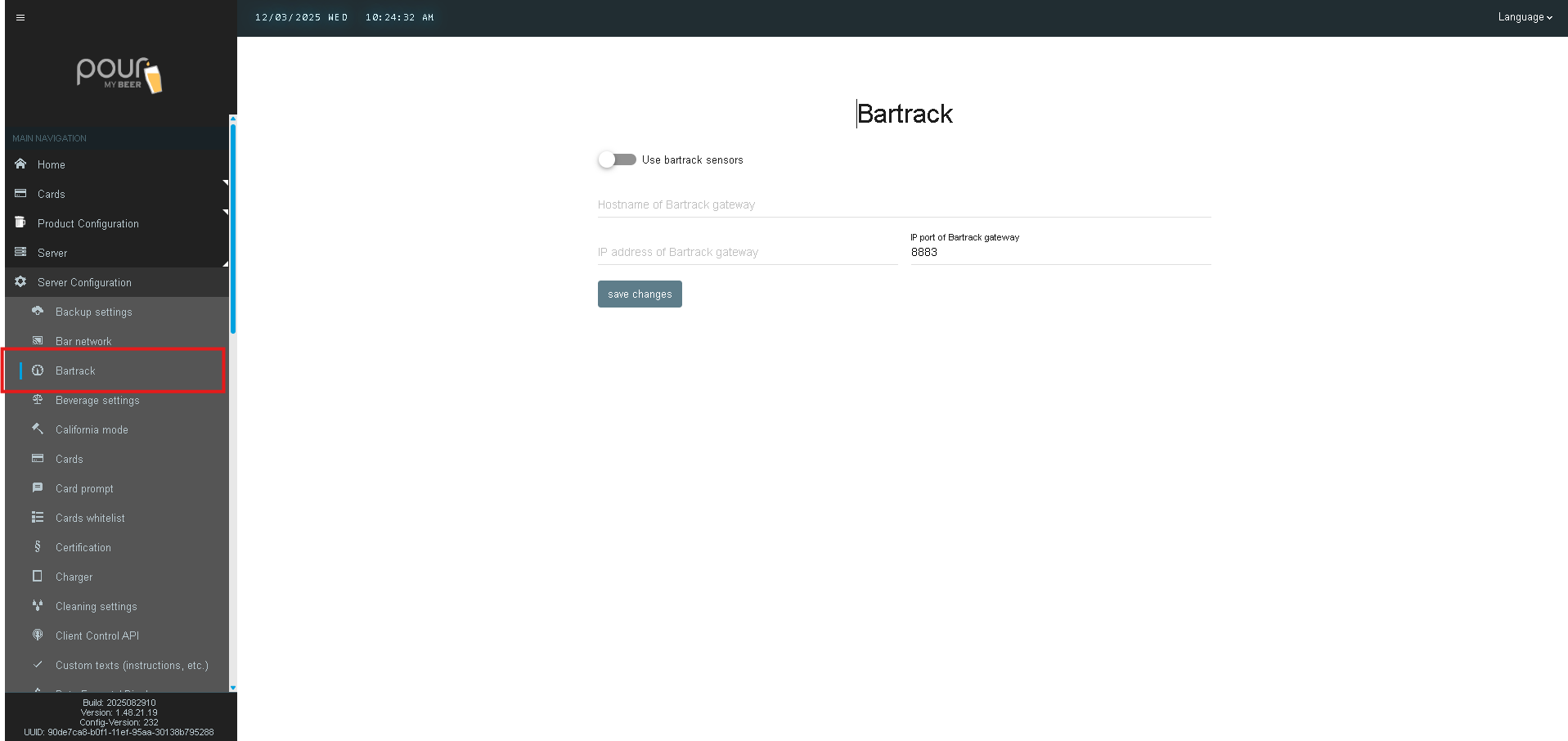
You will see fields specific to the BarTrack gateway connection.
BarTrack Gateway Settings Explained
Below are the fields you’ll find in this section, along with their purpose and how they should be configured.
1. Hostname of BarTrack Gateway
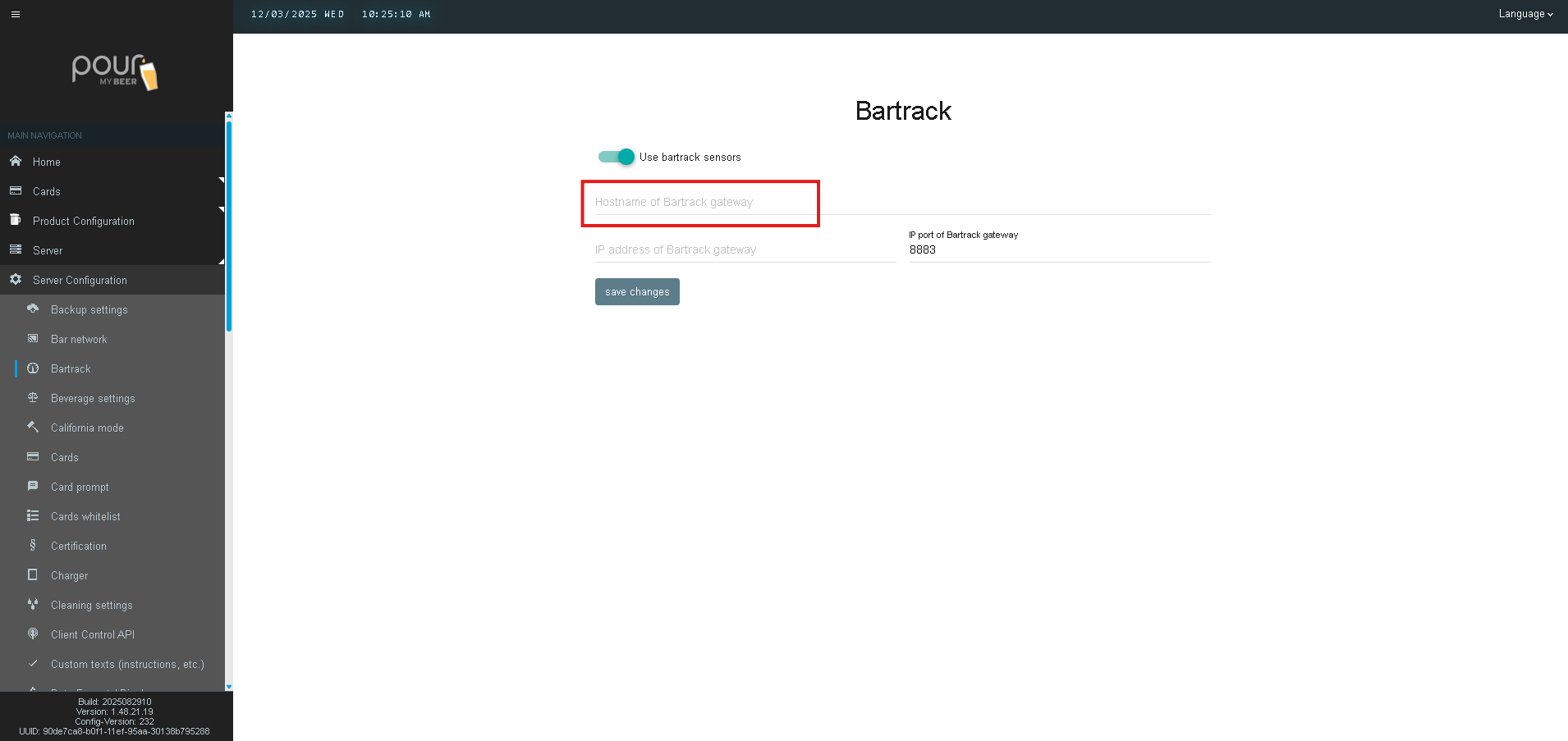
Field: Hostname of BarTrack gateway
Purpose:
The hostname identifies the BarTrack gateway on your network.
TTG uses this name to communicate with the gateway without needing a fixed IP address.
Example:
bartrack-gateway.local
Notes:
-
Use the hostname provided by BarTrack during installation.
-
Only one field may be required depending on your network setup.
-
Hostname and IP can be used interchangeably, but only one is needed.
2. IP Address of BarTrack Gateway
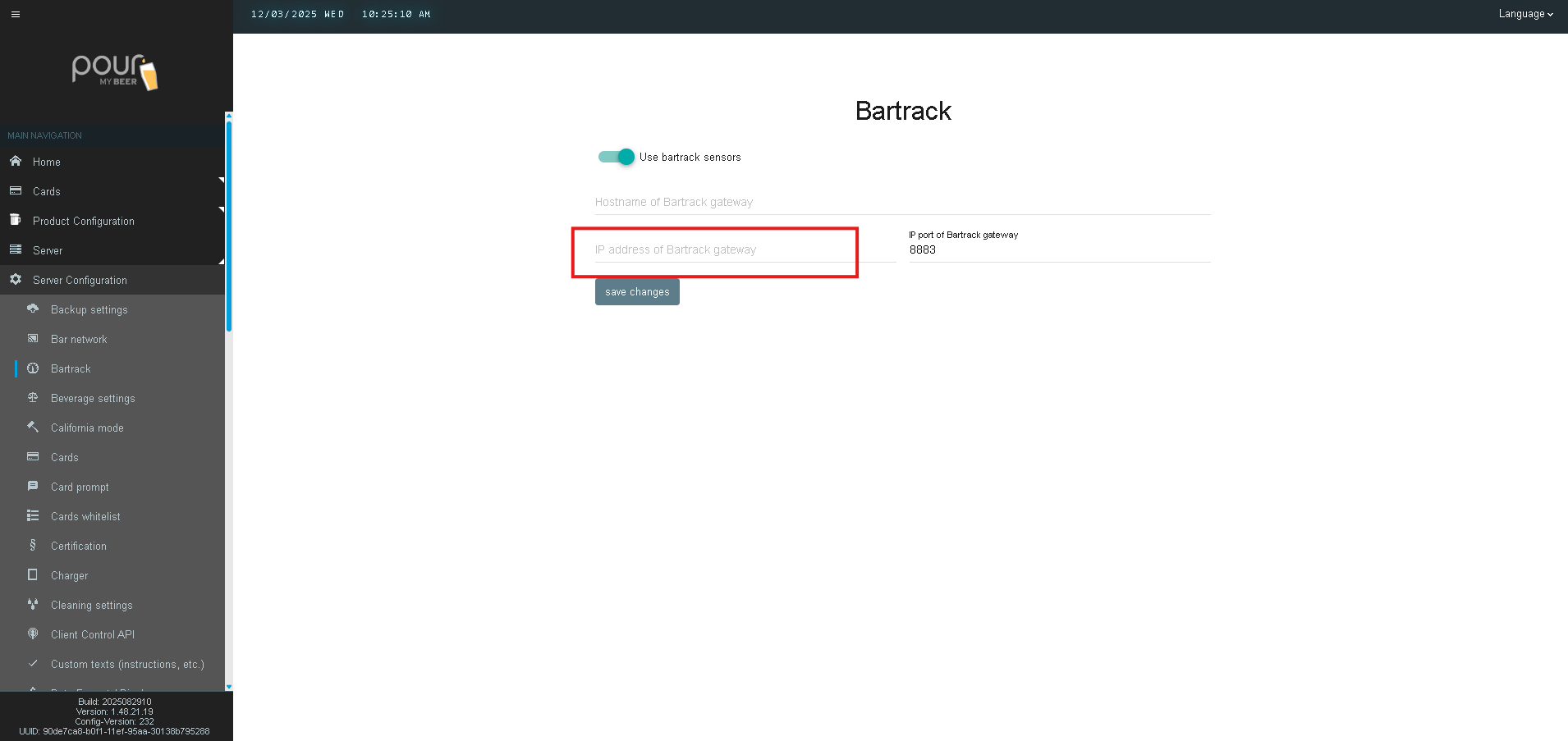
Field: IP address of BarTrack gateway
Purpose:
This is the direct IP address of the BarTrack gateway on your local network.
Example:
192.168.2.150
Notes:
-
This is the most reliable method if the hostname cannot be resolved.
-
Ensure the IP is static to prevent connection issues.
-
Only one IP entry is used—duplicate fields reflect backward compatibility across TTG versions.
3. IP Port of BarTrack Gateway
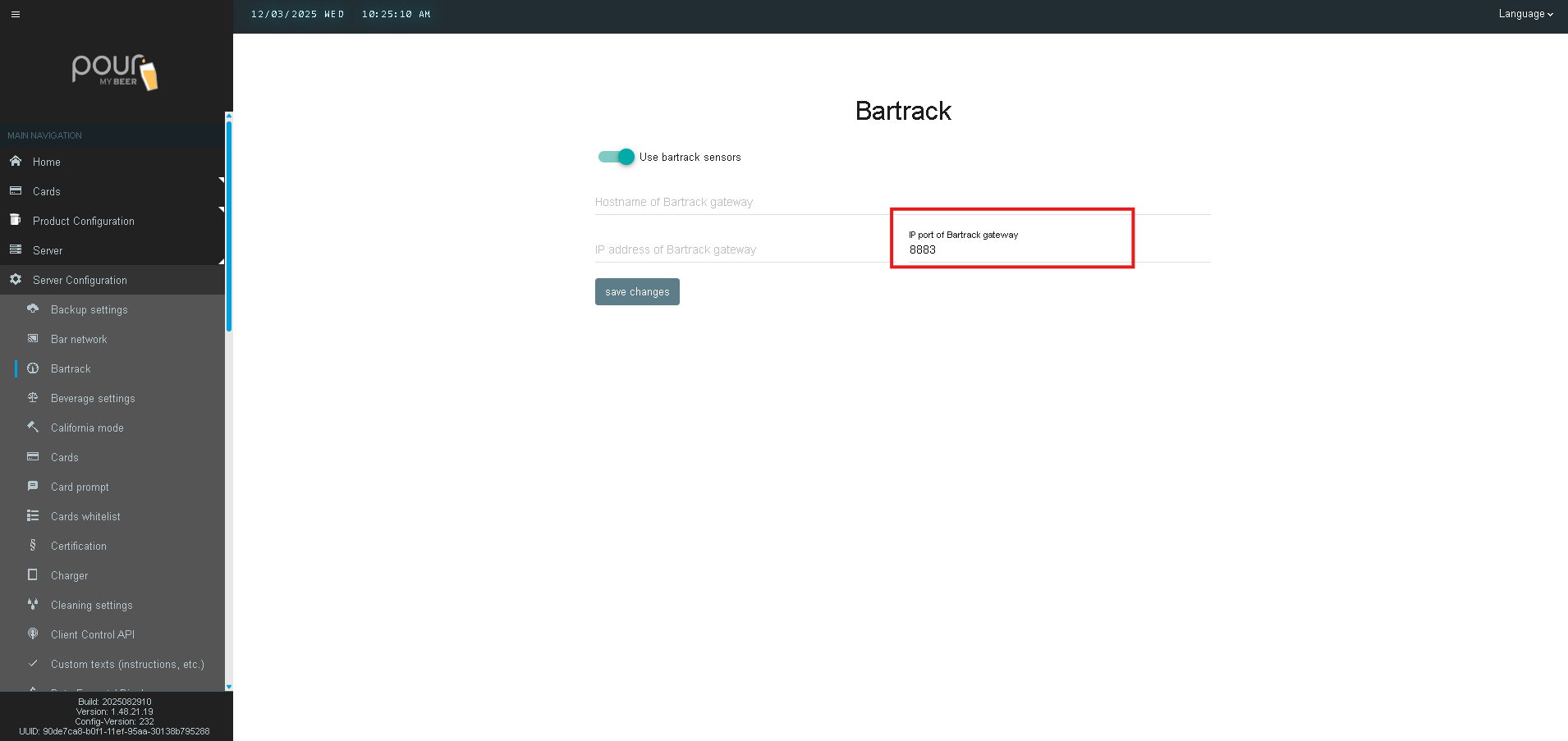
Field: IP port of BarTrack gateway
Default: 8883
Purpose:
This port is used for secure MQTT communication between TTG and the BarTrack gateway.
What it does:
-
Receives keg volume updates
-
Receives temperature and pressure measurements
-
Allows TTG to synchronize pour and sensor data
Important:
Do not change this number unless BarTrack Support instructs you.
Step 3: Save & Sync Configuration
After updating the gateway settings:
-
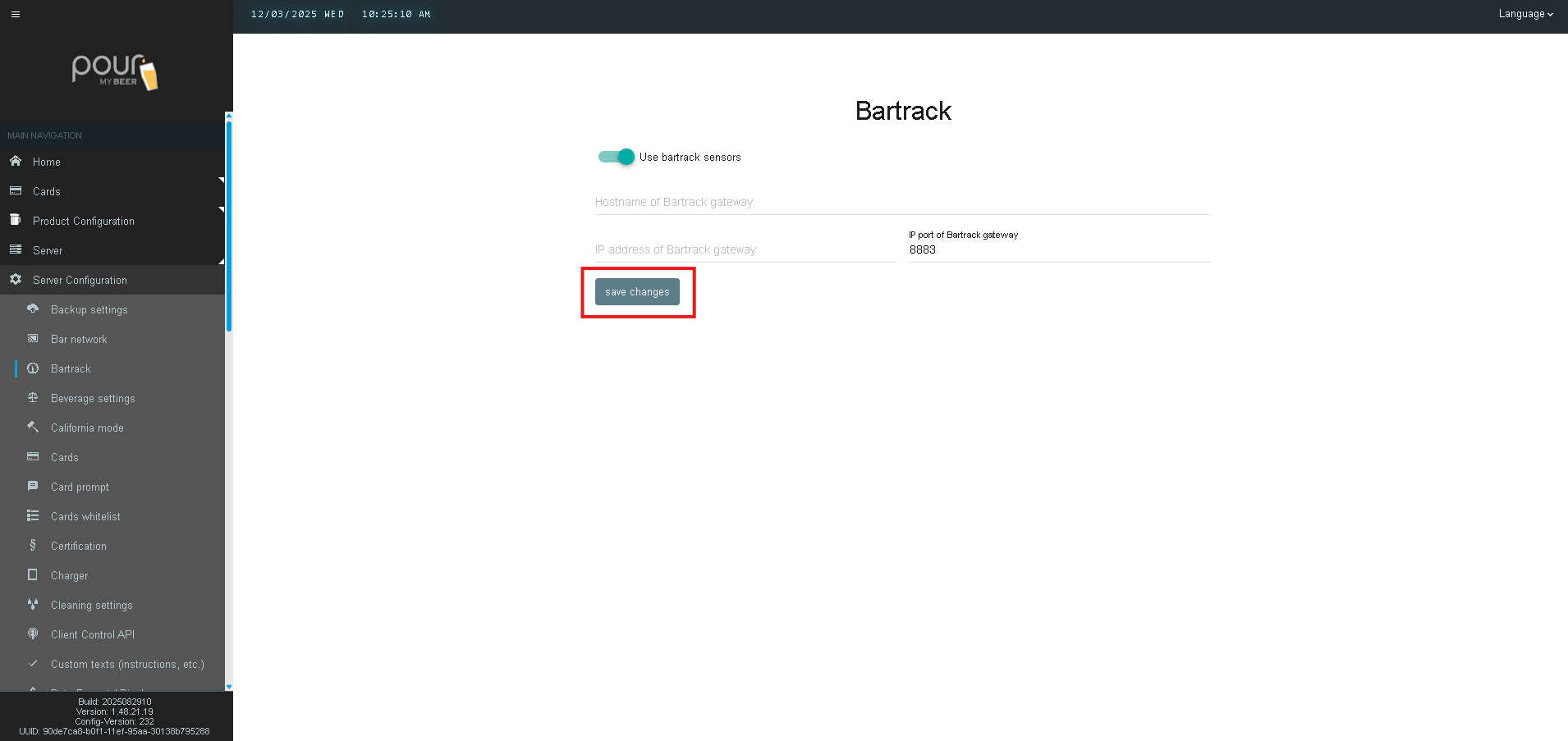
Click Save Changes at the bottom of the page.
-
Click Send Config Update Notification to All Clients.
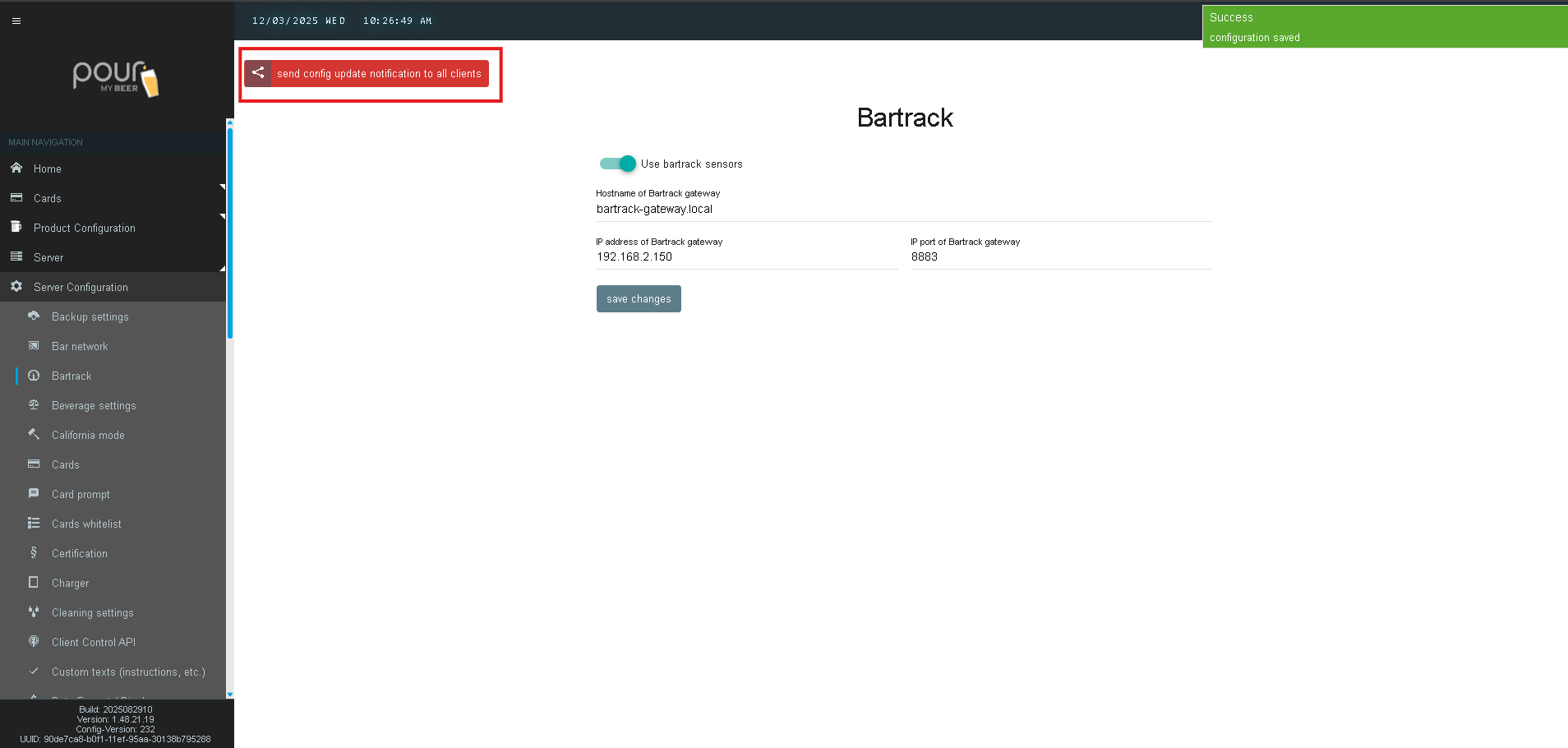
This ensures tap screens and system components use the new BarTrack connection.
Step 4: Test the Connection
To verify successful communication:
-
Open Keg Management in the TTG Server
-
Look for updated keg levels
-
Perform a test pour and confirm the keg volume reduces
-
Check BarTrack for matching pour logs
-
Ensure no “gateway offline” notifications appear
If no data is updating:
-
Confirm the gateway is powered and online
-
Verify the IP or hostname is correct
-
Check that port 8883 is not blocked by a firewall
-
Restart the TTG Server service if needed