
How to customize on-screen instructions, refund messages, and timeout behavior in Table Tap Go
The Bar Network Settings panel in Table Tap Go includes several advanced configuration options that control on-screen text, refund messaging, and communication timeouts for systems using Bar Network Mode or cashless payment devices (MDB-CD).
These settings ensure clear instructions for customers and stable communication with connected hardware.
This article explains each setting and how it affects the guest experience when using Bar Network–connected dispensing equipment.
1. Bar Network Text Customization
TTG allows customization of instructions and hint text that appear on-screen during Bar Network pours.
Each text field includes a font size slider (0–100) to adjust readability based on screen type (X5 / X9 / portrait / landscape).
Available Text Fields
| Setting | Description |
|---|---|
| Bar Network Selection Hint Text | Text shown when choosing a product or tap in Bar Network mode. |
| Bar Network End-of-Pour Hint Text | Message displayed after the pour completes (e.g., “Thank you!”). |
| Bar Network Pour Instructions | Instructions shown while the customer is pouring (e.g., “Turn handle to pour”). |
| Pre-Selection Text | Text shown before a pour begins, often explaining next steps. |
| Logout Custom Text | Message shown when the customer session ends or times out. |
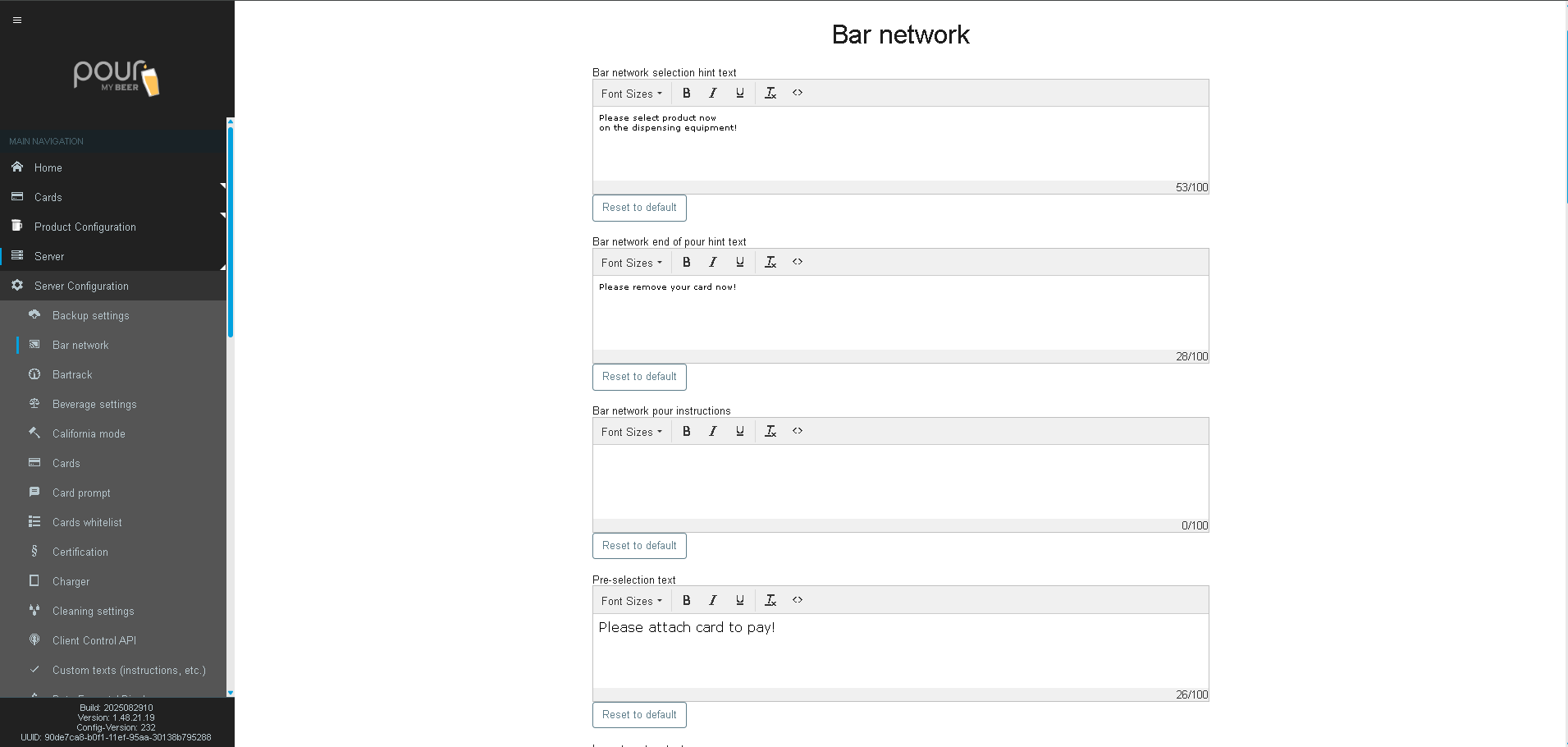
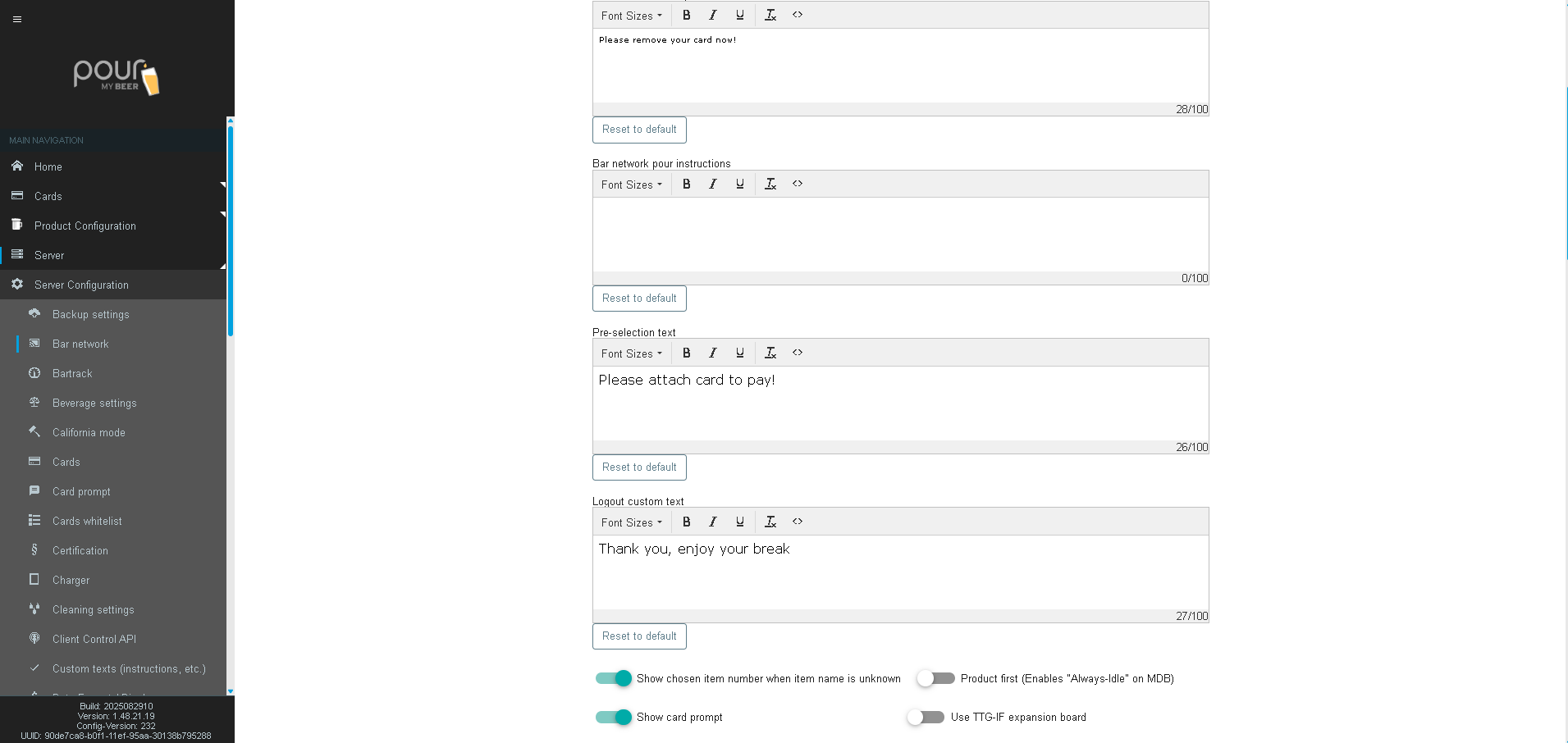
Each of these fields also includes a Font Size setting (0–100) to customize visual accessibility.
These text fields help tailor the Bar Network experience to your brand and customer expectations.
2. CCI/CSI Communication Settings
These settings control communication behavior between TTG clients and external hardware.
Settings
| Setting | Description |
|---|---|
| CCI/CSI Settings | Defines communication timeout value between TTG and Bar Network hardware. Default: 5. |
| Timeout Payment System (CCI/CSI) | Seconds before TTG cancels a pending communication request to a payment system. Default: 1. |
| Timeout Payment Booking (CCI/CSI) | Delay before TTG aborts a payment confirmation message if no response is received. |
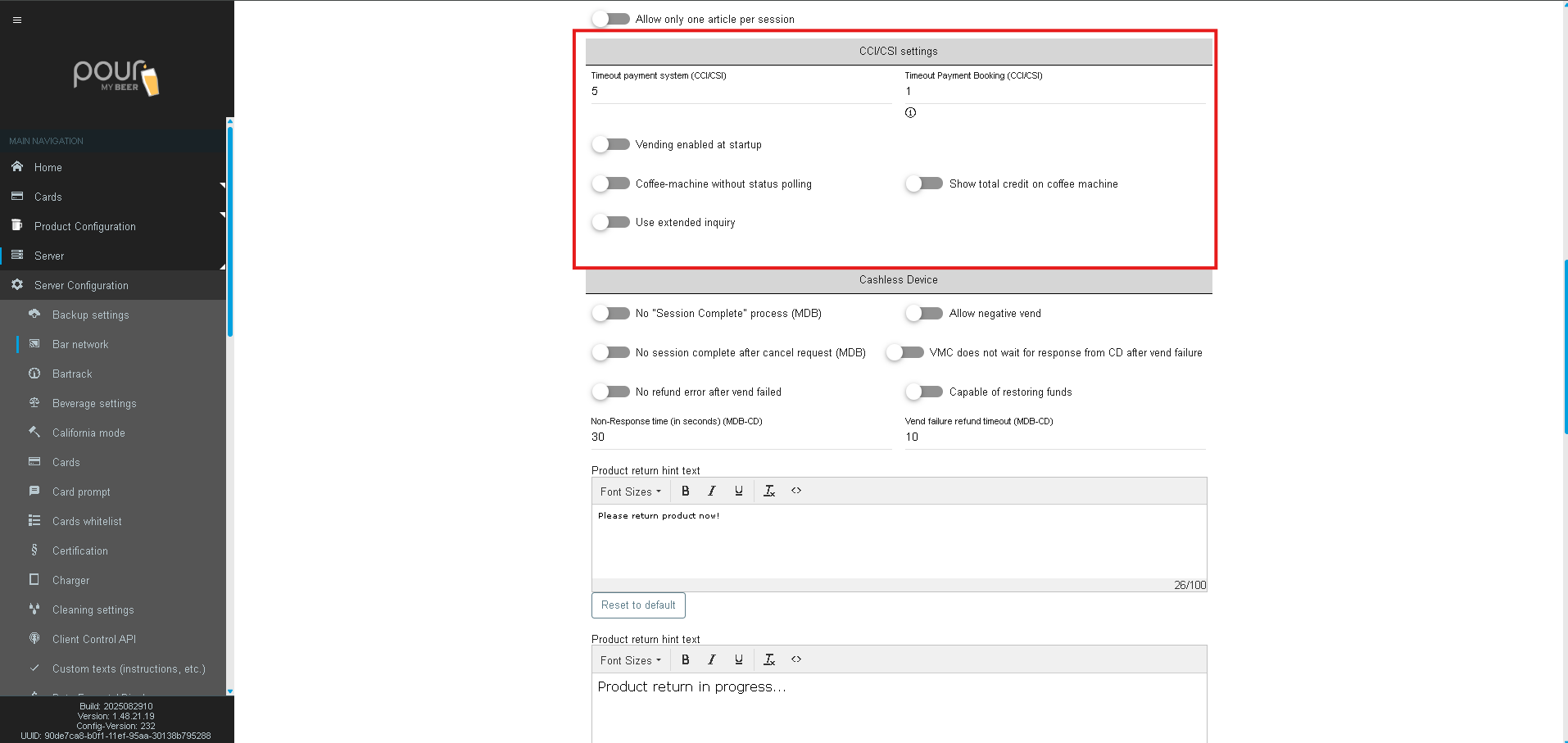
Correct timeouts prevent frozen screens or stuck sessions if external systems fail to respond.
3. Cashless Device Timeout Settings (MDB-CD)
If your venue uses a cashless vending module or a payment device communicating through MDB-CD, these settings apply.
Settings
| Setting | Description |
|---|---|
| Cashless Device Timeout | Time allowed for a cashless device to respond. Default: 30 seconds. |
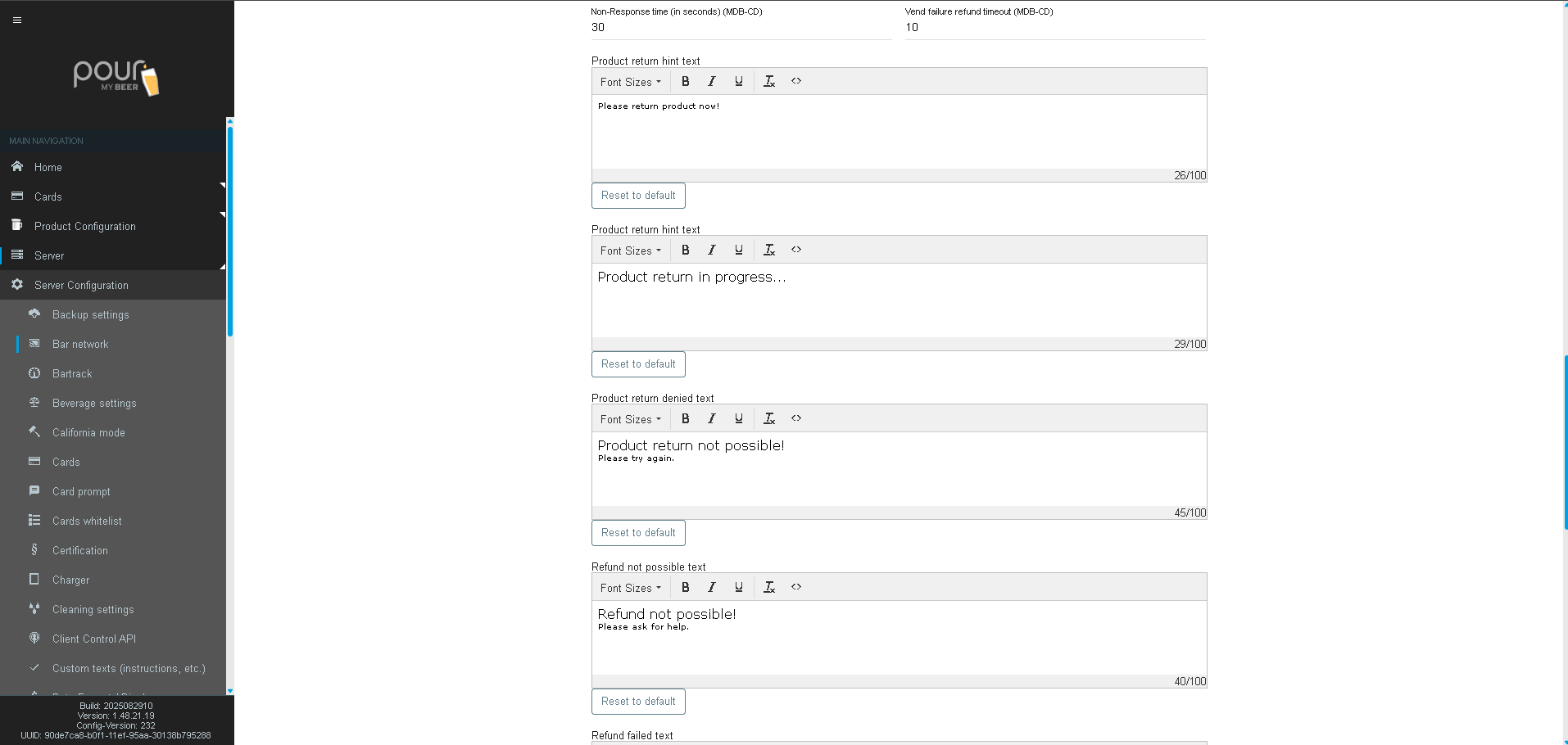
| Non-Response Time (MDB-CD) | Seconds TTG waits for the cashless device before assuming failure. Default: 10 seconds. |
| Vend Failure Refund Timeout (MDB-CD) | Time TTG waits before issuing a refund after a failed vend. |
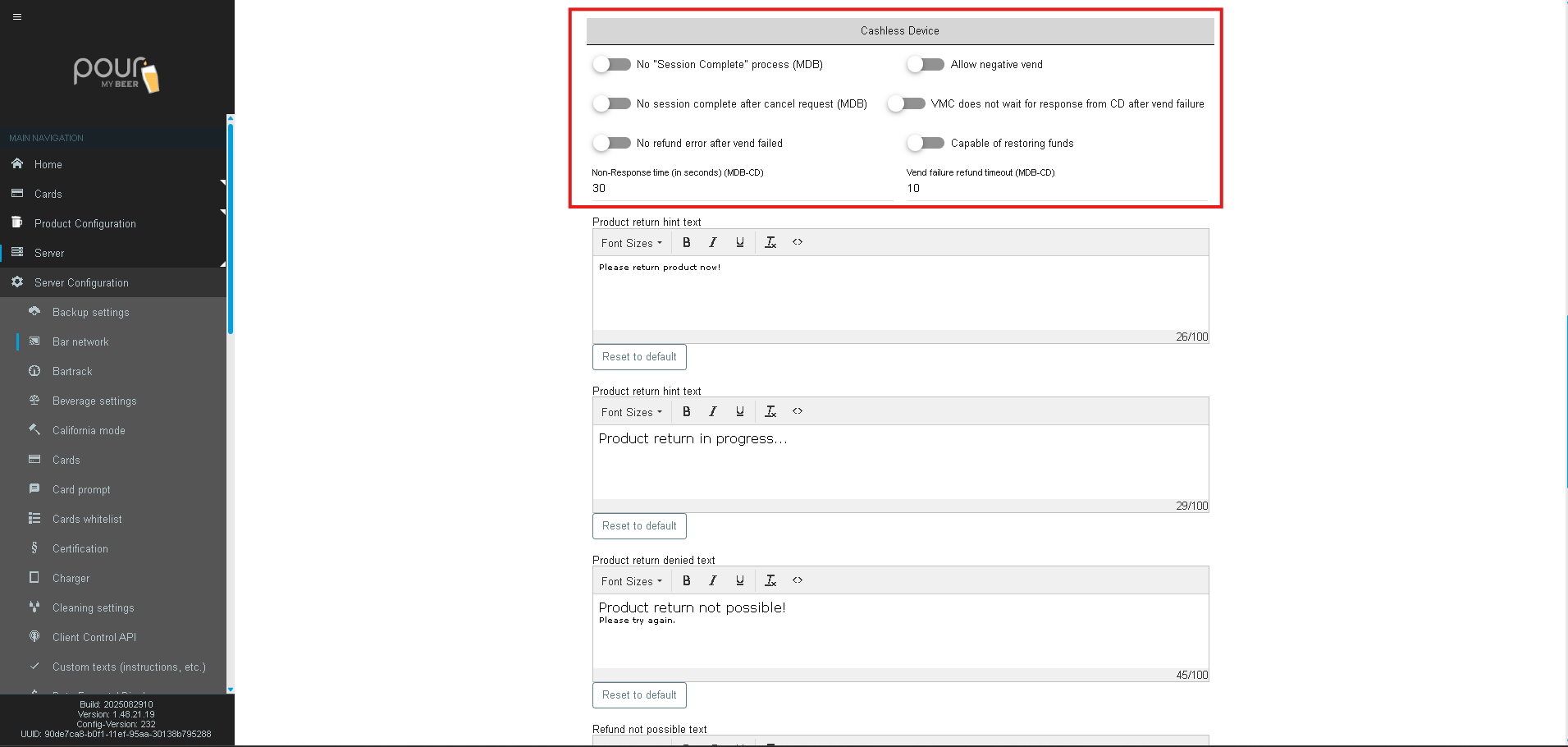
These values ensure customers are not overcharged and refunds occur promptly if hardware fails.
4. Refund & Product Return Text Settings
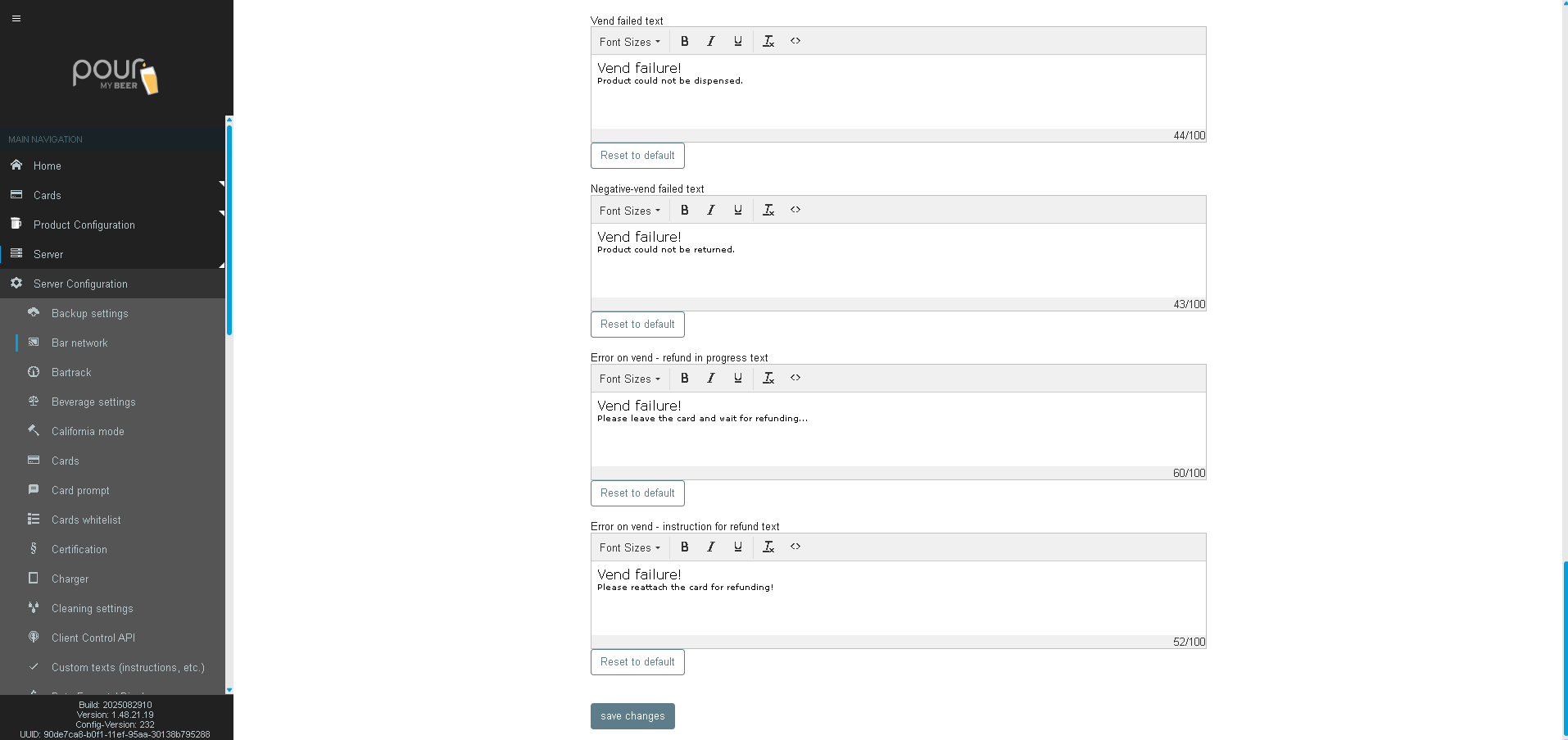
These settings allow you to customize the messages displayed to customers when a vend fails, a refund is issued, or a product return is denied.
Each includes its own Font Size control (0–100).
Available Messages
| Text Field | Purpose |
|---|---|
| Product Return Hint Text | Instructions shown when a return or cancellation is allowed. |
| Product Return Denied Text | Displayed when a return is not permitted. |
| Refund Not Possible Text | Shown if refund conditions are not met. |
| Refund Failed Text | Displayed when the refund attempt fails. |
| Vend Failed Text | Indicates the product/vend attempt failed. |
| Negative-Vend Failed Text | Used for scenarios where reverse vending or refunding fails. |
| Error on Vend – Refund in Progress | Shown to the customer while TTG issues an automatic refund. |
| Error on Vend – Instruction for Refund | Displays guidance if manual refund steps are required. |
These messages ensure customers are clearly informed during any payment or dispensing errors.