Tap scheduling is a great option to have your taps automatically shut off/come back on at certain times. This feature can also be used to setup an event on "open pour" so that it starts/stops automatically.
When you open up this tab you'll be given a few different options for how you want to customize the schedule. This gives you options to setup something that is recurring, or date specific. 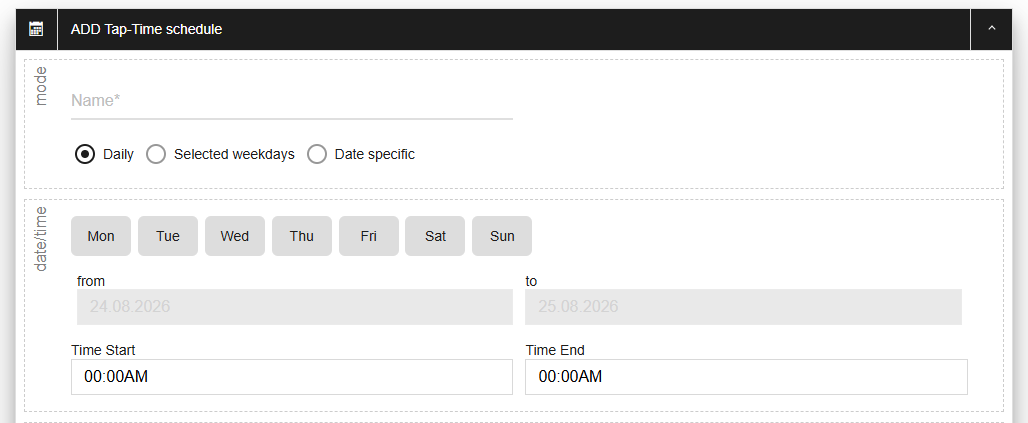
For the tap schedules, you will want to use the option that has "closed for tapping" highlighted. Your taps are already open by default, so you'll be using this to setup what hours the system is closed for. For example if you are open from 10AM to 11PM, you'll set this "time start" to 11PM and "time end" to 10AM so that it's closed during the night.
If you are setting up open pour, select that option. You can see more info on what that entails here!

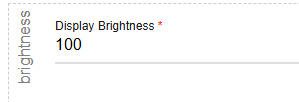
You can also adjust the screen brightness. 100 is full brightness and 0 is minimal. Keep in mind that at 0 brightness, customers may not be able to read the message that says your hours of operation have passed.
You can edit this schedule to only impact certain devices/product types as well! This is a good option especially if you carry any non-alcoholic products that you want customers to have constant access too. Keep in mind that for open pour, you must set the entire screen to be in/out of open pour, so even if you select only certain product types it will apply to the whole screen.
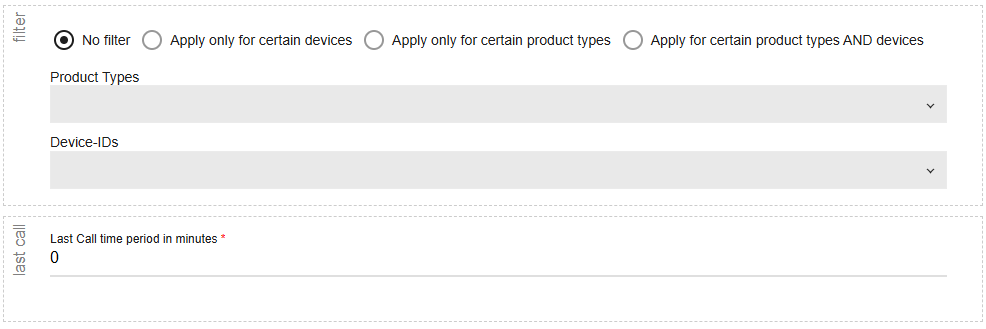
Last call allows you to set up a countdown timer letting people know you are about to close. By default this is set to 0 so it is off, but you can adjust it to your liking!